How to Invoice a Customer for Multiple Projects in MS Dynamics 365 Business Central
 By Inkey Solutions
August 29, 2025
3 min read
By Inkey Solutions
August 29, 2025
3 min read
Introduction
Microsoft Dynamics 365 Business Central offers a robust ERP solution with numerous features to enhance business operations. One such feature of 2024 released wave1 is the ability to simplify your invoicing process by consolidating multiple project invoicing into a single sales invoice. This capability reduces manual effort, minimizes errors, and improves overall invoicing accuracy.
Business Value
By consolidating invoicing for multiple projects into a single sales invoice, you streamline administrative tasks and improve accuracy. This approach reduces the time and effort required for invoicing, enhances the precision of your financial records, and provides a clearer overview of your project-based billing. It ultimately supports better cash flow management and operational efficiency.
Requirement
How can you efficiently create a sales invoice for multiple projects in Business Central?
Prerequisites
- Ensure that you have a valid license for Microsoft Dynamics 365 Business Central.
- Verify that users performing this task have the necessary permissions to create and manage sales invoices.
Solution (Implementation Steps)
Follow these steps to simplify the invoicing process for multiple projects:
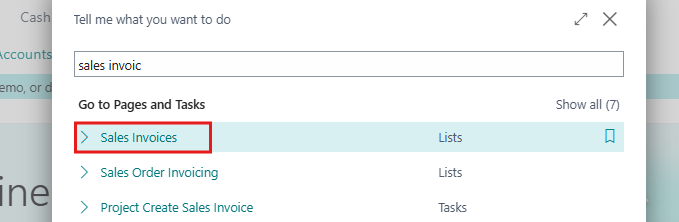
- Let’s Start by creating a new sales invoice. Go to the search icon and type “Sales Invoices”. This will navigate the user to the Sales invoice page.
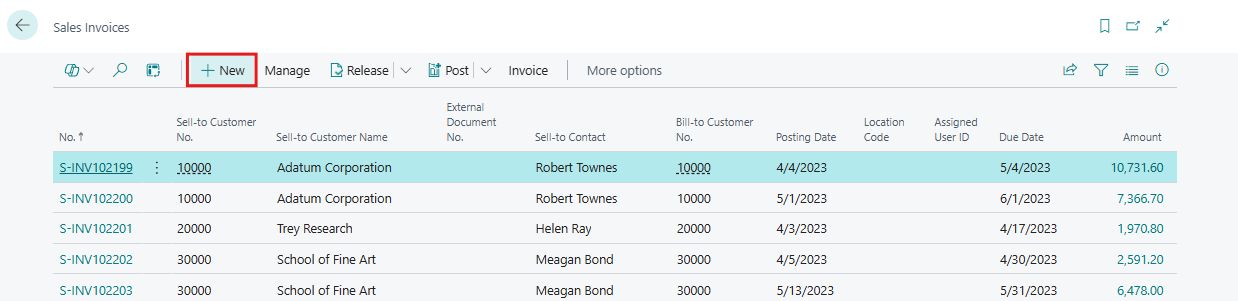
- Now on the sales invoice page, click on +New to initiate a new invoice.
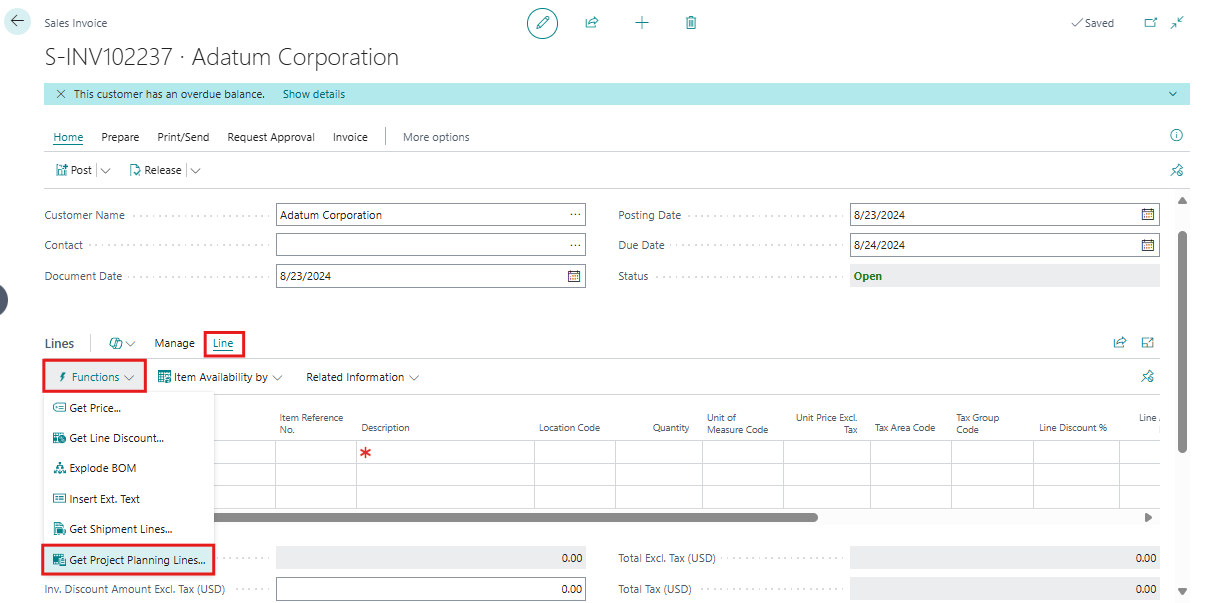
- Fill in the required fields, including the Sell-to Customer No. Optionally, you may also enter the Bill-to Customer No. and Currency Code fields if needed. On the Lines Fast tab of the sales invoice, click on the Line > function > “Get Project Planning Lines” action.
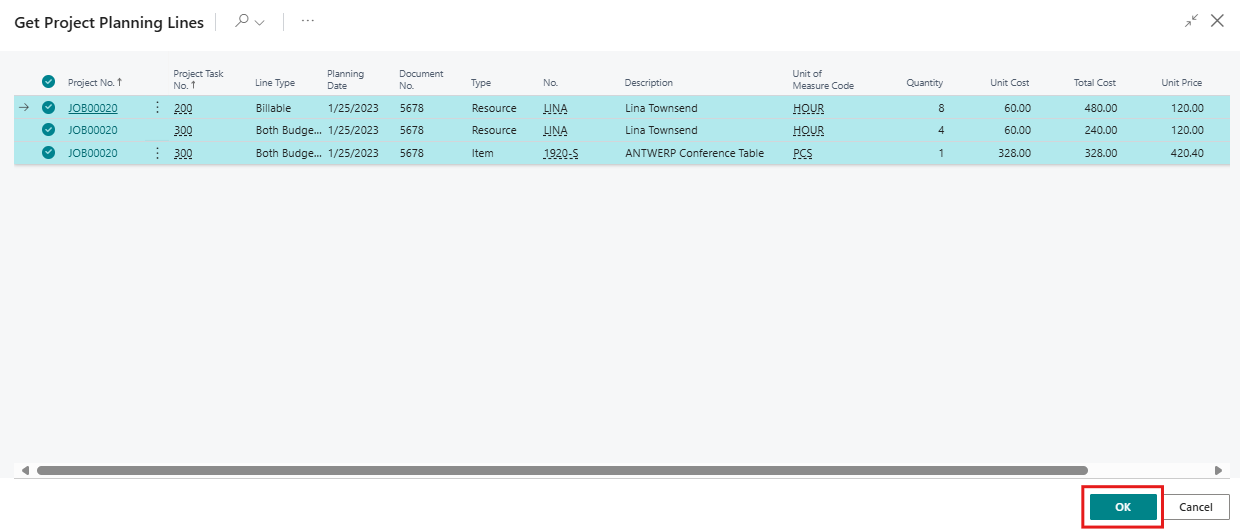
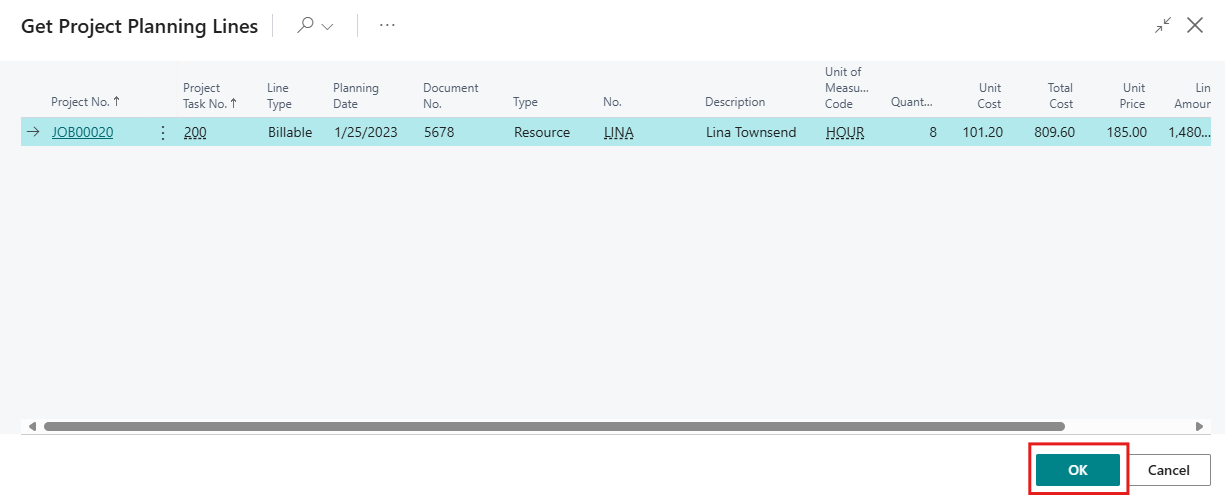
- The “Get Project Planning Lines” page will appear, Choose the project planning lines you wish to include in the invoice and click OK. You can repeat this step to add additional project planning lines if necessary. You can delete any lines or the entire invoice if needed and start the process again.
Note: –
The lines only show Billable or Both Budget and Billable project planning lines from projects associated with the selected sell-to customer, bill-to customer, and invoicing currency. It will only display lines where the quantity to invoice is greater than zero.
- This will create lines in the Sales Invoice Lines based on the selections made on the Get Project Planning Lines page and after getting lines users can post this invoice.
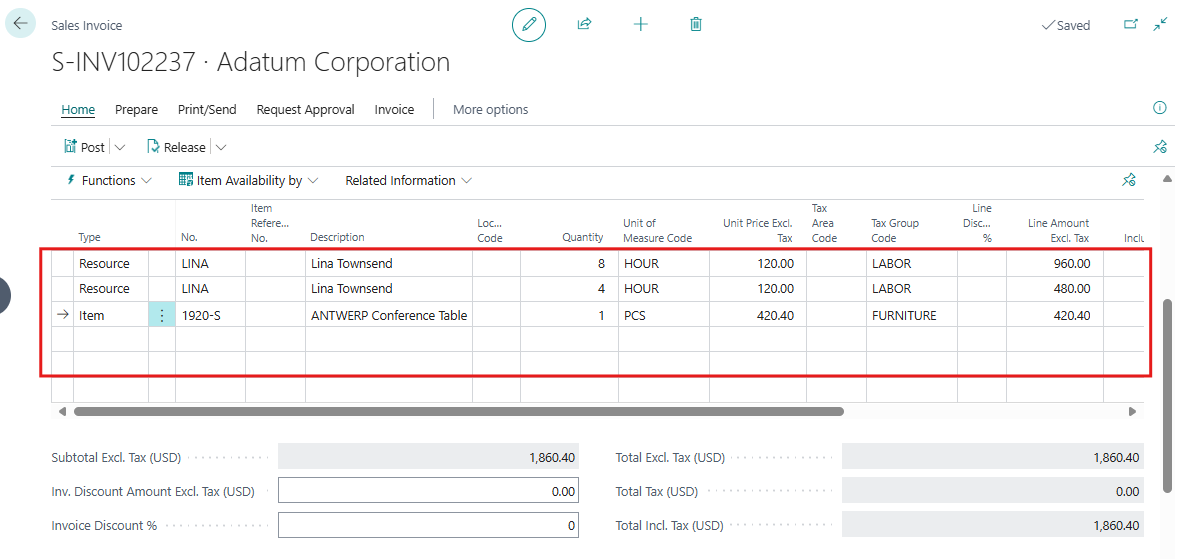
- But If on the project planning lines sell-to customer, bill-to customer, and invoicing currency then only three-parameter matched.
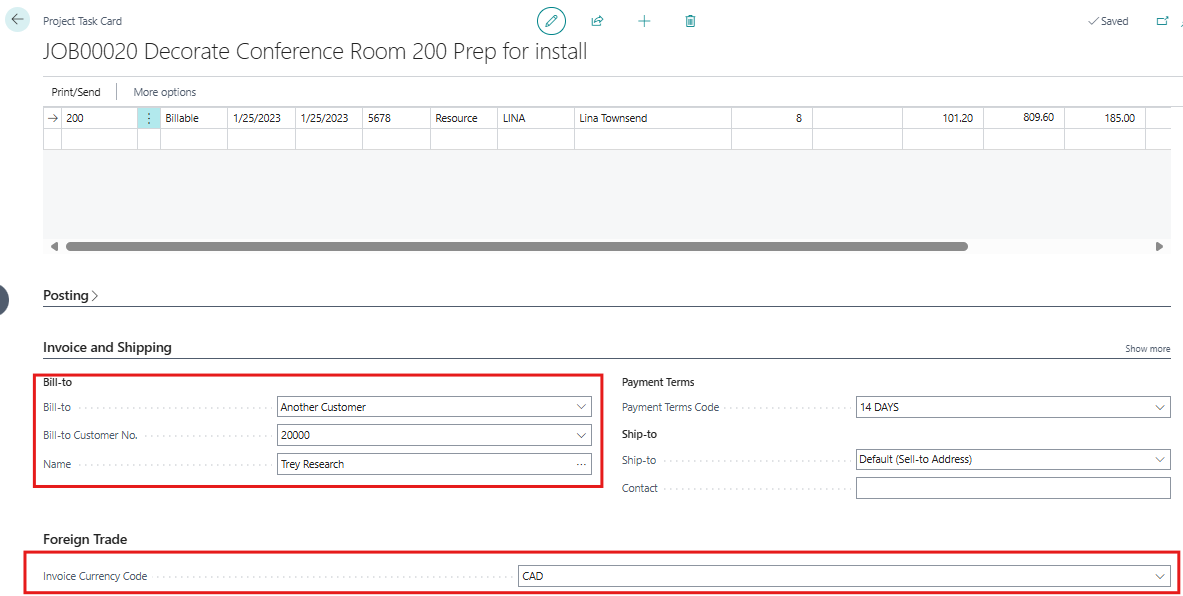
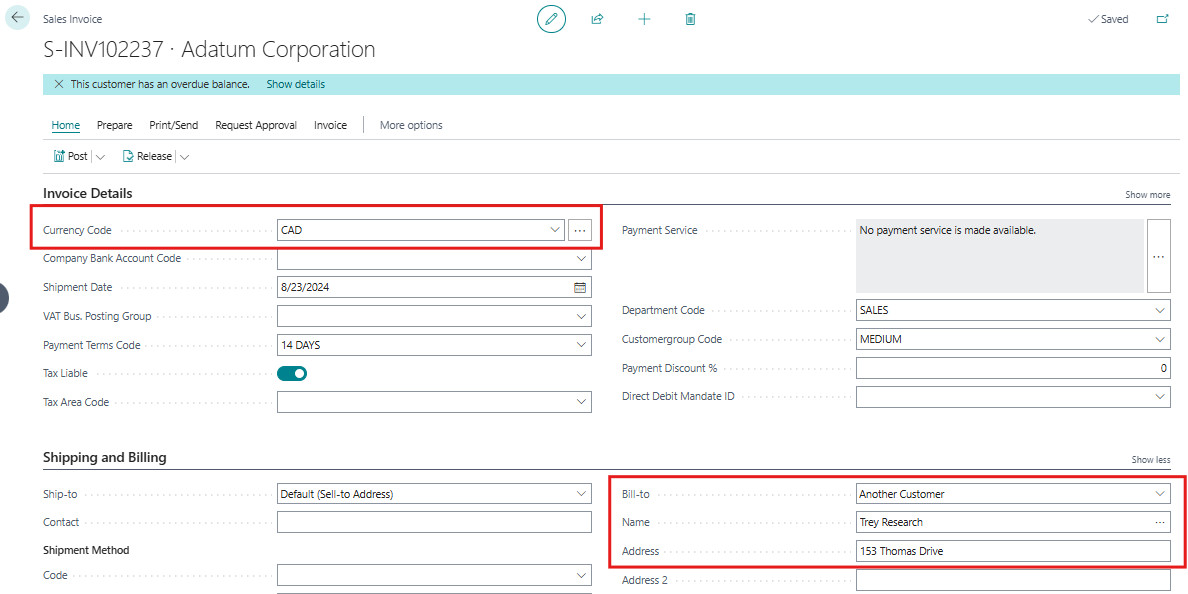
- Now users need to select sell-to customer, bill-to customer, and currency on Invoice Details and Shipping and Billing fast tab of Sales invoice as given screen shot.
- This will display lines on Get Project Planning Lines. Click on OK to get lines on sales invoice lines. as given screen shot.
Limitations
- The “Get Project Planning Lines” action is not available on sales orders or sales quotes.
- You cannot filter Ship-to Code or Contact No. fields when retrieving project planning lines.
Conclusion
Utilizing the feature to consolidate project invoicing into a single sales invoice in Microsoft Dynamics 365 Business Central simplifies your invoicing process and enhances accuracy. This streamlined approach reduces manual effort, minimizes errors, and provides a clear and comprehensive view of your project-based billing. By following these straightforward steps, you can improve your invoicing efficiency, better manage your projects, and support your business’s financial health and operational effectiveness.