Week Numbers in Date Picker (Show or Hide Week Numbers in Calendar) in Microsoft Dynamics 365 Business Central 2025 Release Wave 2 (BC27)
 By Inkey Solutions
June 30, 2026
3 min read
By Inkey Solutions
June 30, 2026
3 min read
Introduction:
Microsoft Dynamics 365 Business Central continues to enhance user experience and usability with every new release. With the 2025 Release Wave 2 (BC27) update, a subtle but valuable feature has been introduced — the ability to show or hide week numbers in the date picker. This feature gives users more flexibility when working with dates, especially for organizations that plan, report, or schedule tasks based on week numbers rather than specific dates.
Although this update is not yet officially listed in the Business Central 2025 Release Wave 2 plan or the AL Language Extension changelog (v16.0), it is mentioned under What’s new: User Experience Improvements.
Business Value:
Many organizations, particularly in manufacturing, logistics, and project planning, use week numbers for tracking activities, deadlines, and reporting. Until now, users had to manually calculate or refer to calendars to know which week a date belonged to.
With this new enhancement, week numbers can now be displayed directly in the calendar date picker within Business Central. Users can quickly identify the week number without switching between applications, improving accuracy and productivity when entering or reviewing dates.
This feature makes scheduling and planning more convenient for:
- Production and delivery scheduling
- Payroll and timesheet planning
- Project milestone management
- Financial period tracking
Requirement:
How can you use this new Week Number Display feature in Business Central?
Prerequisites:
- Access to Microsoft Dynamics 365 Business Central (Version BC27 or later).
- User permissions to access and edit date fields.
Solution (Implementation Steps):
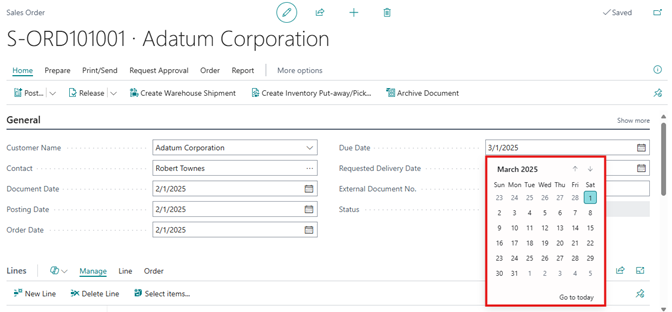
Step 1: Open a Date Picker Field
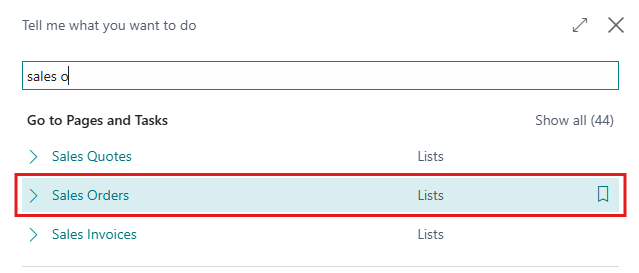
- In Business Central, Click on Global search icon and navigate to any page that contains a date field — for example, Sales Order, Purchase Order, or General Journal.
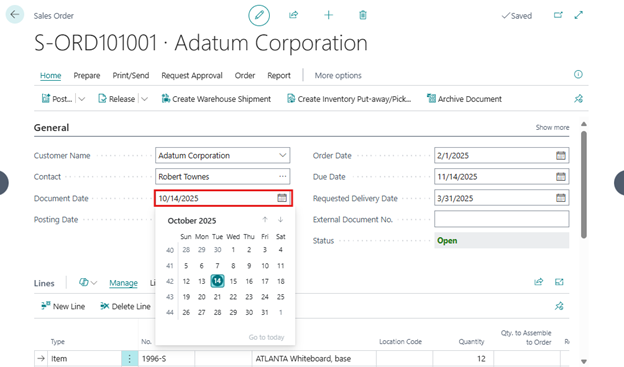
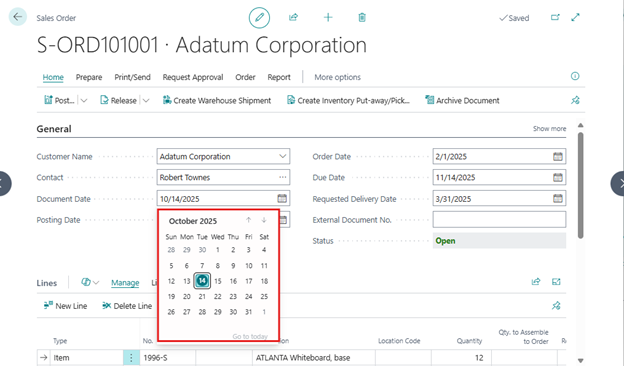
- On the Sales Order page, locate the Date field and click the calendar icon next to it, or select the field and press Ctrl + Home on your keyboard to open the calendar date picker.
- Once the date picker is open, press Shift + Home on your keyboard. This shortcut toggles the Week Numbers on or off in the calendar view. When enabled, week numbers will appear on the left side of the calendar, helping users identify which week a selected date belongs to.
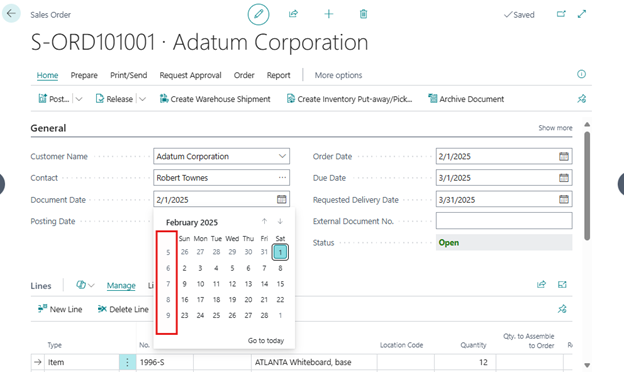
- You can still select any date as usual. The system will remember your preference (whether week numbers are visible or hidden) for your current session.
- If the user wants to hide the week numbers, they can press Shift + Home on the keyboard again.
Important Notes:
- The week number display setting applies only to the calendar pop-up (date picker) and does not affect how dates are shown in tables or reports.
- The feature is available across all pages and modules that use the standard Business Central date picker.
- The Ctrl + Home shortcut continues to open the calendar, while Shift + Home specifically manages week numbers.
- This update builds on the new calendar control that was first introduced in Business Central 2024 Release Wave 1 (BC24).
Conclusion:
The Week Numbers in Date Picker feature in Microsoft Dynamics 365 Business Central 2025 Release Wave 2 (BC27) is a thoughtful improvement that enhances the overall user experience. It helps users who rely on week-based planning to work more efficiently by viewing week numbers directly within the calendar. This small yet impactful update continues Microsoft’s ongoing effort to make Business Central more intuitive, customizable, and aligned with real-world business needs.