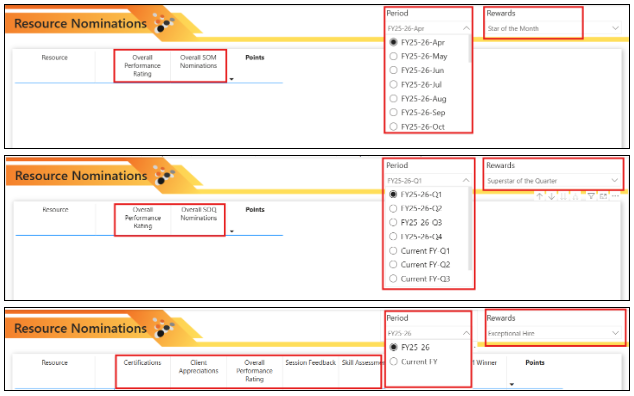
Have you ever wanted your date hierarchy slicer to filter automatically based on another slicer selection?
 By Keyur Patel
October 6, 2026
3 min read
By Keyur Patel
October 6, 2026
3 min read
In one of our recent Power BI implementations, we used a Date Hierarchy slicer containing Year, Quarter, and Month for period-based analysis.
At the same time, we had another slicer for Reward Categories, such as Star of the Month, Super Star of the Quarter, Learning Wizard of the Year, and more.
This created a few challenges:
- Every reward doesn’t require all three levels of the Date Hierarchy.
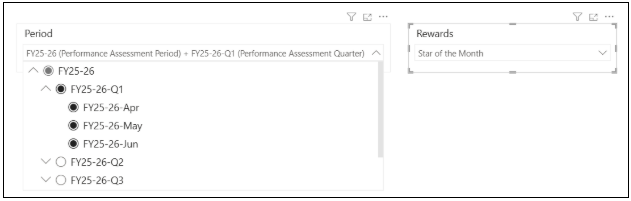
- Users were always shown Year, Quarter, and Month, even when only one level was relevant.
- This added unnecessary options to the slicer.
- Users could select irrelevant periods, leading to confusion and an inconsistent reporting experience.
So, the requirement was straightforward:
- If the user selects a Month-based reward, the period slicer should show only Month.
- If the user selects a Quarter-based reward, it should show only Quarter.
- If the user selects a Year-based reward, it should show only Year.
To solve this, we need to dynamically filter the available period based on the selected reward. Since we want to dynamically switch between the Year, Quarter, and Month columns, a Field Parameter is the ideal solution.
Before:
After:
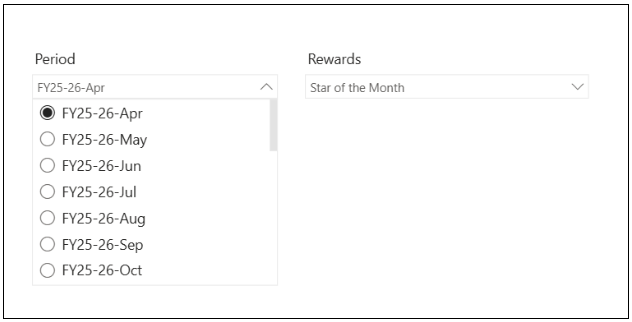
Instead of showing the entire date hierarchy every time, wouldn’t it be better if the slicer displayed only the relevant level?
In this blog, we’ll create a dynamic date hierarchy slicer in Power BI.
Step 1: Create a field parameter for period selection
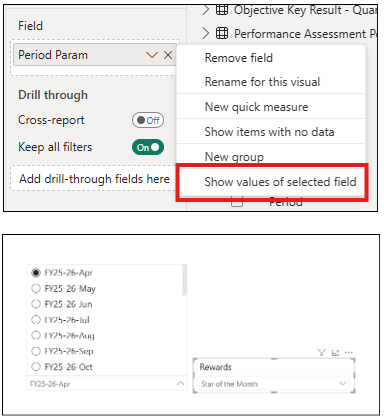
- Create field parameter named period selection and add the following columns from your date table:
- Year
- Quarter
- Month

- This field parameter will be used to dynamically switch the date hierarchy based on the selected reward category.
- Plot this as a slicer and turn on the “show value of the selected field” option.
Step 2: Add a Period Ordinal Column
In your main Reward mapping table, create a calculated column that stores the corresponding Period Parameter ordinal for each reward.
- Assign the Month ordinal for month-based rewards, here it is 2.
- Assign the Quarter ordinal for quarter-based rewards, here it is 1.
- Assign the Year ordinal for year-based rewards, here it is 0.
This column will later be used to create a relationship with the Period Selection Field Parameter, allowing the period slicer to display only the relevant hierarchy level.
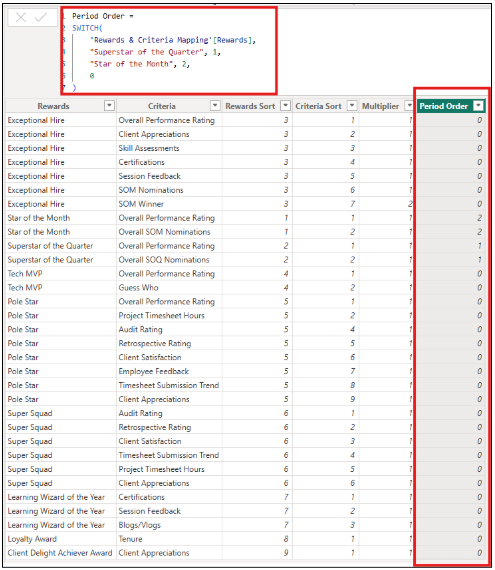
Period Order =
SWITCH(
‘Rewards & Criteria Mapping'[Rewards],
“Superstar of the Quarter”, 1,
“Star of the Month”, 2,
0
)
Step 3: Create the Relationship
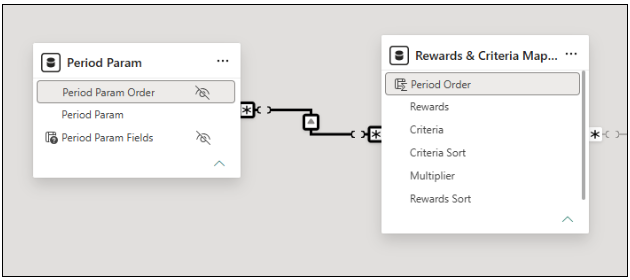
Create a relationship between:
- Period Param Order in the Period Selection Field Parameter.
- Period Order in the Reward Mapping table.
Configure the relationship as:
- Cardinality: Many-to-Many (:)
- Cross-filter direction: Single, with the filter flowing from the Reward Mapping table to the Period Selection Field Parameter.
This relationship ensures that when a reward is selected, the Period Selection Field Parameter is filtered to display only the relevant hierarchy level (Year, Quarter, or Month).
Outcome
Now, with a single reward selection:
- The period selection slicer is filtered automatically (year, quarter, or month).
- The criteria table displays only the criteria for the selected reward.
- No additional DAX or manual filtering is required.