The Challenge
One major challenge that we faced was managing timesheets of each member of our organisation. We used to create an Excel spreadsheet for each project that we worked on which we would update with a short description of the task, the start time and the end time of that task. This meant that each one of us would maintain one spreadsheet for each project that we worked on. Our team leads and project managers would go through each of these spreadsheets, understand the task and the time spent and update a spreadsheet which they maintained and set to the client. So, at the start of or end of each day, the team lead and project manager would have to juggle multiple timesheets of each project that they oversaw. Not only was this time consuming but left room for error also.
The Solution
We started off with Masters; Technologies, Employees, Clients and Projects. We established relationships between these. For example, which employees worked on which projects for which clients using which technologies. Then, we created the interface and corresponding SharePoint lists to manage the time in hours that each employee spends on projects assigned to them. Team leads became reviewers.
A single client can have multiple projects at the same time. A single employee could be working on projects of multiple clients during the day. Employees would be developer, reviewer and project manager. A team lead or a project manager who would be working on multiple projects can assign or unassign these to his or her team members according to their capabilities and availability. There would be a reviewer who would check the productive hours entered by the developer. The project manager or team lead would, based on this information, enter the billable hours which would be sent to the client.
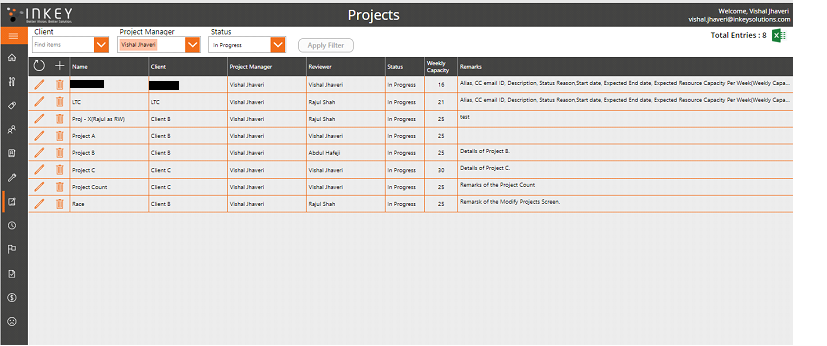
The below screenshot shows an overview of the projects.
.png)
The following screenshot shows what a developer would see.
.png)
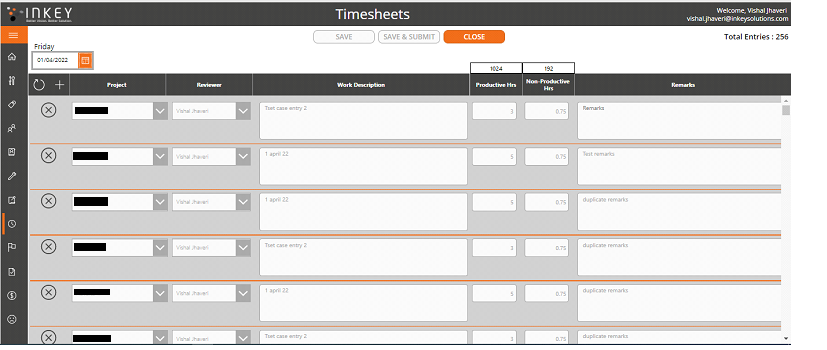
The developer can click on the + button to enter the details of the task including short description, and a remark. The developer can enter what he or she thinks are productive hours and unproductive hours along with a remark. Clicking on Save button will save the entry allowing it to be edited in the future. Clicking on Save and Submit will submit the entry to the reviewer and will not be editable unless the reviewer marks that entry as undone.
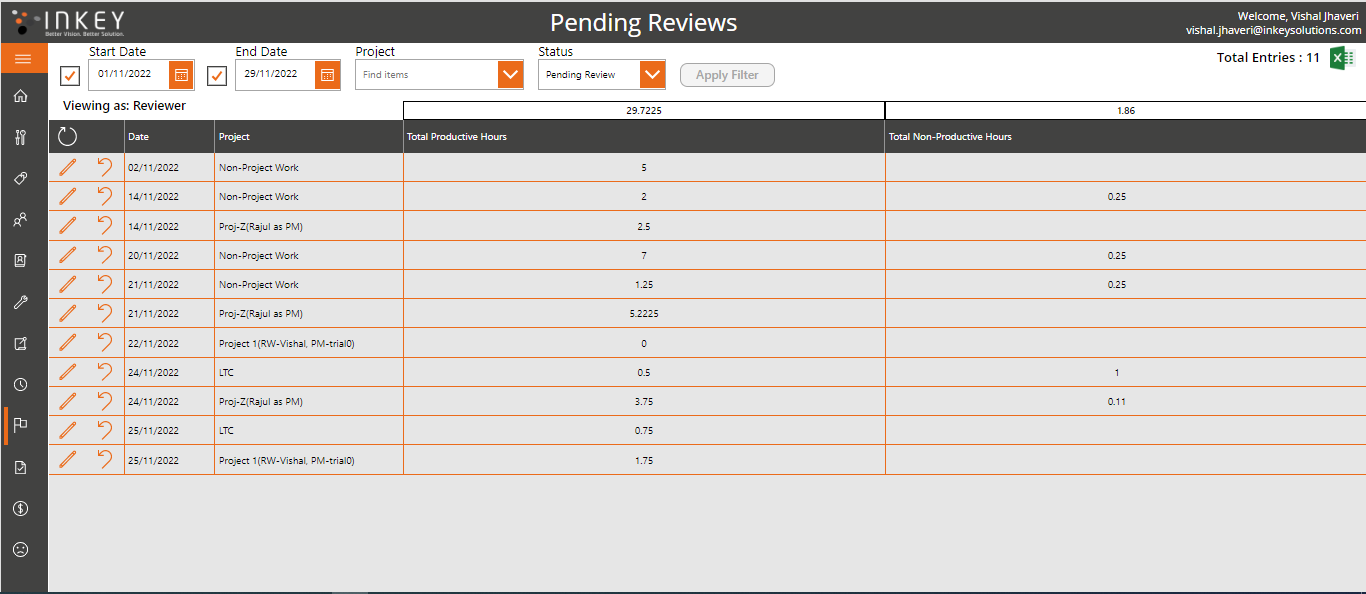
The following screen shows the entries from a reviewer’s point of view.
.png)
What the reviewer will see when he or she clicks on an entry is shown in following screenshot.
.png)
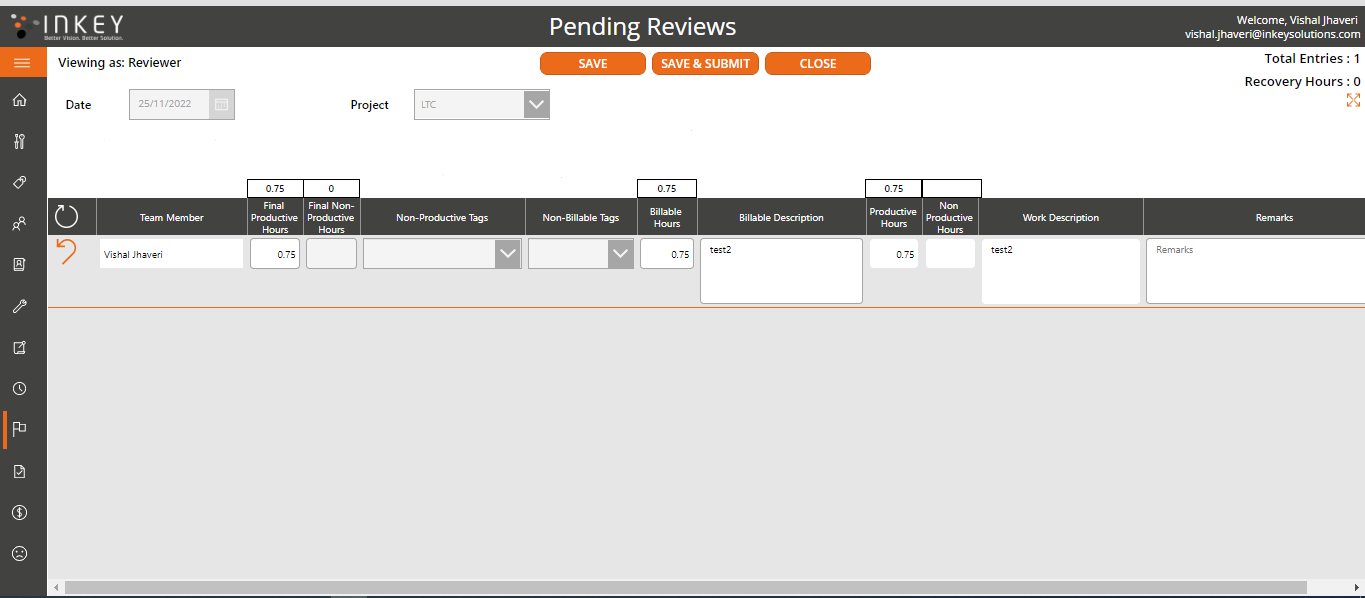
The reviewer can edit billable hours and final productive hours. He or she will be able to see the remark added by the developer. Any change made in billable hours will affect the recovery hours. Clicking on Save & Submit will mark all the entries of that project as reviewed and will become visible to the project manager. The reviewer can also undo an entry which will make it visible to the developer.
Project manager will see the entries that have been marked as reviewed. Just like reviewer, the project manager will see the entries of the projects that they are in charge of.
.png)
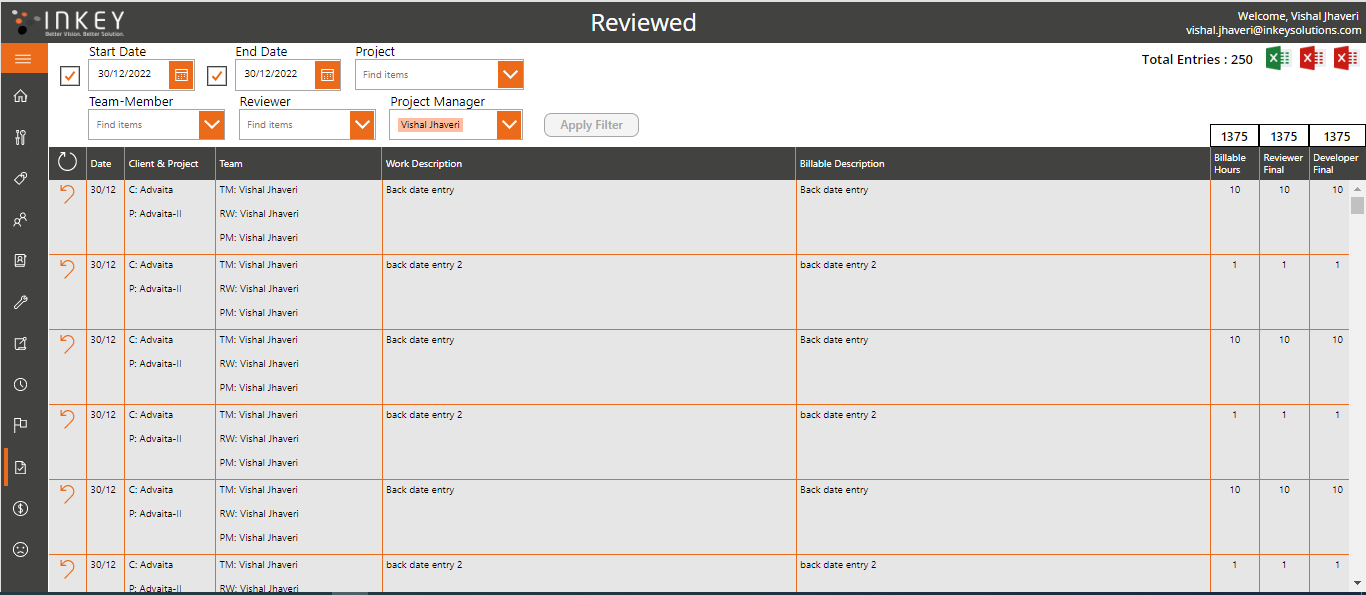
The project manager will be able to see each entry and undo them if required. When a project manager undoes any entry, it will become visible to the reviewer. The project manager will talk to the reviewer about the billable hours, the hours that reviewer has marked as productive as visible in the above screenshot in the column Reviewer final, the hours that the developer has marked as productive as visible in the column Developer final. The project manager can then create a timesheet based on this information that will be sent to the client.
We are still adding on this. One feature will be to create the client timesheet directly from the project manager’s screen and either download it to his or her machine whereby he or she can send it to the client or send the timesheet directly to the client as an attachment of an email.
Another feature that we will be adding is analysis using Power BI reports. This will allow all to see their performance at any time, give the reviewer an overview of how the developer is performing and give the project manager an overview of how the project is progressing.