Generating QR Code via a direct API call
 By Inkey Solutions
April 3, 2026
2 min read
By Inkey Solutions
April 3, 2026
2 min read
Problem Statement
Power Apps does not have a built-in feature to generate QR codes. Because of this, creating QR codes from text or URLs inside the app becomes difficult and usually requires additional setup like connectors.
Please follow the steps below to generate QR codes directly within Power Apps.
Step 1: Create a Blank Canvas App
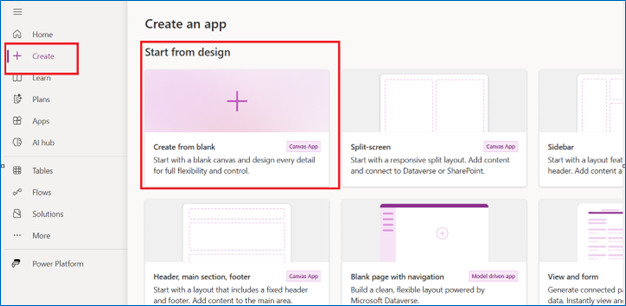
Go to Power Apps -> Click Create -> Select the Canvas App ->Choose Blank App.
Step 2: Add a Text Input Control
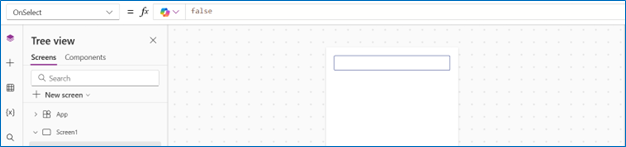
Insert a Text Input control. This control will allow the user to enter the URL or text that needs to be converted into a QR code.
Step 3: Add a Button to Generate the QR Code
Insert a Button. And rename it to Create the QR Code. Set the On Select property of the button to:
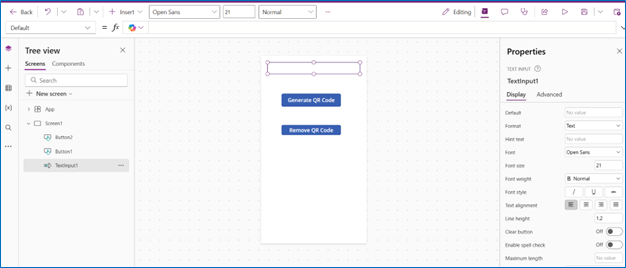
Set(
QRCode,
“https://api.qrserver.com/v1/create-qr-code/?size=150×150&data=” & TextInput1.Text
)
Step 4: Add an Image Control
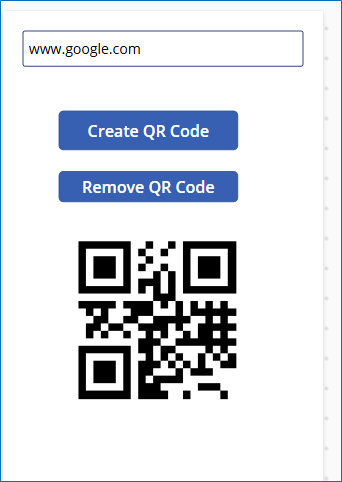
Insert an Image control and set its Image property to QR Code. After that, enter the URL you want to generate the QR code for. The app will create the QR code based on that URL. When the QR code is scanned, it will redirect the user to the link associated with it. The image control will display the QR code generated from the API.
Result
I hope this helps!