How to Efficiently Handle Multiline Text with Configuration Packages in MS Dynamics 365 Business Central
 By Inkey Solutions
July 29, 2025
3 min read
By Inkey Solutions
July 29, 2025
3 min read
Introduction
Managing multiline text can be challenging, especially when dealing with large amounts of data that need to be transferred between different companies or systems. Microsoft Dynamics 365 Business Central simplifies this process with an enhanced Configuration Packages feature, making it easy to export and import multiline text efficiently.
Business Value
This feature eliminates the need for manual data handling by allowing you to export and import multiline text fields with ease. It’s especially valuable for businesses that frequently work with large datasets and need a reliable way to transfer information between different environments.
Requirement
How can you efficiently export and import multiline text using Configuration Packages in Business Central?
Prerequisites
- Ensure you have access to Microsoft Dynamics 365 Business Central and the necessary permissions to use Configuration Packages.
Solution (Implementation Steps)
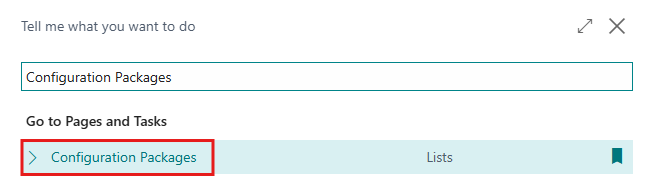
- Click on Search icon and search for “Configuration Package”. This will open the Configuration Package list page.
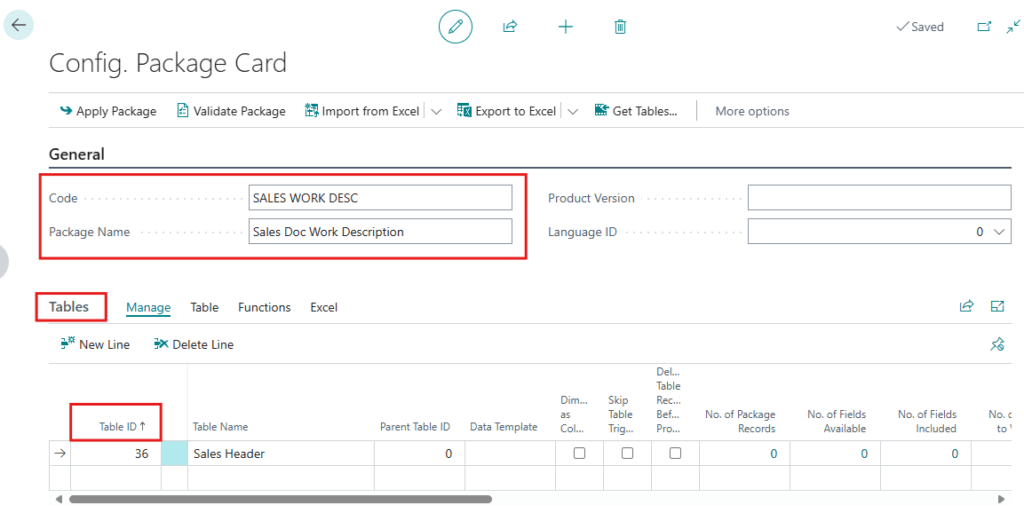
- On the Config. Package page, user need to click on +New option and create new configuration package. Now the user must fill in some required details like “Code“, “Package Name” etc… and in the Table fast tab User should select the Table Id in which user wants to update lines.
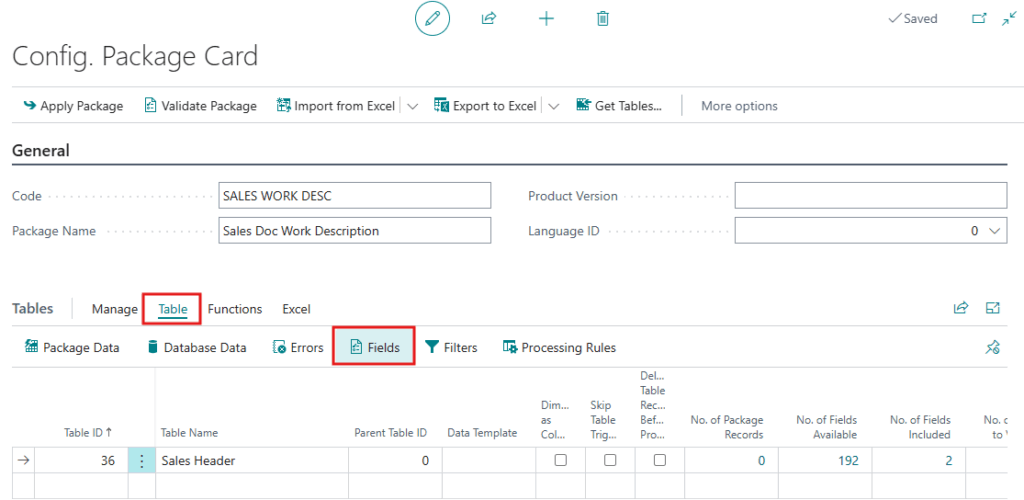
- Now Go to Tables fast tab > Table > Fields to Select the fields.
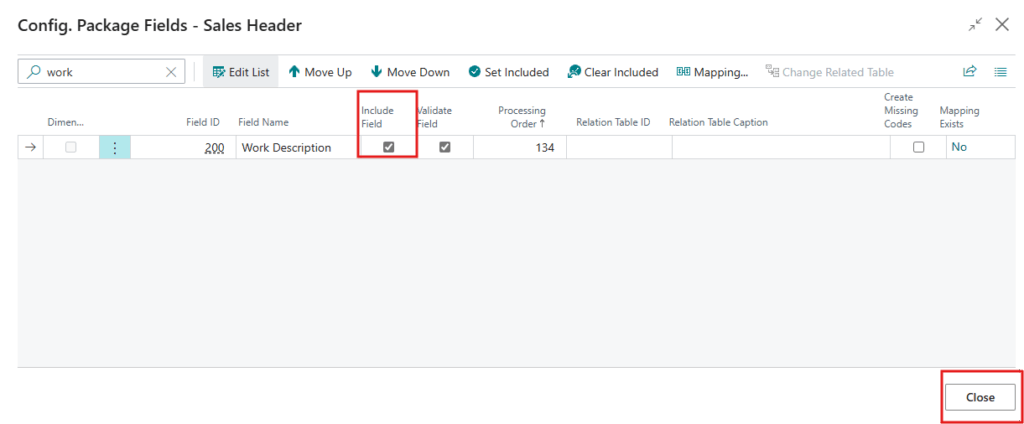
- On Package Fields – Sales Header page click on Clear Included to unselect all now User can manually select the column which they want to include by selecting the column line and clicking on Include Field Boolean option in column. The user must select a column which containing multiline text (such as the Work Description field) by choosing “Include Field.”
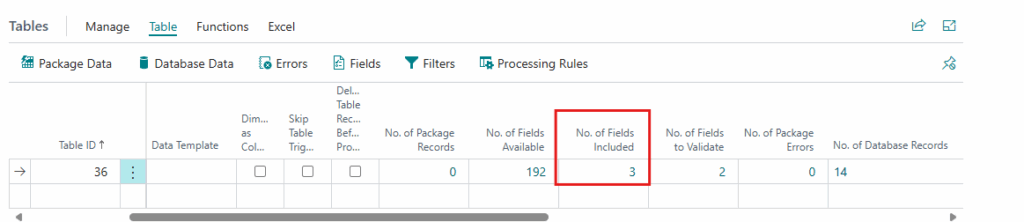
- Now user can see the selected number Of columns in Of Fields included column as given screen shot.
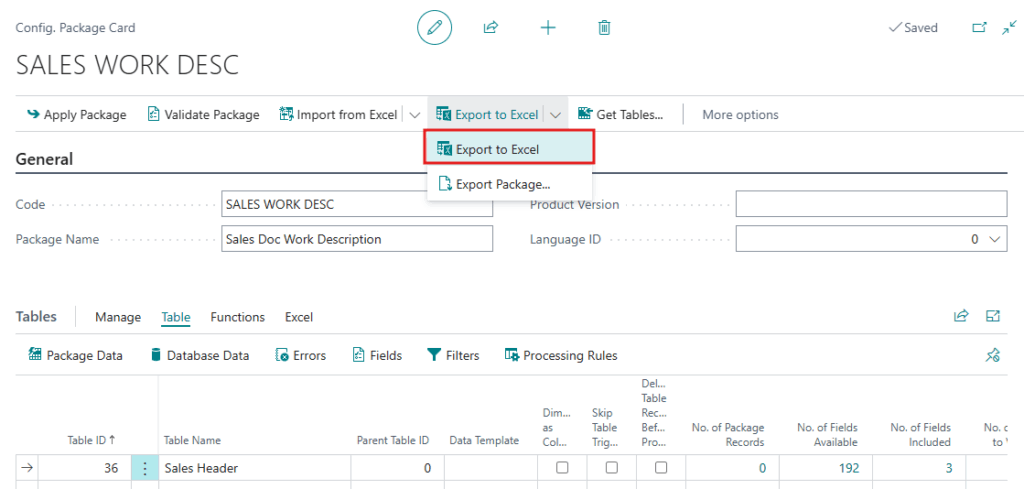
- In the Configuration Package Card page, choose the “Export to Excel” action. This will generate an Excel file containing your selected multiline text fields.
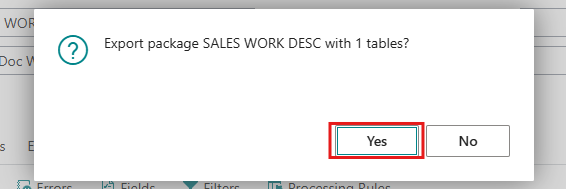
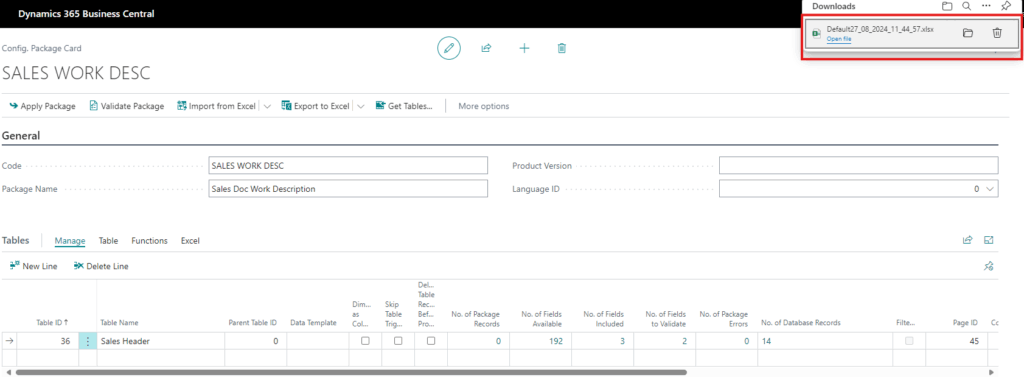
- The confirmation message is displayed on the screen click on The excel file is downloaded in user system.
- Open the exported Excel file, and you’ll see the multiline text in the specified columns.
- Make sure to convert data entered in Excel to Base64 encoding using any online converter tool.
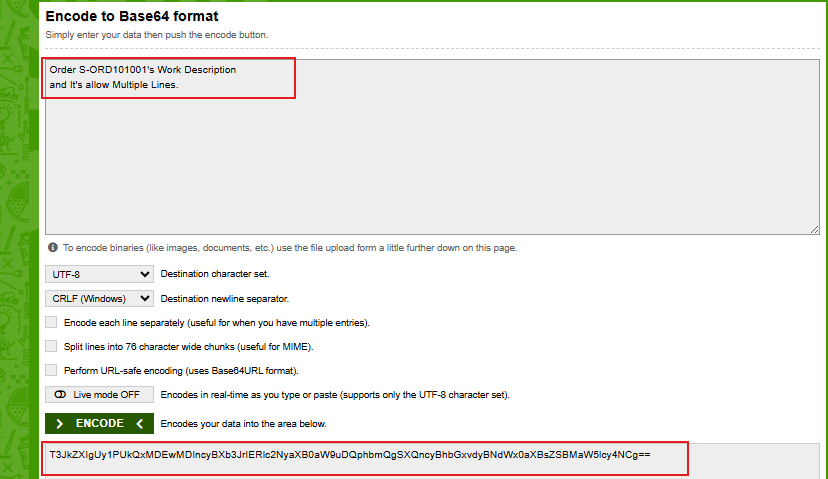
- User can see that existing Work description display in Base64 encoding Text.
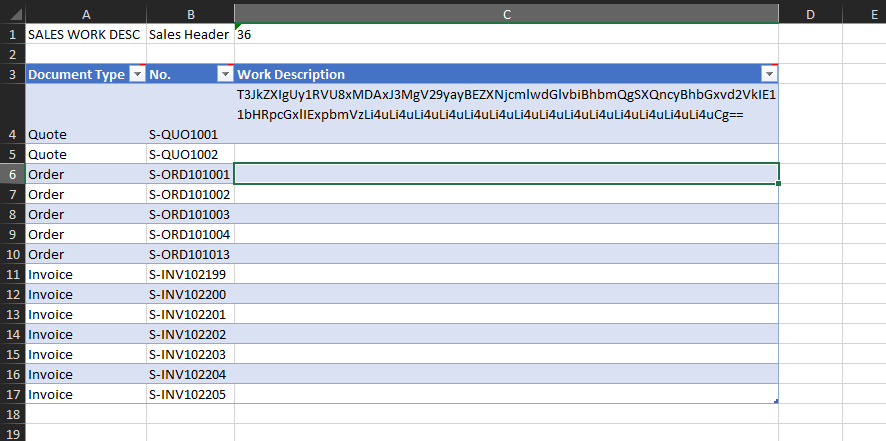
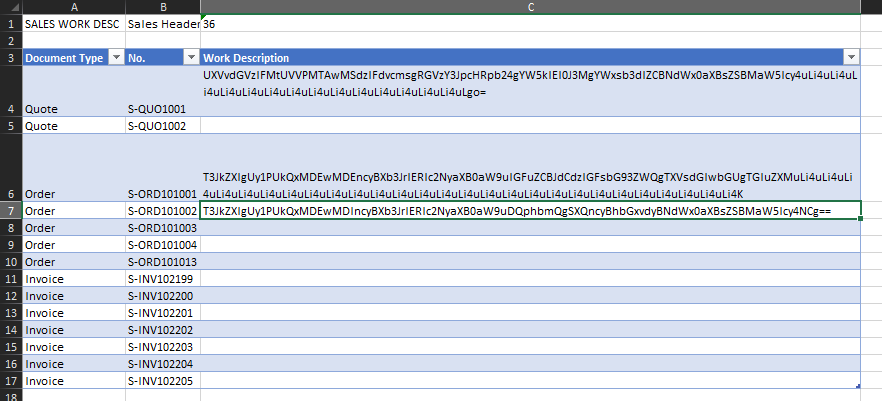
- Add the multiline text as needed in Excel.
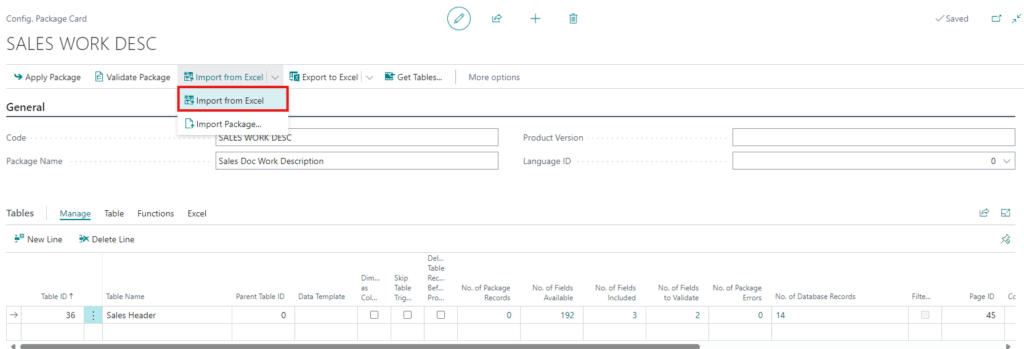
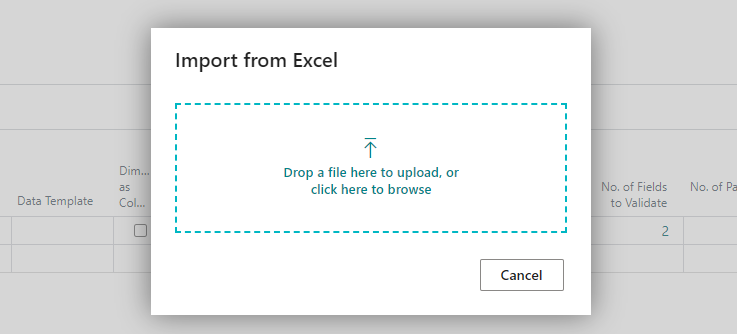
- After updating the Excel file, go back to Business Central. On the Configuration Package Card page, choose “Import from Excel” to upload the updated file.
- Upload a File using “Drop a file here to upload, or click here to browse” option.
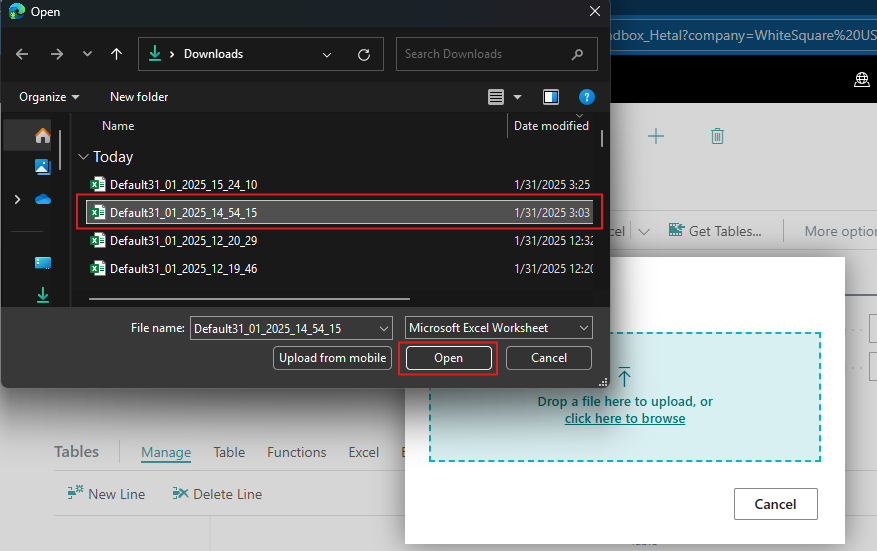
- Select the file from device and click on Open to upload file.
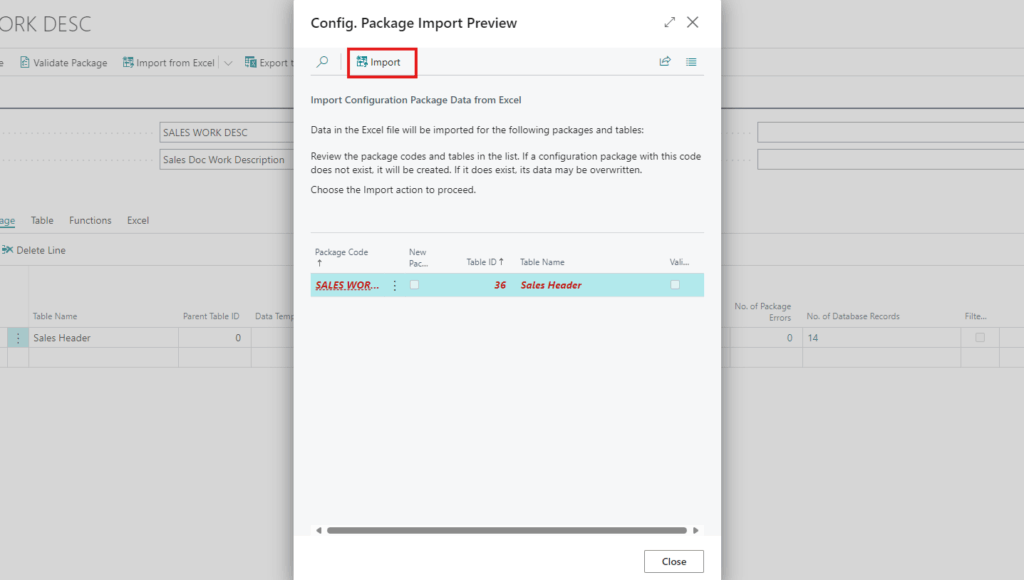
- Validate the data and then apply the package by selecting the “Apply Package” action.
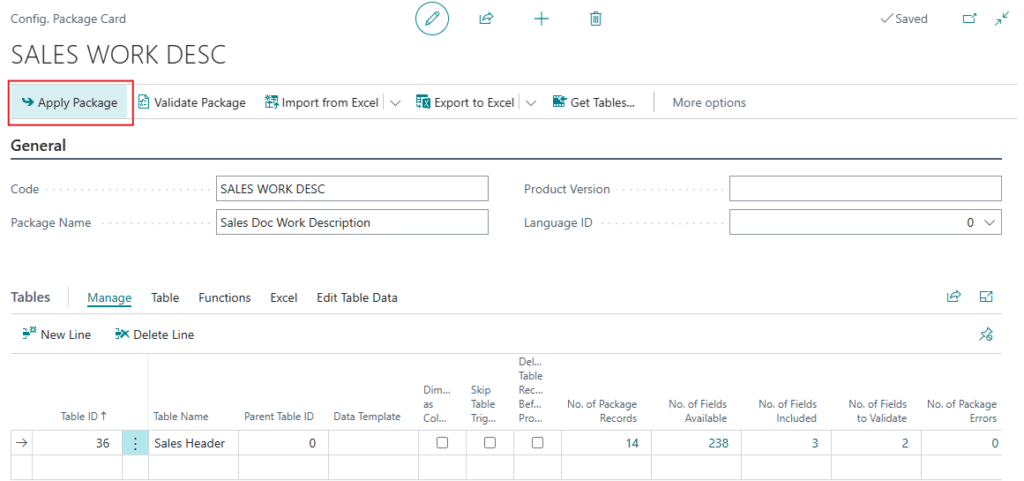
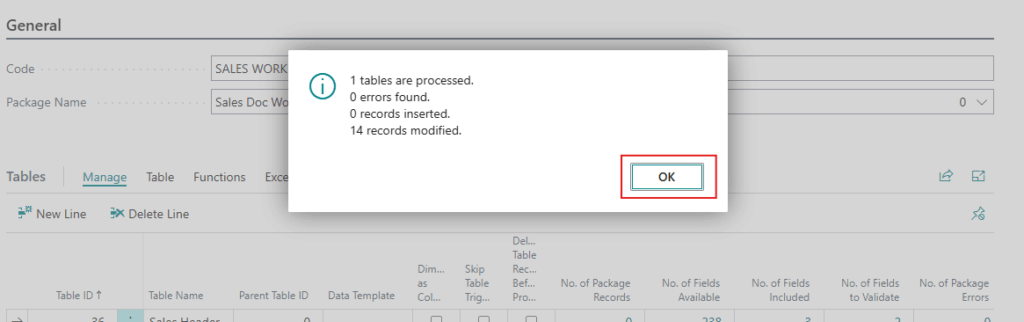
- System will Apply the Package Successfully.
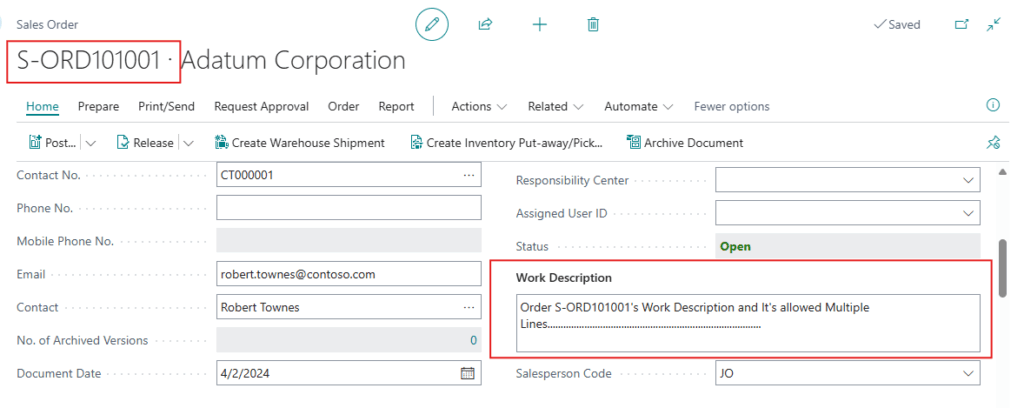
- Open a sales document (such as a sales quote) that was updated to check if the multiline text has been correctly imported.
Conclusion
Using Configuration Packages to handle multiline text in Microsoft Dynamics 365 Business Central streamlines the process of exporting and importing data. By following these simple steps, you can efficiently manage large amounts of text data, making it easier to transfer information between different systems or environments. This feature enhances your ability to handle complex data efficiently and supports smoother business operations.