Power BI Matrix: Remove Bold Row Headers & Achieve Table-Like Formatting Without Losing Drill-Down
 By Inkey Solutions
April 14, 2026
2 min read
By Inkey Solutions
April 14, 2026
2 min read
Problem Statement
In Power BI’s Matrix visual, adding multiple fields to the Rows section causes parent row headers to appear bold by default — only the lowest drill-down level renders in normal weight. This creates a hierarchical tree-like appearance that conflicts with client expectations for a clean, uniform table view, even though drill-down functionality must be preserved.
Issue & Attempts That Didn’t Work
What was happening:
When using the Matrix visual with multiple row fields:
- Parent levels were displayed in bold
- Only the last drill-down level appeared normal
- The visual looked more like a hierarchical tree instead of a clean table
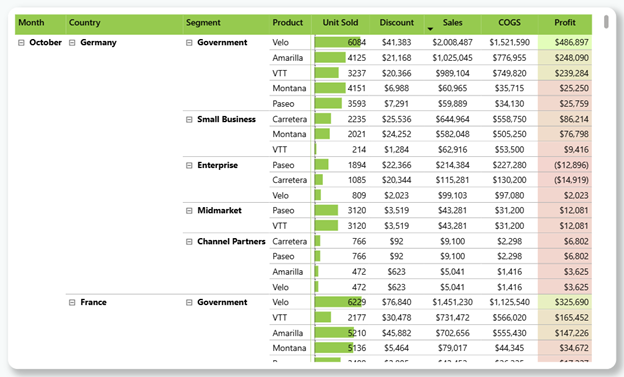
What didn’t work:
The following approaches failed to resolve:
- Adjusting Row Header formatting
- Turning off Stepped Layout
- Modifying Font settings manually
- Switching between Matrix and Table visuals
Solution Overview
After deeper exploration of formatting options, the solution was identified in an unexpected section of the Matrix visual settings.
Instead of modifying row headers directly, the fix was achieved through:
- Row Subtotal settings
- Adjusting formatting behavior using “Match with labels”
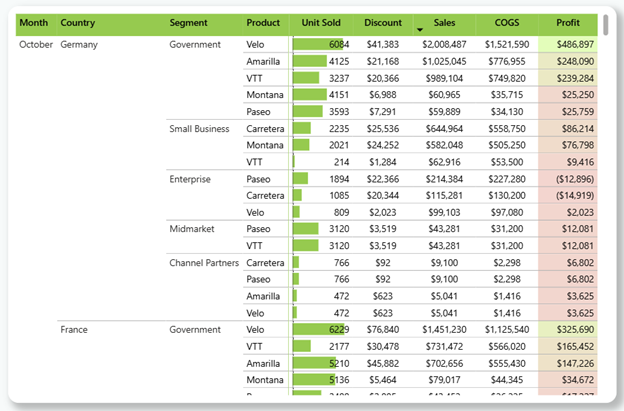
What changed:
- Bold formatting across hierarchy levels was removed
- All row headers appeared uniform and consistent
- The visual now resembled a clean table-like structure
- Drill-down functionality remained intact
Implementation Steps
Step 1: Enable Row Subtotals
- Select the Matrix visual
- Go to the Format Pane and Navigate to Row Subtotals
- Ensure Row Subtotals are turned ON
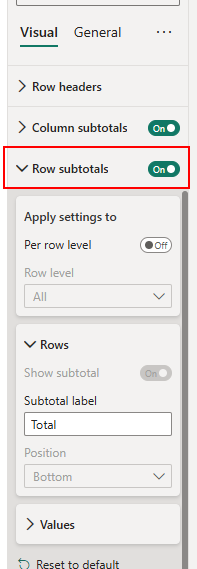
Step 2: Modify Formatting (Unbold Text)
- Inside Row Subtotals, expand the Values section
- Locate the Font / Text formatting option
- Turn OFF Bold formatting
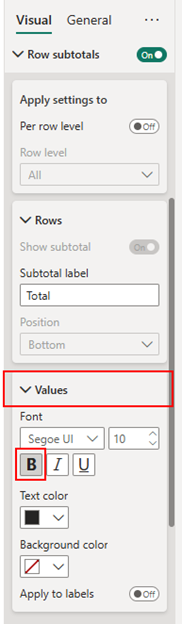
Step 3: Apply Formatting to Row Labels
- Enable the option “Apply settings to labels” / “Match with labels”
✅ This is the key step:
- It ensures that the same formatting applies to all row headers, not just subtotals
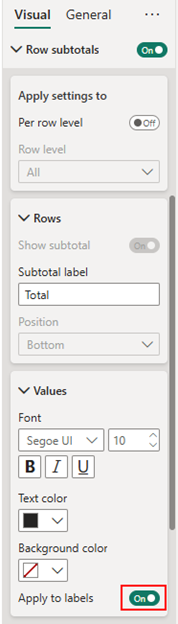
💡 Optional:
- If row subtotals are not required for your report:
- You can turn OFF Row Subtotals after applying the above settings
- The formatting changes will remain intact
Step 4: Improve Visual Appearance (Optional)
For a cleaner, table-like layout:
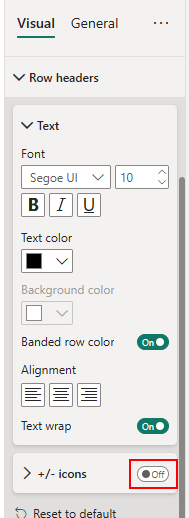
- Go to Row Headers
- Turn OFF “+/- Icons” (Expand/Collapse icons)