What Is Dynamics 365 Business Central?
 By WebSiteAdmin
June 10, 2024
5 min read
By WebSiteAdmin
June 10, 2024
5 min read
Dynamics 365 Business Central is a powerful Enterprise Resource Planning (ERP) solution that offers a wide range of customization options to meet the unique needs of your business. One such customization is to link Dimensions to a custom table and its Pages in D365 Business Central.
Prerequisites
- Access to a Microsoft Dynamics 365 Business Central instance.
- Basic knowledge of AL (Application Language) code.
- Visual Studio Code with AL Language extension installed.
Requirement
Let’s say that a custom Table is developed in , and its List page and Card page are also created but now it is also required to link Dimensions to the records of that table. This blog will give a step-by-step process on how to do that.
Solution (Implementation Steps)
Below are the steps to link Dimensions to the custom table and its pages,
- First the custom Table, its List page, and Card page are needed. For this demo, the custom table “Owners” and Its List page and Card page are used,
Custom Table ‘Owner’:
table 70300 Owners
{
    Caption = 'Owners';
    DataClassification = ToBeClassified;

    fields
    {
        field(1; INK_No; Code[20])
        {
            Caption = 'No.';
            DataClassification = ToBeClassified;
            NotBlank = true;
        }
        field(2; INK_Name; Text[50])
        {
            Caption = 'Name';
            DataClassification = ToBeClassified;
            NotBlank = true;
        }
    }

    keys
    {
        key(Key1; INK_No)
        {
            Clustered = true;
        }
    }
}
Custom Page ‘Owner List’:
page 70400 Owners_List
{
    PageType = List;
    Caption = 'Owners';
    ApplicationArea = All;
    UsageCategory = Lists;
    SourceTable = Owners;
    Editable = false;
    ModifyAllowed = true;
    CardPageId = Owner_Card;

    layout
    {
        area(Content)
        {
            repeater(GroupName)
            {
                field(INK_No; Rec.INK_No)
                {
                    ApplicationArea = All;
                }
                field(INK_Name; Rec.INK_Name)
                {
                    ApplicationArea = All;
                }
            }
        }
    }
}
Custom Page ‘Owner Card’:
page 70301 Owner_Card
{
    PageType = Card;
    Caption = 'Owner';
    ApplicationArea = All;
    SourceTable = Owners;
    Editable = true;
    ModifyAllowed = true;

    layout
    {
        area(Content)
        {
            group(GroupName)
            {
                field(INK_No; Rec.INK_No)
                {
                    ApplicationArea = All;
                }
                field(INK_Name; Rec.INK_Name)
                {
                    ApplicationArea = All;
                }
            }
        }
    }
}
- Now, add a “Dimension Set ID” field in the “Owners” table,
table 70300 Owners
{
    Caption = 'Owners';
    DataClassification = ToBeClassified;

    fields
    {
        field(1; INK_No; Code[20])
        {
            Caption = 'No.';
            DataClassification = ToBeClassified;
            NotBlank = true;
        }
        field(2; INK_Name; Text[50])
        {
            Caption = 'Name';
            DataClassification = ToBeClassified;
            NotBlank = true;
        }
        field(3; "Dimension Set ID"; Integer)
        {
            Caption = 'Dimension Set ID';
            Editable = false;
            TableRelation = "Dimension Set Entry";
        }
    }

    keys
    {
        key(Key1; INK_No)
        {
            Clustered = true;
        }
    }
}
- Once the field is created then create a procedure as shown below,
table 70300 Owners
{
    Caption = 'Owners';
    DataClassification = ToBeClassified;

    fields
    {
        field(1; INK_No; Code[20])
        {
            Caption = 'No.';
            DataClassification = ToBeClassified;
            NotBlank = true;
        }
        field(2; INK_Name; Text[50])
        {
            Caption = 'Name';
            DataClassification = ToBeClassified;
            NotBlank = true;
        }
        field(3; "Dimension Set ID"; Integer)
        {
            Caption = 'Dimension Set ID';
            Editable = false;
            TableRelation = "Dimension Set Entry";
        }
    }

    keys
    {
        key(Key1; INK_No)
        {
            Clustered = true;
        }
    }

    internal procedure ShowDimensions()
    var
        DimensionManagement: Codeunit DimensionManagement;
        DimensionPageCaptionLbl: Label '%1 %2', Locked = true;
    begin
        "Dimension Set ID":=
          DimensionManagement.EditDimensionSet("Dimension Set ID", StrSubstNo(DimensionPageCaptionLbl, Rec.TableCaption(), Rec.INK_No));
    end;
}
This procedure when triggered will update the “Dimension Set ID” in the “Owners” table. It needs to be done because whenever the user creates a new dimension for the “Owner” table, updates the Dimension, or Deletes the Dimension the new record is created in the “Dimension Set Entry” table with a new “Dimension Set ID” and it needs to be updated in the Owner table so that when user will try to access the Dimensions for the Owner it will show the updated information.
- Now create an action in the Owner Card page and List Page,
Action on a Card Page:
page 70301 Owner_Card
{
    PageType = Card;
    Caption = 'Owner';
    ApplicationArea = All;
    SourceTable = Owners;
    Editable = true;
    ModifyAllowed = true;

    layout
    {
        area(Content)
        {
            group(GroupName)
            {
                field(INK_No; Rec.INK_No)
                {
                    ApplicationArea = All;
                }
                field(INK_Name; Rec.INK_Name)
                {
                    ApplicationArea = All;
                }
            }
        }
    }

    actions
    {
        area(Processing)
        {
            action(Dimensions)
            {
                ApplicationArea = Basic, Suite;
                Caption = 'Dimensions';
                Image = Dimensions;
                ShortCutKey = 'Shift+Ctrl+D';
                ToolTip = 'View or edit dimensions for the Owner';
                Promoted = true;
                PromotedCategory = Process;

                trigger OnAction()
                begin
                    Rec.ShowDimensions();
                    if Rec."Dimension Set ID" <> xRec."Dimension Set ID" then
                        Rec.Modify();
                end;
            }
        }
    }
}
Action on a List Page:
page 70400 Owners_List
{
    PageType = List;
    Caption = 'Owners';
    ApplicationArea = All;
    UsageCategory = Lists;
    SourceTable = Owners;
    Editable = false;
    ModifyAllowed = true;
    CardPageId = Owner_Card;

    layout
    {
        area(Content)
        {
            repeater(GroupName)
            {
                field(INK_No; Rec.INK_No)
                {
                    ApplicationArea = All;
                }
                field(INK_Name; Rec.INK_Name)
                {
                    ApplicationArea = All;
                }
            }
        }
    }

    actions
    {
        area(Processing)
        {
            action(Dimensions)
            {
                ApplicationArea = Basic, Suite;
                Caption = 'Dimensions';
                Image = Dimensions;
                ShortCutKey = 'Shift+Ctrl+D';
                ToolTip = 'View or edit dimensions for the Owner';
                Promoted = true;
                PromotedCategory = Process;

                trigger OnAction()
                begin
                    Rec.ShowDimensions();
                    if Rec."Dimension Set ID" <> xRec."Dimension Set ID" then
                        Rec.Modify();
                end;
            }
        }
    }
}
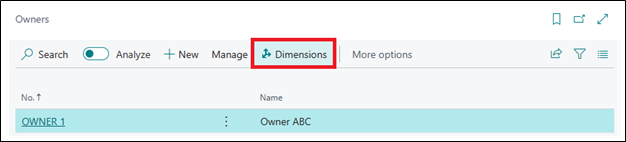
By clicking on this action, the user can view and edit the Dimensions for the Owner.
Output: Now user can create a record in a custom table and add dimensions for it from Card page and List Page by using ‘Dimensions’ extension in Microsoft Dynamics Business Central.
Conclusion: By using code units and procedures provided by Microsoft it becomes easy to link Dimensions and Custom table and its pages.
Inkey IT Solutions Pvt. Ltd. can provide the best Dynamics 365 Business Central Solutions for your Business Central related needs.