Dataverse API Calls with Power Automate: A Step-by-Step Guide
 By Inkey Solutions
July 22, 2025
3 min read
By Inkey Solutions
July 22, 2025
3 min read
Power Automate to simply integrate with Dataverse API. In this blog you will get the process of making API calls to Dataverse.
Dataverse database is easily accessible through app registration in Azure, providing a unique client ID and secret key. Integrating with Power Platform ensures seamless data access, particularly when granted system admin privileges. This unrestricted access in Dataverse.
Steps for app registration in Azure
Dataverse makes it easy to access its database from other apps or services through its API. Here’s how it works:
- Register your app in Azure. This is easy and gives you a special ID and secret key.
To register your app in Azure, you are basically creating an “application” object in Azure Active Directory (Azure AD) that will allow you to authenticate and interact with various Azure resources or services using that app. The registration process provides you with essential credentials like an Application (Client) ID and a Client Secret that you can use to authenticate the app.
-
- Register new app in azure
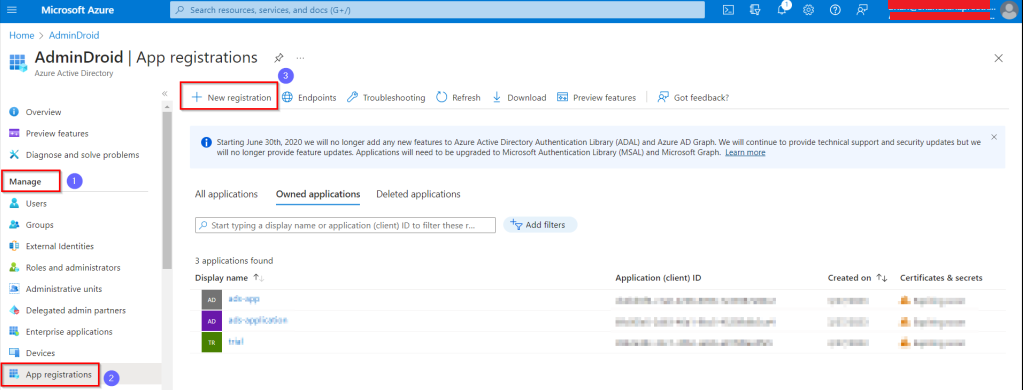
-
- Select the supported account type.
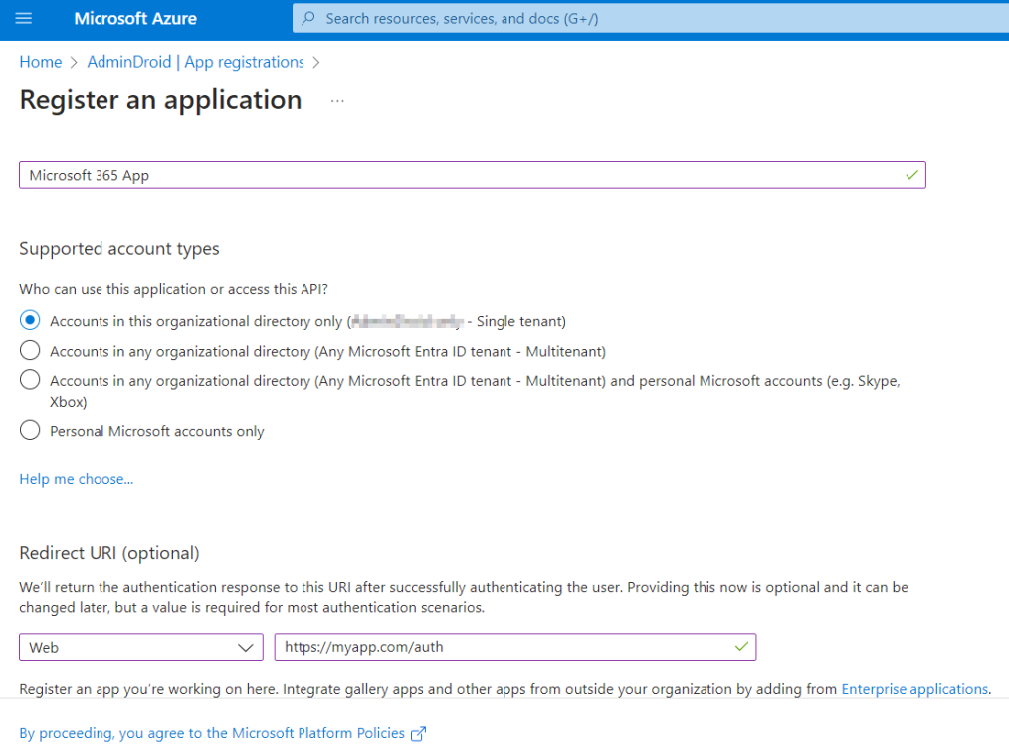
-
- After registration, we get the client ID and tenant ID.
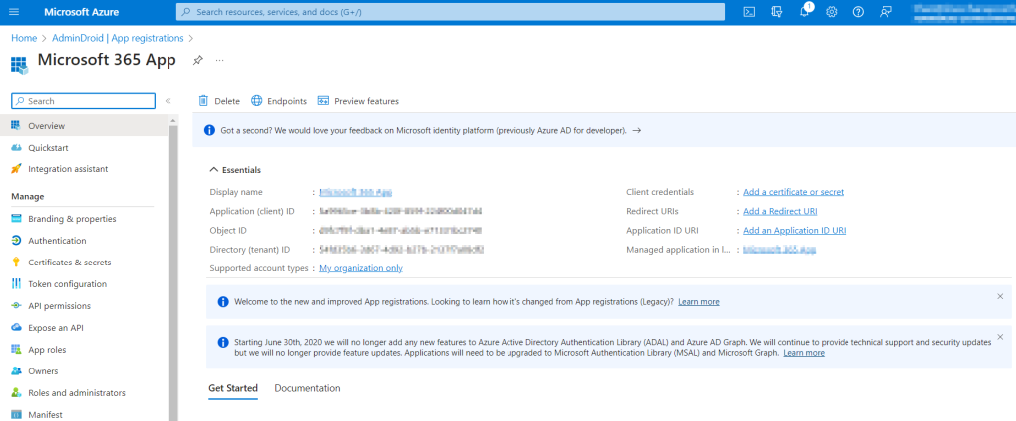
- Add your app to your Power Platform environment. Make sure it has the right permissions, like system admin, so it can access all the data you need.
The System Admin role grants broad access to manage and configure resources across the environment. This role is necessary when an application needs to interact with all data at the environment level.
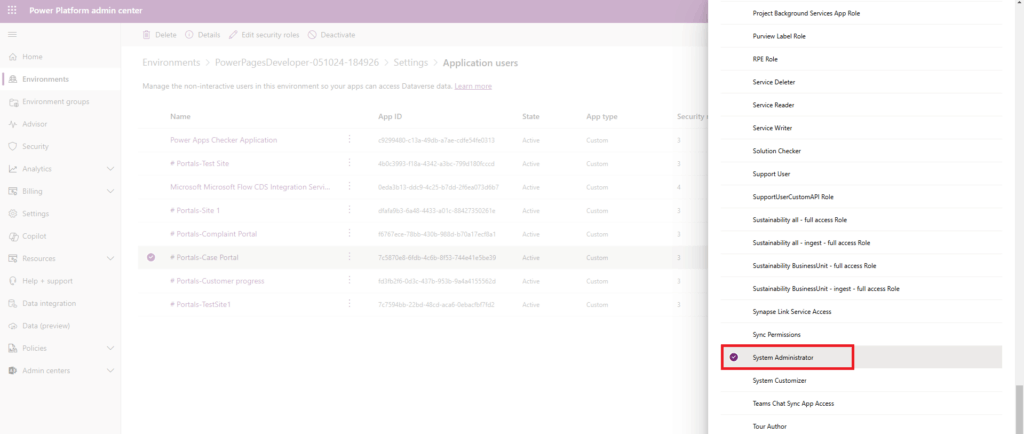
- Now you can use your ID and secret key to get all the data you want from Dataverse.
By following these simple steps, you’ll be able to tap into the full power of Dataverse and get the data you need.
After completing the app registration process, the following steps outline how to call the API using the HTTPS action within a flow.
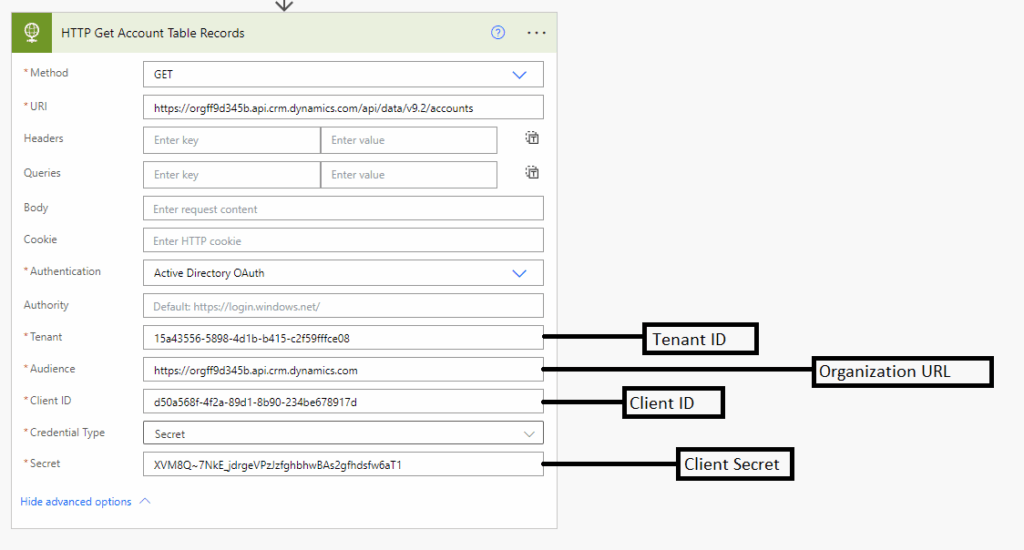
- Client ID: This is a unique identifier assigned to your application when you register it in Azure Active Directory (Azure AD).
- Client Secret: This is a securely generated key that acts as a password for your application.
- Tenant ID: This is a unique identifier for the Azure AD tenant where your application is registered.
- Audience: In the context of authentication and authorization, the audience refers to the intended recipients of a token. When your application requests access to Dataverse, it specifies Dataverse as the audience for the access token.
Conclusion
Automating Dataverse API calls with Power Automate offers a solution for accessing and integrating data. Following our guide, users can effectively leverage Dataverse, enabling smooth data retrieval and integration for better decision-making and increased productivity.