How to Avoid Document Number Errors When Posting Project Journals in Microsoft Dynamics 365 Business Central?
 By Inkey Solutions
June 12, 2026
3 min read
By Inkey Solutions
June 12, 2026
3 min read
Introduction
Posting project journals in Microsoft Dynamics 365 Business Central requires correct document numbering to ensure smooth transactions. If the document numbers in a journal are not in consecutive order, posting can fail, causing delays and additional corrections. The 2025 Released wave 1 update helps users avoid this issue by providing tools to automatically fix document number sequences, making the posting process seamless and error-free.
Business Value
Business Central aims to reduce friction when working with documents and journals. With the new functionality, users can correct document numbering errors before posting project journals, ensuring compliance with number series rules. By renumbering document numbers directly on the Project Journals page, businesses save time, avoid posting failures, and keep their data accurate and consistent.
This feature allows:
- Assigning different document numbers for each journal line.
- Using the same document number for grouped or related journal lines.
- Renumbering document numbers automatically to maintain sequential order.
Requirement
How to Avoid Document Number Errors When Posting Project Journals in Microsoft Dynamics 365 Business Central?
Prerequisites
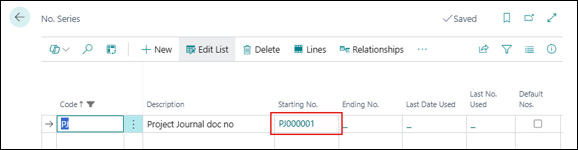
- Ensure that the Number Series is correctly set up for the project journal batch.
- Verify that you have permissions to edit and post project journals.
- Ensure that you are working in the latest version of Microsoft Dynamics 365 Business Central.
Solution (Implementation Steps)
Step 1: Verify Document Numbering in Project Journals
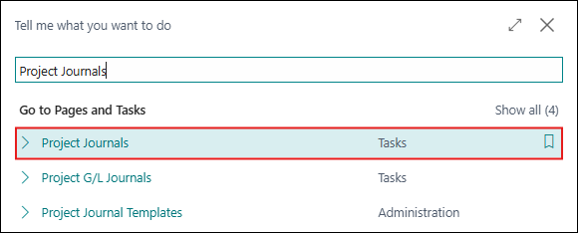
- Click on Search icon and search for Project Journals. Click on related link.
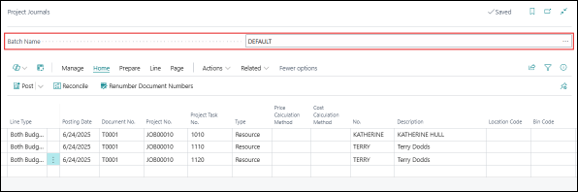
- System will Open Project Journal Page. Select the journal batch you want to post.
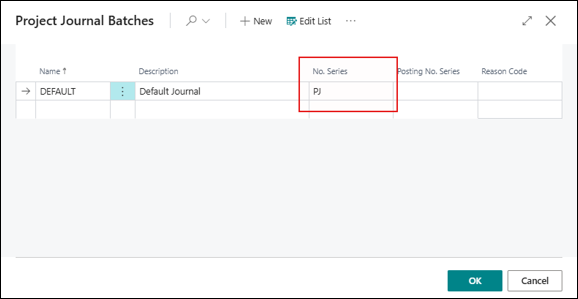
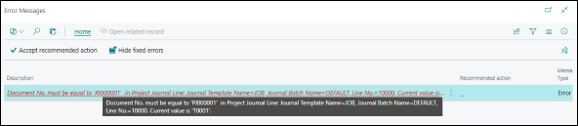
- If a number series is specified in the No. Series field on the project journal batch, document numbers for individual or grouped lines must be in sequential order when you post a project journal. If they aren’t, user can’t post the journal.
System will give this error:
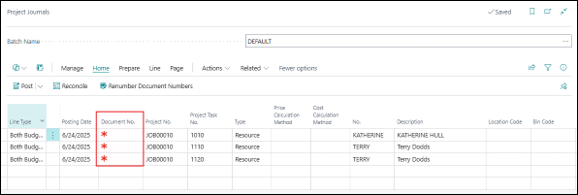
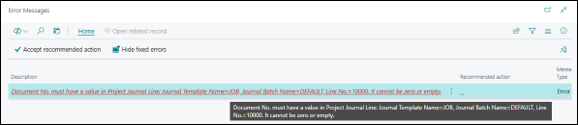
- If Document No is Blank then also system will not allow user to Post Journal.
Step 2: Fix Document Number Sequence
- To avoid getting stuck in these Errors, user can use the Renumber Document Numbers action on the Project Journals page before user post the journal.
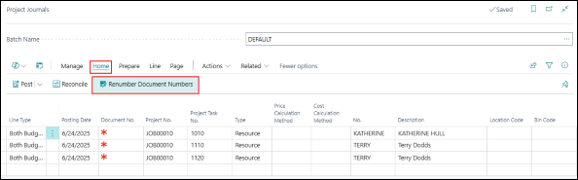
- Confirm the changes and allow the system to create document numbers for the lines in the journal.
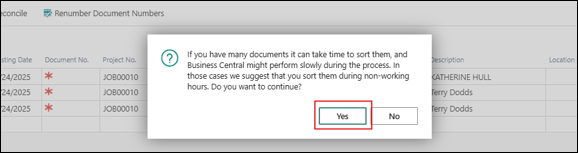
- The system will automatically fill the Document No. field with the same number for different journal lines.
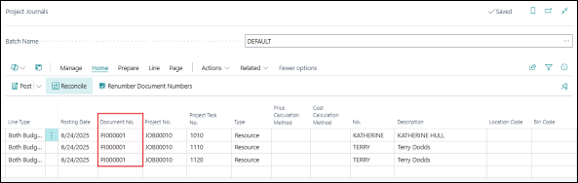
Step 3: Use Filtered Views
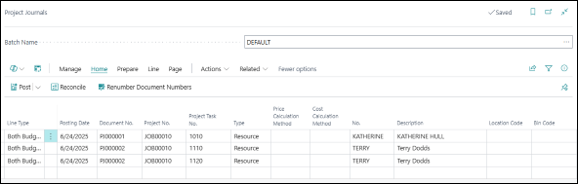
- The Renumber Document Numbers action also works when the Project Journals page is filtered. Use filters to manage specific sets of journal lines and apply renumbering only where necessary.
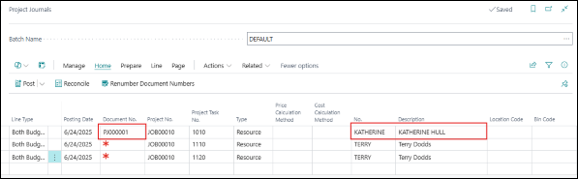
- Set a filter on column and Click on Renumber Document Numbers
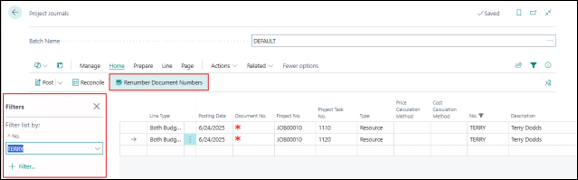
- The system will assign document numbers for these filtered records.
Conclusion
The new Renumber Document Numbers feature in Microsoft Dynamics 365 Business Central ensures smooth and error-free posting of project journals. By automatically correcting document number sequences, users can avoid posting issues, save time, and ensure compliance with number series rules. This functionality simplifies journal management and provides better control over project-related transactions.