How to Block Items or Variants from Production Output in Microsoft Dynamics 365 Business Central
 By Inkey Solutions
July 14, 2026
3 min read
By Inkey Solutions
July 14, 2026
3 min read
Introduction:
Microsoft Dynamics 365 Business Central continues to expand its capabilities for manufacturing and production environments. With the 2025 Release Wave 1, a significant enhancement has been introduced that allows users to block specific items or item variants from being used in production output. This feature gives businesses more granular control over their production processes and helps ensure only approved materials are utilized.
Business Value:
The new Production Blocked feature empowers manufacturers to prevent certain items or item variants from being used in production orders. This is particularly beneficial when phasing out old models, handling items under quality inspection, or simply controlling which materials are available for production. While these items can still be sold, they will be restricted from being issued as production output, preventing costly mistakes and ensuring smooth production transitions.
Requirement:
How can you use this feature to control what items can and cannot be used in production?
Prerequisites:
- Access to Microsoft Dynamics 365 Business Central
- Permissions to manage items and production orders
- Items or item variants that need to be restricted from production
Business Central allows items to be blocked in three ways: from being added to sales/purchase documents, from being posted in transactions, or from all usage entirely.
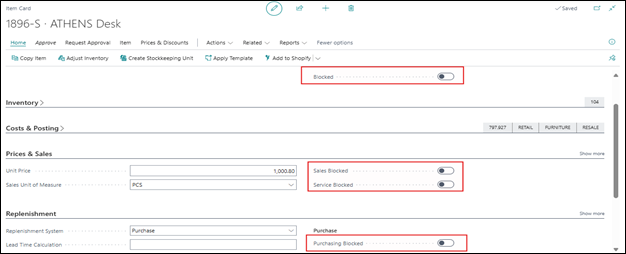
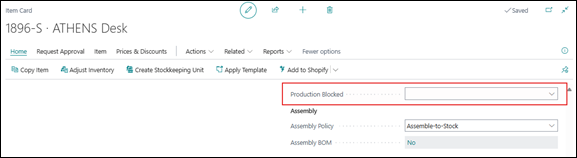
With this update, Business Central now includes a dedicated Production Blocked toggle to streamline the process in item card.
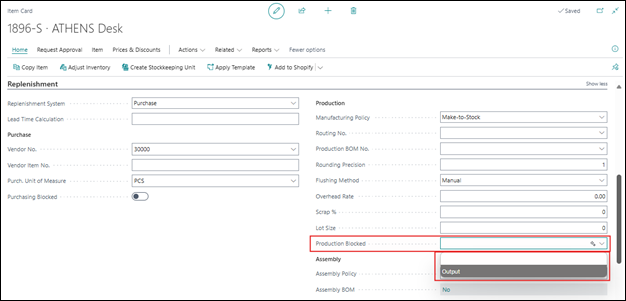
Solution (Implementation Steps):
- To block a specific item, click on the Global Search icon
and search for Item Card. Select the item to block from production. On the Replenishment Fast Tab, turn on the “Production Blocked” toggle.
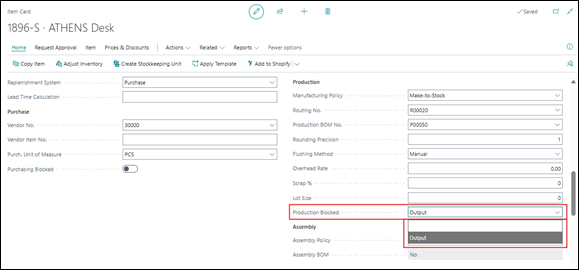
- To block a specific variant, go to the Item Card, then select Related > Item > Variants from the top menu bar.
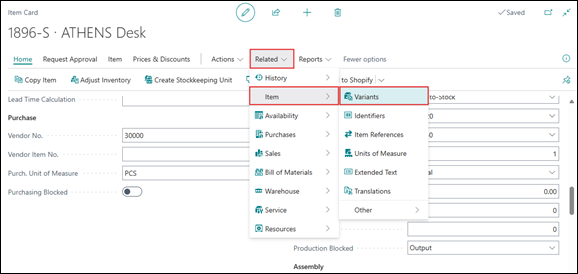
- Users can directly block a variant using the Production Blocked option on the Item Variants page.
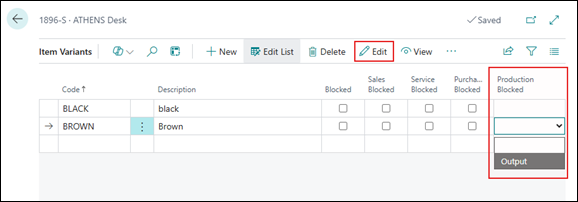
Alternatively, users can open the Variant Card by clicking the “Edit” option from the top menu bar on the Item Variants page. On the Item Variant Card, enable the Production Blocked toggle.
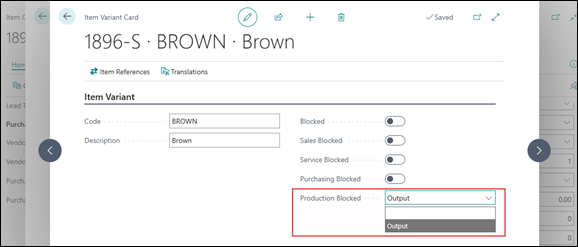
Behavior When Items Are Blocked:
- Now Create a new Production Order by click on the Global Search icon
and search for any of production Order and try to use the blocked item and variant in lines and Header.
Once an item (ATHENS Desk) or variant (Brown) is marked as Production Blocked, it will not be available for use in the following areas:
- Production Order Header
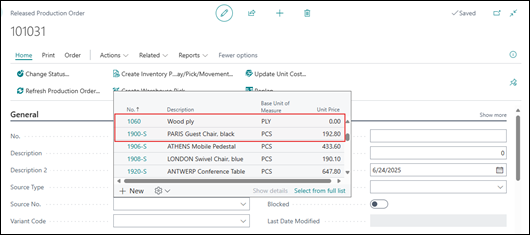
If User try to enter it manually, the following error will be displayed:
- Production Order Lines
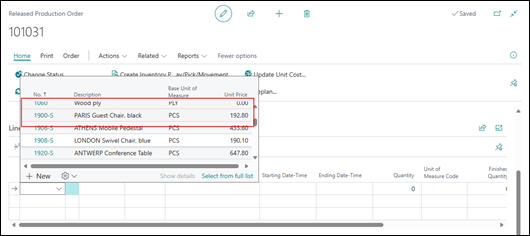
- If the user does not block the item but blocks only the variant (e.g., Brown),

the system will not Display that blocked variant in the suggestion list.
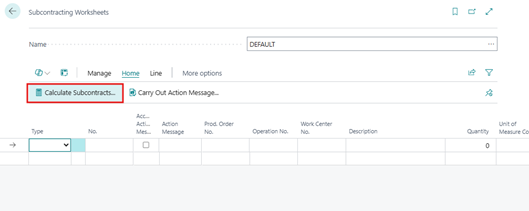
- If a production order contains a blocked item or variant, the following actions will be disabled:
- Post Output (via Output Journal or Production Journal)
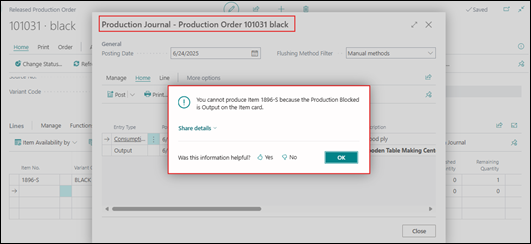
- Refresh Production Order.
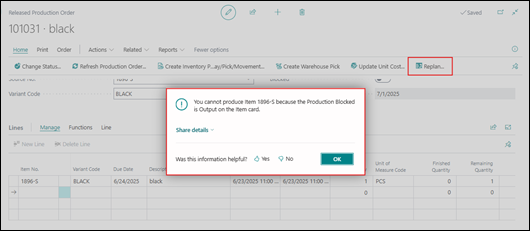
- Replan Production Order
- Calculate Subcontracts in the Subcontracting Worksheet
Note:
Even though blocked items may still appear in the Requisition or Planning Worksheets, users will not be able to carry out the action to create production orders.
Conclusion:
The Production Blocked feature in Microsoft Dynamics 365 Business Central offers manufacturers a smarter way to control their materials and production processes. By ensuring that only valid and approved items are used in production, businesses can avoid disruptions, reduce waste, and better manage transitions between product models. Whether you’re managing a large-scale manufacturing operation or a small batch production, this feature adds another layer of precision to your Business Central environment.