How to Create Purchase Orders from Projects in Microsoft Dynamics 365 Business Central
 By Inkey Solutions
October 17, 2025
3 min read
By Inkey Solutions
October 17, 2025
3 min read
Introduction
Microsoft Dynamics 365 Business Central is an all-in-one business management solution designed to streamline operations across various functions. Microsoft introduced a new feature in its 2024 update, Released Wave 2, that allows users to create purchase orders directly from project cards, ensuring that you have the necessary items to initiate or sustain a project efficiently.
Business Value
The ability to create purchase orders from project cards significantly enhances the project management experience in Business Central. This feature simplifies the procurement process, enabling users to generate purchase orders for items required for a project with minimal setup. By intelligently analyzing demand and supply, it saves time and reduces the risk of errors, ensuring that projects are well-equipped and run smoothly.
Requirement
How can you utilize this new feature in Business Central?
Prerequisites
Ensure you have access to Microsoft Dynamics 365 Business Central and the necessary permissions to create and manage purchase orders.
Solution (Implementation Steps)
Step 1: Access the Project Card
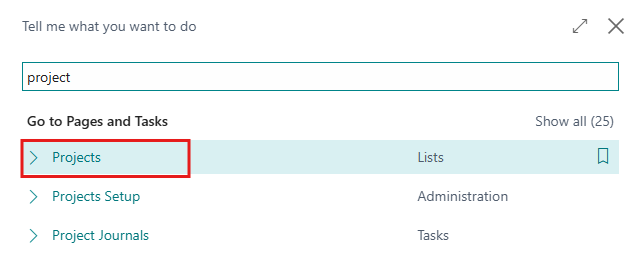
- Go to the search icon in the top right corner and search for Projects, then navigate to the Projects List Page in Business Central.
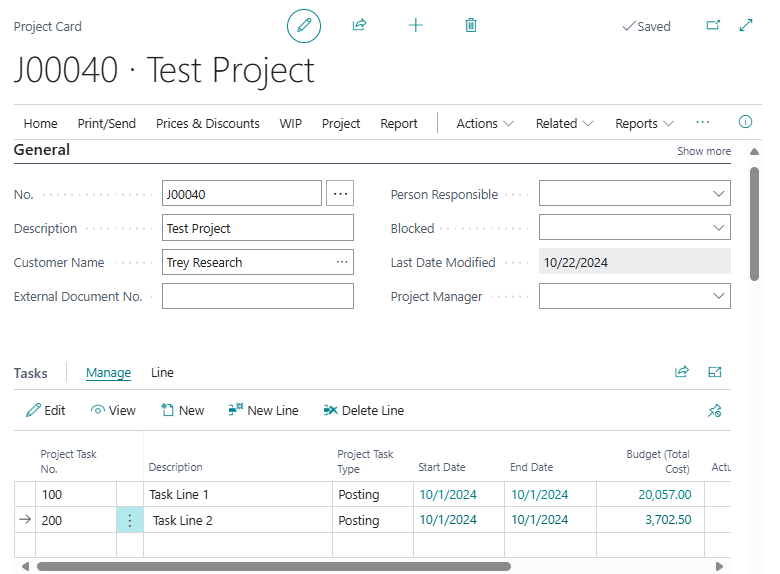
- This will open the Projects List page. From this list, users need to open the project for which they want to create purchase orders by clicking on it.
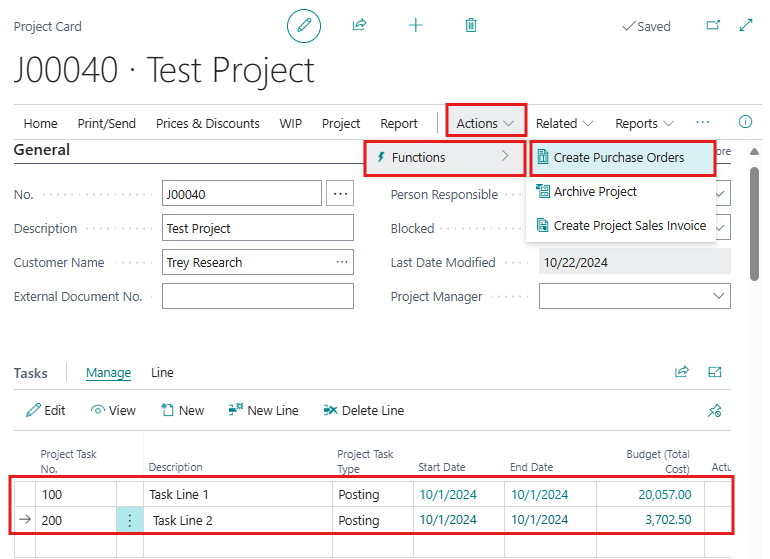
- On the Project Planning Lines page, select the Task line and click on Action > Function > Create Purchase Orders action from above menu bar.
Step 2: Create Purchase Orders
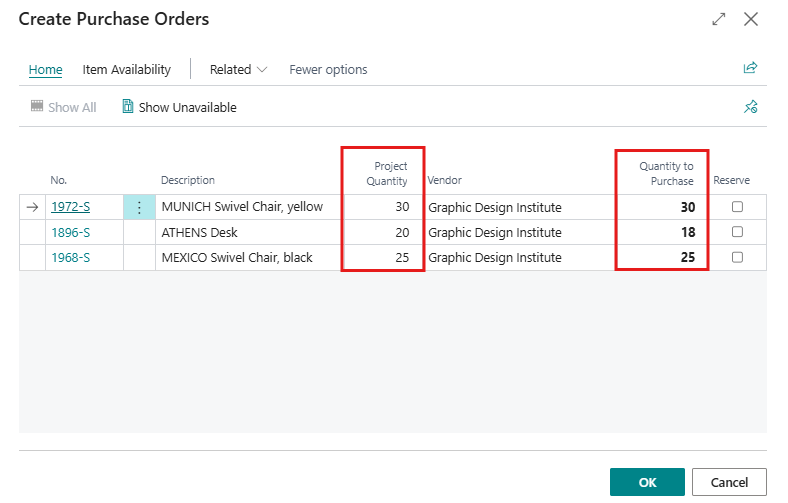
- The Create Purchase Orders page will open, displaying lines for each item associated with the project. Lines show both fully available and unavailable quantities by default.
Step 3: Adjust Quantities
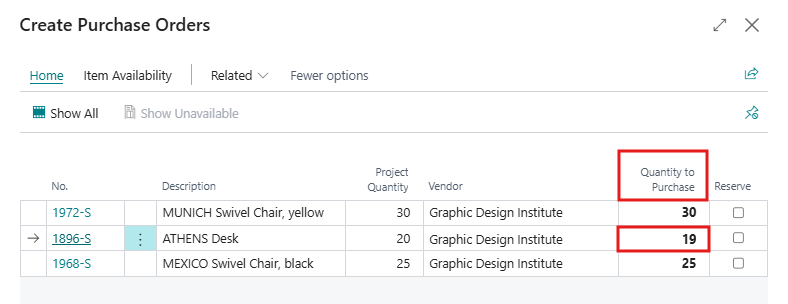
- In the Quantity to Purchase column, the user will see the unavailable quantity for each item. Users can edit this column to adjust the quantity the user wishes to purchase.
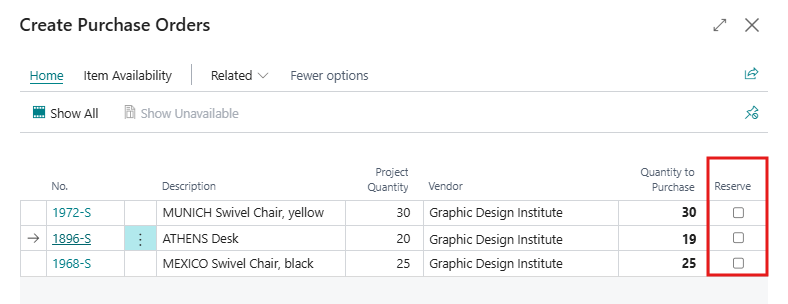
- If needed, turn on the Reserve toggle to reserve the quantity against a demand instead of filling in the Project No. and Project Task No. Fields.
Step 4: Confirm Purchase Orders
- Once you’ve made the necessary adjustments, select OK.
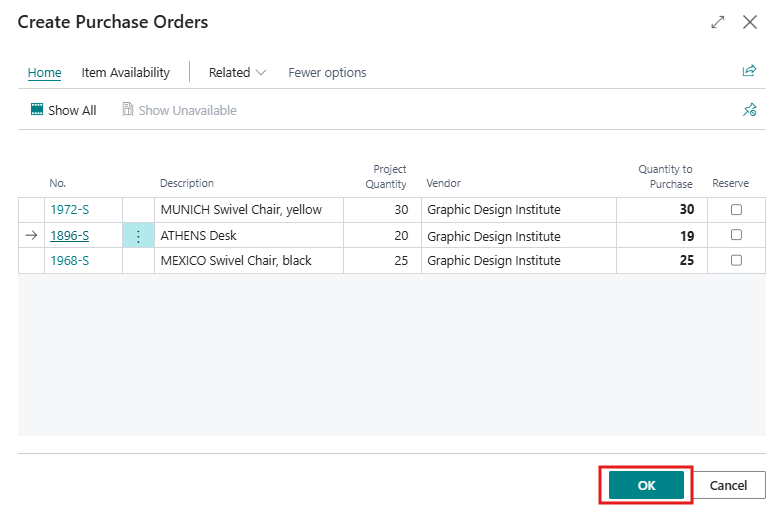
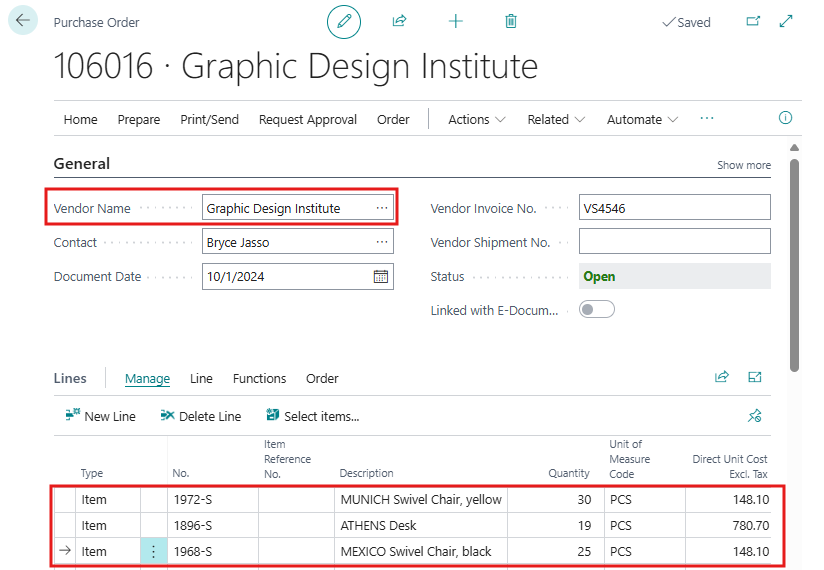
- This action creates a purchase order for each vendor supplying the items, reflecting any quantity of changes made during the process.
Step 5: Review Purchase Lines
- After creating and posting the purchase orders, if the user tries to create a purchase order for that line again, they will encounter an error because there is now sufficient quantity in their inventory.
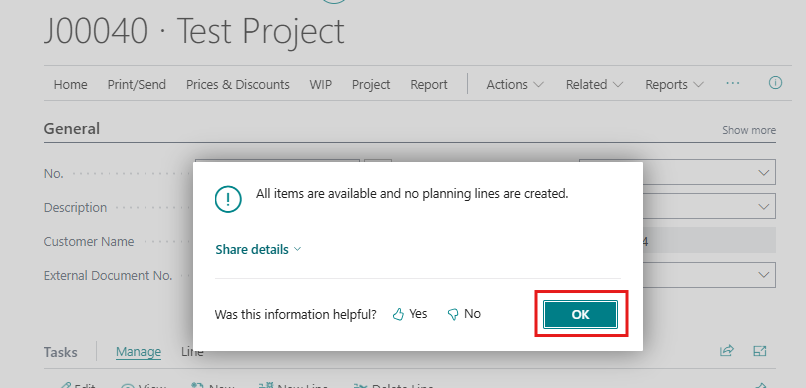
Note: –
If an open purchase order already exists for that item, the system will display a message on the screen.
Conclusion
Creating purchase orders directly from project cards in Microsoft Dynamics 365 Business Central streamlines the procurement process, enhances efficiency, and ensures that projects have the necessary resources. By following the outlined steps, users can effectively manage their purchasing needs, leading to improved project execution and better overall management of resources. This functionality not only saves time but also improves communication with vendors, ensuring a smoother workflow for project managers and teams.