Archiving Projects (Jobs) in Microsoft Dynamics 365 Business Central
 By WebSiteAdmin
July 16, 2024
3 min read
By WebSiteAdmin
July 16, 2024
3 min read
Microsoft Dynamics 365 Business Central is a powerful Enterprise Resource Planning (ERP) solution that offers a wide range of features. One such feature is the capability to archive projects (jobs) which can help keep your workspace organized and efficient. With archiving capabilities, users can manage their project data effectively, benefiting from audit trails and version control to ensure accuracy and compliance.
Requirement:
How can we archive projects (jobs) within Microsoft Dynamics 365 Business Central?
Prerequisites:
Ensure that the organization possesses valid licenses for Microsoft Dynamics 365 Business Central.
Solution (Implementation Steps):
To archive projects (jobs) in Microsoft Dynamics 365 Business Central, follow the following steps:
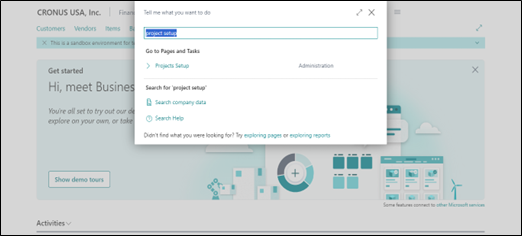
As shown in the below screenshot, go to the search bar and type “Project Setup”
On “Project Setup” Page, under the “archiving” Fast-tab, there is a field called “Archive Project”.
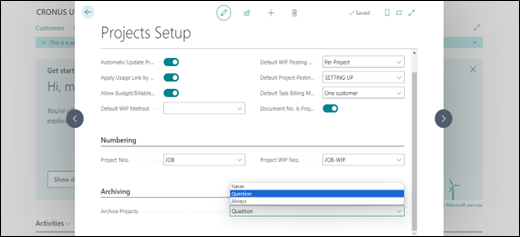
There are three options, Never, Question, Always.
Never: Don’t archive projects automatically. You can manually archive projects by using the Archive Document action, if needed.
Question: A dialog box will be prompted to choose whether to archive a project when one of the events mentioned in the notes occurs.
Always: Silently archive the project automatically when one of the events mentioned in the notes occurs.
NOTE: You can set up projects to archive automatically, so that you don’t need to think about it. With automatic archiving, Business Central creates a new version of the archived document when the following events occurs:
- Change the status of a document, or delete it.
- Print, download, or send a document by email.
- Post an invoice.
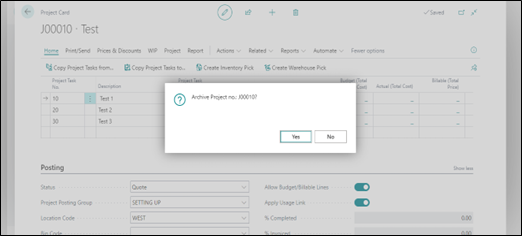
If “Question” option is selected in “archive project” field in Project setup page, then a dialog box will be prompted to choose whether the user wants to archive a project when one of the events mentioned in the notes occurs.
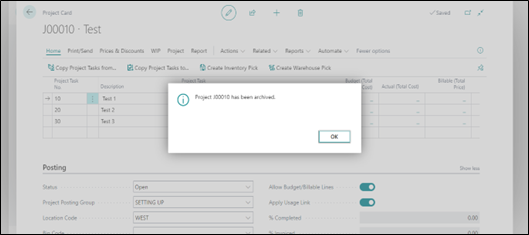
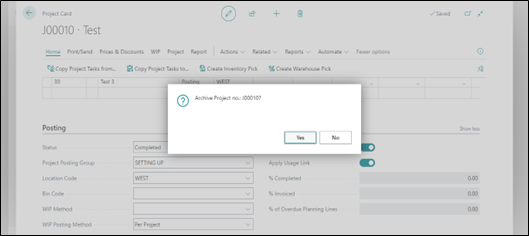
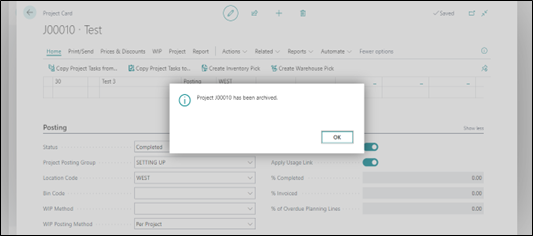
For Example: If the user has changed the status of the document then a dialog box will be prompted to choose whether the user wants to archive a project and if the user selects yes then it will display a message as shown in below screenshots.
If “Always” option is selected in “archive project” field in Project setup page, then it will silently archive the project automatically when one of the events mentioned in the notes occurs.
For Example: If the user has changed the status of the document then it will silently archive the project automatically and no message will be displayed.
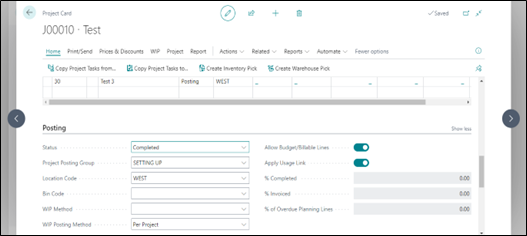
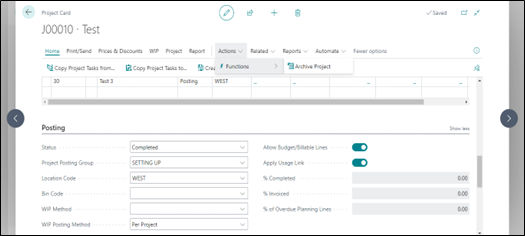
If “Never” option is selected in “archive project” field in Project setup page, then it will not archive projects automatically. The user can manually archive projects by selecting Actions << Functions << Archive Project as shown in below screenshot.
The user can see all the archived projects by go to the search bar and type “Project Archives”
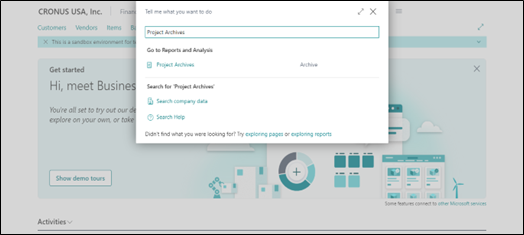
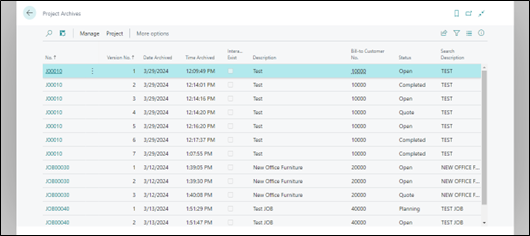
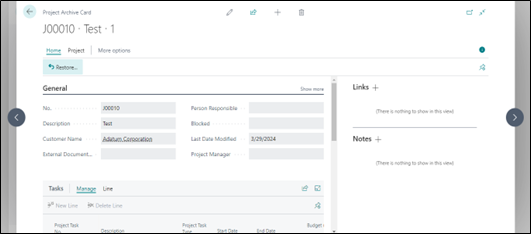
On the “Project Archives” page, users can access all archived projects and reuse earlier versions if necessary. For projects where the original still exists and isn’t posted, users can utilize the “Restore” action to overwrite the current project with an archived version.
Conclusion:
In conclusion, archiving projects (jobs) in Microsoft Dynamics 365 Business Central is a straightforward process that offers significant benefits in maintaining an organized workspace and ensuring data accuracy and compliance. By following the outlined steps and configuring archiving options based on organizational needs, users can effectively manage project data with ease. With the ability to archive projects automatically or manually and access archived versions as needed, Business Central empowers users to streamline their project management processes and enhance overall efficiency.