Business Central Wave 1 2025: Extend CardPageId on list and listpart pages (Support modification of CardPageID on PageExtensions)
 By Hetal Tank
August 31, 2026
4 min read
By Hetal Tank
August 31, 2026
4 min read
Introduction
Microsoft Dynamics 365 Business Central is a flexible and powerful Enterprise Resource Planning (ERP) solution designed to adapt to the specific requirements of diverse businesses. One such enhancement is the ability to extend the CardPageId property on list and list part pages in Business Central. With this enhancement, you can now extend the CardPageId property to define a card page for lists or list parts that don’t have one, or replace the default card page with a custom card page.
Prerequisites
- Access to a Dynamics 365 Business Central environment.
- Basic knowledge of AL (Application Language) code.
- Visual Studio Code with AL Language extension installed.
- A valid Card Page available to link with the list or list part page.
- Sufficient permissions in Business Central to publish and test extensions.
Requirement
Enable the ability to extend the CardPageId property on list and list part pages in Business Central, allowing developers to add or replace card pages to improve navigation and tailor the user experience.
Solution (Implementation Steps)
In Dynamics 365 Business Central, follow these steps to extend the CardPageId property on the Customer List page in AL:
Step 1: Create a Custom Customer Card Page in AL:
- First, create a custom card page that will be linked to the Customer List.
- Add necessary fields, groups and properties.
page 50128 INK_ExtendedCustomerCard
{
PageType = Card;
ApplicationArea = All;
UsageCategory = Administration;
SourceTable = Customer;
Caption = ‘Demo Customer Card’;
layout
{
area(Content)
{
group(General)
{
field(“No.”; Rec.”No.”)
{
ApplicationArea = All;
}
field(Name; Rec.Name)
{
ApplicationArea = All;
}
field(“Customer Nick Name”; Rec.”Customer Nick Name”)
{
ApplicationArea = All;
}
field(“Balance (LCY)”; Rec.”Balance (LCY)”)
{
ApplicationArea = All;
}
}
}
}
}
- This page will be used as the extended card for the Customer List.
Step 2: Create a Page Extension to extend the Customer List Page:
- Create a Page Extension for the Customer List Page and set its CardPageId property to your new custom card page id.
pageextension 50109 INK_CustomerList extends “Customer List”
{
CardPageId = INK_ExtendedCustomerCard;
}
Note:
- If the property is already specified on the base page, the value in the PageExtension will override it.
- If multiple PageExtensions modify the property, the last extension to be applied will take effect.
Step 3: Publish and Install the Extension:
- After creating the Custom Card Page & Page Extension for Customer List page, you’ll need to publish and install the extension in your Dynamics 365 Business Central instance.
- Use Visual Studio Code and AL Language tools to:
- Build your project.
- Publish the extension via. VS Code.
- Install it in your Business Central environment.
Step 4: Test the Customization:
- Open the Customer List page.
- Select any customer record.
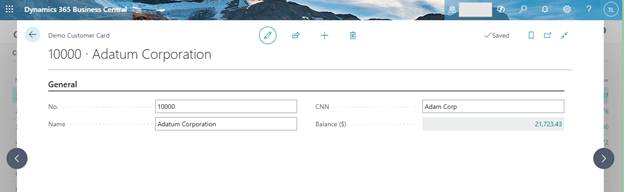
- You should now be redirected to your Demo Customer Card (INK_ExtendedCustomerCard) instead of the standard customer card.
Output:
Conclusion:
Extending the CardPageId property provides developers with a simple yet powerful way to customize navigation in list and list part pages. In this example, we replaced the default Customer Card with a custom card page, giving us full control over which fields and layouts are displayed.