Creating Deep Links from Dynamics 365 CRM to Finance & Operations (F&O)
 By Inkey Solutions
November 28, 2025
5 min read
By Inkey Solutions
November 28, 2025
5 min read
In today’s connected business landscape, organizations rely on multiple Dynamics 365 applications to manage different business processes. Dynamics 365 Customer Engagement (CRM) is commonly used for managing customers, sales, and cases, while Dynamics 365 Finance & Operations (F&O) handles finance, supply chain, and operations.
Often, users working in CRM need quick access to related records in F&O. Manually navigating between systems is time-consuming and prone to errors. This is where deep linking comes in enabling users to jump directly from a CRM record to its corresponding record in F&O with a single click.
In this blog, we’ll walk through the process of creating CRM-to-F&O deep links.
What is a Deep Link?
A deep link is a URL that takes a user directly to a specific record/page inside an application instead of just opening the homepage.
shareable, secured URLs that navigate directly to root-navigable forms or specific records in Finance & Operations. These URLs can optionally include a data context, filtering the displayed data based on your parameters.
Business Scenario
Imagine a sales team working in CRM. When viewing a customer or Sales Quotation record, they often need to check finance details, order history, or credit status in F&O. Instead of searching again in F&O, we can embed a “View in F&O” button in CRM that generates a dynamic URL and opens the F&O record instantly.
Steps to Create CRM → F&O Deep Links
So first of all, let’s understand some of the Anatomy of an F&O Deep Link
| Parameter | Description |
|---|---|
| Base URL | The environment URL (e.g., https://contoso.operations.dynamics.com/) |
| mi (Menu Item) | The form/workspace to open (e.g., SalesTable, customertable) |
| prt (Partition) | Partition — usually initial |
| cmp (Company) | Legal entity (e.g., USMF) |
| recid | The unique system identifier for the record |
Identifiers: GUID vs RecId
When creating deep links, the identifier is the most important piece.
- If a virtual entity from Finance and Operations is available in Dataverse, you can retrieve the record’s GUID directly from that table.
- However, if the virtual entity is not available, you can use the record’s RecId as a unique identifier within F&O.
RecId is a system-generated unique identifier in F&O, whereas GUID is a globally unique identifier stored in Dataverse.
In this Blog let’s look for the virtual entity’s record.
1. Identify the Target Record in F&O
Each F&O form (Customer, Sales Order, Quotation, etc.) has a unique Menu Item (mi).
- Example:
- Customer Table = CustTable
- Sales Quotation = SalesQuotationTable
- Sales Order = SalesTable
Along with the RecId/entityGuid or primary key field, this defines the URL structure.
2. Build the Deep Link Pattern
The standard deep link format is:
https://<org URL> cmp=<cmpName>&mi=CustTable&entityName=<name OfEntity>&entityGuid=< 00000000-0000-0000-0000-000000000000 >
3. Store the F&O Environment URL in CRM
Instead of hardcoding, store the F&O base URL in CRM Environment Variables.
This makes the solution reusable across Dev, UAT, and Production.
4. Add a Button in CRM Ribbon
Using the Ribbon Workbench (or Command Designer), create a button “View in F&O” on the required entity (Customer, Quote, Sales Order).

- On click → Call the JavaScript function
- Pass required parameters like
> example:
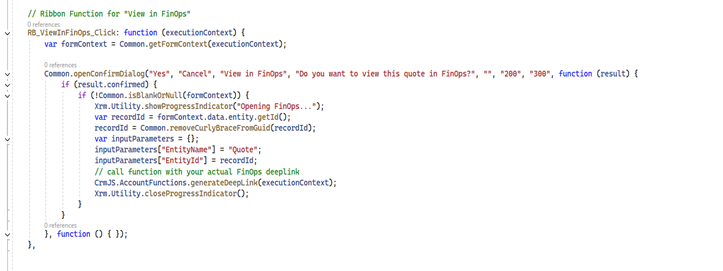
5. Create a JavaScript Function in CRM
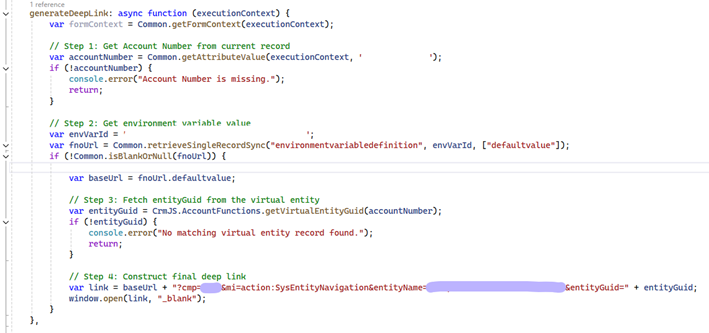
Then create a JavaScript web resource that dynamically generates deep links.
- We start by fetching the Account Number from the current CE record. This acts as a unique key to locate the corresponding F&O record.
If the field is empty, the script exits early to avoid errors. - We then fetch the F&O URL stored in Dataverse Environment Variables.
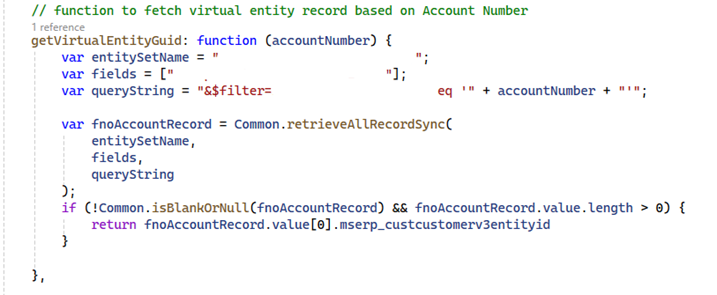
This ensures the link is configurable and does not require hardcoding URLs in the script. - Since CE and F&O are integrated via virtual entities, we fetch the unique GUID of the corresponding record in F&O.
If no record is found, the process is halted with an error log. - Finally, we generate the deep link that directly opens the F&O record in a new browser tab.
The link includes:- cmp= → Company code
- mi=action:SysEntityNavigation → Navigation action
- entityName → Virtual entity schema name
- entityGuid → The fetched record ID
6. Test the Deep Link
- Open a record in CRM.
- Click on View in F&O.
- The system opens the exact same Customer record in F&O in a new tab. 🚀
Benefits of CRM-to-F&O Deep Links
- Seamless navigation between CRM and F&O.
- Time-saving for users by avoiding duplicate searches.
- Data consistency as users work on the same record across applications.
- User-friendly experience with just one click.
Conclusion
Deep linking is a simple yet powerful way to bridge Dynamics 365 CRM and F&O. By setting up dynamic URLs, storing environment variables, and adding a ribbon button, we enable users to move between systems effortlessly.
This not only enhances productivity but also builds confidence among users that both systems are integrated and aligned.
Try implementing this in your environment and showcase how easy it is for users to access F&O records directly from CRM!