Enhanced Usability for Projects in Microsoft Dynamics 365 Business Central
 By Inkey Solutions
June 24, 2025
4 min read
By Inkey Solutions
June 24, 2025
4 min read
Introduction
Microsoft Dynamics 365 Business Central continues to enhance usability and productivity by streamlining various business processes. The latest updates 2024 Released Wave 2 update allows users to improve functionalities for project management, making it easier for users to access key information quickly and efficiently.
Business Value
Productivity increases when processes are intuitive and efficient. To make it faster to retrieve and interact with project data, Business Central now includes additional actions across several pages. These improvements significantly reduce the time spent navigating between pages, allowing users to complete tasks easily. By simplifying access to invoicing, project details, and work-in-progress data, businesses can ensure smoother operations and enhanced financial management.
Requirement
How can you utilize these new usability improvements in Business Central?
Prerequisites
Ensure you have access to Microsoft Dynamics 365 Business Central and the necessary permissions to manage projects and service processes.
Solution (Implementation Steps)
Step 1: Access Key Project Details Quickly from the Project List Page
To improve project visibility and ease of access, Business Central introduces new actions on the Project List page. Users can now quickly navigate to important sections such as:
- Assembly Orders
- Put-away, Pick, and Movement Lines
- Registered Pick Lines
- Project WIP Cockpit
- Click on the search
 icon in the top right corner and search for a “Project.” Then, navigate to the “Project List” page in Business Central. Open the project you want to view. Click on Related >Project >Assembly Order option.
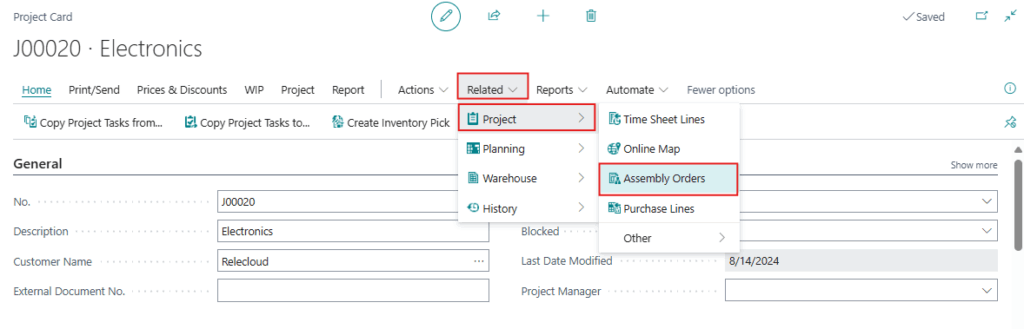
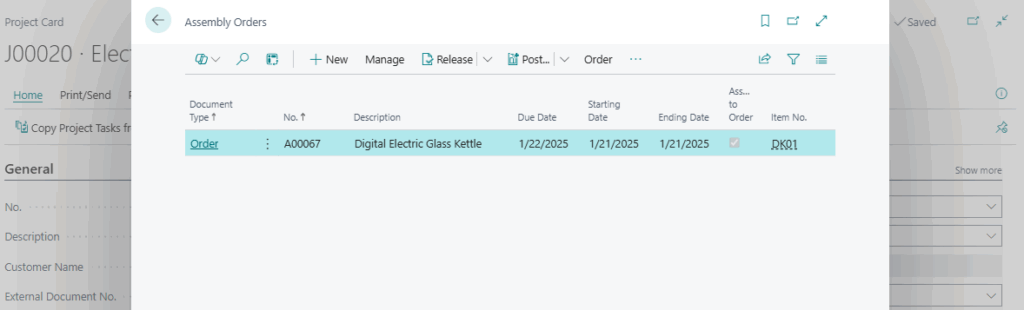
- This will open item related to assembly order.
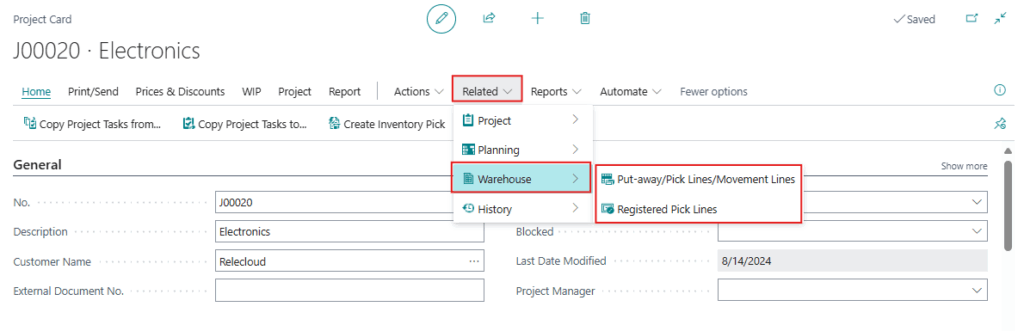
- Likewise, users can click on Related >Warehouse option. Here users can view “Put-away, Pick, and Movement Lines” and “Registered Pick Lines” option to view lines.
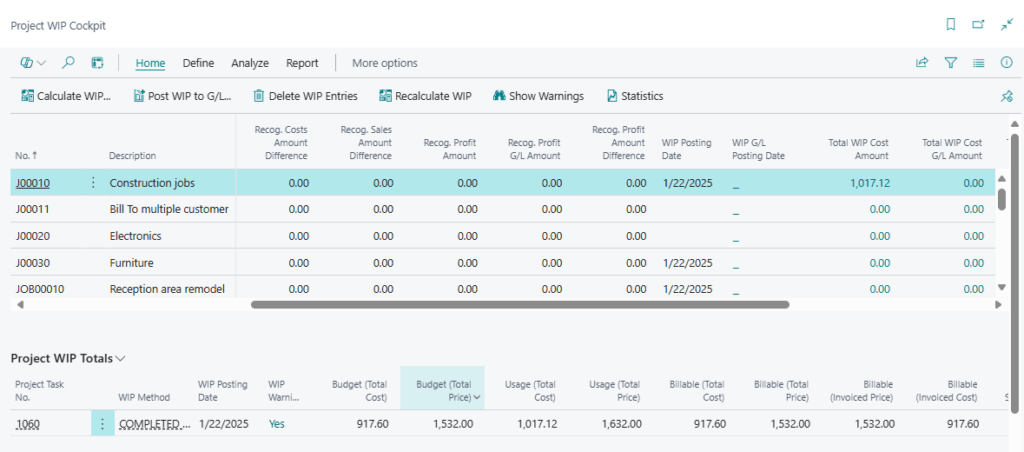
Step 2: Navigate the Updated Project WIP Page (Now Called Project WIP Cockpit)
To make project work-in-progress (WIP) management easier to understand, Business Central has renamed the Project WIP page to Project WIP Cockpit. This change ensures better distinction between different WIP-related actions and pages.
How to Use the Project WIP Cockpit:
- In the “Project List page”, Microsoft provides new action under WIP > Project WIP Cockpit.
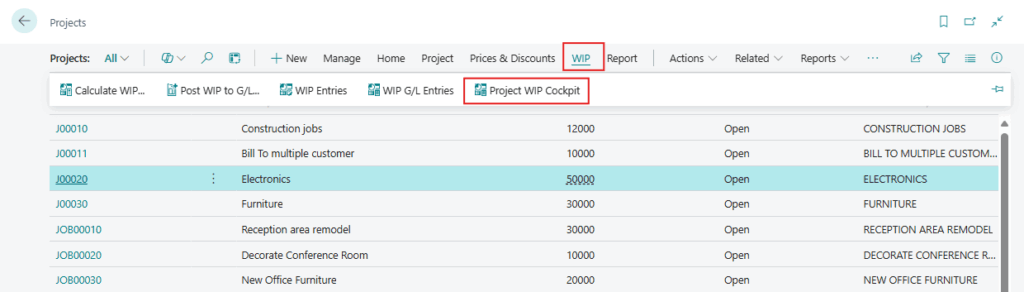
- This will open the page to view or manage project WIP data. Here user can view all the projects and their WIP Data. They also can Perform necessary calculations or adjustments as per their need.
Step 3: Create a Project Sales Invoice Directly from the Project Card Page
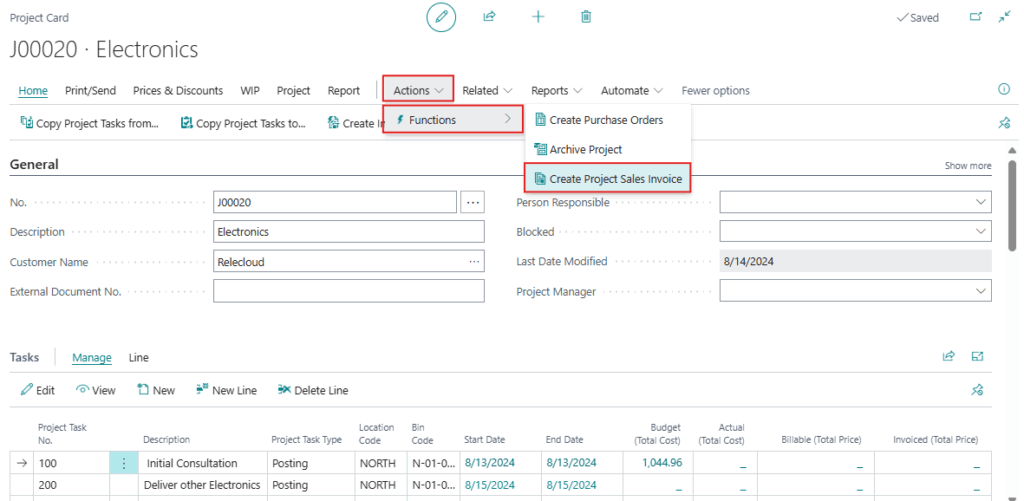
To encourage the invoicing process for projects, Business Central now includes a Create Project Sales Invoice action on the Project Card page. This allows users to generate invoices without leaving the project details page, reducing steps and improving efficiency.
- In the Project Card page Click on Create Project Sales Invoice from the available actions.
- Complete the necessary details and confirm the invoice creation.
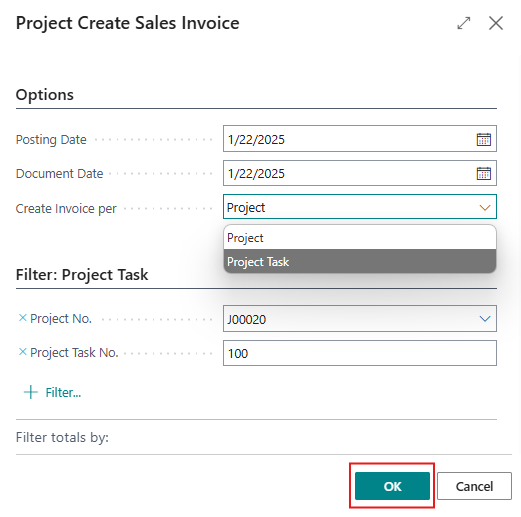
| Field Name | Description |
| Posting Date and Document Date |
|
| Create Invoice Per |
|
| Project No. | Specifies the selected Project No. |
| Project Task No. | Specifies the selected Project Task No. when Project Task option is selected. |
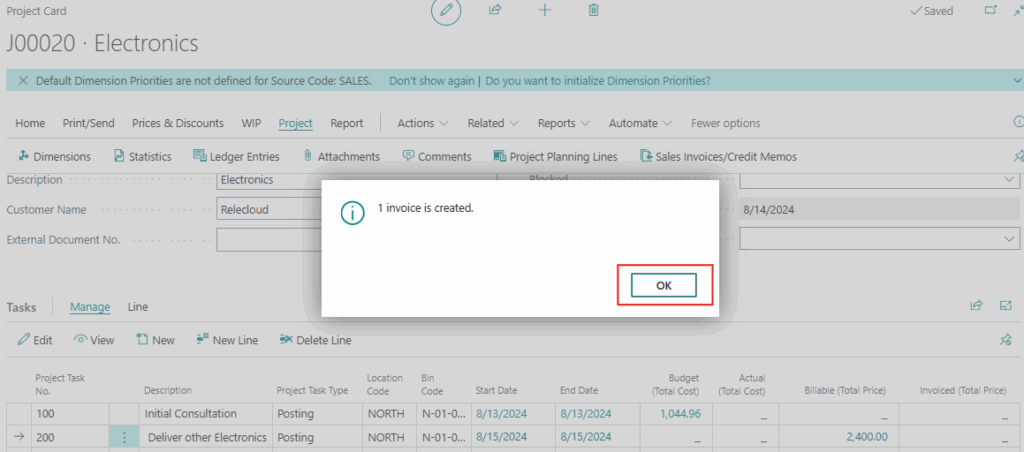
- This will Create Sale Invoice for this selected Project planning lines only.
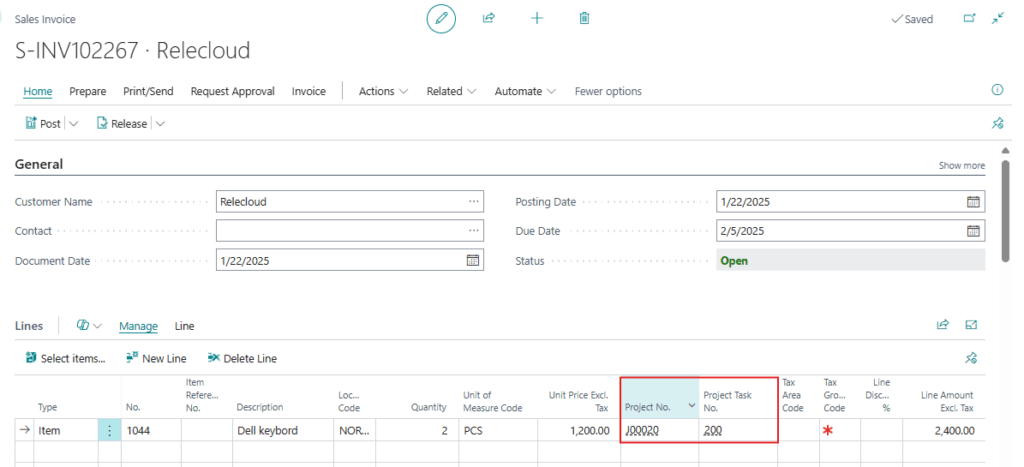
Step 4: View Item Availability in Project Planning Lines
To track when and where an item is available in the context of a business task:
- Go to the Project Planning Lines.
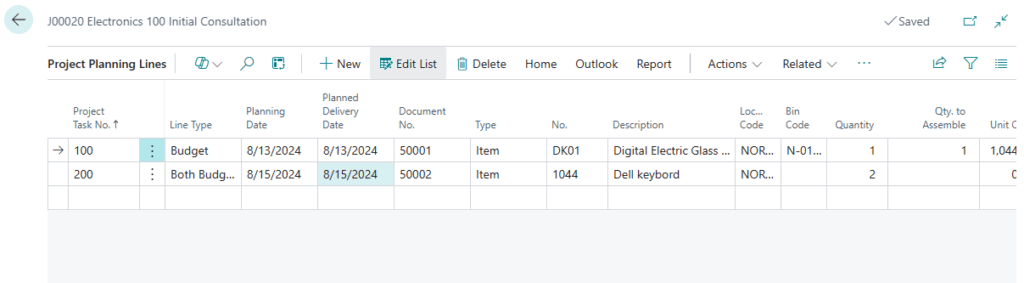
- User will now see the Item available by action in Home, which provides item availability information.
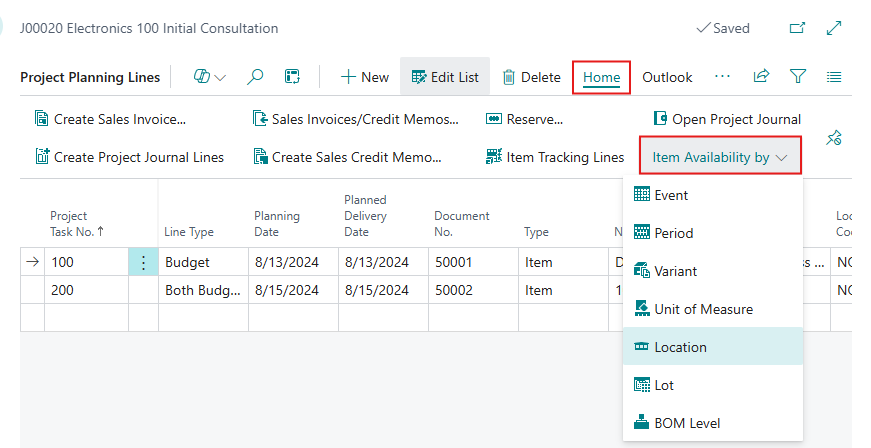
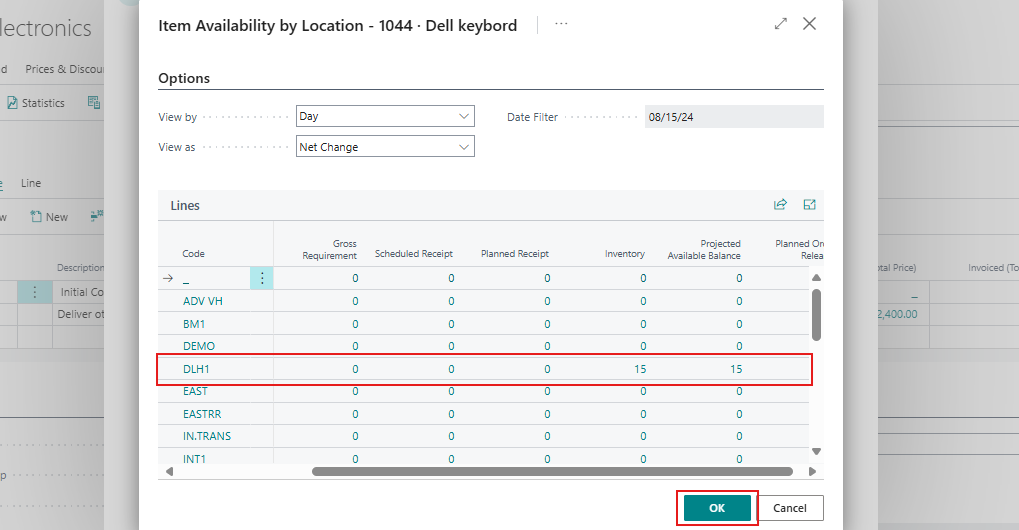
- This field shows item availability by location, event, or period, helping you make informed decisions based on real-time inventory data.
Conclusion:
The latest usability enhancements in Microsoft Dynamics 365 Business Central for project management ensure faster access to crucial data and simplify key business processes. By integrating invoice creation directly into the Project Card page, adding quick navigation actions to the Project List page, and renaming the Project WIP page for better clarity, users can work more efficiently. These updates are designed to provide greater flexibility and streamline operations, ultimately improving project execution and financial management.