How to Create Purchase Orders from Drop Shipments in Microsoft Dynamics 365 Business Central?
 By Hetal Tank
October 16, 2026
3 min read
By Hetal Tank
October 16, 2026
3 min read
Introduction
In the 2026 Release Wave 1 update of Microsoft Dynamics 365 Business Central, Microsoft introduced improvements for managing drop shipment processes. Users can now create purchase orders directly from sales orders that are marked for drop shipment by using the new “Create Purchase Orders” action.
This update also improves planning by including drop shipment lines in the Order Planning and Planning Worksheet pages, making the procurement process more efficient and organized.
Business Value
Managing drop shipments manually can take time and increase the chances of errors. This new functionality simplifies the process by allowing users to quickly create purchase orders directly from sales orders.
With this feature:
- Reduces manual work in drop shipment processing
- Improves purchasing accuracy
- Saves time during procurement
- Enhances planning and order management
- Provides better visibility of drop shipment requirements
Requirement
How to create purchase orders from drop shipments in Business Central?
Prerequisites
- Ensure you are using Business Central 2026 Release Wave 1 or later version
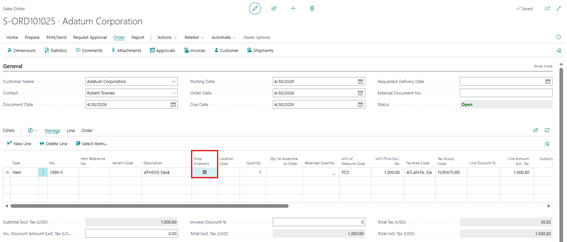
- Sales order lines must be marked as Drop Shipment
- Vendor details should be configured on the Item Card or Stockkeeping Unit Card
Solution (Implementation Steps)
Scenario 1: Create Purchase Order from Sales Order
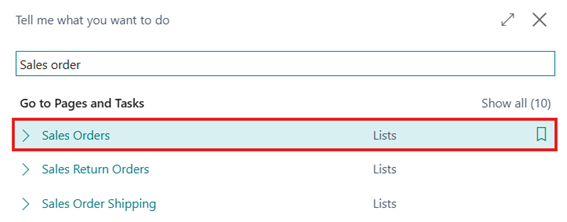
- Click on the Tell Me (Search)
icon and search for Sales Orders.
- Open an existing sales order that contains lines marked as Drop Shipment.
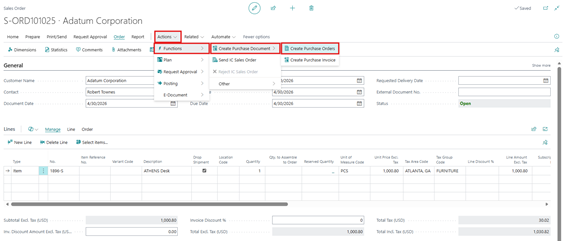
- On the Sales Order page, click on the “Create Purchase Orders” action from the above menu bar.
- The system will open the Create Purchase Orders page with suggested purchase lines. The vendor is automatically selected based on information from the Item Card or Stockkeeping Unit Card.
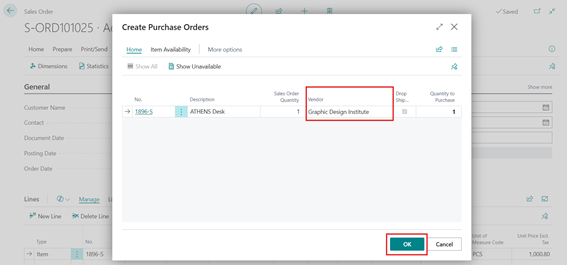
Review the suggested lines and change the vendor if required. Complete the process to create the purchase order by clicking on ok.
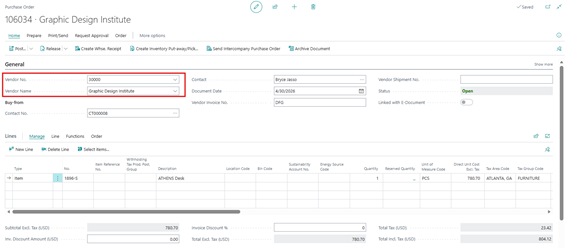
- The system will create Purchase order for selected vendor.
Scenario 2: Create Purchase Order from Order Planning
Step 1: Open Order Planning
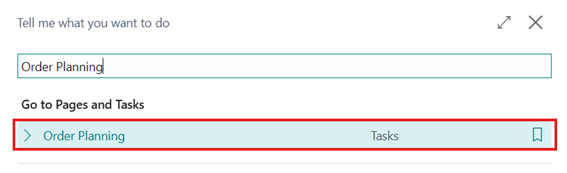
- Click on the Tell Me (Search) icon and search for Order Planning. Open the Order Planning page.
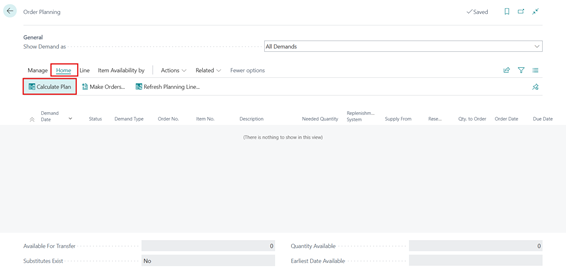
- Use the Calculate Plan action from the above menu bar.
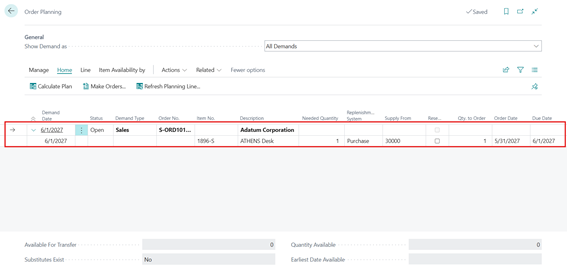
- The system will include drop shipment lines while calculating the plan.
Scenario 3: Use Drop Shipment Actions in Planning Worksheet
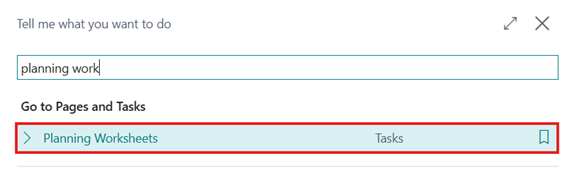
- Search for Planning Worksheet and open the Planning Worksheet page.
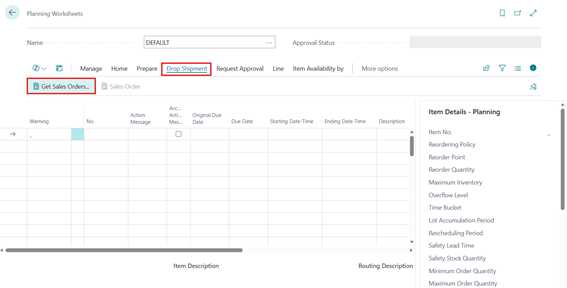
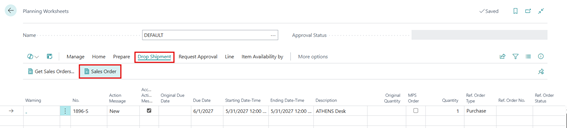
- On the Planning Worksheet page, use the new Drop Shipment action group and select “Get Sales Orders…” action.
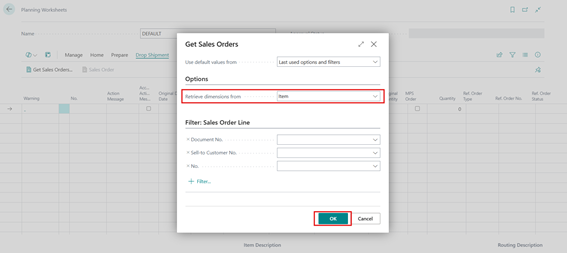
- The system will open a batch job page. Click OK to continue.
- The system will then include sales orders that are marked for drop shipment.
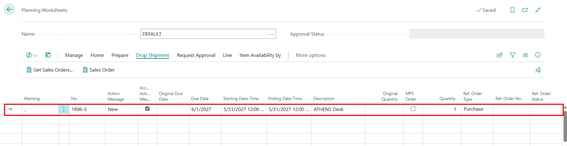
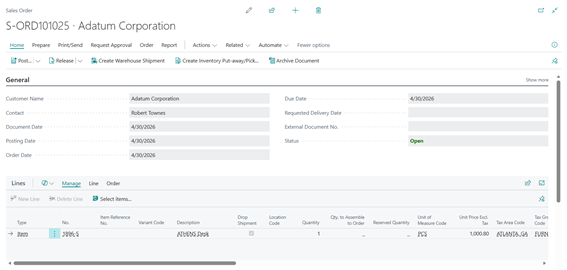
- Users can view the sales orders by using the Sales Orders action from the menu bar.
Conclusion
The new drop shipment enhancements in Microsoft Dynamics 365 Business Central 2026 Release Wave 1 make the purchasing and planning process more efficient. By allowing users to create purchase orders directly from sales orders and including drop shipment lines in planning calculations, businesses can reduce manual effort, improve accuracy, and manage procurement activities more effectively.