Error Handling Framework in Microsoft Fabric: Design, Logging & Alerts
 By Inkey Solutions
December 23, 2025
6 min read
By Inkey Solutions
December 23, 2025
6 min read
Introduction
In modern data engineering workflows, reliable pipeline execution is crucial for maintaining data integrity and trust. Microsoft Fabric, with its powerful integration and orchestration capabilities, provides robust mechanisms for building such pipelines. However, without a structured error handling and logging system, failures can go unnoticed or become difficult to debug.
This blog walks through a practical error handling framework built in Microsoft Fabric. We demonstrate how to design and implement structured logging, error capture, and email alerting across a layered pipeline architecture using three core tables:
- JobControl
- JobLog
- JobError
We also showcase how pipeline orchestration logic is designed to ensure visibility and traceability for every execution.
Architecture Overview
The error handling system is composed of:
- Pipeline execution logic (with logging and dependency control)
- Metadata-driven job registration using JobControl
- Job-level execution logs stored in JobLog
- Error details captured in JobError
- Conditional email alerts triggered on success/failure
High-Level Flow:
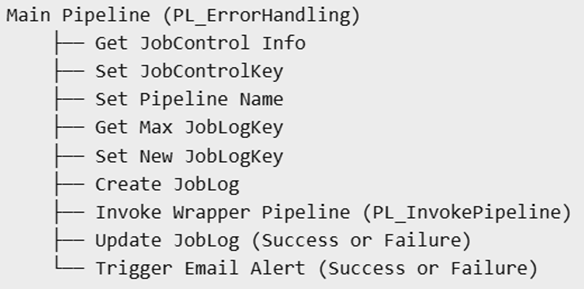
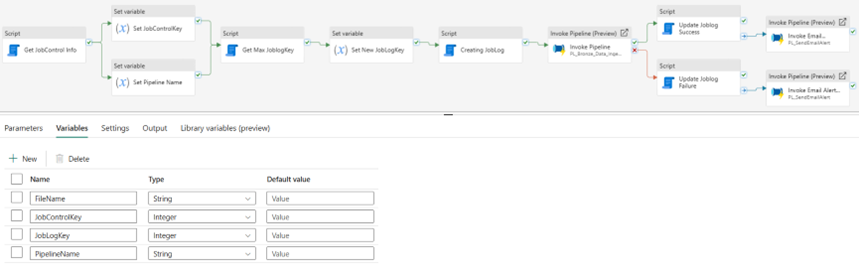
Core Tables Explained
JobControl
This table defines pipeline-level metadata:
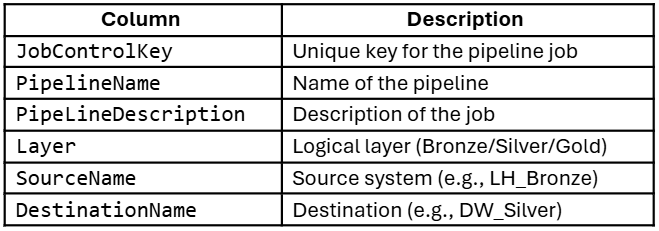
This acts as a registry to track job ownership and routing logic.
JobLog
Logs each execution of a pipeline:
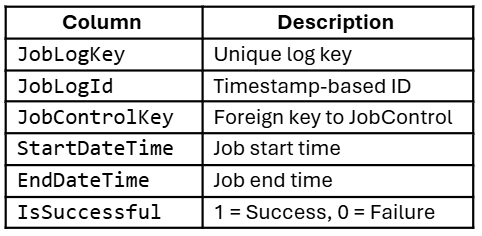
This provides a time-based trace of every pipeline run.
JobError
Captures errors occurring during execution:
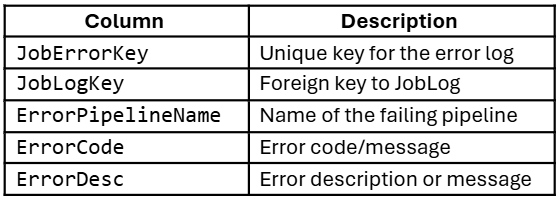
This allows detailed tracking of what went wrong and where.
Pipeline Name: PL_ErrorHandling
Purpose:
To orchestrate metadata-driven execution, centralized logging, error capture, and email alerts for downstream pipelines (like ingestion to Bronze/Silver/Gold layers).
Pipeline Variables
These are declared under the Variables tab in the pipeline:
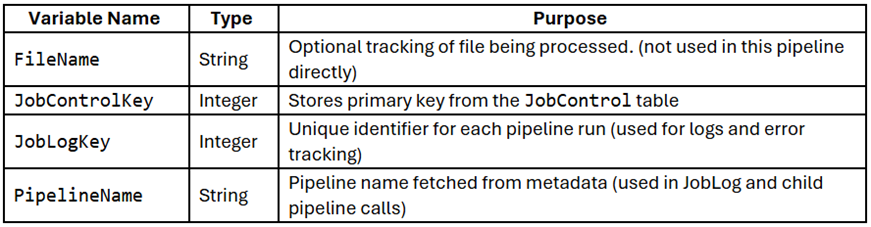
Pipeline Steps (Activity-by-Activity)
Get JobControl Info – Script Activity
- Purpose: Queries the JobControl table to get metadata for the job.
- Query:
SELECT JobControlKey, PipelineName
FROM JobControl
WHERE SourceName = ‘LH_Bronze’ AND DestinationName = ‘DW_Silver’ - Used By: Next step to set variables dynamically.
Set JobControlKey – Set Variable
- Variable: JobControlKey
- Expression:
@activity(‘Get JobControl Info’).output.resultSets[0].rows[0].JobControlKey - Stores the value of JobControlKey from the result of the query.
Set Pipeline Name – Set Variable
- Variable: PipelineName
- Expression:
@activity(‘Get JobControl Info’).output.resultSets[0].rows[0].PipelineName - Stores the pipeline name fetched from metadata.
Get Max JobLogKey – Script Activity
- Query:
SELECT MAX(JobLogKey) AS JoblogKey FROM JobLog - This gives the last used JobLogKey so that we can generate a new one.
Set New JobLogKey – Set Variable
- Variable: JobLogKey
- Expression:
@add(coalesce(activity(‘Get Max JoblogKey’).output.resultSets[0].rows[0].JoblogKey, 0), 1) - Safely increments the latest JobLogKey.
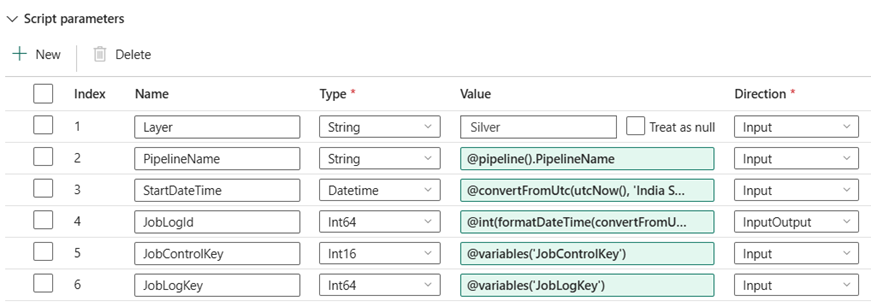
Creating JobLog – Script Activity
- Purpose: Inserts a new record into the JobLog
- Parameters Used:
- @variables(‘JobLogKey’)
- @variables(‘JobControlKey’)
- @pipeline().PipelineName
- @convertFromUtc(utcNow(), ‘India Standard Time’)
- @int(formatDateTime(convertFromUtc(utcNow(), ‘India Standard Time’),’yyyyMMddHHmmss’))
- Query:
INSERT INTO JobLog(
[JobLogKey]
,[JobLogId]
,[JobControlKey]
,[Layer]
,[PipelineName]
,[StartDateTime])
VALUES(
@JobLogKey
,@JobLogId
,@JobControlKey
,@Layer
,@PipelineName
,@StartDateTime)
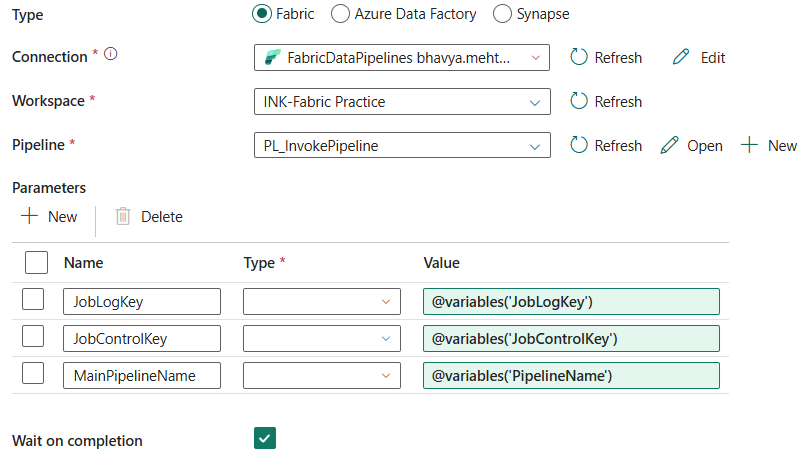
Invoke Pipeline – InvokePipeline Activity
- Invokes: A child ingestion pipeline like PL_InvokePipeline
- Waits for completion: true
- Parameters Passed:
- JobLogKey
- JobControlKey
- MainPipelineName (from PipelineName variable)
Pipeline Flow Splits After Execution
On Success → Update Joblog Success – Script Activity
- Query:
IF EXISTS (SELECT 1 FROM JobError WHERE JobLogKey=@JobLogKey)
BEGIN
UPDATE [JobLog]
SET EndDateTime = GETUTCDATE(), IsSuccessful = 0
WHERE JobLogKey = @JobLogKey
END
ELSE
BEGIN
UPDATE [JobLog]
SET EndDateTime = GETUTCDATE(), IsSuccessful = 1
WHERE JobLogKey = @JobLogKey
END

- Outcome: Checks if any error was logged. Sets final status accordingly.
On Completetion → Invoke Email Alert_Success
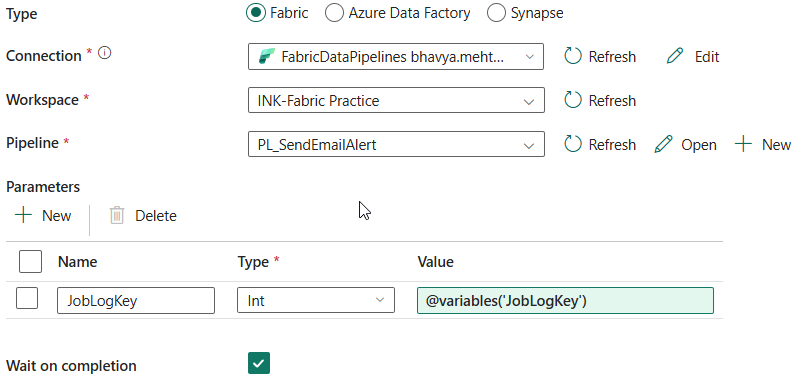
- Invokes: PL_SendEmailAlert
- Sends a success email with JobLog metadata.
On Failure → Update Joblog Failure – Script Activity
- Same logic as above: sets IsSuccessful = 0 in JobLog
- But triggered only when invoke pipeline fails (not error-based)
On Completetion → Invoke Email Alert Failure
- Invokes: PL_SendEmailAlert
- Sends a failure alert with job and error details.
Email Alert Pipeline: PL_SendEmailAlert
This helper pipeline sends a success or failure email based on error presence in the JobError table.
Activity 1: Lookup Error
This lookup activity queries the JobError table using the current JobLogKey as input. It retrieves any error records that may have been logged during pipeline execution. This is a crucial step to determine whether the execution encountered any issues.
- Query:
SELECT
JobLogKey,
MainPipelineName,
ErrorPipelineName,
ErrorCode,
ErrorDesc
FROM dbo.JobError
WHERE JobLogKey = @{pipeline().parameters.JobLogKey}
Activity 2: Lookup JobLog
This activity fetches the pipeline name from the JobLog table for the current JobLogKey. This helps personalize the email by including which pipeline was run.
- Query:
@concat(‘SELECT PipelineName FROM JobLog WHERE JobLogKey = ‘, string(pipeline().parameters.JobLogKey))
Activity 3: Check If Error Exist (If Condition)
This is a conditional branching activity that checks whether any errors were found in the Lookup Error step. It evaluates the following expression:
- Expression:
@greater(length(activity(‘Lookup Error’).output.value), 0)
If the length is greater than 0, that means one or more errors were returned.
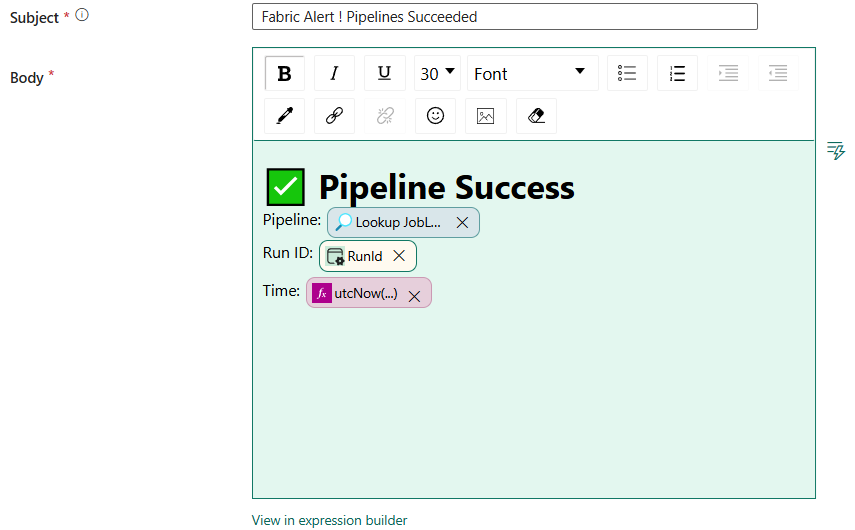
False Branch → SendSuccessEmail
If no error is found, this branch executes. It sends a green-colored success email using the Office365Outlook connector. The email includes:
- Pipeline name (from Lookup JobLog)
- Run ID
- UTC timestamp
Expression:
<p>
<span style=”font-size: 30px”><strong>✅ Pipeline Success</strong></span><br>
Pipeline: @{activity(‘Lookup JobLog’).output.firstRow.PipelineName}<br>
Run ID: @{pipeline().RunId}<br>
Time: @{utcNow()}
</p>
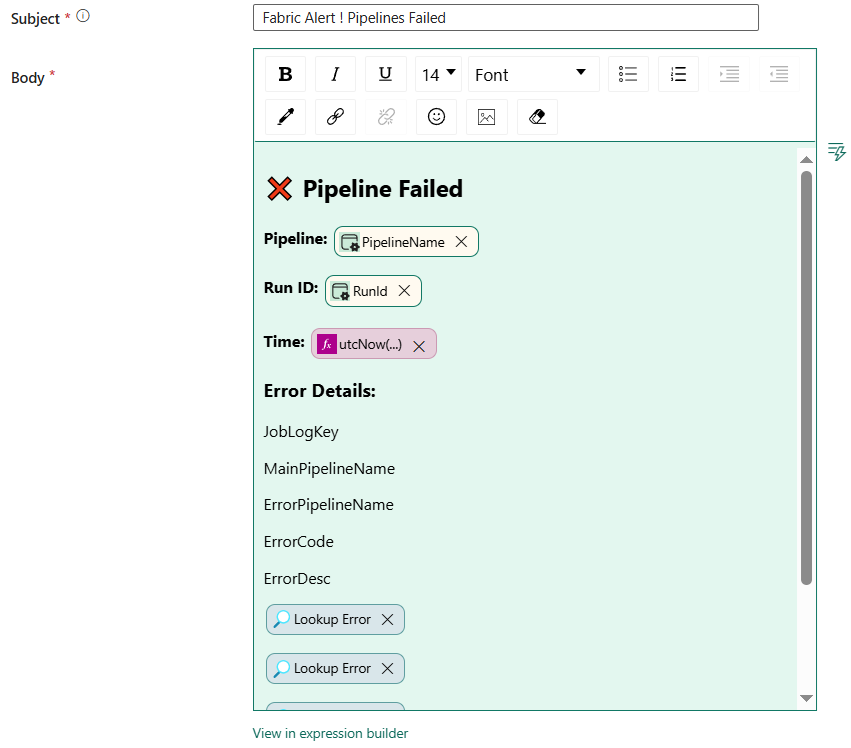
True Branch → SendFailureEmail
If any errors are found, this branch executes. It sends a red-colored failure email, also using the Office365Outlook connector. The email includes:
- Pipeline name
- Run ID
- UTC timestamp
- A formatted HTML table containing:
- JobLogKey
- MainPipelineName
- ErrorPipelineName
- ErrorCode
- ErrorDesc
<h2>❌ Pipeline Failed</h2>
<p><strong>Pipeline:</strong> @{pipeline().PipelineName}</p>
<p><strong>Run ID:</strong> @{pipeline().RunId}</p>
<p><strong>Time:</strong> @{utcNow()}</p>
<h3>Error Details:</h3>
<table border=’1′ style=’border-collapse: collapse;’>
<tr>
<th>JobLogKey</th>
<th>MainPipelineName</th>
<th>ErrorPipelineName</th>
<th>ErrorCode</th>
<th>ErrorDesc</th>
</tr>
<tr>
<td>@{activity(‘Lookup Error’).output.value[0].JobLogKey}</td>
<td>@{activity(‘Lookup Error’).output.value[0].MainPipelineName}</td>
<td>@{activity(‘Lookup Error’).output.value[0].ErrorPipelineName}</td>
<td>@{activity(‘Lookup Error’).output.value[0].ErrorCode}</td>
<td>@{activity(‘Lookup Error’).output.value[0].ErrorDesc}</td>
</tr>
</table>