From De-normalized to Normalized: A Guide to Data Transformation with SSIS
 By Inkey Solutions
October 24, 2025
3 min read
By Inkey Solutions
October 24, 2025
3 min read
Businesses depend on databases to store and handle huge amounts of data in today’s data-driven world. One common problem is moving data from denormalized tables (like those in data centers) to normalized tables quickly and efficiently while making sure the data is organized in a way that makes it easy to use and fast to perform.
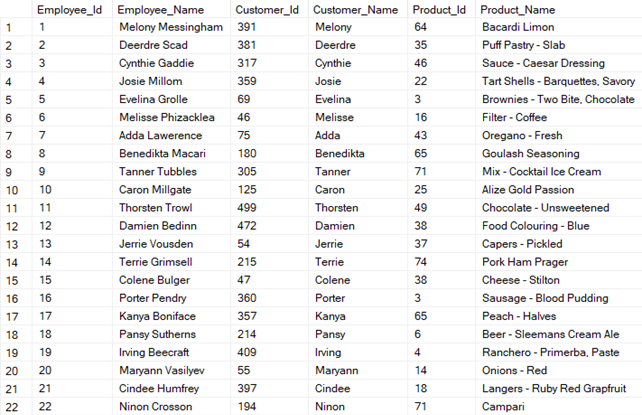
Input:
Output:
Employee Product Customer
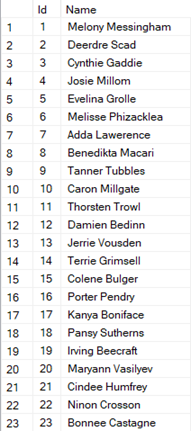
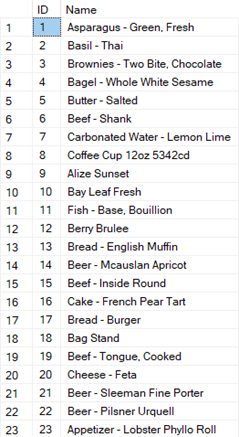
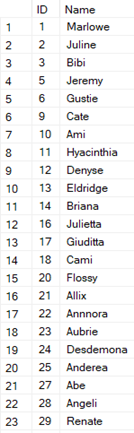
A de-normalized table, which is common in data warehouses, brings together different sets of linked data into a single table to make it easy to query and report. However, this arrangement can make it hard to keep track of data and store it correctly because there are multiple copies. Normalized tables, on the other hand, split this data into several linked tables, which cuts down on duplicates and makes the data more reliable.
It is hard to do correctly when you map and move data from a de-normalized table to several normalized tables by hand. This is especially hard to do when dealing with big files, updates that happen often, or data patterns that change over time. This process can become very slow for data researchers and database managers, which lowers the overall efficiency of data management tasks.
We have found a way to fix this problem by using SQL System Views, SSIS (SQL Server Integration Services), and SQL stored functions to make the process of moving data from a de-normalized table to its normalized tables automatic. This method uses SSIS to make the data flow and SQL to make saved procedures, which can be changed on the fly with SSIS.
Implementation
Step 1: Create an SP that will generate the INSERT INTO (table) query.
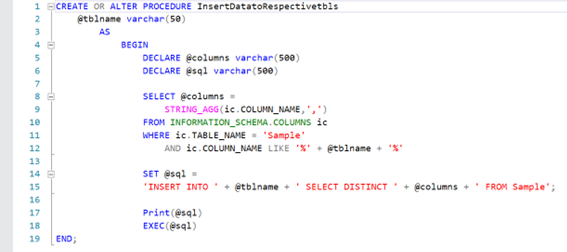
- We have used System View INFORMATION_SCHEMA.COLUMNS as it has all the information that we require such as Column Name, Table Name, and Schema Name.
- We have created two variables @columns which store the column name and will be separated by “, “(comma) using the STRING_AGG function, and @sql which stores the final query that will be executed.
- Now, this SQL script is stored in a Stored Procedure which has the parameter @tblname which takes the Table Name as an input.
Step 2: Creating a SELECT query
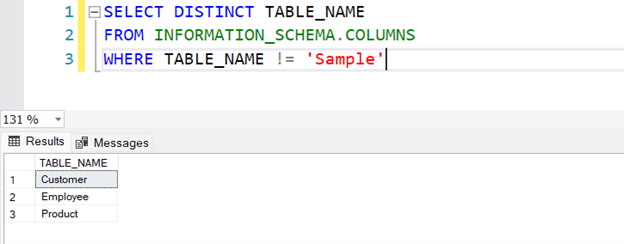
- This query will provide us with a Distinct Table name from the INFORMATION_SCHEMA.COLUMNS system view.
- Where condition will filter out the Sample table as it Warehouse table which has data in Denormalized form. This will make the query more effective.
Step 3: SSIS Flow
- We will drag and drop the SQL task and provide it with the given query below.
SELECT DISTINCT TABLE_NAME
FROM INFORMATION_SCHEMA.COLUMNS
WHERE TABLE_NAME! = ‘Sample’;
- Now will store the output of the query in a variable named TableNames of type Object as the ResultSet Will be Full Result Set.
- Then with the help of For Each Loop using ADO Enumerator will loop through all the available tables
- Inside the For Each Loop, we will place another Execute SQL Task which will execute the SP InsertTabletoRespectivetbls and the parameter will be another variable TableName of type String. The variable TableName will get the table name from the TableNames variable one by one due to the For Each Loop.