From Line Chart to Progress Indicator: A Native Power BI Visualization
 By Harsh Gajjar
October 27, 2026
5 min read
By Harsh Gajjar
October 27, 2026
5 min read
Introduction
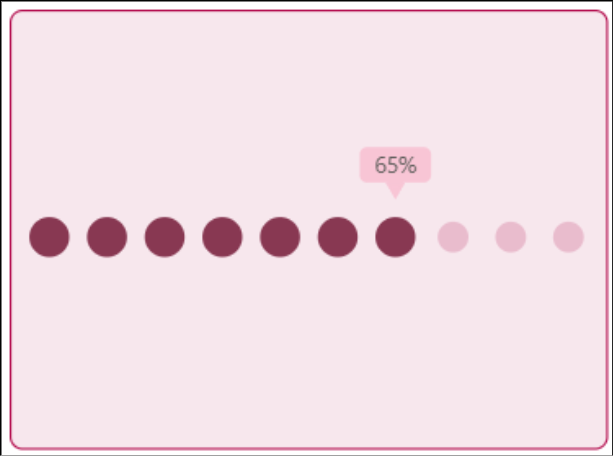
- Progress doesn’t always need a complex chart to communicate a clear message. A dot-based Project Progress visual offers a simple and engaging way to show completed and remaining work, with the progress percentage clearly displayed for quick understanding. This approach focuses on simplicity, clarity, and effective data storytelling. But how can we create this custom-looking visual using only native Power BI visuals? Let’s explore it step by step.
Step 1: Create X-axis Table
- We need one table that will have a continuous range from 0.1-1.
- For that, create a new calculated table using the GENERATESERIES function to generate continuous values from 0 to 1.
X-Axis = GENERATESERIES (0.1, 1,0.1)
- This table acts as a fixed Progress scale for visualization.
- Use the generated values as the X-axis in the timeline visual.
- Since all Progress fall within the 0–100% range, this provides a consistent scale for plotting the rating indicator.
Step 2: Configure the Timeline Visual
- Add the Line Chart visual to the report canvas.
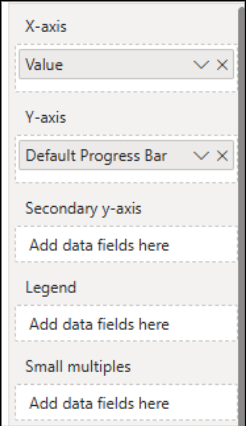
- Drag the Value column from the X-Axis (calculated table) to the X-axis of the visual.
- The fixed progress scale will serve as the base range against which the actual progress will be plotted in the following steps.
Step 3: Create the Default Progress Bar
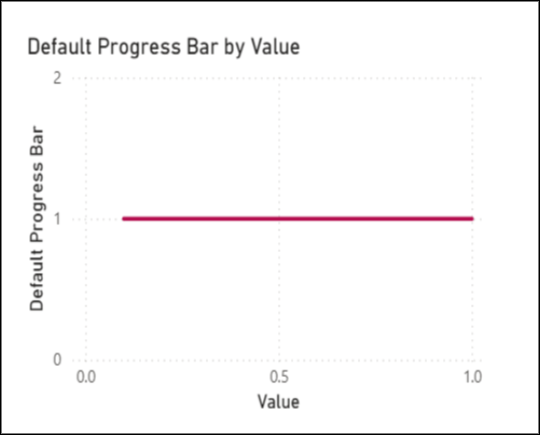
- Create the following measure to generate a constant reference line.
Default Progress Bar = 1
Step 4: Create and Plot the Progress Measure
- Create the [Project Progress] measure to calculate the latest project progress.
Project Progress =
VAR LatestDate =
CALCULATE ( MAX ( FactProjectProgress[UpdateDate] ) )
RETURN
ROUND (
DIVIDE (
CALCULATE (
AVERAGE ( FactProjectProgress[ProgressPercentage] ),
FactProjectProgress[UpdateDate] = LatestDate
),
100
),
2
)
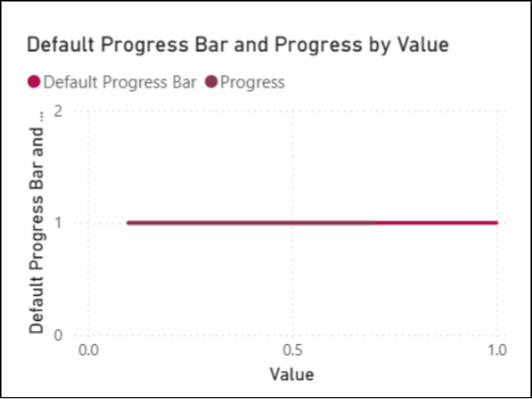
- Create the Progress measure to highlight the completed portion of the scale.
Progress =
IF (
ROUND ( [Project Progress], 1 )
>= ROUND ( SELECTEDVALUE ( ‘X axis'[Value] ), 1 ),
1,
BLANK ()
)
- [Project Progress] → Returns the actual latest progress.
- ‘X axis'[Value] → Represents each point on the fixed progress scale.
- Progress → Returns 1 up to the actual progress and BLANK() afterward.
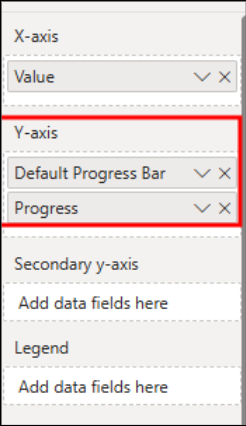
- Add Progress to the Y-axis to highlight the completed portion.
Step 5: Create the Progress Label Measure And Plot in the visual
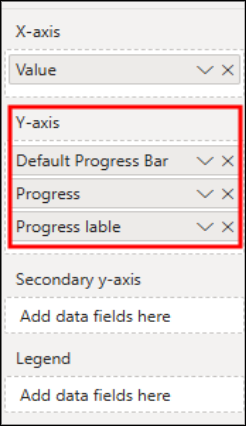
- Create the following measure to dynamically position a label at the exact point of the actual progress on the fixed progress scale:
Progress Label=
IF(
ROUND( [Project Progress], 1) =
ROUND ( SELECTEDVALUE (‘X axis [Value] ), 1),
1.3,
BLANK()
)
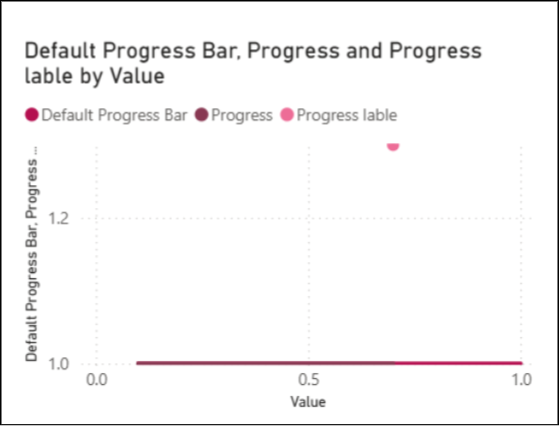
Step 6: Set the Y-Axis Range
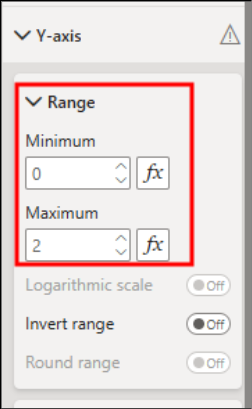
- Open the Y-axis formatting options for the Line Chart.
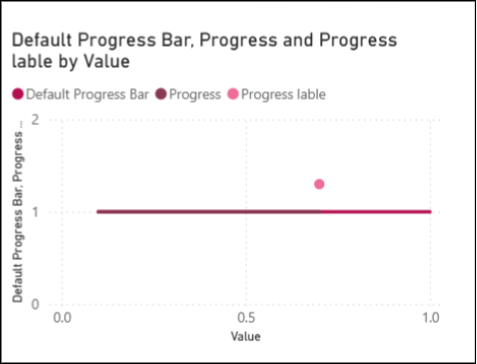
- Set Minimum = 0 and Maximum = 2 to control the vertical range.
- This provides enough space for the progress markers and labels while keeping the visual compact and balanced.
Step 7: Turn On Data Labels for Progress Label Series
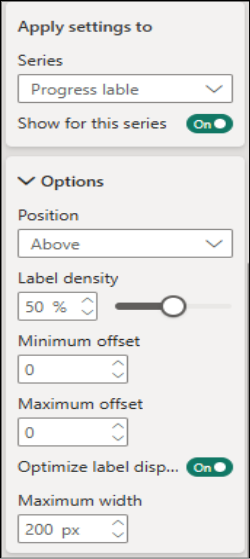
- Turn On Data Labels for the Progress Label Series.
- Set Position to Above to place the label above the marker.
- Adjust Minimum Offset and Maximum Offset to control the label spacing.
- Keep Optimize label display On for better label placement.
- Turn On Data Labels for the Progress Label Series.
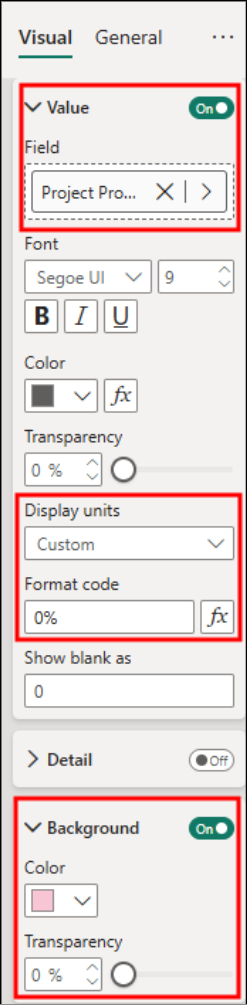
- Set the Data Label Value to the [Project Progress] measure.
- Display Units Custom.
- Format Code 0%
- Set Background
Step 8: Enable Error Bars for Progress Label
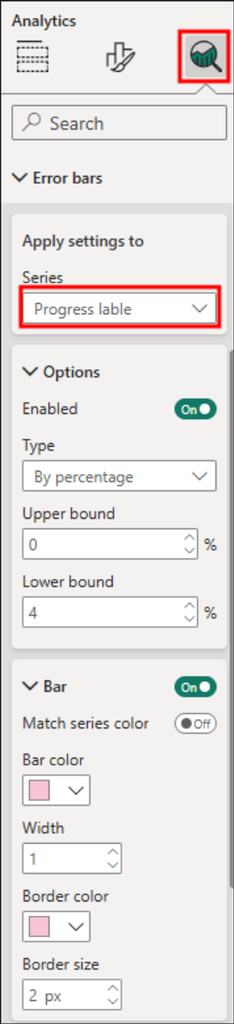
- Go to Analytics Pane
- Look for Error Bars
- Enable for the Progress Label Series.
- Apply Below Settings.
- Make Sure Bar color and Border Color should be same as Data Label Background color.
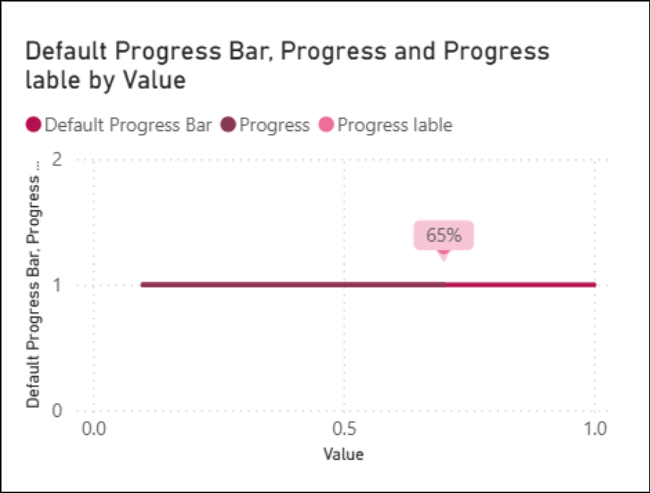
Step 9: Turn Off Lines Off and Markers on
- Turn Off Lines for All Series.
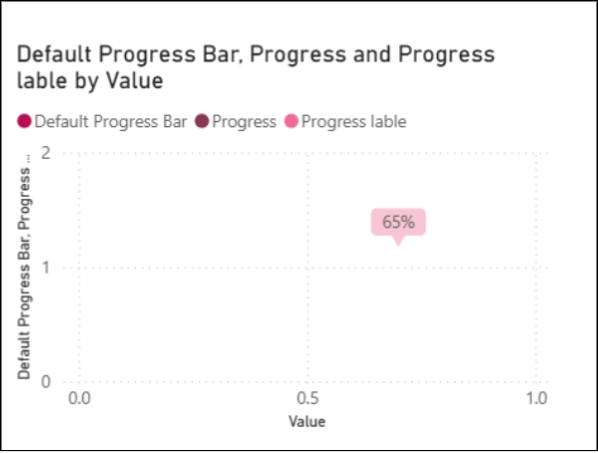
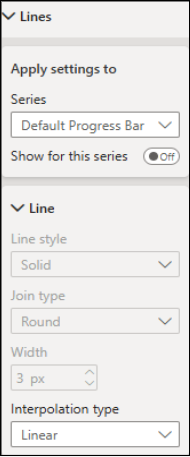
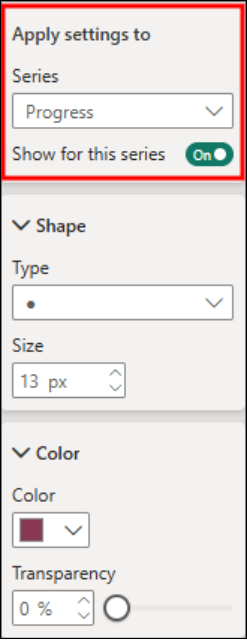
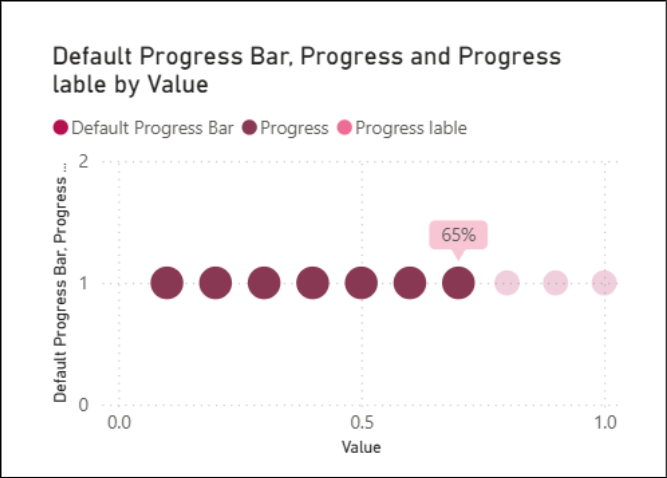
- Turn On Markers For Default Progress bar and Progress Series.
- Set Below Setting to Default Progress Bar Series.
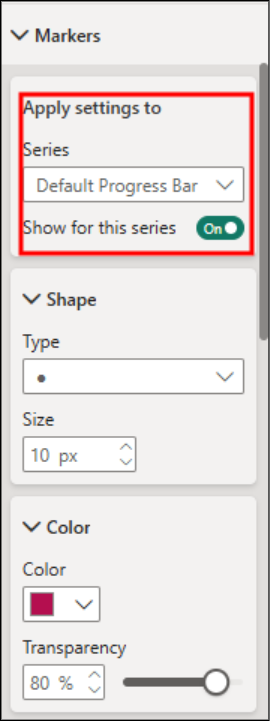
- Set below setting for Progress Series.
Step 10: Turn Off Unnecessary Visual Elements
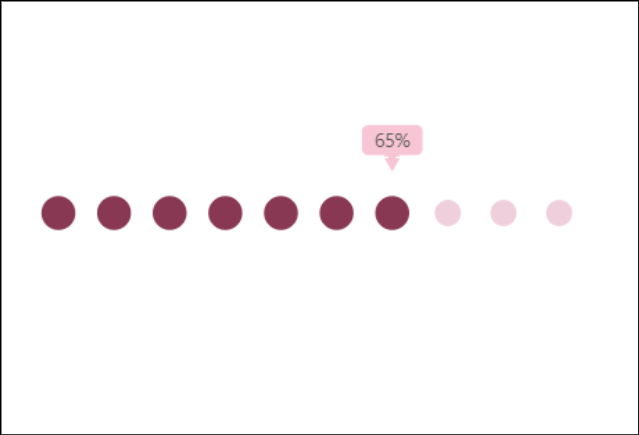
- Turn Off Values and Titles: Disable the X-axis values, Y-axis values, and visual title.
- Turn Off the Legend.
- Turn Off Grid Lines.
Step 11: Formatting Visual
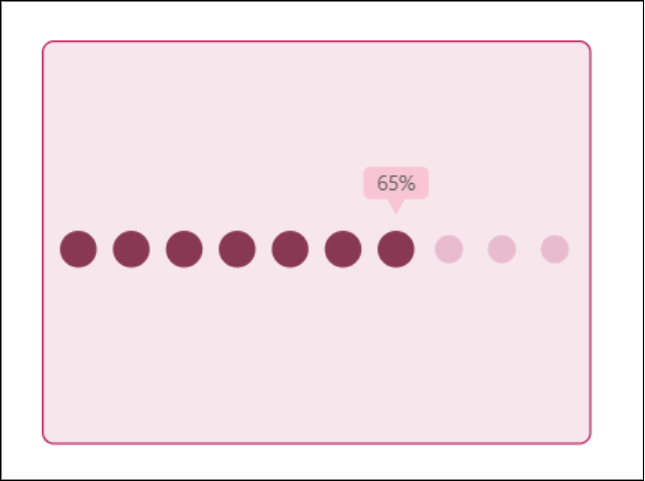
- Set Background Color and Border of the Visual.
- Turn off Tooltip for the Visual.
Conclusion
Using DAX measures, a fixed 0–100% progress scale, and strategic formatting, we transformed a native Power BI Line Chart into a clean progress indicator. The fixed scale provides a consistent reference, while a dynamic marker and data label highlight the actual progress. Built entirely with native Power BI visuals, it remains lightweight, interactive, scalable, and easy to maintain.