Full load and Incremental load in Microsoft Fabric
 By Inkey Solutions
March 3, 2026
3 min read
By Inkey Solutions
March 3, 2026
3 min read
In any data platform, especially in Microsoft Fabric, which provides a unified analytics environment across Data Engineering, Data Factory, Data Warehousing, and Power BI, loading data efficiently is crucial to ensure performance, cost-effectiveness, and data accuracy.
Two common data loading techniques are:
- Full Load
- Incremental Load
Let’s explore what they are, when to use each other, and how to implement them in Microsoft Fabric.
What is a full load?
Full Load means reloading the entire dataset from the source to the destination, every time the pipeline runs. It deletes or overwrites the existing data in the destination table.
Characteristics
- Reloads all records, regardless of whether they have changed or not.
- Often uses TRUNCATE or DELETE followed by an INSERT.
- Easy to implement, but resource intensive.
Example Use Cases:
- Small datasets (e.g., reference tables).
- Initial data migration or bootstrapping.
- Scenarios where data changes unpredictably and change tracking is unavailable.
What is an Incremental Load?
Incremental Load means only loading the new or changed data (delta) since the last load.
Characteristics:
- More efficient and scalable than full load.
- Reduces bandwidth, computing, and storage.
- Typically uses watermarks, timestamps, or Change Data Capture (CDC) to identify deltas.
Example Use Cases:
- Large transactional datasets (sales, orders).
- Real-time or near real-time data pipelines.
- Scenarios where latency and performance are important.
Let’s explore how to implement with Dataflow Gen 2
Full Load in Microsoft Fabric with Dataflow Gen2
Step 1: Create a Dataflow Gen2
- Connect to your source (e.g., SQL, Azure Blob, Dataverse).
- No filtering required – just pull the entire table.
Step 2: Choose Output Settings
- Destination: Lakehouse table.
- Load Type: Overwrite.
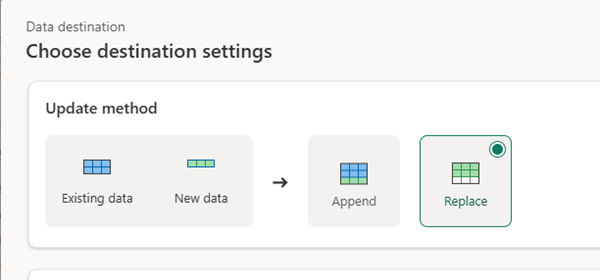
Step 3: Schedule or Trigger the Flow
- Can run daily, hourly, or on-demand.
- Keep in mind: this will delete and reload all data each time.
Incremental Load in Microsoft Fabric – Step by Step
Step 1: Create a Dataflow Gen2
- Connect to your source (e.g., SQL, Azure Blob, Dataverse).
Step 2: Identify Incremental Column
- Choose a date or numeric column that can act as a watermark.
Step 3: Create a Watermark Table
- Create a new query that holds the latest loaded date from the destination.
Step 4: Filter Source Data Using the Watermark
In the “Filter rows” dialog:
- In Keep rows where “Date”, choose your date column (e.g., Date).
- Set condition to is after.
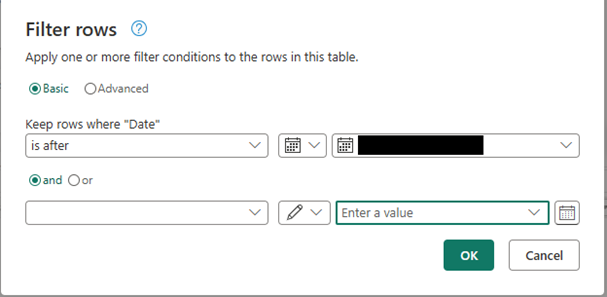
- Choose “select a query” option to filter with watermark table query.
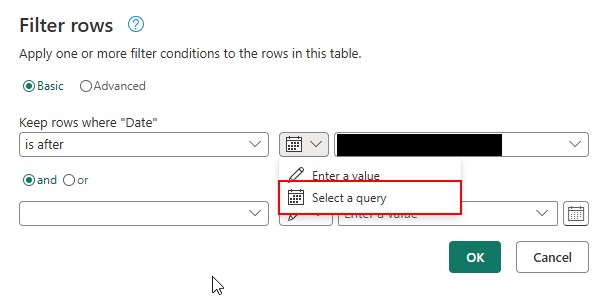
- On the right side, select your watermark table query.
Step 5: Output to Destination – Set Mode to “Append”
- Select the source table output.
- Choose the destination Lakehouse.
- In Output Settings, set Load Method = Append. This adds only the new filtered rows.
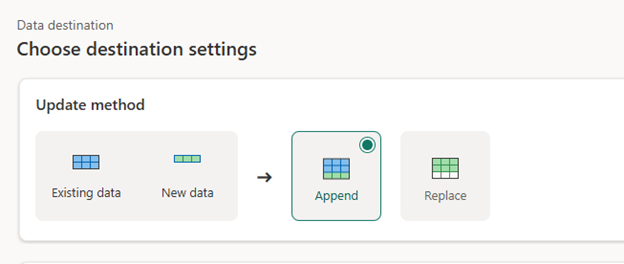
Step 6: Schedule or Trigger the Flow
- Can run daily, hourly, or on-demand.
Conclusion:
Microsoft Fabric offers a modern, scalable way to manage your data loads — whether full or incremental. Choosing the right strategy is crucial for performance, cost optimization, and data freshness. While full load is best for simplicity, incremental load is a must-have for modern, large-scale systems.
If you’re working with large volumes or refreshing your dashboards every hour, go incremental. If you’re still prototyping or loading reference tables, full load is just fine.