Hiding Sales Order Agent and Payables Agent Icons in Microsoft Dynamics 365 Business Central
 By Inkey Solutions
May 1, 2026
4 min read
By Inkey Solutions
May 1, 2026
4 min read
Introduction:
Microsoft Dynamics 365 Business Central continues to evolve by introducing new AI-driven capabilities that simplify business operations and enhance automation. With the addition of Copilot and Agent capabilities, Microsoft has introduced intelligent assistants like the Sales Order Agent and Payables Agent to help automate routine business tasks.
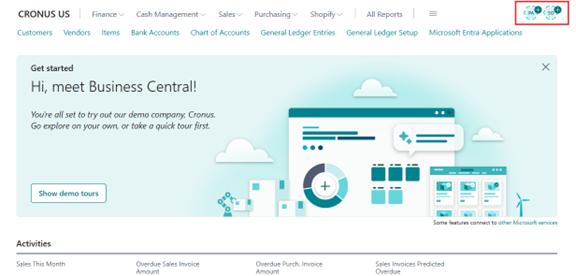
While these agents offer significant value, not all organizations plan to use them immediately. In newly created environments, two agent icons — Sales Order Agent and Payables Agent — appear in the upper right corner by default, not only on the Role Center but also on embedded pages. For environments not utilizing these AI capabilities, administrators may prefer to hide these icons to maintain a cleaner interface.
Fortunately, Business Central provides an easy way to deactivate these agent icons without affecting other system features.
Business Value:
The Sales Order Agent and Payables Agent are part of the Copilot Level 3 capabilities, first discussed by Microsoft at BC Tech Days (June 12–13, 2025, Antwerp, Belgium).
- Sales Order Agent automates the process of capturing and processing sales orders.
- Payables Agent addresses the long-standing challenge of automating end-to-end vendor invoice processing, minimizing manual intervention and errors.
However, if your organization isn’t ready to adopt these AI-driven features, you can easily disable them while keeping other Copilot functionalities intact. This ensures your environment remains uncluttered and user-friendly, focusing only on the tools you actively use.
Requirement:
How can you hide the Sales Order Agent and Payables Agent icons in Business Central?
Prerequisites:
- Access to Microsoft Dynamics 365 Business Central (2025 Release Wave 2 or later).
- Administrator or Super user permissions to manage Copilot & Agent capabilities.
Solution (Implementation Steps):
- The user can see the Sales Order Agent and Payables Agent icons on the Role Center page.
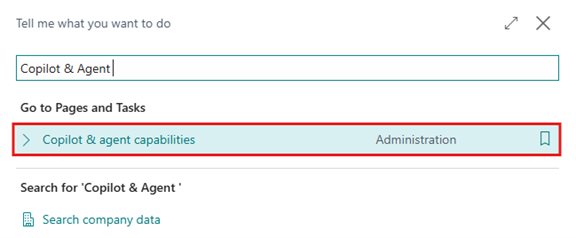
- To hide these icons, click the Search (Tell Me) icon and search for “Copilot & Agent Capabilities”.
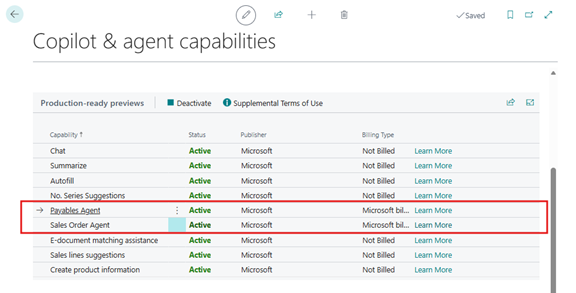
- The System will Open the page to view a list of all available Copilot and Agent functions in your environment. In the list, find the following two entries:
- Sales Order Agent
- Payables Agent
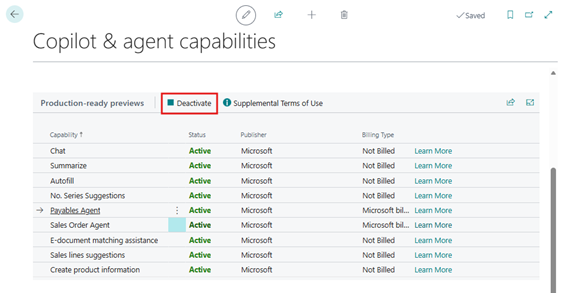
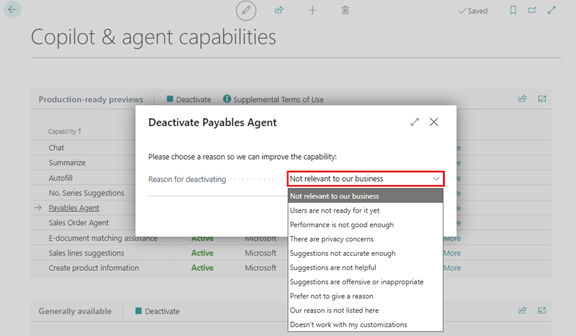
- To deactivate these functions, select the capability line and click the “Deactivate” option from the menu bar above.
- The system will open a “Deactivate Payables Agent” confirmation message. The user must select a reason to proceed. Click Ok.
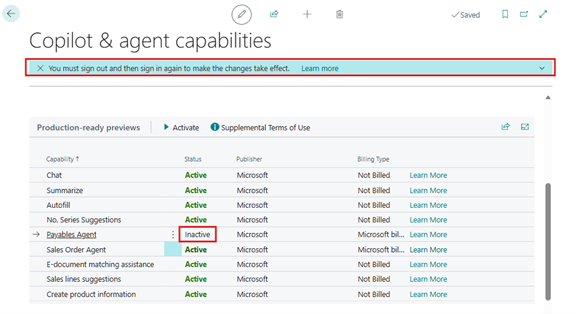
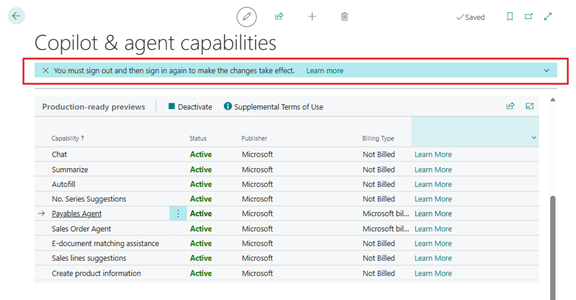
- After making the changes, the functionality status will be shown as Inactive, and the system will display a notification instructing the user to sign out of Business Central and log in again to apply the changes.
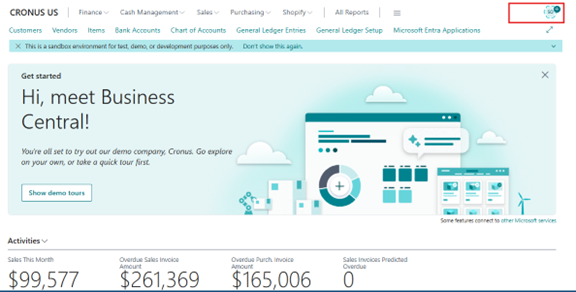
- The Payables Agent icons will now be hidden from the upper right corner across all pages.
- If the user wants to activate the Payables Agent again, go to the Copilot & Agent Capabilities page, select the inactive feature, and the “Activate” option will be available in the menu. Click on it and feature will be active.
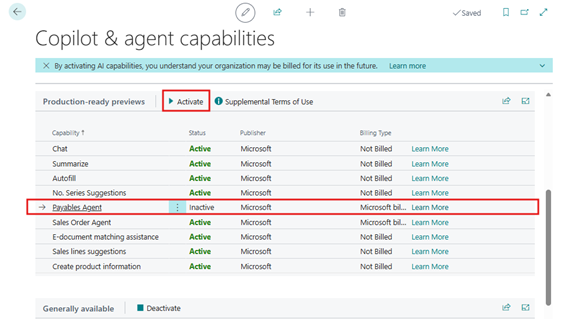
- The system will display a notification instructing the user to sign out of Business Central and log in again to apply the changes.
Important Notes:
- Copilot is a system feature in Business Central and cannot be fully turned off, but individual agent capabilities can be managed independently.
- Deactivating these features only hides the icons; it does not remove or uninstall the underlying functionality.
- If you later decide to use these features, simply return to the Copilot & agent capabilities page and reactivate them.
- The changes apply at the environment level and affect all users.
Conclusion:
The ability to hide the Sales Order Agent and Payables Agent icons provides administrators with flexibility and control over their Business Central environment. For organizations not yet adopting the AI-driven Copilot features, this simple adjustment keeps the user interface clean and focused.
As Microsoft continues to expand Business Central’s AI ecosystem, having the option to manage and selectively enable features ensures that every organization can adopt new technology at its own pace — maintaining both efficiency and simplicity in daily operations.