How to Block Items or Variants from Service Transactions in Microsoft Dynamics 365 Business Central?
 By Inkey Solutions
March 6, 2026
4 min read
By Inkey Solutions
March 6, 2026
4 min read
Introduction
Managing service transactions efficiently is crucial for maintaining smooth service operations. With the latest Released 2024 Wave 1 updates in Microsoft Dynamics 365 Business Central, users can now block certain items, item variants, or service items from being used in service transactions. This helps prevent discontinued, limited-stock, or contractually restricted items from being used in service contracts, service orders, and service invoices.
Business Value
By implementing item blocking, businesses can ensure that only available and supported items are included in service transactions. This reduces errors, enhances compliance, and streamlines service operations. The feature allows companies to maintain better control over their inventory and service commitments, ensuring smooth service delivery.
Requirement
- How to block items, item variants, or service items in service management transactions in Microsoft Dynamics 365 Business Central?
Prerequisites
- Ensure you are using the latest version of Microsoft Dynamics 365 Business Central.
- Verify that you have the necessary permissions to modify item and service settings.
Solution (Implementation Steps)
Blocking Items and Item Variants
Step 1: Enable Service Blocked Option for Items and Item Variants
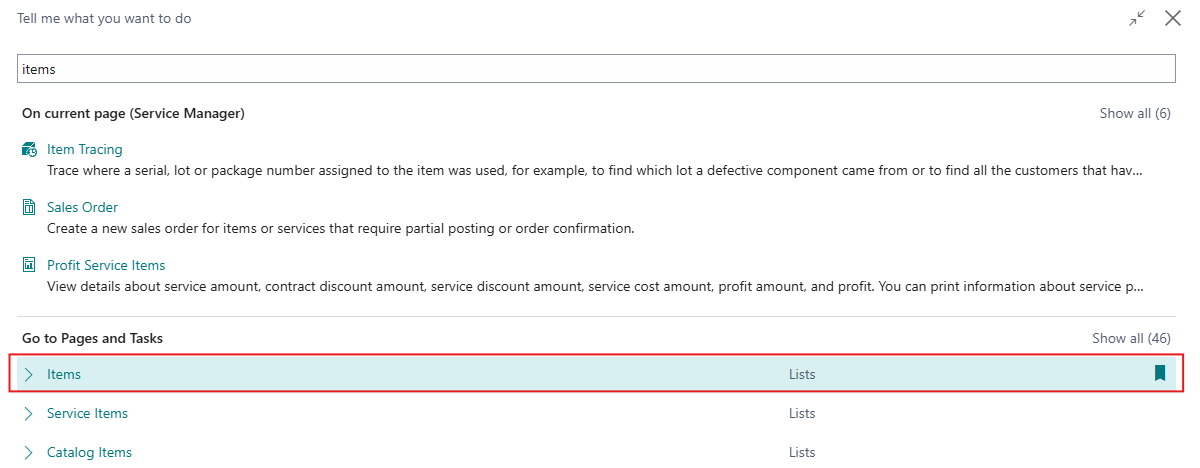
- Click on the Search icon and search for Items to navigate to the Items list page.
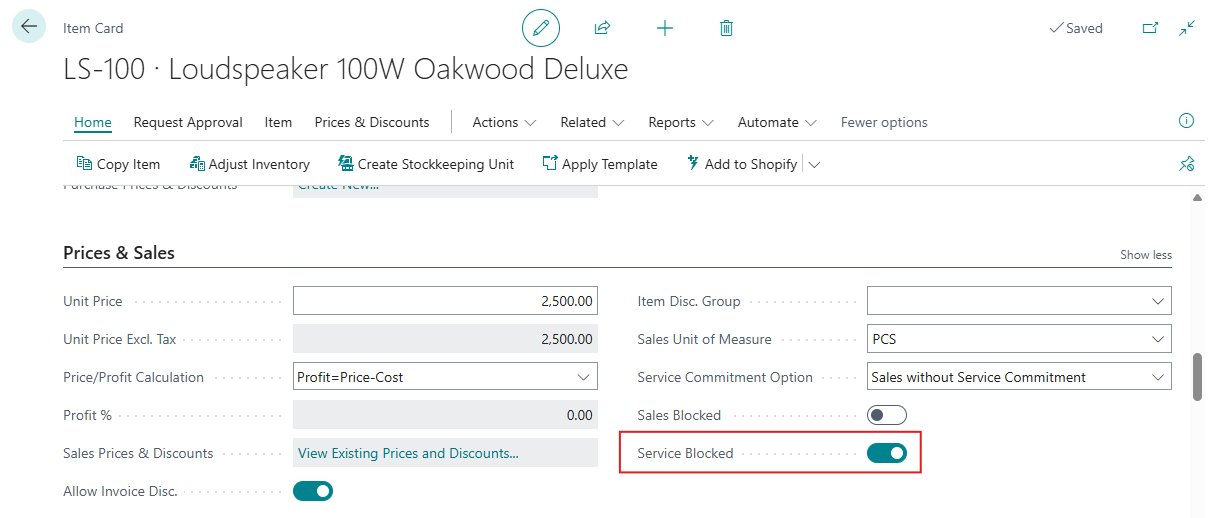
- Select the item you want to block from Item List page and open the Item Card Locate the Service Blocked field in the “Prices & sales” fasttab and toggle it On to block the item from being used in service transactions.
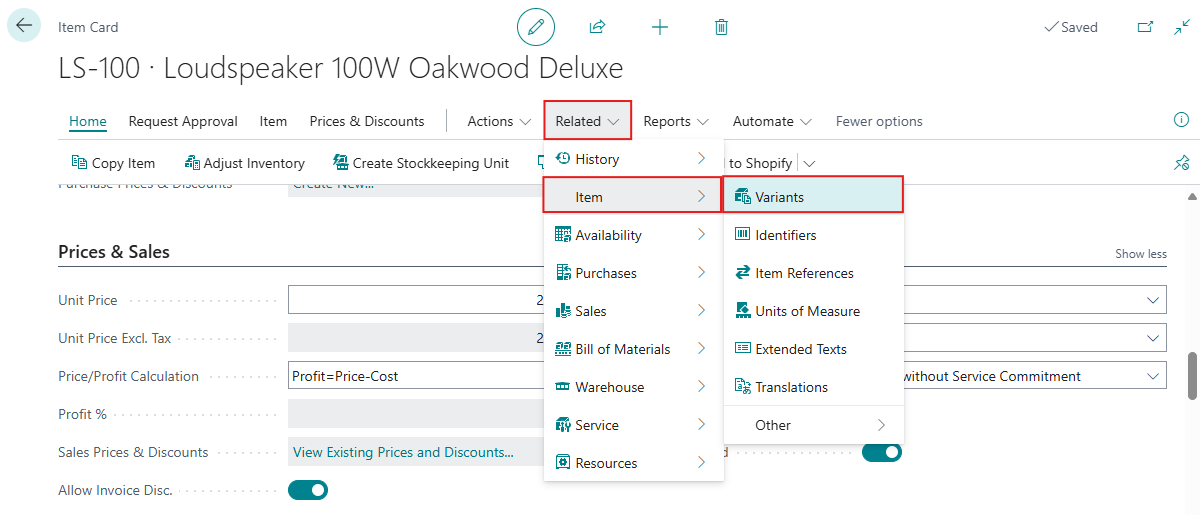
- If blocking an item variant, open the Item Variant Card by Clicking on Related > Item> Variants option and turn on the Service Blocked
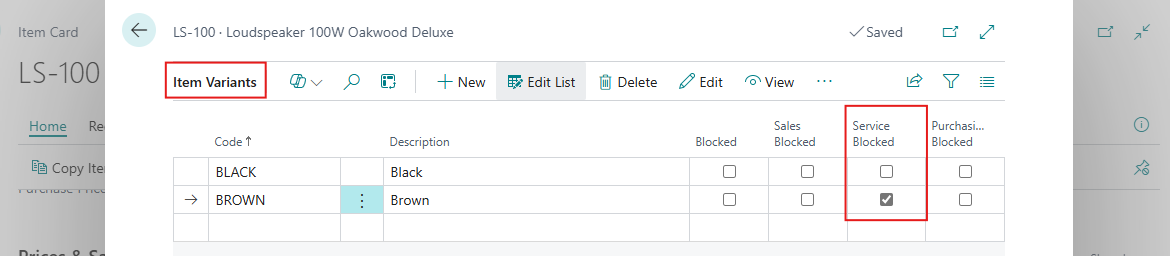
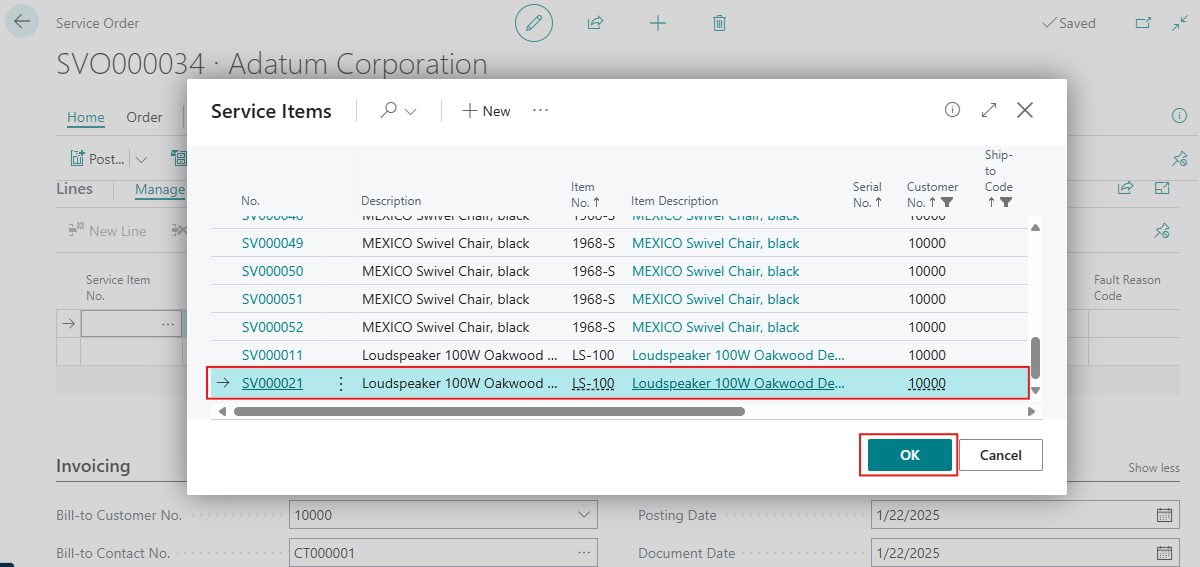
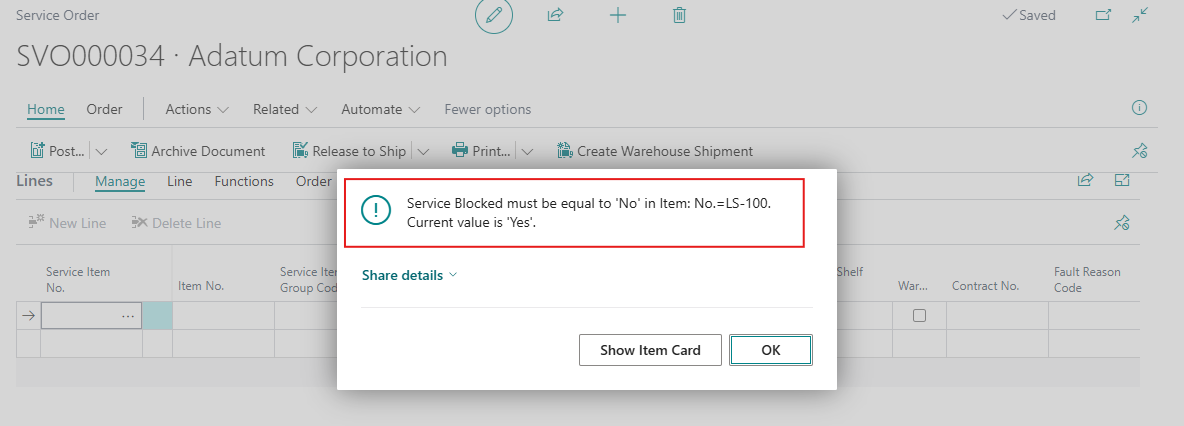
- Changes made here will prevent the item or variant from being selected in service contracts, service orders, and other service documents. The system will Give an Error when use this item as service.
Blocking Service Items
Step 2: Enable Blocked Status for Service Items
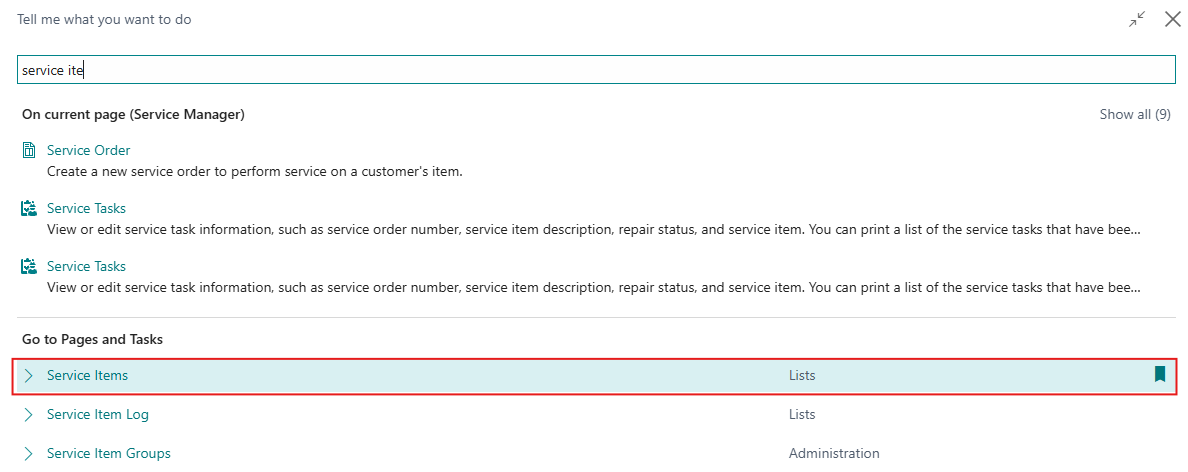
- Click on the Search icon and search for Service Items to navigate to the Service Items list page.
- Select the service item you want to block and open the Service Item Card. Locate the Blocked field and choose one of the following options:
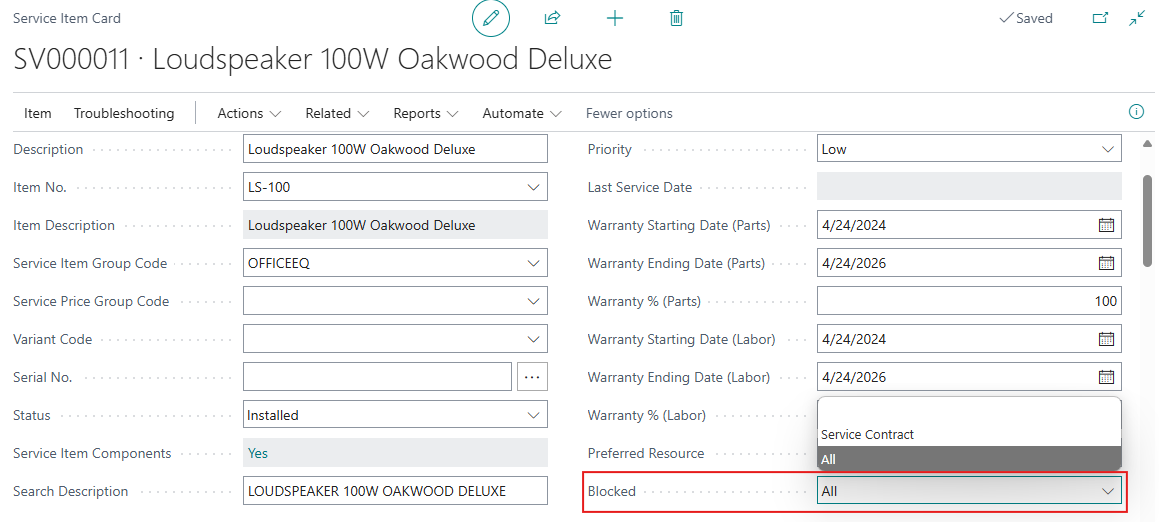
- Service Contract: Blocks the service item from being used in service contracts and quotes but allows it in service orders.
- All: Blocks the service item from all service management transactions.
- Once blocked, the service item cannot be selected in service-related transactions, except for service credit memos.
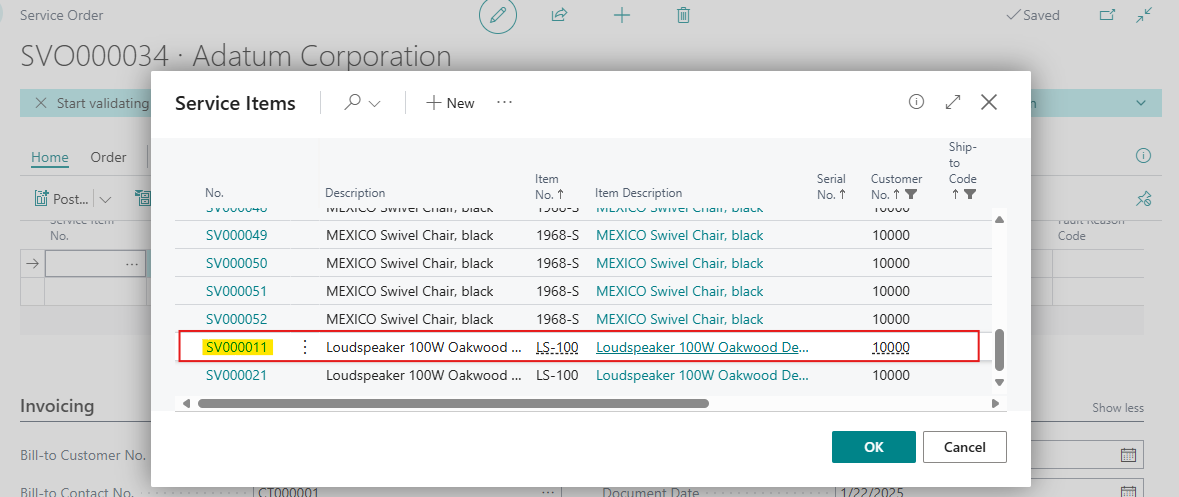
- Before blocking the service item, the user can view service Item in the selection list suggestions.
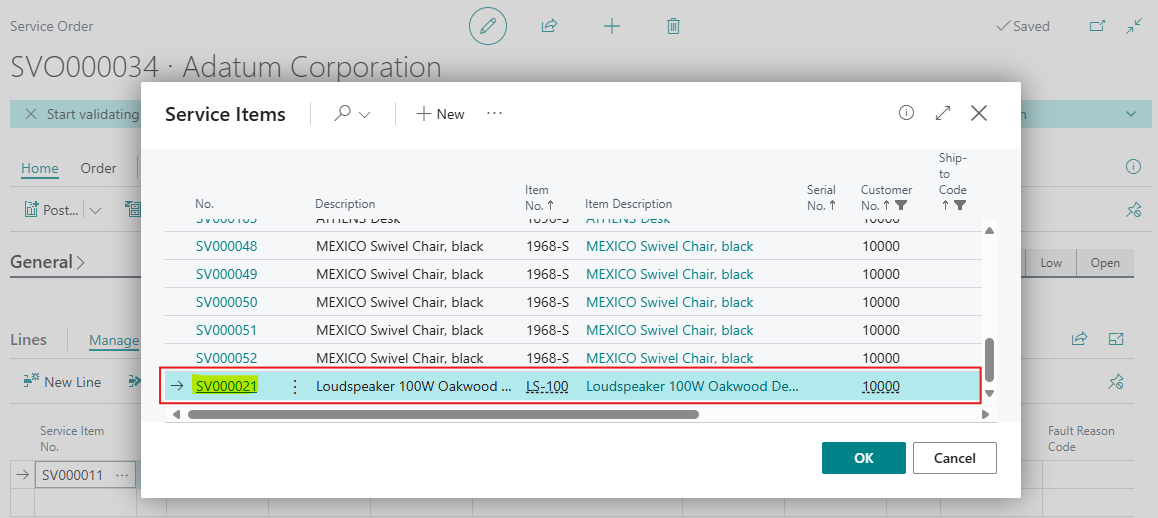
- The system will Remove the Block Service Item from the suggested list when user try to select this service item in lines while creating a service document.
Impact of Blocking Items and Service Items
Step 3: Effect on Service Transactions
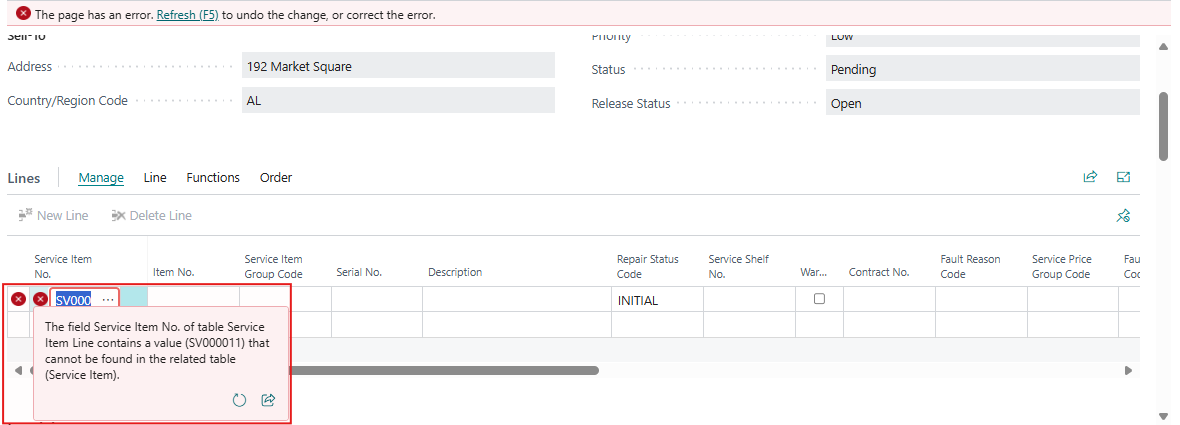
- When a blocked item or service item is selected in a service transaction, an error message will be displayed stating, “The field contains a value that cannot be found in the related table.”
- The system will prevent using blocked items in the following actions:
- Service Contract Quotes: Cannot lock or make contracts if they include blocked items.
- Service Contracts: Cannot sign, lock, or change customers if a blocked item is included.
- Service Quotes: Cannot create orders if they include blocked items.
- Service Orders: Cannot release, ship, or post if blocked items are included.
- Service Invoices: Cannot post invoices containing blocked items.
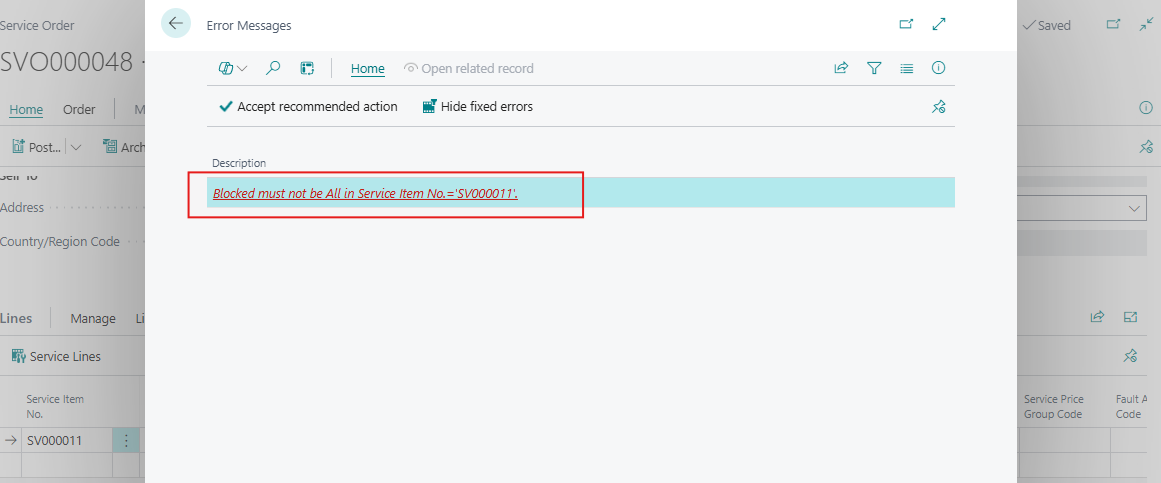
- If multiple service items exist in a document, only non-blocked items can proceed with posting.
Data Upgrade Considerations
- If upgrading from an older Business Central version, any item marked as Sales Blocked will automatically be marked as Service Blocked to ensure consistency.
- The data upgrade is only applied if the company has service items; otherwise, the Service Blocked field remains off by default.
Conclusion
Blocking items and service items in Microsoft Dynamics 365 Business Central helps businesses manage their service operations more efficiently. It ensures that only valid, available, and supported items are used in service transactions, reducing errors and enhancing compliance. By implementing these controls, organizations can streamline service processes, improve operational accuracy, and maintain better inventory management, leading to improved customer satisfaction.