How to Efficiently Use Deferral Codes in Sales and Purchase Journals in MS Dynamics 365 Business Central
 By Inkey Solutions
April 24, 2026
3 min read
By Inkey Solutions
April 24, 2026
3 min read
Introduction
Entering sales and purchase journals often involves transactions that require deferrals. In New Released 2024 Wave 2 updates Microsoft Dynamics 365 Business Central now simplifies this process by allowing users to specify a Deferral Code directly on sales and purchase journal lines. This eliminates the need to create a separate general journal for deferrals, making data entry smoother and more efficient.
Business Value
This feature enhances the efficiency of financial transactions by integrating deferrals directly into sales and purchase journals. Businesses that frequently handle deferred revenue and expenses benefit from reduced manual work, fewer errors, and a streamlined posting process. Additionally, validating source codes ensures data consistency and compliance.
Requirement
- How can you efficiently manage deferral transactions in sales and purchase journals within Business Central?
Prerequisites
- Ensure you have access to Microsoft Dynamics 365 Business Central and the required permissions to configure and use deferral functionality in sales and purchase journals.
Solution (Implementation Steps)
Step1: Open Sales or Purchase Journal
- Click on the Global Search icon and search for “Sales Journal” or “Purchase Journal” depending on your requirement. Open the respective journal page where you need to enter transactions.

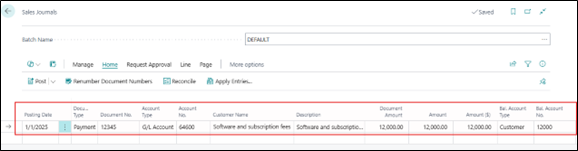
- Create a new journal line and fill in the required details such as Document No., Posting Date, Account Type, and Amount.
Step2: Assign a Deferral Code
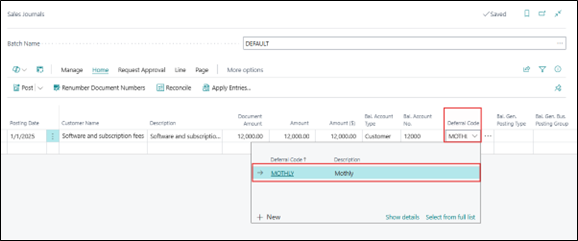
- Locate the Deferral Code field in the journal line. Select the appropriate Deferral Code from the dropdown list. The system will automatically apply the deferral settings based on the code selected.
Step3: Validate Source Codes
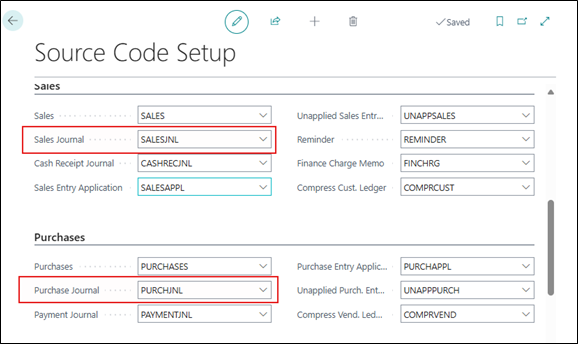
- Ensure that the source codes for sales and purchase journals are different from those used in general journals.
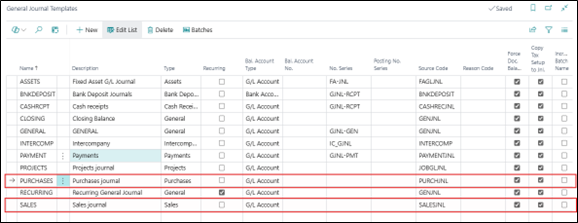
- If your source codes are identical, create a new journal template and batch with a different source code to avoid validation errors.
Step4: Post the Journal Entry
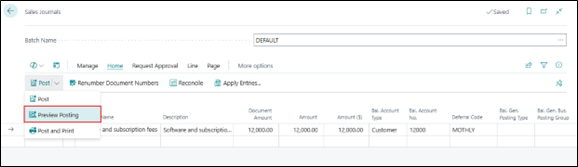
- After verifying all details, click Post to record the transaction with the deferral, or click Preview Posting to view the effect of the transaction before posting it.
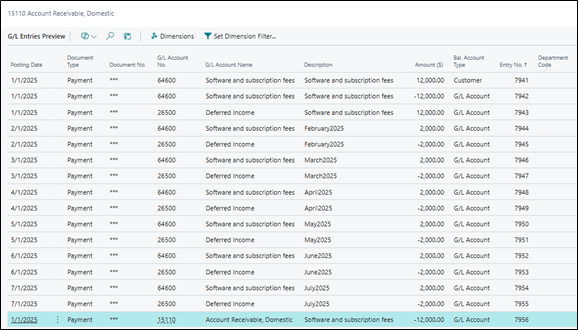
- Business Central will automatically distribute the deferral amounts as per the predefined deferral schedule.
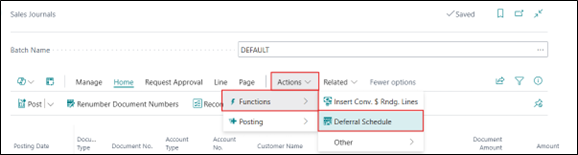
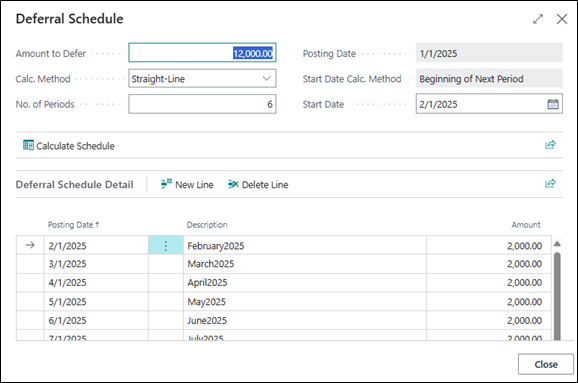
- User can change the Deferral Schedule by clicking on Action > Function > Deferral Schedule.
Note:
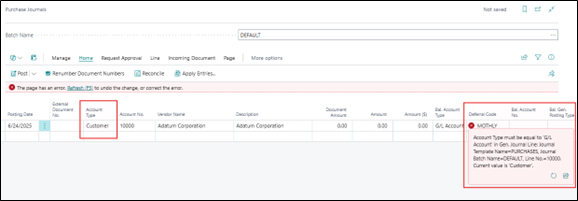
- As of now, Deferral code is only used for G/L Account and Allocation Accounts (only G/L Accounts as destination types) on sales and purchase journal lines.
Conclusion
Integrating Deferral Codes directly into Sales and Purchase Journals in Microsoft Dynamics 365 Business Central simplifies the process of managing deferred revenue and expenses. By following these steps, businesses can ensure accurate financial reporting, reduce manual data entry, and streamline their accounting workflows. This feature significantly enhances efficiency while maintaining compliance with financial regulations.