How to Use Default Quantity Settings for General Ledger Accounts in Microsoft Dynamics 365 Business Central
 By Inkey Solutions
October 20, 2025
3 min read
By Inkey Solutions
October 20, 2025
3 min read
Introduction
Microsoft Dynamics 365 Business Central is a comprehensive ERP solution that enhances efficiency across various business functions. One of the key aspects of managing financial operations effectively is streamlining data entry. In the 2024 Released Wave 2 update, Business Central introduced a new feature that allows users to set default quantities for general ledger accounts on sales and purchase documents, facilitating quicker and more efficient data entry.
Business Value
This new feature enhances user experience in Microsoft Dynamics 365 Business Central by enabling faster data entry through a default quantity of 1, which speeds up processing. It offers flexibility, allowing users to overwrite the default value if needed. Additionally, it improves accuracy by reducing manual entry, leading to more reliable financial records. Overall, with fewer inputs required, users can streamline their workflows and focus on more important tasks, boosting overall efficiency.
Requirement
How to utilize this new feature in business central?
Prerequisites
- Using the latest version of Microsoft Dynamics 365 Business Central.
- Ensure the user has the required permissions to access and modify this setup.
Solution (Implementation Steps)
Step 1: Enable Default G/L Account Quantity.
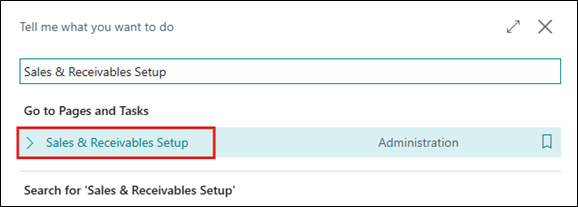
- Users should search for Sales & Receivables Setup to set the default quantity for sales, or Purchase & Payables Setup to set the default quantity for purchases, using the search icon in the top right corner.
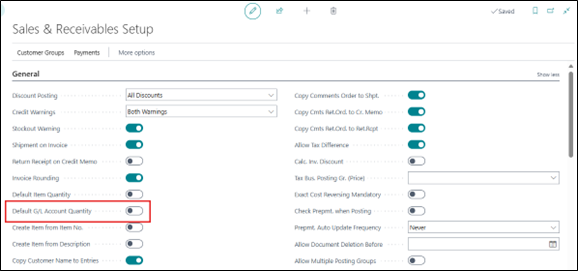
- On the Setup page, the user needs to find the Default G/L Account Quantity
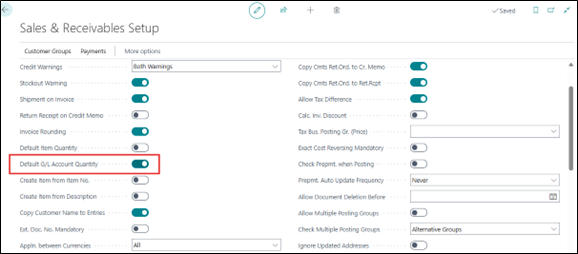
- Turn on this toggle to set the default quantity to 1 for all new lines associated with general ledger accounts by clicking on it.
Step 2: Create sales or purchase Order to Verify Changes
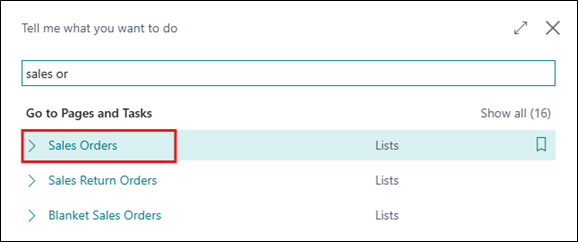
- Now to ensure that the quantity defaults to 1 or not for the general ledger account lines click on the search icon and search for sales or purchase Order.
- Create a new sale or purchase document by clicking on the + New option in the menu bar.
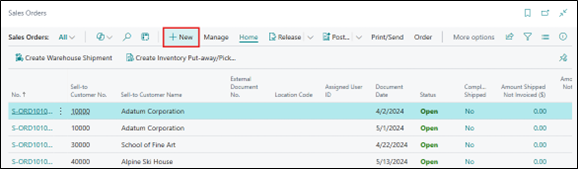
- The blank sales or purchase order card will open fill the necessary details on the sales or purchase page, and select the G/l Account in the Lines fast tab.
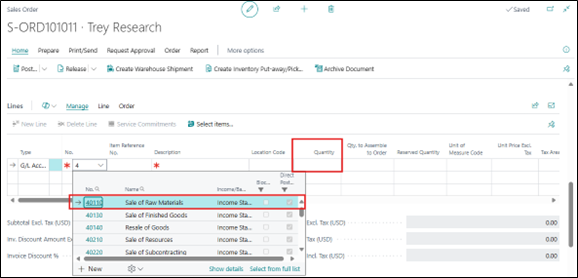
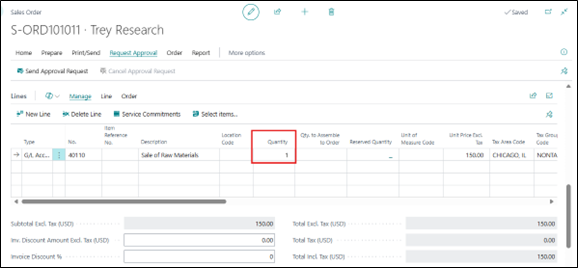
- User will see that the default quantity is automatically filled in the Quantity column.
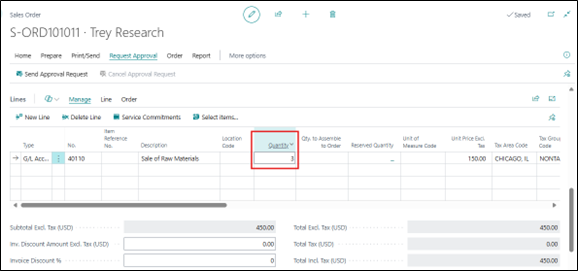
- Users can also overwrite this quantity if needed.
Conclusion
The ability to set a default quantity for general ledger accounts in Microsoft Dynamics 365 Business Central is designed to enhance the efficiency of data entry processes. By implementing this feature, users can streamline their workflows, reduce errors, and focus on more critical aspects of their financial operations. This update aims to improve user experience and facilitate better financial management within the organization.