How to Manage Document Attachments in Manufacturing in Microsoft Dynamics 365 Business Central
 By Inkey Solutions
July 17, 2026
4 min read
By Inkey Solutions
July 17, 2026
4 min read
Introduction:
Microsoft Dynamics 365 Business Central continues to improve as a complete business management solution. With the 2025 Release Wave 1 update, a new feature has been introduced that helps manufacturers manage their documents more efficiently. The Manage Document Attachments in Manufacturing feature allows users to attach important documents like drawings, manuals, and inspection reports directly to production BOMs (Bill of Materials), routings, and production orders. This helps teams easily access the right documents during production, improving accuracy and efficiency.
Business Value:
This new feature helps businesses move away from paper-based document handling. Now, users can attach and access documents directly within Business Central for manufacturing processes. Whether it’s a product drawing, a routing instruction, or a quality checklist, it’s always available where it’s needed. This reduces confusion, saves time, and ensures a smooth production flow with fewer errors.
Requirement:
How can you use this new document attachment feature in Business Central?
Prerequisites:
- Access to Microsoft Dynamics 365 Business Central.
- Appropriate permissions to view and manage production BOMs, routings, and production orders.
- Documents such as PDFs, images, or spreadsheets that need to be attached to production processes.
Note: Previously, document attachments were mostly available for sales or purchase documents. With this update, the functionality has been extended to manufacturing-related pages as well.
Solution (Implementation Steps):
Step 1: Enable and Access Document Attachments
- Click on the Tell Me icon
and search for “Production BOM”, “Routing”, or “Production Order”. Open the relevant page by clicking on it.
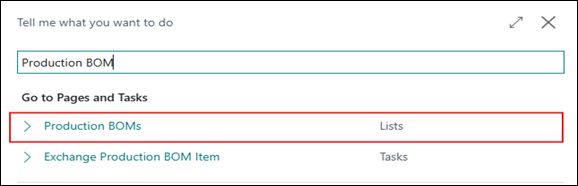
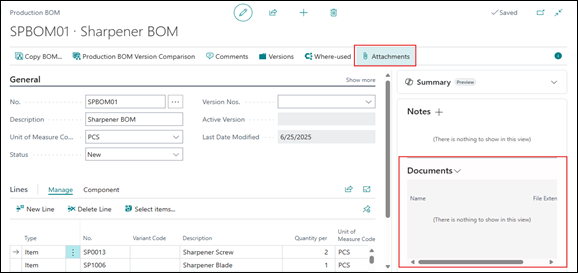
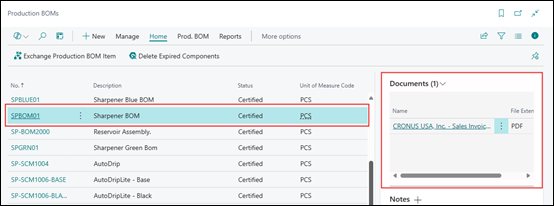
- Select the BOM from the list and look for the Document Attachment FactBox on the page. This will display all documents attached to the selected record (BOM, routing, or production order). If it is blank attached any PDF or any other related Document by clicking on the Attachments option from the menu bar above.
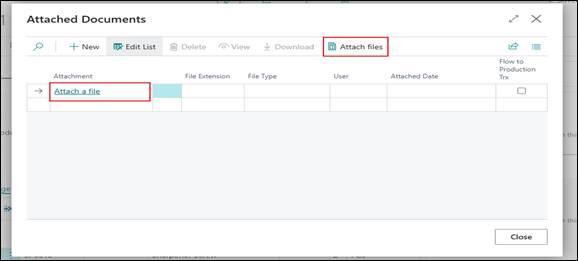
- System will open Attached Document page. Click on the Attach a File option from the line, or use the Attach Files option from the menu bar and upload Document.
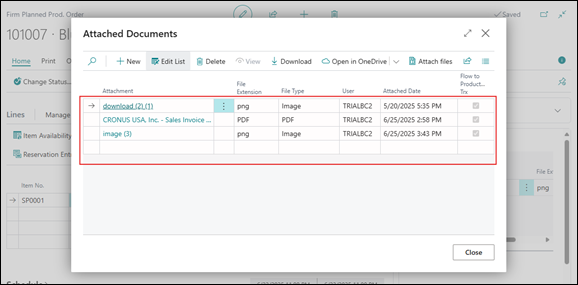
- Use the “Flow to Production Trx” toggle to decide whether the document should be copied automatically to production order lines.
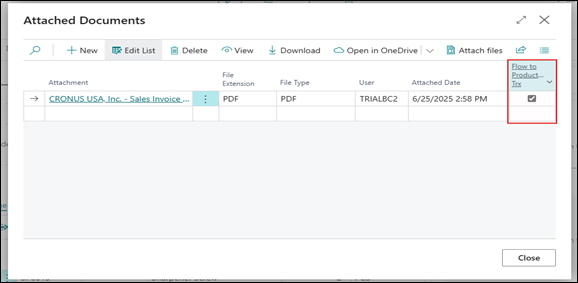
If enabled, attached documents from BOMs or Routings will be visible on the related Production Order lines.
Where You Can Attach Documents
- You can use the Attach Documents option on these pages:
- Production BOM pages:
- Production BOM (Page 99000786)
- Production BOMs (Page 99000787)
- Routing pages:
- Routing (Page 99000766)
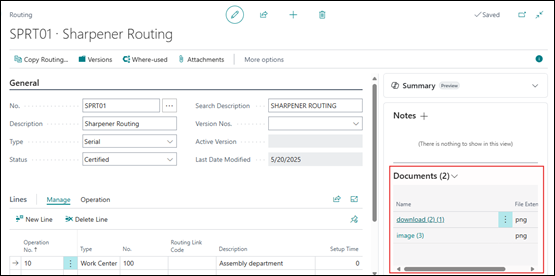
- Routing List (Page 99000764)
- Production Order pages:
- Simulated Production Order (Page 99000912)
- Simulated Production Orders (Page 9323)
- Planned Production Order (Page 99000813)
- Planned Production Orders (Page 9324)
- Firm Planned Production Order (Page 99000829)
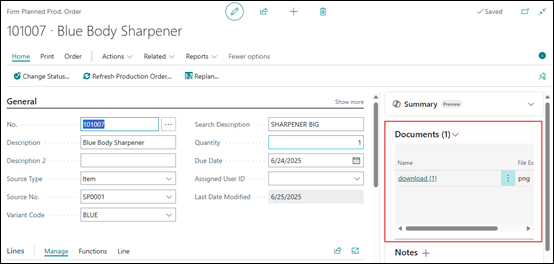
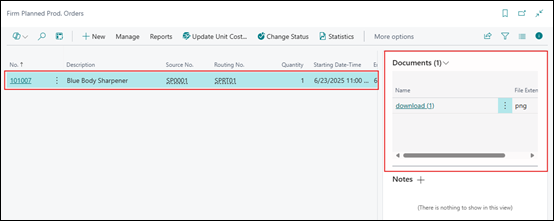
- Firm Planned Production Orders (Page 9325)
- Released Production Order (Page 99000831)
- Released Production Orders (Page 9326)
- Finished Production Order (Page 99000867)
- Finished Production Orders (Page 9327)
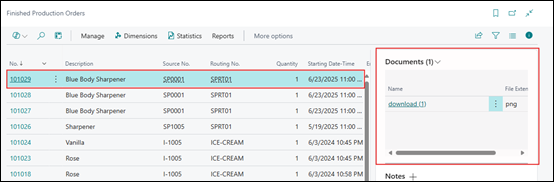
- Production Order List (Page 99000815)
Attach Documents at Line Level
- You can also attach documents directly to production order lines by going to:
- Simulated Prod. Order Lines (Page 99000913)
- Planned Prod. Order Lines (Page 99000814)
- Firm Planned Prod. Order Lines (Page 99000830)
- Released Prod. Order Lines (Page 99000832)
- Finished Prod. Order Lines (Page 99000868)
Step 2: How Documents Flow to Production Orders
- Click on the Tell Me icon
and search for ” Firm planned Prod. Orders” or any Production Order. Open the relevant page. Now, open any Production Order where the Production BOM and Routing are used. Go to Lines Fast tab and click on Attachments.
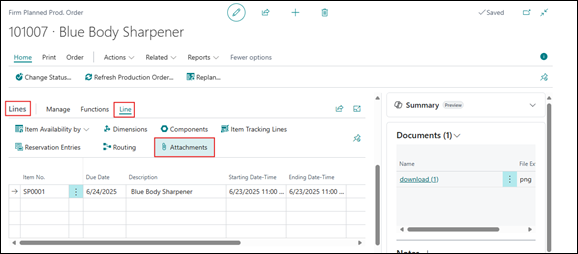
- The system will display all the attachments linked to the Production BOM and Routing on the Production Order.
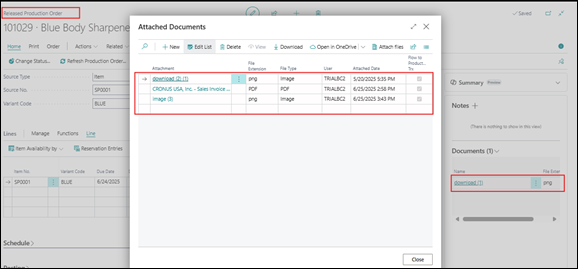
- When a Production Order is converted from Firm Planned to Released, and then to Finished, the system automatically carries forward all attachments from the BOM, Routing, and the Production Order itself.
Important Notes:
- Attachments are not supported at the component level. You can’t attach documents directly to individual BOM components.
- Attachments are not supported on BOM versions or routing versions. They apply to the main BOM or routing only.
Conclusion:
The Manage Document Attachments in Manufacturing feature in Microsoft Dynamics 365 Business Central helps manufacturing companies become more efficient and organized. By attaching critical documents directly to production BOMs, routings, and orders, teams can avoid confusion, reduce paper usage, and ensure that everyone has the right information at the right time. This update supports smoother production workflows, better quality control, and faster operations on the shop floor.