How to Use Inventory package numbers work like item tracking dimensions in Microsoft Dynamics 365 Business Central
 By Inkey Solutions
September 30, 2025
5 min read
By Inkey Solutions
September 30, 2025
5 min read
Introduction
Microsoft Dynamics 365 Business Central regularly updates its features to help businesses run more smoothly. One key update in the 2024 release Wave 1 makes it easier to track packages in your physical inventory orders. This new feature allows you to monitor inventory at the package level, which improves accuracy and gives you better control over your stock.
Business Value
Activating package-specific tracking for physical inventory orders streamlines your inventory management process by allowing you to track items at the package level. This enhancement reduces manual efforts, minimizes errors, and improves the accuracy of your inventory records. By enabling more precise tracking, you gain better oversight of inventory changes, which supports enhanced operational efficiency and inventory control.
Requirement
How can you utilize package tracking in physical inventory orders with Business Central?
Prerequisites
- Ensure that you have a valid license for Microsoft Dynamics 365 Business Central.
- Verify that users performing this task have the necessary permissions to create and manage sales invoices.
Solution (Implementation Steps)
Follow these steps to activate and use package tracking in physical inventory orders:
Step 1: The user should first Enable the feature to use the package number update.
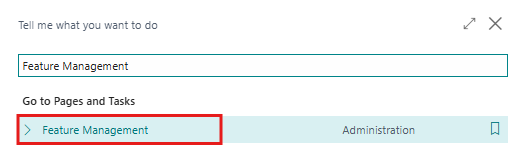
- The First step is Click on Search icon and search for Feature Management and Navigate to the Feature Management page in Business Central.
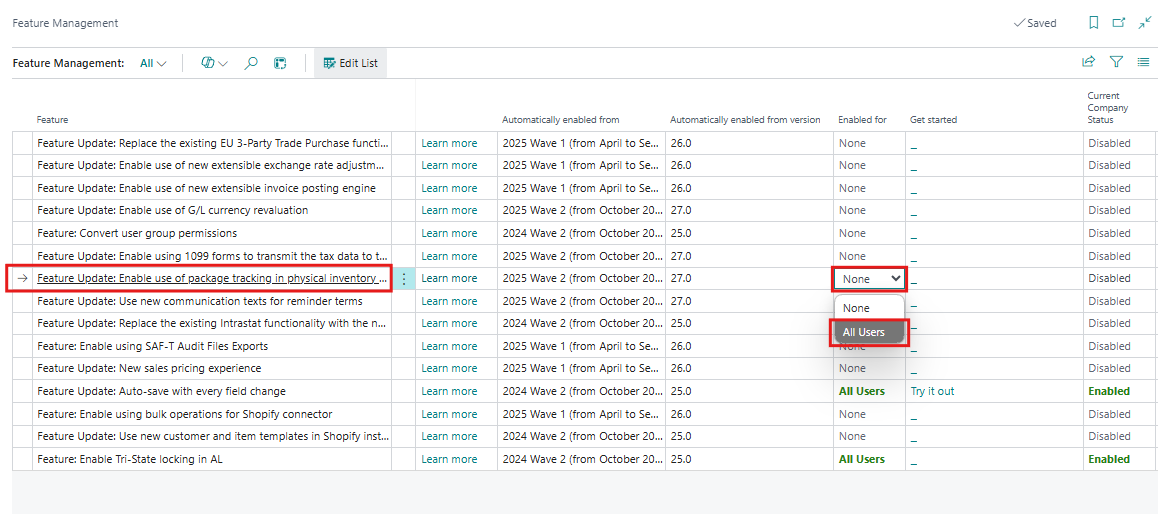
- On Feature Management Page Find and activate the feature named “Enable use of package tracking in physical inventory orders”. Now click on None > All User to enable this feature.
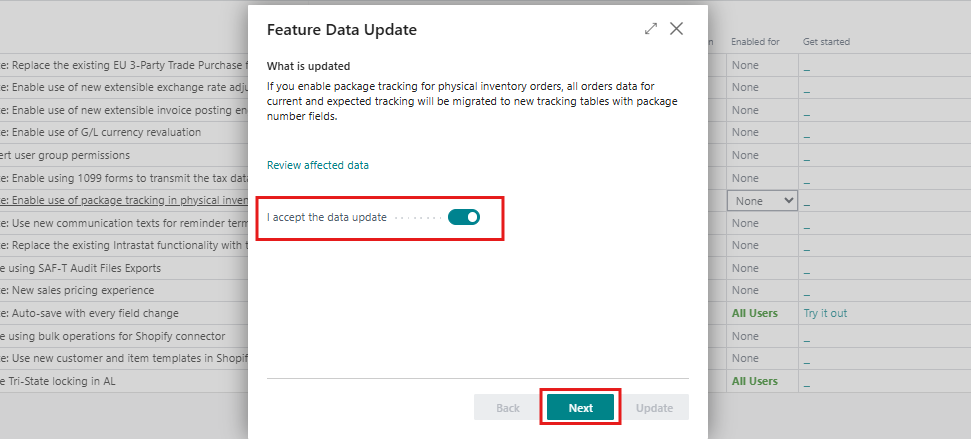
- Now, a warning message will be displayed on the screen. Click Yes Next, another screen will appear where user should turn on the I accept the data update option and then click Next.
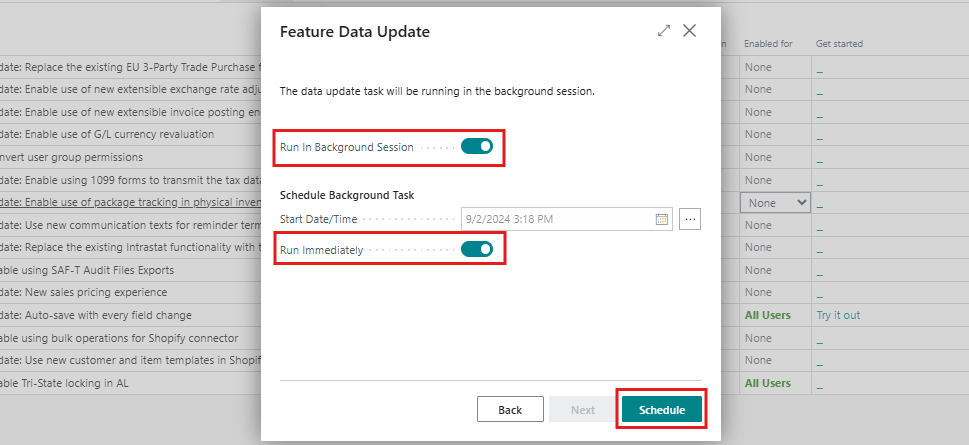
- Again, a message will be displayed on the screen. Users should turn on the Run in background Session and run immediately option and then click Schedule.
- Now that the feature is enabled, the status will change for All users.
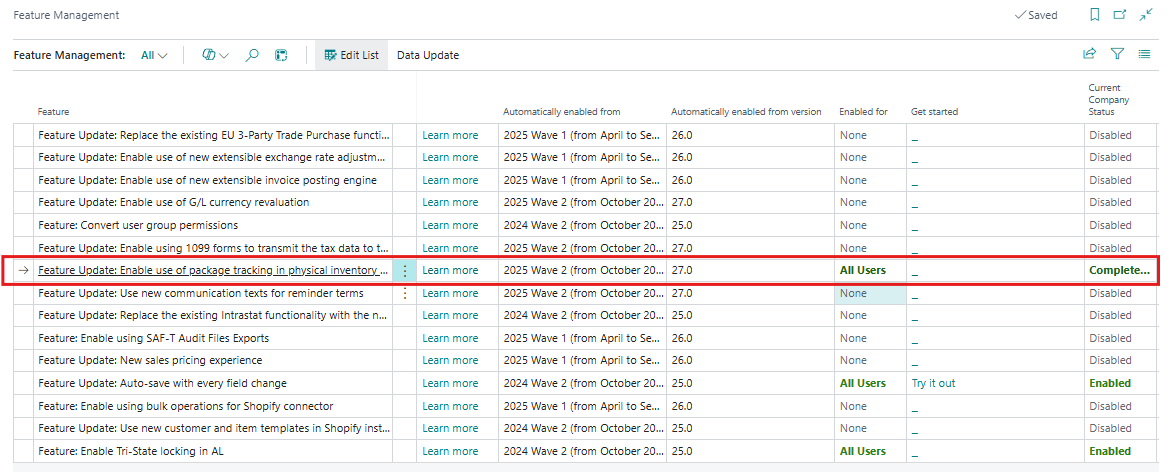
Step 2: Now the user should set No. Series in the Inventory Setup for Package Numbers.
- Search for Inventory Setup and navigate to the Inventory Setup page. On this page, find the Package Nos. field in the Numbering fast tab and select the No. Series for package no.
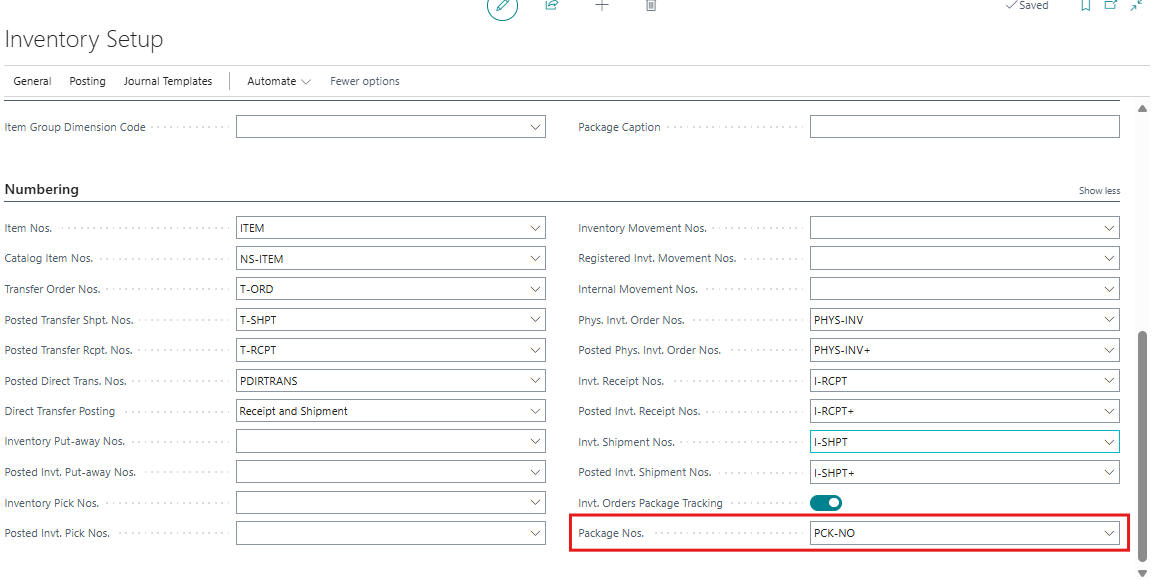
Step 3: The user should verify the item and assign the package number in Physical Inventory Orders.
- The first step is to verify the item. Click on the Search icon, search for the item, and navigate to the Item page in Business Central to check its quantity.
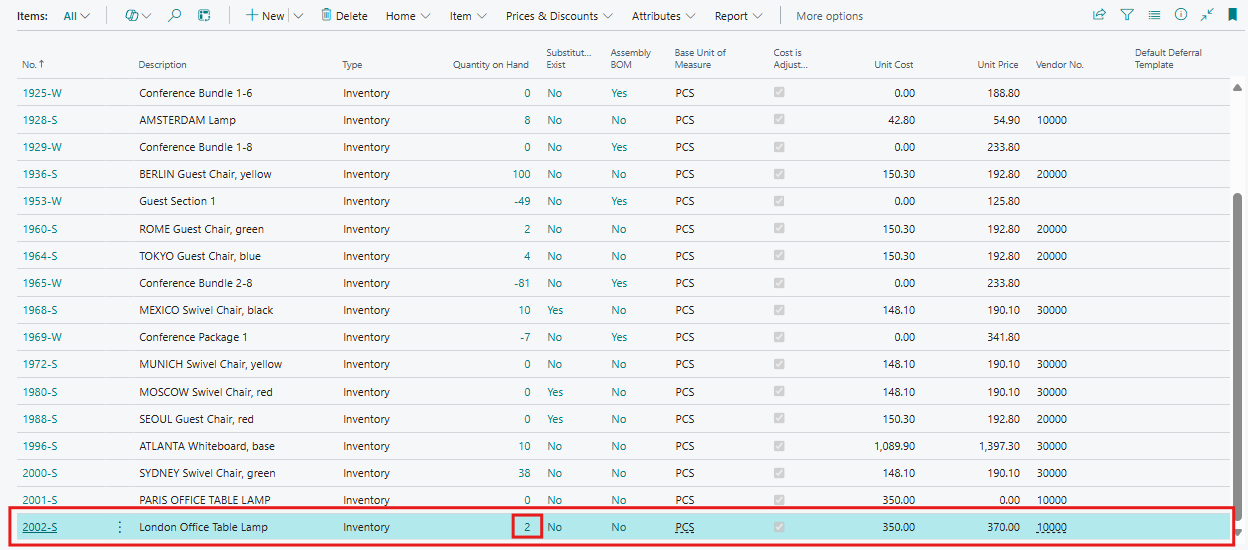
- Click on that value to open the Item Ledger Entries where the item entries will be displayed on the screen. Here in the entries Package No. Is not assigned to item yet.
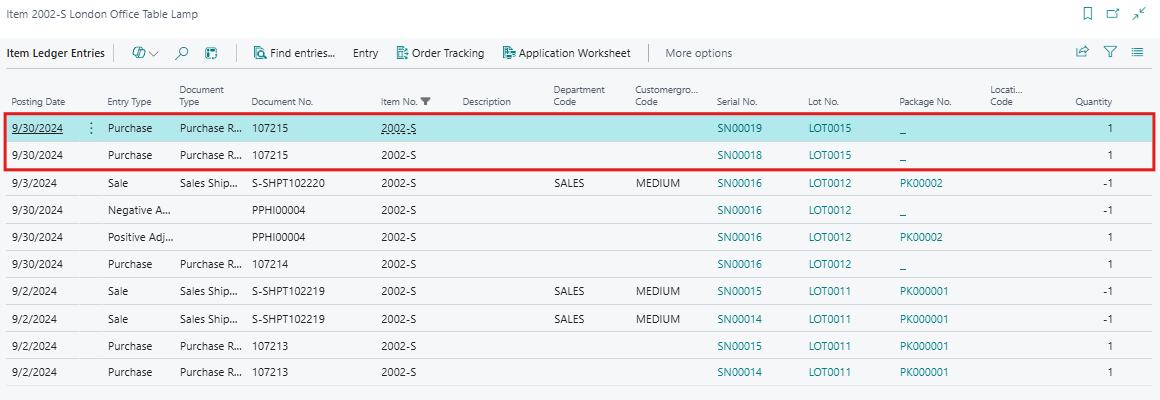
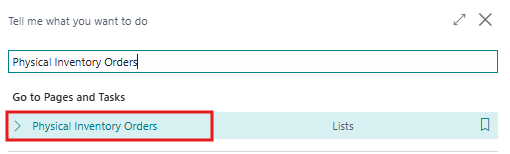
- The user should click on the Search icon, search for Physical Inventory Orders, and navigate to the Physical Inventory Orders page in Business Central. Then, click on the +New option on the Physical Inventory Orders page to create new entries and assign the package number.
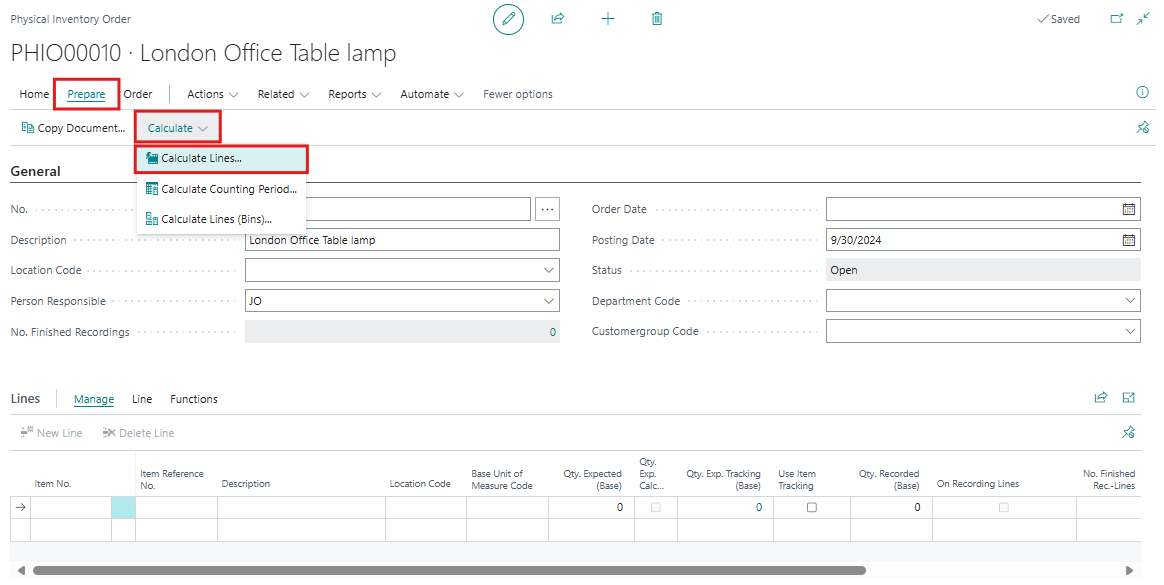
- On the Physical Inventory Orders page user should fulfil all required details in General fast tab and click on Prepare > Calculate > Calculate Lines… This will open one batch job.
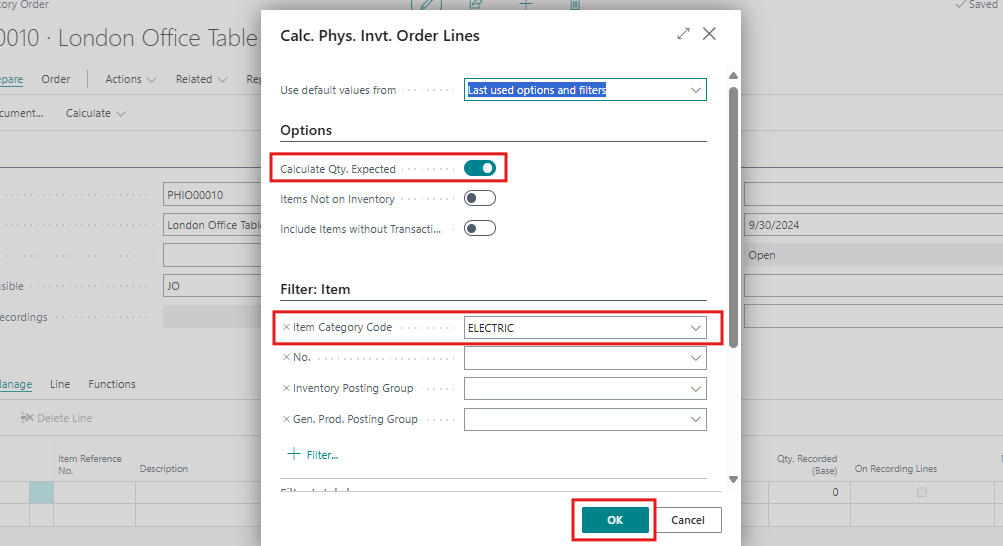
- In batch job turn on the Calculate Qty. Expected Boolean and set Item Category Code filter as given in image and click on OK. It will generate the lines.
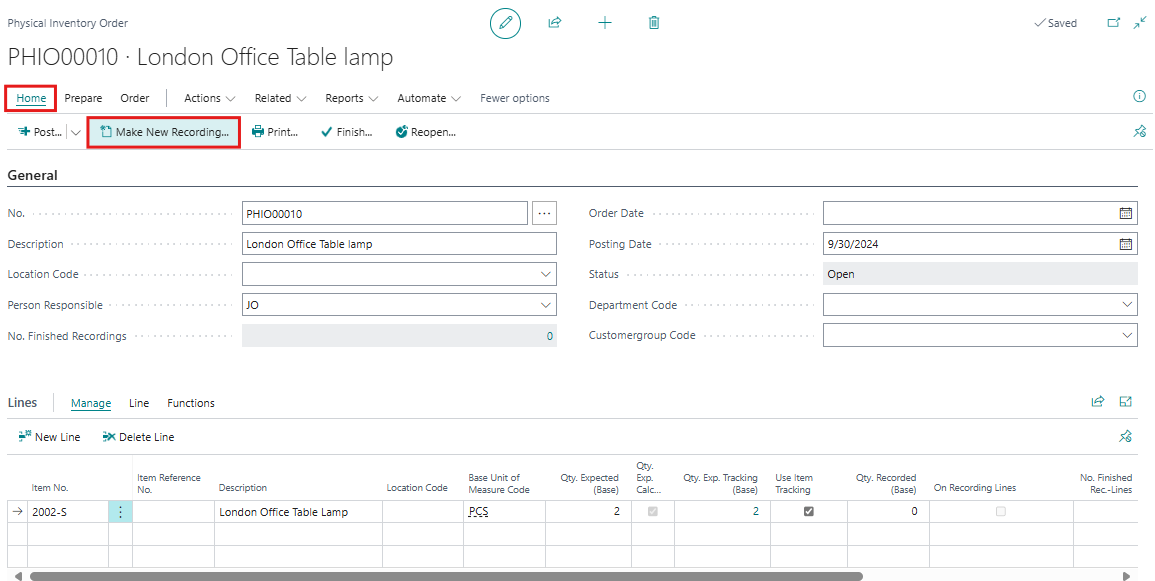
- Select the lines from the Line Fast Tab and click on Home > Make New Recording. This will create a new recording for these lines, allowing the user to assign the package number.
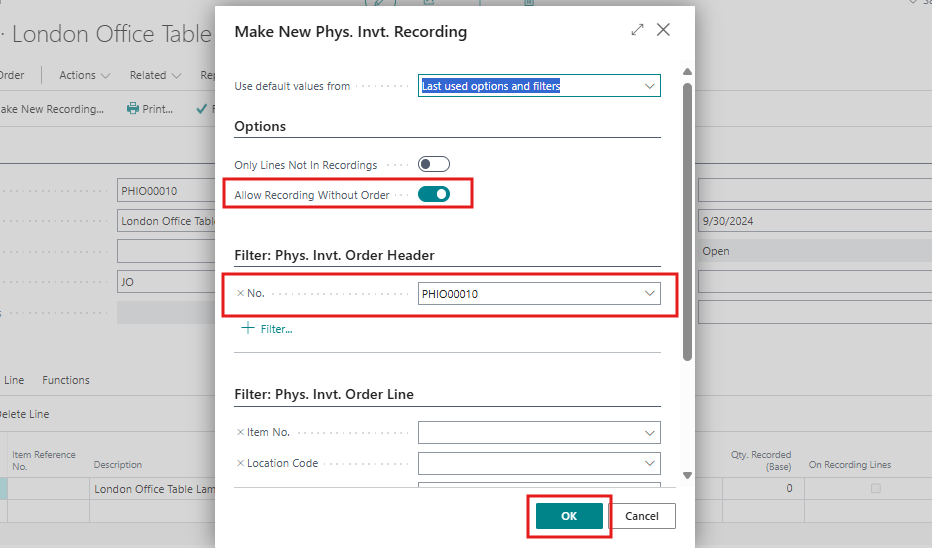
- When the batch job page is displayed on the screen, click OK. This page will show the number of recordings.
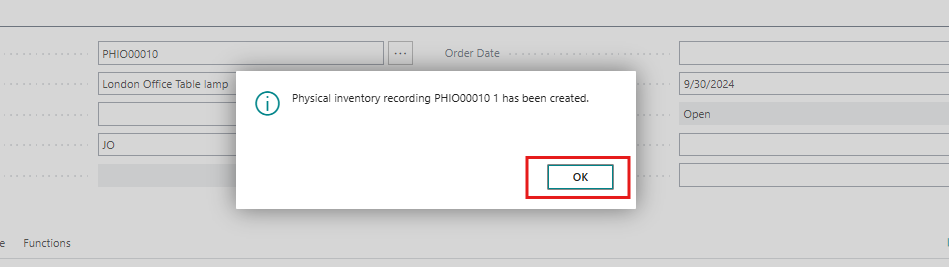
- A message indicating that the recording was successfully created will be displayed on the screen. Click OK.
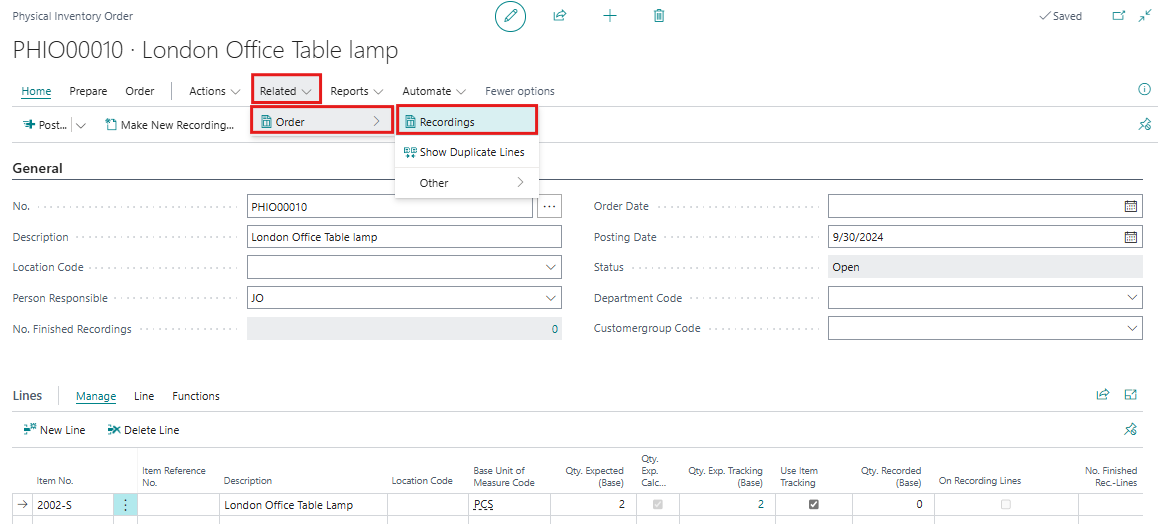
- Go to Related > Order > Recordings to open the Recordings page. From this page, select the recording and open it.
- On this Inventory Recording Page users need to select Serial No. Or Lot No. by clicking on three dots in Line Fast tab and select Serial or Lot number.
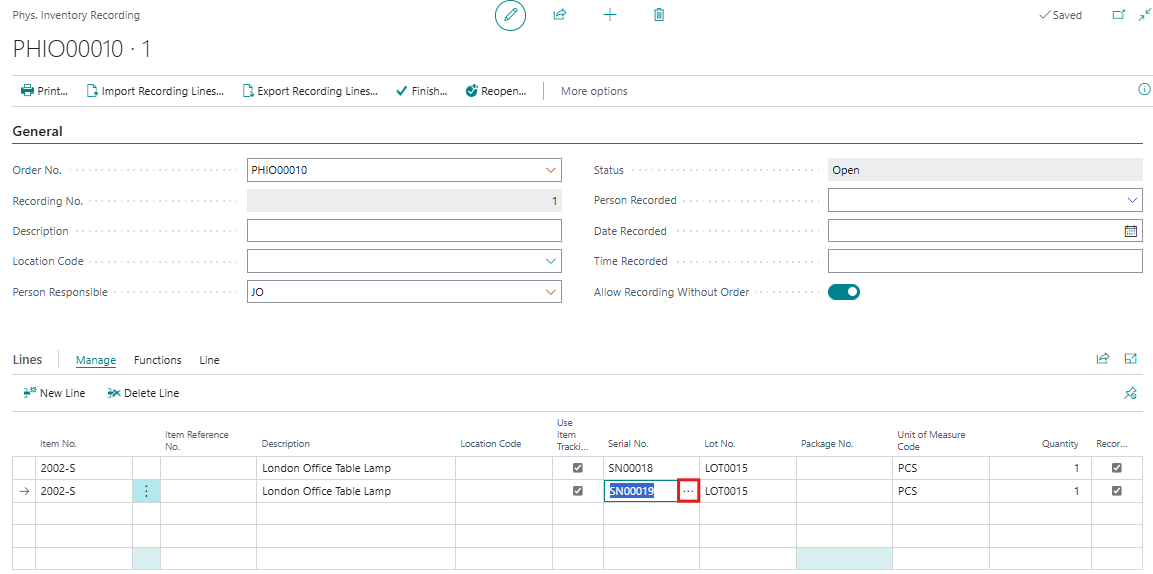
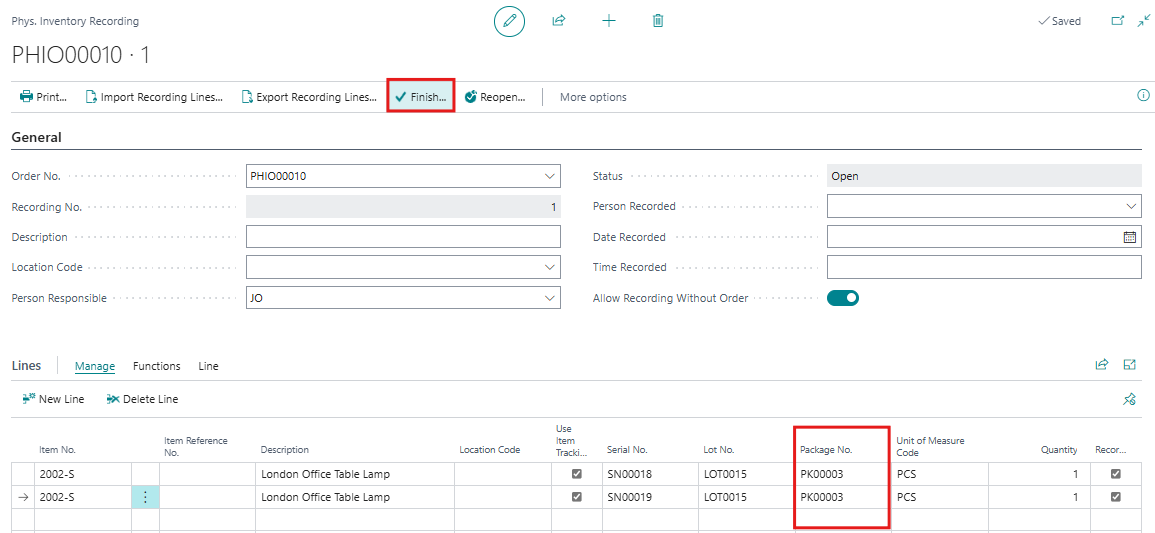
- Now, manually assign the package number in the Package No. After assigning the package number to the line, change the status of the recording to Finished by clicking on the Finish… option from the menu bar
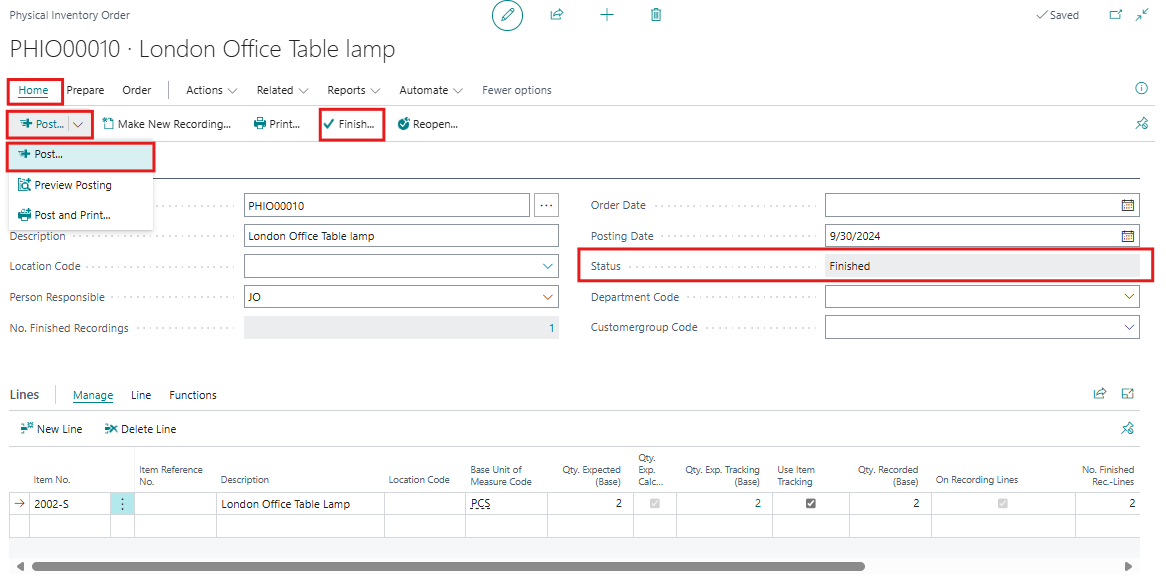
- Now return to the Physical Inventory Order page, First change the status in the Status field open to Finished by clicking on Home > Finish…, and then Secondly post it by selecting Home > Post from the menu bar.
- The First step is verifying the item Click on Search icon and search for Item Ledger Entries and Navigate to the Item Ledger Entries where the item entries will be displayed on the screen. Search for the item and show the ledger entries.
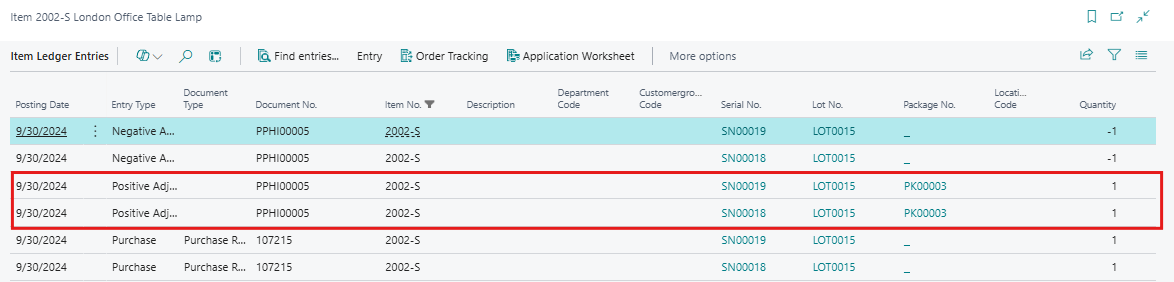
In the above screenshot, the user can see both positive and negative adjustments for the item, along with its package number. This is how the user can assign a package number to each item for tracking purposes.
Limitations
- The system will not automatically populate the Package No. field for existing orders; you need to manually recreate lines.
- Adjustments and calculations are performed after finishing the recording, so ensure all package details are correctly entered before finalizing.
Conclusion
The new feature for package tracking in physical inventory orders in Microsoft Dynamics 365 Business Central significantly enhances your inventory management by providing detailed tracking at the package level. This update reduces manual efforts, minimizes errors, and offers improved accuracy in inventory records. By following these simple steps, you can effectively manage package-specific inventory, leading to better operational control and efficiency in your business operations.