How to Specify Default Location and Bin Codes for Projects in Microsoft Dynamics 365 Business Central
 By WebSiteAdmin
September 26, 2025
3 min read
By WebSiteAdmin
September 26, 2025
3 min read
Introduction
Microsoft Dynamics 365 Business Central is a comprehensive Enterprise Resource Planning (ERP) solution that streamlines various business processes. One notable feature of 2024 wave1 is the ability to specify default location and bin codes for projects. This functionality significantly reduces time spent on data entry, allowing users to focus more on their core tasks, enhancing productivity, and improving project management efficiency.
Business Value
By assigning default location and bin codes to projects, you simplify the data entry process for project tasks, project planning lines, and project journal lines. This enhancement not only reduces the chances of errors during data input but also enables your team to maintain flexibility. Users can quickly create project tasks with the correct defaults while retaining the option to make changes as necessary. This efficiency leads to better resource management and improved project execution.
Requirement
How to specify default location and bin codes for projects in Business Central?
Prerequisites
- Ensure that your organization has valid licenses for Microsoft Dynamics 365 Business Central.
- Confirm that users performing these tasks have the necessary permissions.
Solution (Implementation Steps)
Below are the steps to specify default location and bin codes for projects in Business Central:
- Now, users can use this assembled item in project lines. To use this item, the user needs to search for “Projects” using the Tell Me search icon.
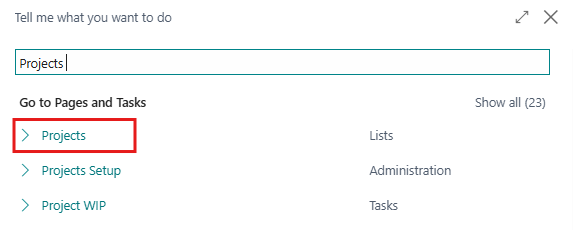
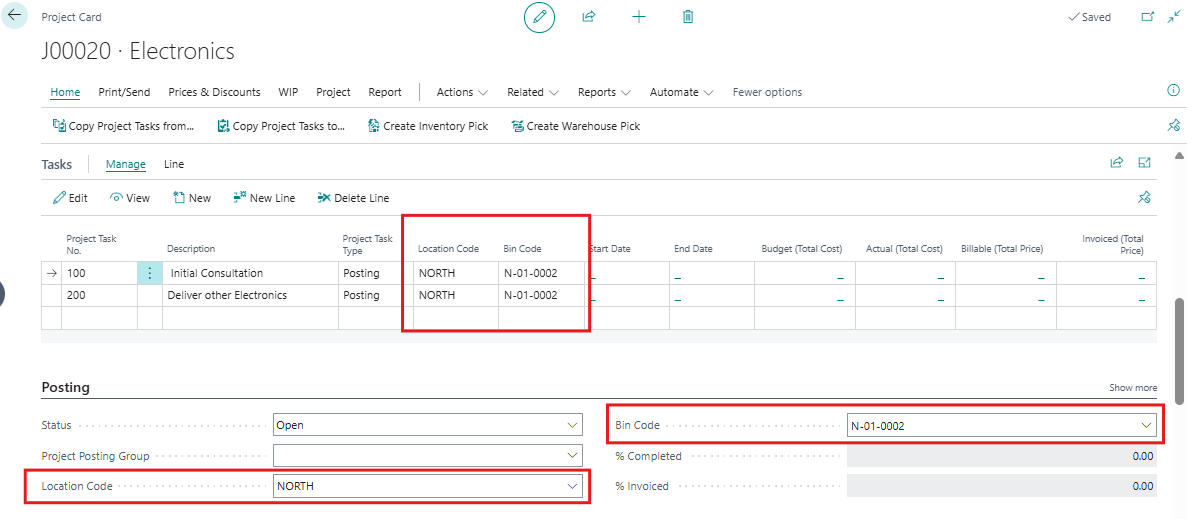
- From the ” Projects list page “, select the project and open in which user wants to manage default location. Now click on the “Posting fast tab” on the Project Card page. Here, users will find fields for entering the ” Location Code “ and ” Bin Code “.
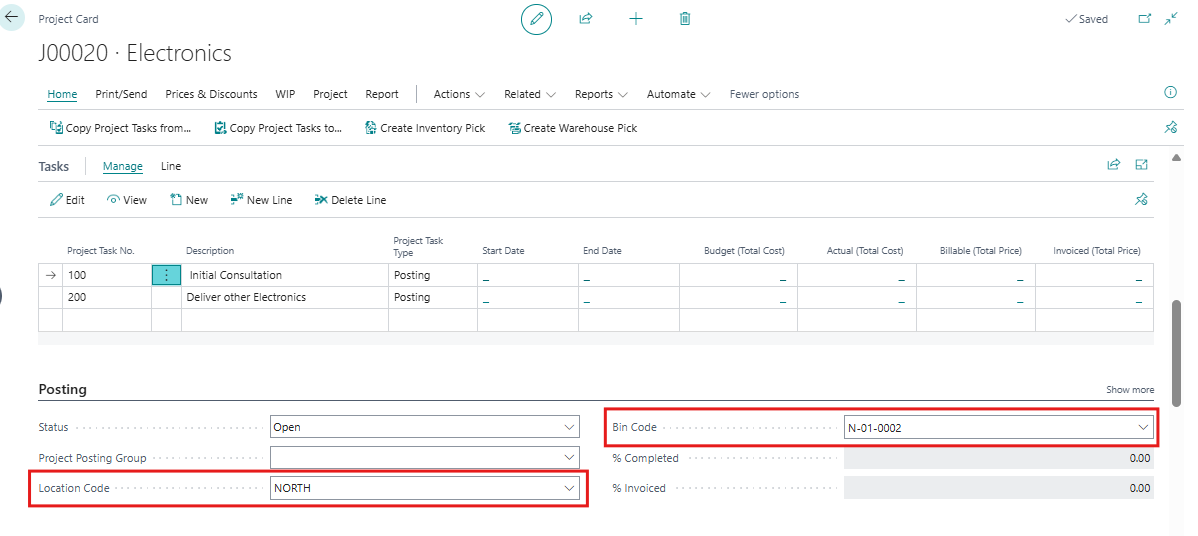
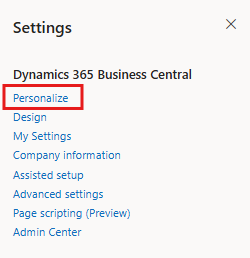
- The ” Location Code “ and ” Bin Code “ don’t display by default on ” Tasks Fast tab “, but you can add them through personalization. These fields are the defaults when you create project planning lines and project journal lines. To display this Feilds user have to click on this icon on the top right corner and click on “Personalize”.
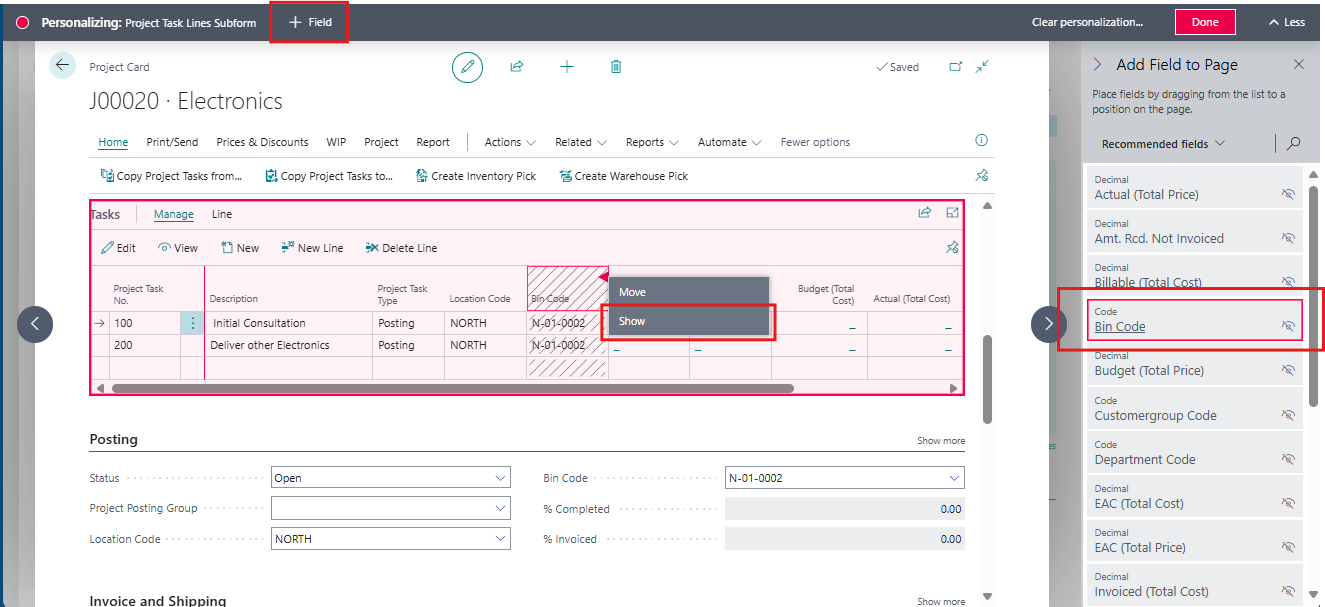
- A “Personalizing” page will open, where the user needs to click on “+Fields” to add fields.
- The “Add Field to Page” fact box will appear, containing all existing fields. The user needs to click on a field from the fact box, and it will appear in the Task fast tab. Then, the user must right-click on the field and select the “Show” option (as shown in the screenshot).
- Once the field is displayed on the card, the user should click on “Done” to complete the process.
- After personalization, the entered default values will automatically populate when user create project tasks, project planning lines, or project journal lines, the default Location Code and Bin Code will automatically be assigned. If needed, you can manually change the location and bin codes on these tasks.
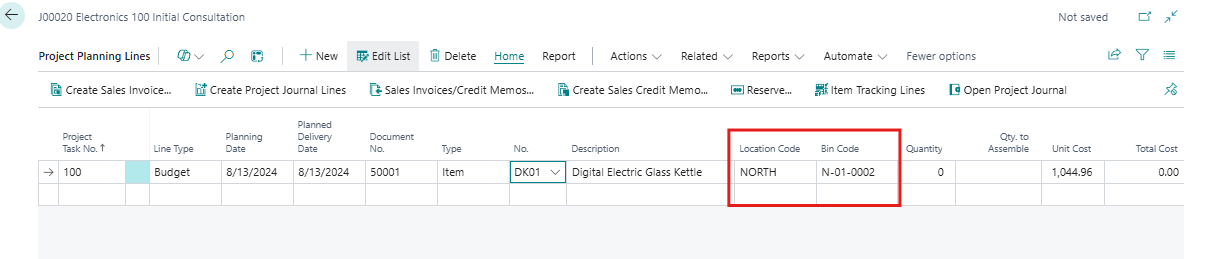
- The Location Code is determined by the value selected in the Job Planning Line. When the user selects an item, the Location Code and Bin Code will automatically populate based on the predefined setup.
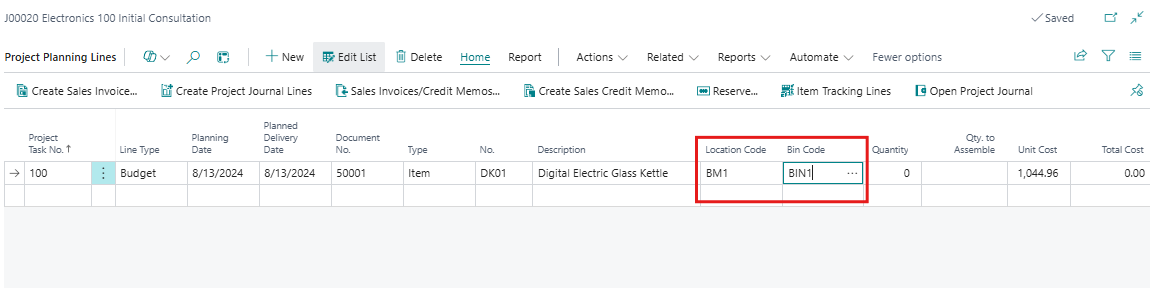
- If needed, the user can manually change the location and bin codes on project planning lines. If a bin code isn’t defined for the project task, the bin from the default bin content is selected.
Conclusion:
Specifying default location and bin codes for projects in Microsoft Dynamics 365 Business Central enhances operational efficiency by simplifying data entry. This feature reduces errors and saves time, allowing your team to focus on more critical tasks. With this straightforward implementation, you can optimize project management and resource allocation, ultimately supporting your business’s growth and improving overall productivity.