How to Use FetchXML in Web Page Templates in Power Pages
 By Inkey Solutions
January 6, 2026
4 min read
By Inkey Solutions
January 6, 2026
4 min read
Power Pages allow us to retrieve data from Dataverse tables using FetchXML with filtering capabilities.
With FetchXML, you can retrieve data from single or multiple related tables, including many-to-many (N:N) relationships. This makes it a powerful and flexible tool for querying Dataverse directly from your portal.
Key Highlights:
- FetchXML supports filter conditions, joins, and aggregation.
- You can easily retrieve data from related tables, as long as the relationships are defined in Dataverse.
- FetchXML queries are easy to write and can be stored in Web Templates for reuse.
Use in JavaScript:
FetchXML results can be used in JavaScript on Power Pages using AJAX (XMLHttpRequest or jQuery.ajax) to call a web page endpoint that serves JSON data (created using a Web Template with application/json MIME type).
This approach allows for:
- Dynamically loading Dataverse data on page load
- Filtering or sorting records via JavaScript
- Displaying data in HTML tables, dropdowns, charts, etc.
Steps to Enable Web API for a Related Table in Power Pages
- Go to your Power pages management.
- Click on “Site Settings”.
- Click “New” to add a new setting.
Site Setting 1:
- Name:WebAPI/test_employeeregistration/enabled
- Value: true
Site Setting 2:
- Name: WebAPI/test_employeeregistration/fields
- Value: *
(Note: Use * to expose all fields or specify a comma-separated list of specific field names.)
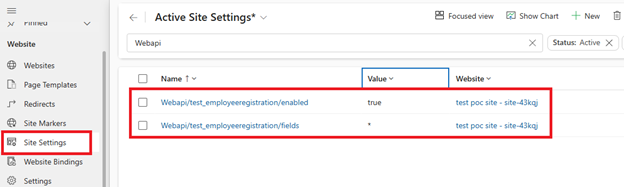
Example:
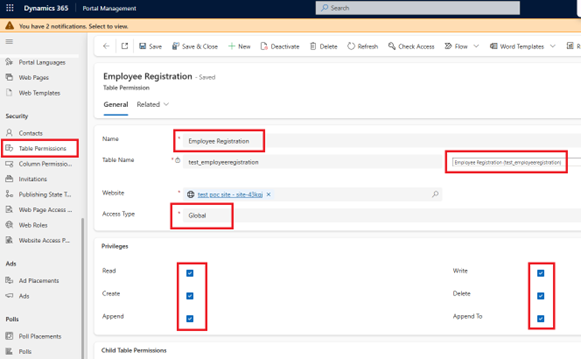
Create a Web Template to Use a FetchXML Query
This Web Template will store a FetchXML query to retrieve data from a Dataverse table. The response will be returned in JSON array object format, so the MIME Type should be set to application/json.
Web Template Details
- Name: fetch Employee Registrations
- MIME Type: application/json
- Purpose: Retrieves employee registration data from Dataverse using FetchXML.
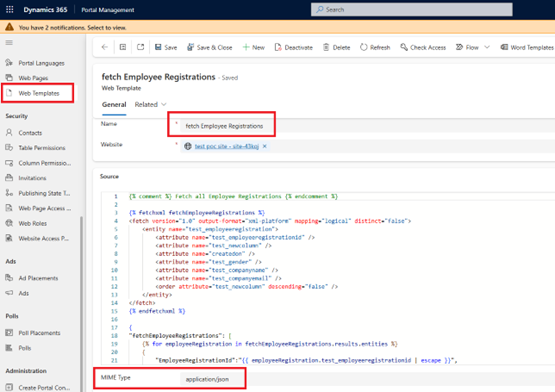
Code:
{% comment %} Fetch all Employee Registrations {% endcomment %}
{% fetchxml fetchEmployeeRegistrations %}
<fetch version=”1.0″ output-format=”xml-platform” mapping=”logical” distinct=”false”>
<entity name=”test_employeeregistration”>
<attribute name=”test_employeeregistrationid” />
<attribute name=”test_newcolumn” />
<attribute name=”createdon” />
<attribute name=”test_gender” />
<attribute name=”test_companyname” />
<attribute name=”test_companyemail” />
<order attribute=”test_newcolumn” descending=”false” />
</entity>
</fetch>
{% endfetchxml %}
{
“fetchEmployeeRegistrations”: [
{% for employeeRegistration in fetchEmployeeRegistrations.results.entities %}
{
“EmployeeRegistrationId”:”{{ employeeRegistration.test_employeeregistrationid | escape }}”,
“EmployeeName”:”{{ employeeRegistration.test_newcolumn }}”,
“Gender”:”{{ employeeRegistration.test_gender.value }}”,
“CompanyName”:”{{ employeeRegistration.test_companyname }}”,
“CompanyEmail”:”{{ employeeRegistration.test_companyemail }}”
}{% unless forloop.last %},{% endunless %}
{% endfor %}
]
}
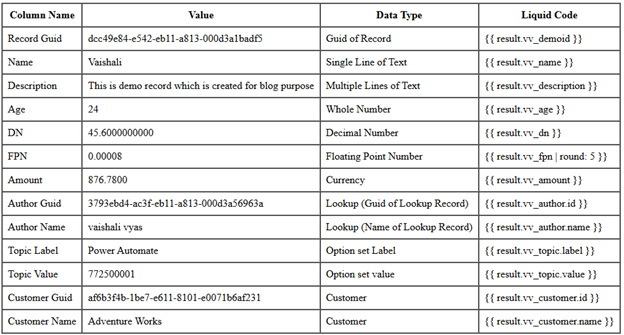
As shown in the screenshot, the table demonstrates different types of fields available in Dataverse and how to access their values using Liquid code.
Each row represents a field type, its sample value, data type, and the corresponding Liquid expression used to retrieve that value in Power Pages using FetchXML.
This format serves as a reference to help you understand how to access and display various Dataverse field types such as text, number, lookup, option set, and currency directly in your Liquid templates.
It is especially useful when working with FetchXML queries and rendering dynamic data in Power Pages.
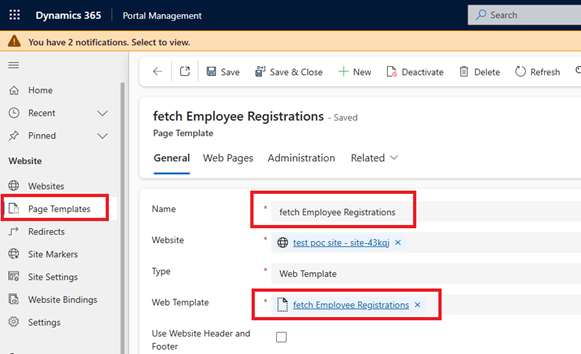
Create a Page Template and Link the Web Template Using Lookup
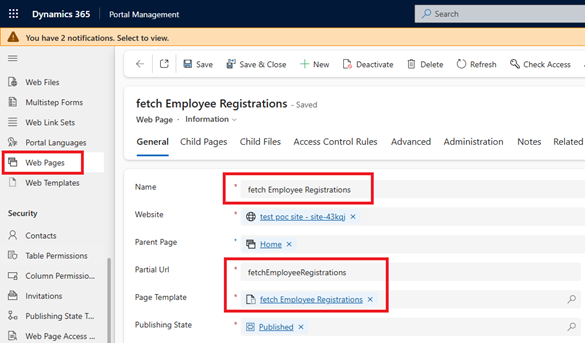
Create a Web Page and Link It to the Page Template
Set a Partial URL so the site can be accessed and display live data retrieved using FetchXML from the linked Page Template.
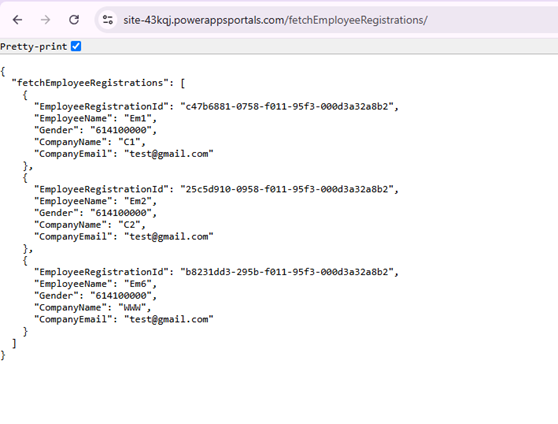
After creating all required Web Templates, Page Templates, and Web Pages, open the site using the specified Partial URL.
The web page will load using that URL and display live data from Dataverse, including related table data, in an array of object formats (JSON) as shown in the screenshot.
Conclusion
Using FetchXML in Web Page Templates within Power Pages is a powerful way to query and display Dataverse data dynamically. With the help of Liquid code, you can easily retrieve data from single or related tables, apply filters, and format the output in JSON or HTML.