How to Use Modern Search in Lists in Microsoft Dynamics 365 Business Central
 By Inkey Solutions
March 27, 2026
4 min read
By Inkey Solutions
March 27, 2026
4 min read
Introduction:
Microsoft Dynamics 365 Business Central continues to enhance user productivity with each release. With the 2024 Release Wave 2 update, a powerful new feature has been introduced—Modern Search in Lists. This feature provides a faster and more accurate way to search within list pages by focusing only on columns that are optimized for full-text search, while still allowing users to switch back to the traditional search method when needed.
Business Value:
In the past, the legacy search method scanned across all fields, which often led to slower performance and irrelevant results. With modern search, Business Central now provides a more intelligent, full-text-based search experience.
Users benefit from:
- Faster data retrieval on list pages
- More accurate and relevant search results
- Improved user satisfaction and productivity
By limiting searches to optimized fields, modern search ensures that only meaningful results are shown—helping users find exactly what they need with less effort.
Requirement:
How can user enable and use the modern search method in list pages within Microsoft Dynamics 365 Business Central?
Prerequisites:
- Ensure users are using the latest version of Microsoft Dynamics 365 Business Central.
- Verify that User have the necessary permissions to modify user settings and posting policies.
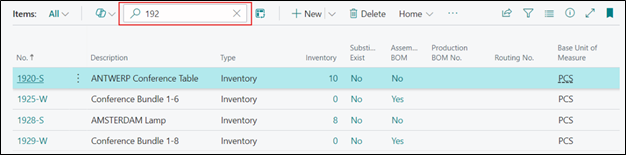
Before this feature was introduced, the search Box appeared as shown in the screenshot below.
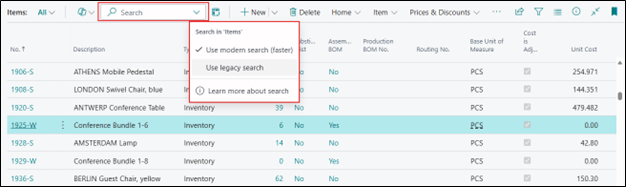
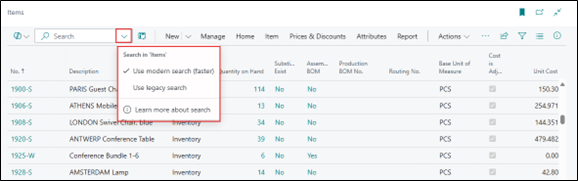
Now on the right side of the search box, there is a downward arrow. Click it to choose whether to use a legacy search or modern search (faster).
Solution (Implementation Steps):
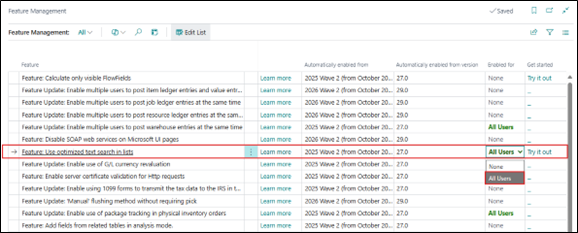
This feature is enabled by default in newly created environments. For upgraded environments, go to the Feature Management page and enable Feature: Use optimized text search in lists.
Step 1: Enable Modern Search from Feature Management
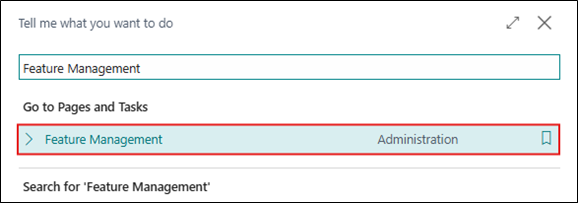
- Click on the Search icon and Search for ‘Feature Management’, Click on related link.
- On the Feature Management page, Find the feature “Use optimized text search in lists”. Turn the toggle ON to enable the modern search functionality.
Step 2: Use Modern Search on List Pages
- Click on Search Icon and search for list page like Customers, Items, or G/L Accounts. Click on related link.
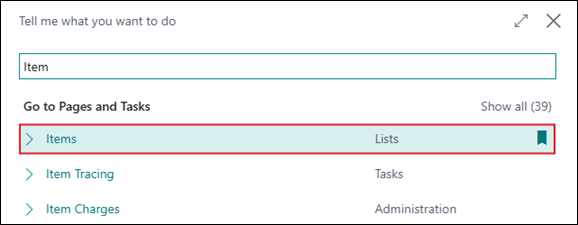
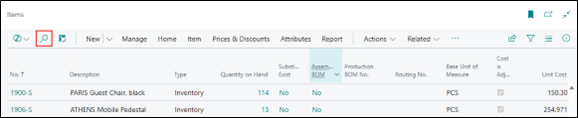
- At the top of each list page, there’s a Search action. Search action that provides a quick and easy way to reduce the records in a list and display only those records that contain the data that user is interested to seeing.
- In the list’s search bar, click the downward arrow to see new options that let User switch between:
- Use legacy search (slower, scans all columns)
- Use modern search (faster) (scans only optimized columns)
Step 3: Try performing a search in the search box using both the legacy and modern search options to compare the results.
- When user search using a single word, both search methods behave similarly.
- Legacy search and Modern search returns all results that contain the search word even if the words aren’t in the exact format.
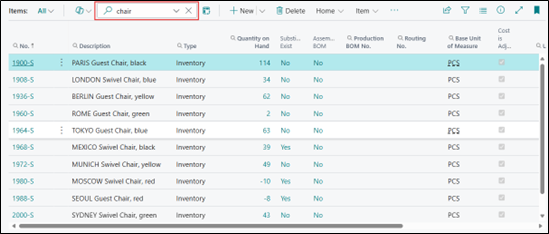
- Legacy search and Modern search returns all results that contain the search word even if the words aren’t in the exact format.
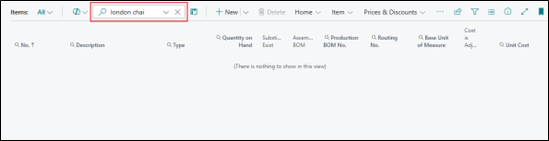
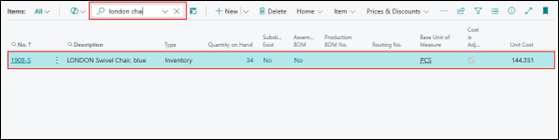
- However, with multiple words, the modern search can find results even if the words aren’t in the exact order or format. When User try to Search for ‘london chair’ in the Search box:
- Legacy search does not return any results unless it finds an exact match.
- Modern search can easily find records such as LONDON Swivel Chair even without an exact match.
- Legacy search does not return any results unless it finds an exact match.
- Modern search does not return results if the search query includes words from more than two different fields. For example,
- If a user searches for ‘Athens blue’, and the words ‘Athens’ and ‘blue’ appear in separate fields, no results will be shown.

- If a user searches for ‘Athens blue’, and the words ‘Athens’ and ‘blue’ appear in separate fields, no results will be shown.
Restrictions & Notes:
- The modern search is available only on selected system-optimized tables.
- If the current list/table isn’t optimized for full-text search, the Use modern search toggle won’t appear.
- Partners and developers can enable modern search for custom tables by using the ‘OptimizeForTextSearch’ property in AL.
- This feature is being rolled out gradually, starting with commonly used tables such as Customers, Contacts, Items, and G/L Accounts, with additional tables to be supported in future updates.
Conclusion:
The Modern Search capability in Microsoft Dynamics 365 Business Central 2024 Release Wave 2 delivers a major usability improvement. By enabling users to search only in optimized fields, Business Central reduces noise and improves speed, helping teams focus on what matters. The option to toggle between legacy and modern search ensures flexibility, while the rollout to more tables will further boost productivity across departments. This update aligns with Microsoft’s commitment to building a smarter, faster, and more intuitive ERP experience.