Managing Dimension Combinations in Microsoft Dynamics 365 Business Central
 By Inkey Solutions
August 4, 2026
4 min read
By Inkey Solutions
August 4, 2026
4 min read
Introduction:
Microsoft Dynamics 365 Business Central offers powerful dimension functionality to help organizations analyze financial and operational data from multiple perspectives, such as department, project, cost center, or location. While dimensions provide flexibility, unrestricted use of dimensions can sometimes result in irrelevant or conflicting combinations being posted to entries.
To address this, Business Central includes the Dimension Combinations feature. This functionality allows organizations to control which dimension pairs can or cannot be used together during posting. By defining blocked or limited combinations, businesses can enforce accounting rules, improve data quality, and ensure meaningful reporting.
Business Value:
Dimension combinations help maintain data consistency and posting accuracy across Business Central.
Organizations benefit through:
- Improved data integrity – Prevents contradictory or invalid dimension usage
- Stronger posting controls – Enforces internal accounting and reporting rules
- Cleaner financial analysis – Ensures only meaningful dimension combinations are posted
- Reduced posting errors – Stops incorrect entries before they reach the ledger
For example, an organization may want to prevent a Sales Department dimension from being used together with a Manufacturing Project. Dimension combinations ensure such postings are automatically blocked.
Requirement:
How can you configure dimension combinations in Business Central to block or limit specific dimension pairings?
Prerequisites:
- Access to Microsoft Dynamics 365 Business Central
- Dimensions and Dimension Values already created
- Permissions to manage dimensions and financial setup
Solution (Implementation Steps):
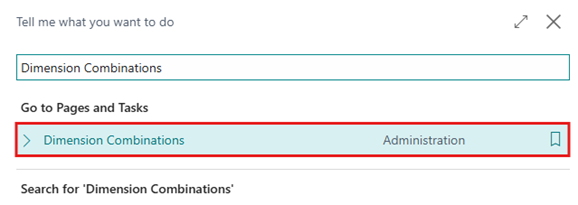
- First, click the Global search icon in the top-right corner, enter Dimension Combinations in the search box, and open the Dimension Combinations page from the results.
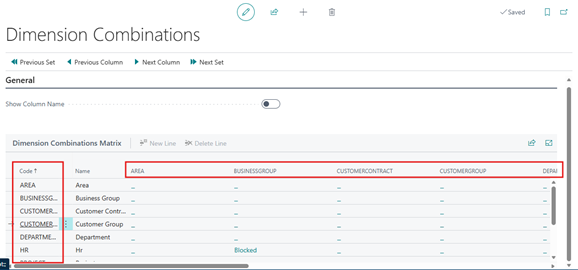
- On the Dimension Combinations page, locate the grid displaying available dimensions. Each dimension appears in both rows and columns, representing all possible dimension pairings.
- Select the two dimensions user want to control. Choose the Restriction Type For each dimension combination, select one of the following options:
| Option | Description |
| No limitation | All dimension value combinations are allowed |
| Limited | Only specific dimension value combinations are allowed |
| Blocked | The two dimensions cannot be used together at all |
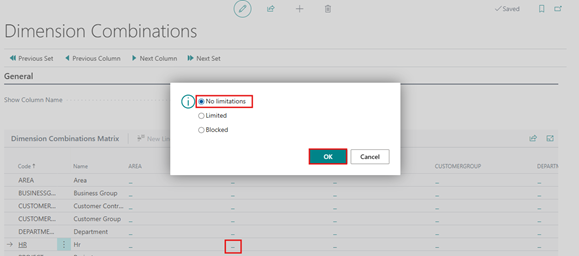
Note the following system behaviors:
- Each dimension combination appears twice (row and column view)
- Business Central automatically synchronizes the settings
- Fields along the diagonal (same dimension vs same dimension) cannot be edited
- The selected option becomes visible only after exiting the field.
- Block Specific Dimension Combinations:
- If Blocked is selected for Dimension, then dimension combinations are restricted to use together. Select the Block option in the field for Dimension.
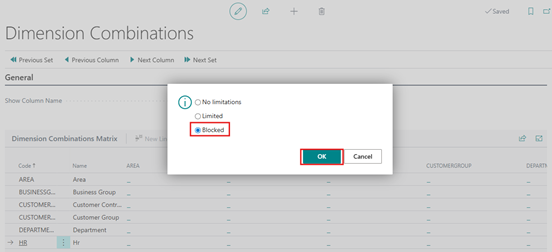
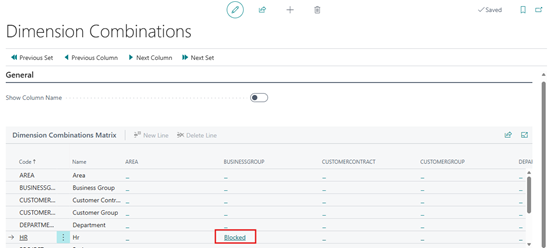
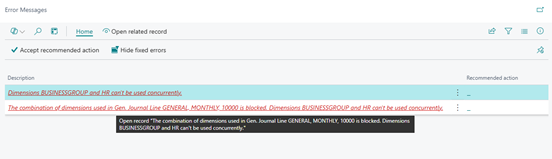
- If the user uses a blocked dimension combination, the system will prevent the transaction from being posted and display an error message.
- Configure Limited Combinations for Dimension Value:
- If Limited is selected, the user must define which dimension value combinations are restricted. Select the Limited option in the field.
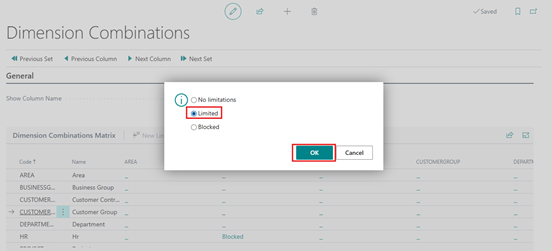
- Click on the Limited.
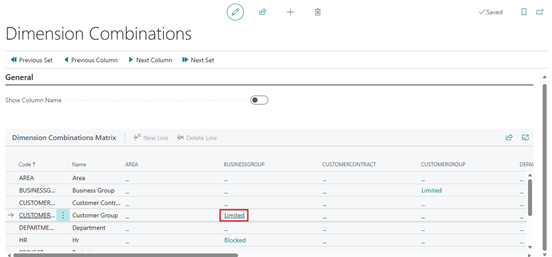
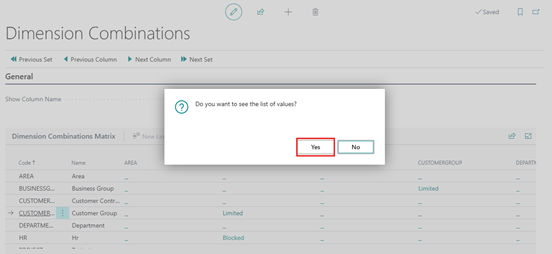
- The system will prompt the user for confirmation on whether they want to restrict the dimension values. Click Yes to open the Dimension Value Combinations page.
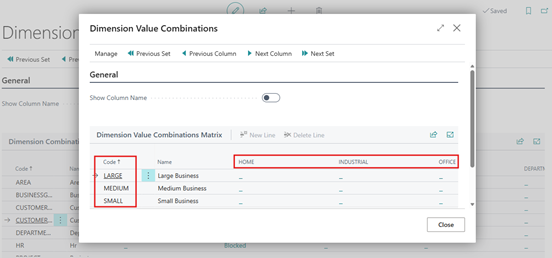
- On the Dimension Value Combinations page, select the required dimension value combinations and configure the limitations accordingly.
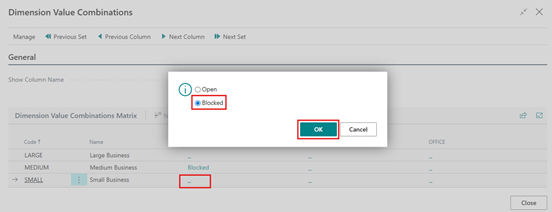
For example, in this case, the user has blocked the SMALL dimension value from the CUSTOMERGROUP dimension and the HOME dimension value from the BUSINESSGROUP dimension. As a result, these two-dimension values are restricted from being used together in the same transaction.
- If the user uses a blocked dimension value combination, the system will prevent the transaction from being posted and display an error message.
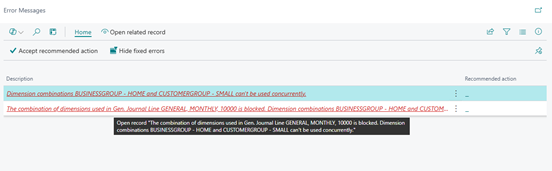
Error:
- Dimension combinations BUSINESSGROUP – HOME and CUSTOMERGROUP – SMALL can’t be used concurrently.
- The combination of dimensions used in Gen. Journal Line GENERAL, MONTHLY, 10000 is blocked. Dimension combinations BUSINESSGROUP – HOME and CUSTOMERGROUP – SMALL can’t be used concurrently.
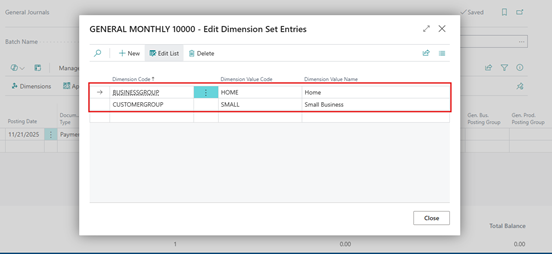
Repeat this step for all restricted combinations as required.
Important Notes:
- Blocked combinations prevent posting regardless of dimension values
- Limited combinations restrict posting based on specific dimension values
- Dimension combination rules apply across all documents and journals
- These controls help prevent incorrect postings before they reach the ledger
Conclusion:
The Dimension Combinations feature in Microsoft Dynamics 365 Business Central provides a practical way to enforce business rules and maintain clean, reliable financial data. By blocking or limiting specific dimension pairings, organizations can prevent invalid postings, improve reporting accuracy, and reduce correction efforts.
This functionality plays a key role in strengthening financial governance while still allowing flexibility where needed—ensuring dimensions support decision-making rather than complicate it.