Share Error Details to Get Help from Another User in Microsoft Dynamics 365 Business Central (2024)
 By Hetal Tank
August 31, 2026
3 min read
By Hetal Tank
August 31, 2026
3 min read
Introduction
Microsoft Dynamics 365 Business Central continues to enhance collaboration and troubleshooting with user-friendly features. One such improvement introduced in recent updates is the ability to share error details directly with other users. When an error blocks your progress, this feature allows you to quickly communicate precise error information to colleagues or subject matter experts, making issue resolution faster and more effective.
Business Value
By facilitating collaboration and knowledge sharing, this feature enables teams to work together more effectively and efficiently. Users can leverage the expertise of colleagues to overcome obstacles and minimize downtime.
Key benefits include:
- Clear communication of error messages, codes, and diagnostic details
- Faster troubleshooting with targeted guidance
- Reduced back-and-forth by sharing exact system-generated information
- Improved productivity through quicker issue resolution
Overall, the ability to share error details in Business Central significantly enhances collaboration and problem-solving capabilities.
Requirement
How to share error details in Microsoft Dynamics 365 Business Central to get help from another user?
Prerequisites
- Ensure you are using an updated version of Microsoft Dynamics 365 Business Central (2024 or later).
- Make sure Microsoft Teams or a default email client is configured if you plan to use those sharing options.
- user must encounter an in-line validation error or an error dialog within Business Central.
Solution (Implementation Steps)
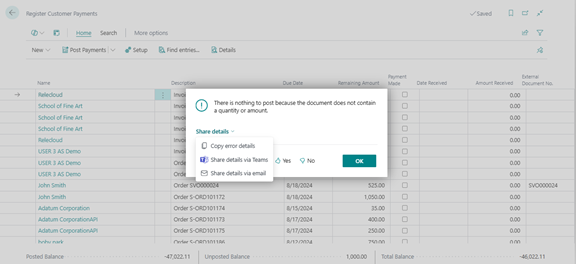
When user is blocked by an error, user can now quickly and easily share error details with colleagues or experts. The Share feature is available in:
- Pop-up error dialogs
- Field (in-line) validation errors
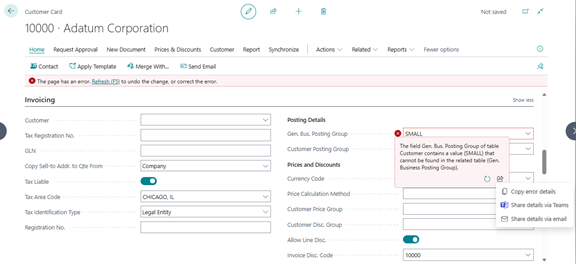
Users can share error details with others using the Share option, which provides the three actions listed below:
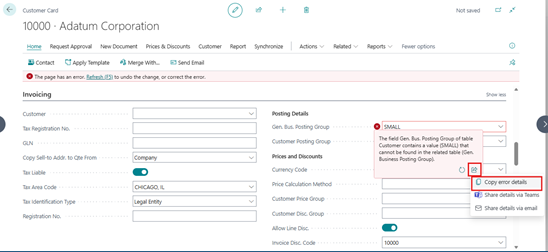
- Copy error details:
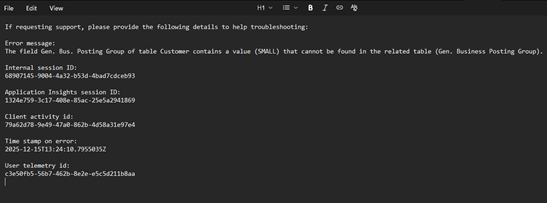
- This option works the same way as the earlier Copy details feature. Click the Share icon from the error message box and Select “Copy error details” option.
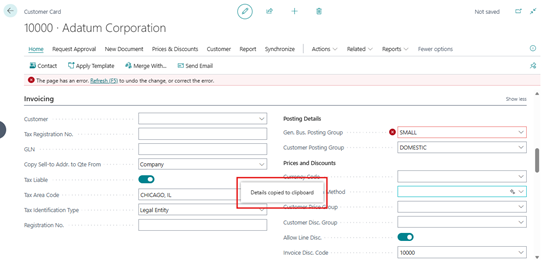
- The system will show a success message on the screen.
- Paste the copied error details into Notepad or a chat application to share them with the intended user.
- Share Details via Email
- Click the Share icon from the error message box and Select “Share details via email” option.
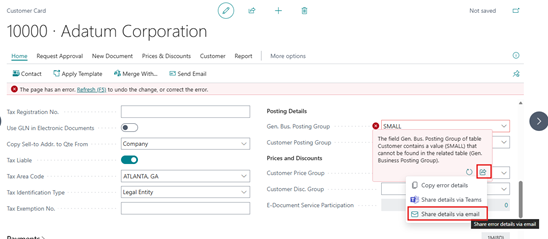
- The system opens an app selection page where the user need to choose the application to send the email. Select Outlook and click on ‘Just once’.
- At the same time, the system copies the error details and automatically opens a new message in Outlook.
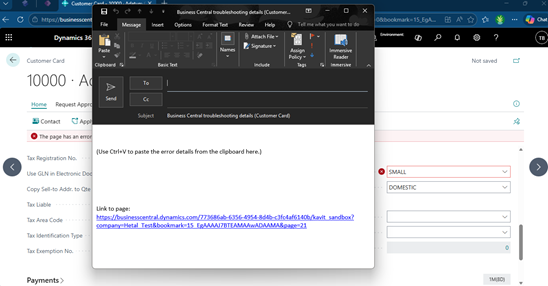
- The user needs to paste the error details into the email body and select the recipient before sending. Additionally, a link to the page where the error occurred is included to provide context.
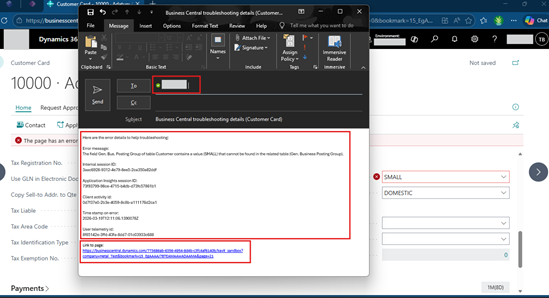
- Then select the Send option to send the Email.
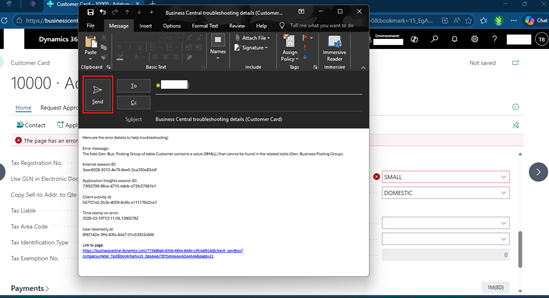
This option is useful for formal communication or when Teams is not available.
Conclusion
The Share Error Details feature in Microsoft Dynamics 365 Business Central is a powerful enhancement that simplifies collaboration and troubleshooting. By allowing users to share accurate error information through Teams or email, Business Central ensures that issues are resolved faster with minimal disruption. This feature not only saves time but also strengthens teamwork and knowledge sharing, making daily operations smoother and more efficient.