Solving Data Access Limitations in Power BI Using Service Principal and Cloud Connection
 By Inkey Solutions
February 20, 2026
3 min read
By Inkey Solutions
February 20, 2026
3 min read
Overview
Power BI’s default behavior—respecting CRM security roles via OAuth—works well when users should see only their own data. But what happens when a report needs to show everything, and changing CRM permissions isn’t an option?
We faced this exact challenge: stakeholders needed a report with full visibility into a CRM table, but their access to the source system was limited—and rightly so, due to governance policies.
In this blog, we walk through how we solved it using a Service Principal and Cloud Connection in Power BI. This allowed us to bypass row-level restrictions safely and selectively, without touching CRM roles—keeping both IT and business users happy.
Problem Statement
We have already built a Power BI report using tables from our CRM system. The report was set up with OAuth authentication, so that each user saw only the data they were permitted to see within the CRM. This worked well and followed best practices for data security.
A new requirement emerged:
Create a separate report using one of these tables, where users must be able to see all records, even if they don’t have access to them in CRM.
Modifying the security roles in the CRM just for reporting was not an option. It would compromise governance and affect other system-wide data policies. Hence, we needed a solution that could bypass row-level security in a controlled way—specifically for this report—without changing the user’s access to the source system.
Solution
We decided to decouple the data access from the user’s identity by leveraging a Service Principal (Azure app Registration with client credentials) and configuring a Cloud Connection on Power BI Service using the created service principal credentials. This enabled background identity with full access to the required data, while still keeping user access tightly managed at the report level.
Step 1: Register the App in Azure AD
- Go to Azure AD > App Registrations > New Registration
- Assign application-level permissions to Dataverse/CRM API
- Grant necessary permission/admin consent
This app now has backend access to CRM data as per the given permissions.
Step 2: Build and Publish Report
- Build the report in Power BI Desktop using OAuth
- Publish it to Power BI Service
- At this point, refresh still used user credentials (temporarily)
Step 3: Create Cloud Connection
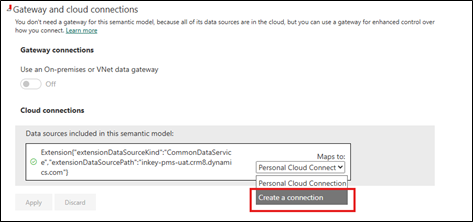
- Go to semantic model Settings > Gateway and cloud connections > Create a connection
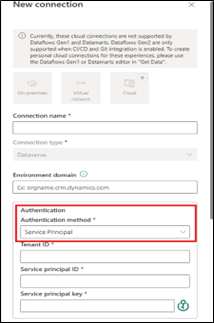
- Give Connection name.
- In the Environment domain field, enter your Dataverse URL.
- Under the Authentication section (highlighted in red in the image):
- Set Authentication method to Service Principal.
- Fill in the required fields:
- Tenant ID – Your Azure AD tenant ID.
- Service principal ID – The Client ID of your Azure app.
- Service principal key – The Client Secret generated from Azure.
- Once validated, click Save to finalize the connection.
Step 4: Switch Dataset to Cloud Connection
- Open dataset settings
- Under Data source credentials, select the newly created cloud connection
- Save and apply
Now, the dataset refresh uses the Service Principal, giving access to full data without touching CRM permissions.
Note: The credentials should be stored in a secure location to prevent any potential security issues.
Conclusion
When Power BI reports require full data access, but source systems enforce strict security, Service Principals with Cloud Connections provide a secure workaround. This approach lets developers maintain source-level security, enable broader visibility in reports, and decouple user identity from data access—all without compromising governance. It’s ideal for executive dashboards, audits, and compliance reporting, ensuring flexibility within enterprise security standards.