The ‘not()’ Expression in Power Automate’s Filter Array for Dynamics 365
 By Inkey Solutions
December 26, 2025
5 min read
By Inkey Solutions
December 26, 2025
5 min read
When you’re building flows in Power Automate, the Filter Array action is one of the most powerful tools in your arsenal for refining data. It allows you to sift through a collection of items and keep only the ones that meet your specific criteria. While most users are familiar with basic operators like equals or greater, the true potential for sophisticated filtering is unlocked with the not() expression.
This is especially true for anyone working with Dynamics 365 CRM, where the not() expression in Power Automate provides a critical solution to some common data querying limitations.
Why not() is Your Go-To Expression
Sometimes, the logic you need isn’t about what to find, but what to exclude. The not() expression allows you to invert your conditions, which is essential for common CRM tasks. For example, you might need to:
- Create a clean marketing list by filtering out any contacts who are missing an email address.
- Isolate all active cases by fetching a list of cases and then excluding those with a status of ‘Resolved’.
- Generate a prospect list by getting all accounts and then removing any that are already marked with a relationship type of ‘Customer’.
A Critical Workaround for Dynamics 365 CRM Limitations
For Dynamics 365 users, Power Automate’s not() expression is more than a convenience—it’s often a necessity. FetchXML, the query language used by Dataverse, has a significant limitation: it does not support anti-joins.
What does this mean in practice? It means you cannot directly query for records based on the absence of a related record that meets a certain condition. For instance, a very common business requirement is to “find all leads that have not received an email in the last 24 hours.” You simply cannot build this query directly using FetchXML or even Advanced Find, because it requires finding leads where a related child record (an email) does not exist within a specific timeframe.
This is where Power Automate saves the day. You can adopt a powerful two-step pattern:
- Use the “List rows” action to fetch a broader set of records from Dynamics 365 (e.g., all active leads).
- Use the Filter Array action with a not() expression in Power Automate to precisely trim the list down to only what you need.
Understanding the Syntax of not()
The structure of the expression is beautifully simple:
not(<condition>)
The <condition> can be any valid Power Automate logical expression, such as equals(), empty(), greater(), or even a combination of expressions. It evaluates the inner condition and then flips the result.
Practical Scenarios & Corrected Examples
Let’s look at how to apply this to solve real-world Dynamics 365 challenges.
- Contacts Without an Email Address
Imagine you are building an audience for an email campaign. To ensure your list is clean, you must remove any contacts who do not have an email address listed in their primary email field (emailaddress1).
-
- Action: Filter Array
- From: value (from your “List Contacts” action)
- Expression:
@not(empty(item()?[’emailaddress1′]))
-
- What this does: The empty() function checks if the email address field is null or an empty string. The not() expression inverts this, so the filter only keeps items where the email address field is not empty.
- The Anti-Join Challenge: Leads Without Recent Emails
Here is the solution to the classic FetchXML limitation. To find all leads who have not been sent an email in the last 24 hours, you must use a more strategic pattern in your flow, as you cannot check the related record directly in a single filter.- List Recent Emails: First, use a “List rows” action to get all Email records created in the last 24 hours. In your filter criteria for this query, make sure to find emails where the “Regarding (Lead)” field contains data.
- List All Leads: Use a second “List rows” action to get all the leads you want to check (e.g., all open leads).
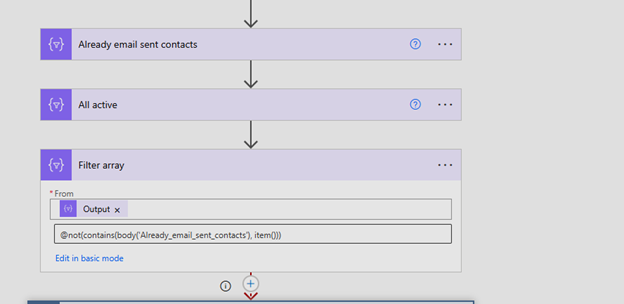
- Filter The Leads: Now, use a Filter Array action on the output from your “List Leads” step. Here, your logic will check if the lead’s ID from the second step is not contained within the list of leads from the first step. This requires a more advanced expression:
- First, use a Select action to create a simple array of just the lead IDs from your “List Recent Emails” step.
- Then, in your Filter Array, the condition will be: @not(contains(body(‘select records that you want to exclude’), item()?[‘leadid’]))This correctly filters your master list of leads, removing any that were found in the list of recent email activities, perfectly executing the anti-join that FetchXML cannot.Filter All Records:
Best Practices
To make your flows reliable and easy to manage, follow these tips:
- Keep it Simple: If your logic becomes very complex with multiple nested not() or and()/or() conditions, consider splitting it into sequential Filter Array actions. Each action can perform one logical step, making the flow easier to read and debug.
- Always Test: Before running your flow on thousands of production records, test it with a small, known set of sample data to ensure your logic is filtering exactly as you expect.
- Document Your Conditions: Use the “Notes” feature on your Power Automate actions to explain what your filter conditions are doing. Your future self (and your teammates) will thank you.
Conclusion
The not() expression is an essential tool for any Power Automate maker, but it is a genuine game-changer for those working with Dynamics 365. By providing a robust way to handle exclusion logic, it directly solves the inherent limitations of FetchXML and Advanced Find, particularly the inability to perform anti-joins.
By embracing the pattern of “CRM fetches broadly, Power Automate filters precisely,” you can easily manage scenarios that were once difficult or impossible to achieve, including:
- Excluding contacts with missing key fields.
- Filtering out cases or opportunities that are already closed.
- Identifying records that lack any recent related activities.