How to Add “Sent To” Field on the Sent Emails Page (8883) in Dynamics 365 Business Central
 By Hetal Tank
September 19, 2026
6 min read
By Hetal Tank
September 19, 2026
6 min read
Introduction
Microsoft Dynamics 365 Business Central lets you share documents, such as sales and purchase orders, quotes, and invoices by email directly from the app, without opening a separate mail client. Every message you send is logged on the Sent Emails page so you can review what went out and resend if needed.
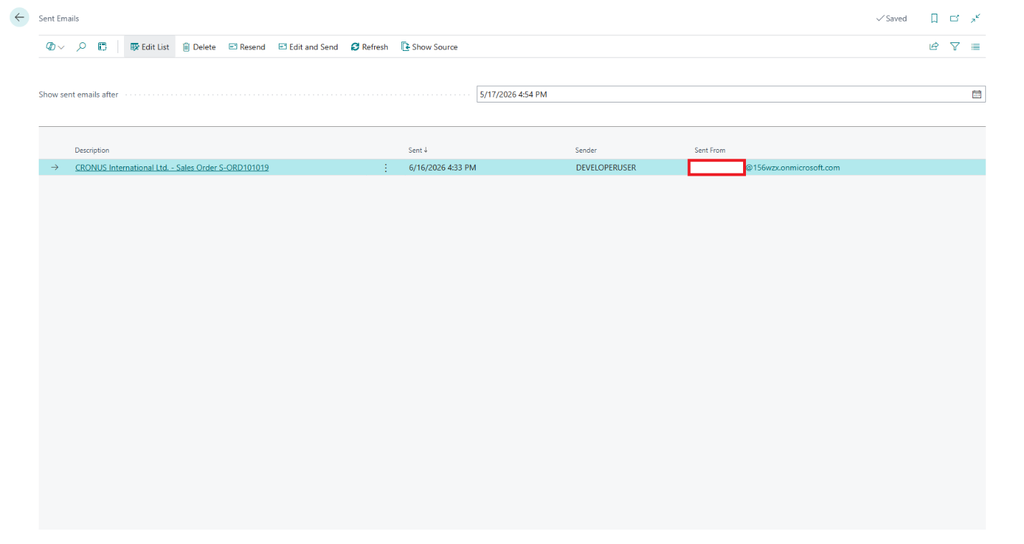
By default, that list surfaces details like the email subject, the account it was Sent From, and the Sender, but it does not show who the email was Sent To. This post walks through a small, upgrade-safe page extension that adds a “Sent To” column to the Sent Emails page so the recipients are visible at a glance.
Prerequisites
- Access to a Dynamics 365 Business Central instance. The technique applies to recent versions that include the Email module (part of the System Application).
Requirement
The Sent Emails page (page 8883) shows the Sent From account and the Sender, but not the recipient. How can we add a “Sent To” column so users can see who each email went to — without modifying any base objects?
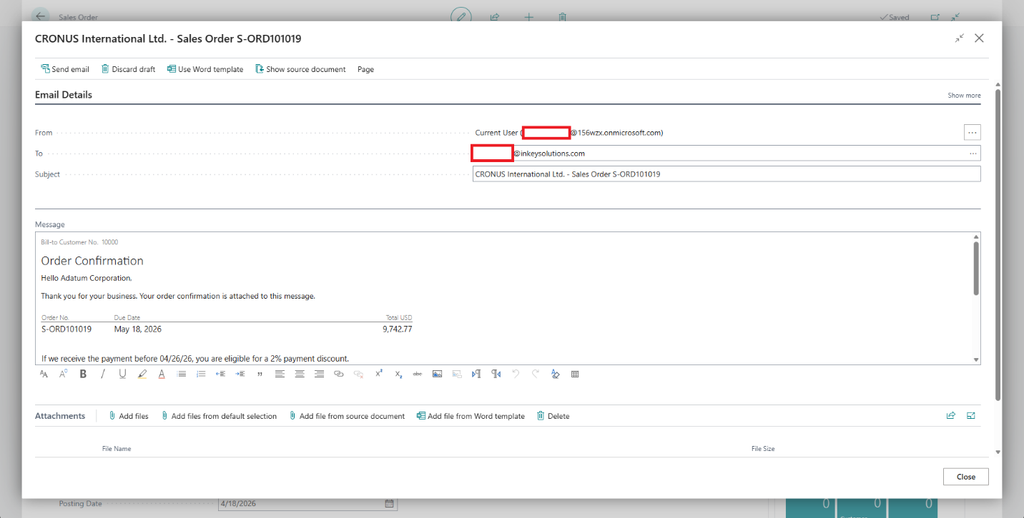
Out of the box, the recipient is only visible if you drill into an individual record (for example, via Description or Edit and Send), which is slow when you just want an overview.
Solution (Implementation Steps)
First, it helps to understand why this is not a simple “just add the field” exercise:
- The Sent Emails page runs on a temporary source table, so its records are populated at runtime rather than read straight from the database.
- The underlying table 8889 “Sent Email” has no “Sent To” field — it stores a reference to the email message, not the recipient list.
- On table 8889, every field except Id has its Access property set to Internal, so you cannot bind a page field directly to them.
The standard application surfaces recipients through the internal Email Message Impl. codeunit, which we cannot call from our own extension. Fortunately, the public codeunit 8904 “Email Message” exposes two methods we can use:
- Get(MessageId: Guid) — loads the email message with the given ID.
- GetRecipients(RecipientType: Enum “Email Recipient Type”; var Recipients: List of [Text]) — returns the recipients of a given type (To, Cc, or Bcc).
Both are documented on Microsoft Learn (Codeunit “Email Message”). The only remaining hurdle is that the Message Id we must pass to Get() lives in an Internal field on table 8889, so we read it at runtime using RecordRef / FieldRef. More on that in Step 2.
Step 1: Create the page extension and add the new field.
Create a page extension on “Sent Emails” and add a field control after Sender. Because there is no source field to bind to, we bind the control to a local variable, ToRecipient, and mark it Editable = false since it is display-only.
| pageextension 50114 “INK Email Sent Ext.” extends “Sent Emails” { layout { addafter(Sender) { field(ToRecipient; ToRecipient) { ApplicationArea = All; Caption = ‘Sent To’; ToolTip = ‘Specifies the recipients of the email.’; Editable = false; } } } var ToRecipient: Text[250]; } |
Step 2: Read the Internal “Message Id” field with RecordRef / FieldRef.
Add an OnAfterGetRecord trigger. Inside it, open a RecordRef on the real (non-temporary) “Sent Email” table, filter on the Id of the current row (field 1), then point the FieldRef at the Message Id field (field 2). Reading Internal fields this way is the key trick here.
| trigger OnAfterGetRecord() var EmailMessage: Codeunit “Email Message”; RecRef: RecordRef; FldRef: FieldRef; ToRecipientList: List of [Text]; Recipient: Text; begin Clear(ToRecipient); RecRef.Open(Database::”Sent Email”); FldRef := RecRef.Field(1); FldRef.SetRange(Rec.Id); FldRef := RecRef.Field(2); end; |
Why this works: the Access = Internal property blocks direct binding in AL, but a RecordRef addresses fields by number rather than by name, which lets us read the values at runtime. This RecordRef / FieldRef approach to Internal tables and fields is explained in detail by Yun Zhu (Dynamics 365 Lab): Can we access the standard internal table/field (Access Property = Internal) via AL?.
Step 3: Load the message and collect the “To” recipients.
Once the record is found and the Message Id is not a null GUID, call EmailMessage.Get() to load the message, then GetRecipients() with the “To” recipient type. Concatenate the resulting list into a single, semicolon-separated string for display.
| if RecRef.FindFirst() then if not IsNullGuid(FldRef.Value) then if EmailMessage.Get(FldRef.Value) then begin EmailMessage.GetRecipients(Enum::”Email Recipient Type”::”To”, ToRecipientList); foreach Recipient in ToRecipientList do ToRecipient += ‘;’ + Recipient; ToRecipient := ToRecipient.TrimStart(‘;’); end; |
Step 4: Put it all together.
The complete page extension looks like this:
| pageextension 50114 “INK Email Sent Ext.” extends “Sent Emails” { layout { addafter(Sender) { field(ToRecipient; ToRecipient) { ApplicationArea = All; Caption = ‘Sent To’; ToolTip = ‘Specifies the recipients of the email.’; Editable = false; } } } var ToRecipient: Text[250]; trigger OnAfterGetRecord() var EmailMessage: Codeunit “Email Message”; RecRef: RecordRef; FldRef: FieldRef; ToRecipientList: List of [Text]; Recipient: Text; begin Clear(ToRecipient); RecRef.Open(Database::”Sent Email”); FldRef := RecRef.Field(1); FldRef.SetRange(Rec.Id); FldRef := RecRef.Field(2); if RecRef.FindFirst() then if not IsNullGuid(FldRef.Value) then if EmailMessage.Get(FldRef.Value) then begin EmailMessage.GetRecipients(Enum::”Email Recipient Type”::”To”, ToRecipientList); foreach Recipient in ToRecipientList do ToRecipient += ‘;’ + Recipient; ToRecipient := ToRecipient.TrimStart(‘;’); end; end; } |
Step 5: Publish and run.
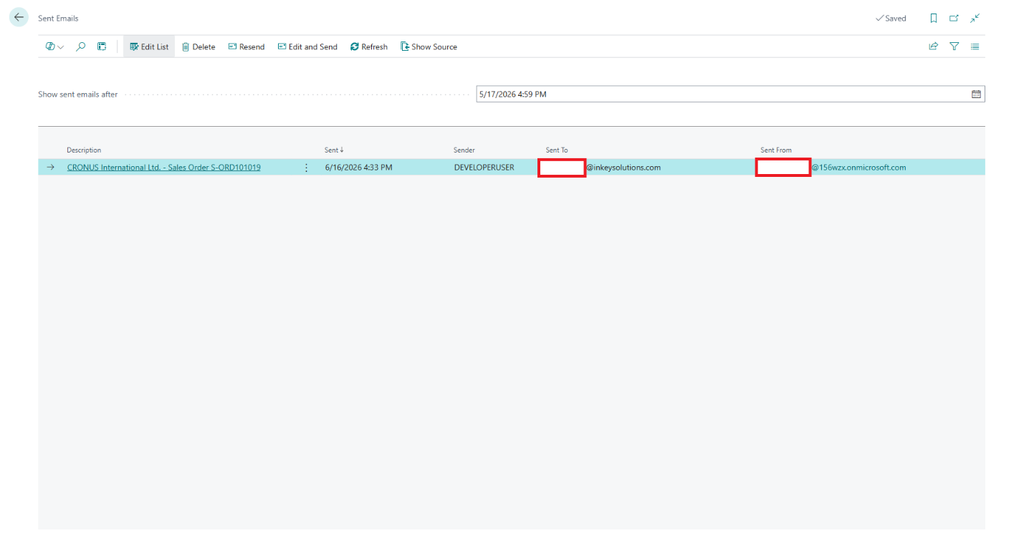
Press F5 (or Ctrl + F5) to build and publish the extension, then open the Sent Emails page in Business Central. The new Sent To column appears right after Sender, populated with each message’s recipients.
Notes & Considerations
- Performance: the lookup runs once per displayed row in OnAfterGetRecord. This is fine for typical list sizes, but be mindful on environments with very large Sent Emails volumes — test before deploying widely.
- Upgrade safety: reading Internal members via RecordRef is a workaround, not a contract. Microsoft can change Internal fields between releases, so re-test the extension after each upgrade.
- Truncation: the ToRecipient variable is Text[250]; a very long recipient list could be cut off. Widen the type or show only the first recipient plus a count if that matters for your users.
- Object numbering & prefixing: object ID 50105 sits in the 50100–99999 PTE range — adjust it, and apply your usual object/field affix, to fit your own naming standards.
Conclusion
With a single small page extension, you can surface the “Sent To” recipients directly on the Sent Emails list — no base-object changes and fully within the extension model. The pattern of reaching Internal fields through RecordRef / FieldRef and then using the public Email Message codeunit is reusable any time the data you need is locked behind an Internal access property.
References & Credits
- Accessing Internal tables/fields via RecordRef / FieldRef: Yun Zhu — Can we access the standard internal table/field (Access Property = Internal) via AL?.
- Microsoft Learn: Codeunit “Email Message” (System Application).