Designing a Seamless User Journey with Multistep Forms
 By Inkey Solutions
February 3, 2026
3 min read
By Inkey Solutions
February 3, 2026
3 min read
Power Pages provides a very important feature called the Multistep Form. This feature allows you to break down complex processes into step-by-step validations on a single page. It uses out-of-the-box (OOB) forms and Dataverse tables to guide users through each stage of the process. The multistep form acts like a series of steps or stages that users complete to finish the entire process in one day.
To create these steps, you first need to create a form based on a Dataverse table. Then, you can define tabs within the form to represent each step. This out-of-the-box functionality is built to work specifically with Dataverse tables for implementing step-by-step processes.
The screenshot below shows a multistep form with 3 steps.
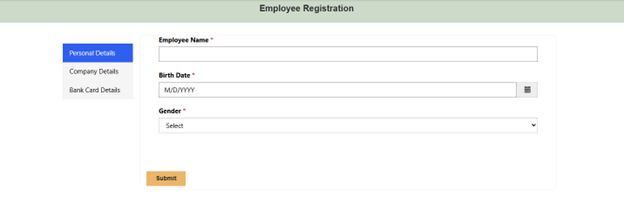
Step-by-Step Guide
Start by navigating to Power Portal Management and selecting Multistep Forms. Click New to create a form. You’ll see options to set the Name, Website, and Start Step.
Once the form is created, you’ll need to add Steps to define the step-by-step process.
Additionally, there’s an option to specify whether authentication is required. Set it to No if authentication is not needed.
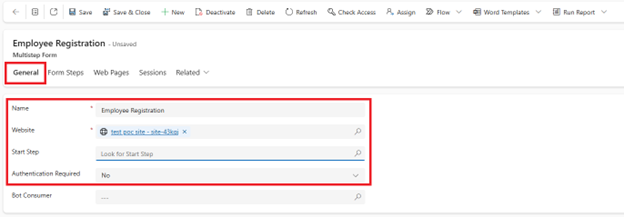
We have a tab named Form Steps. Go to this tab and create the first step to display on the Power Pages site.

In the Form Steps, you should set the Dynamics 365 or Dataverse table as the base to display fields and enable form-filling functionality.
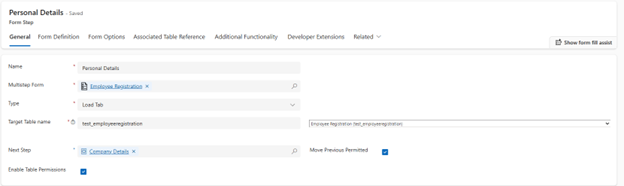
Select the Form Definition to set the form tab. There is a checkbox to enable auto-generation of steps from tabs.
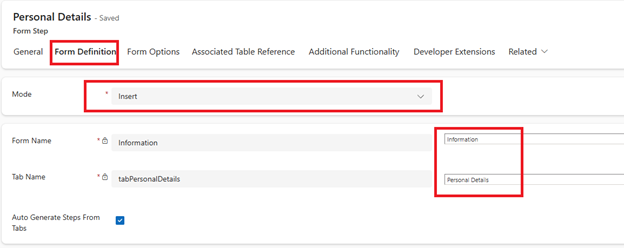
Set the form step on the main Multistep Form.
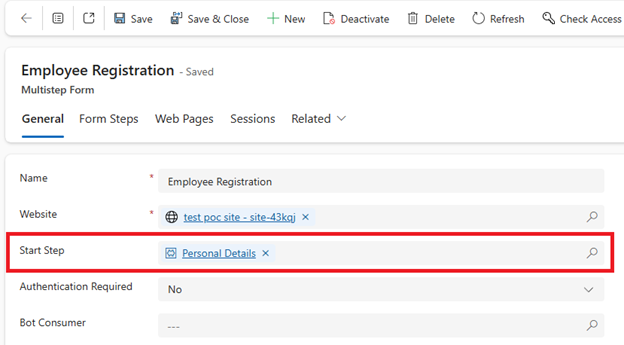
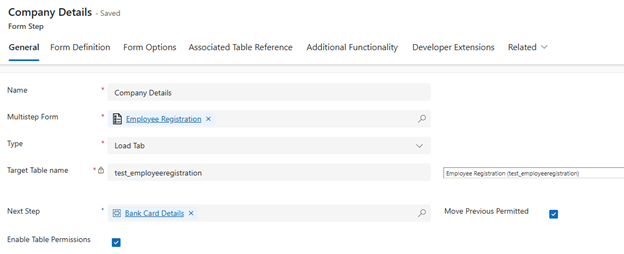
The first step created above captures personal details. Follow the same process to create and configure the second step, which will be displayed after the first step in the multistep form.
Multistep forms also provide two additional key functionalities:
- Previous Step Navigation: Allows users to navigate back to previous steps.
- Table Permissions: Enables permissions to be managed at the user level for secure data access and control.
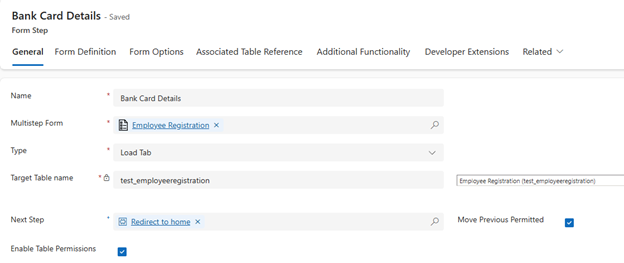
We created the third step, Bank Card Details, using the same process as above. You only need to change the Form Tab of the Dataverse table.
Benefits
- Improved User Experience
- Logical Data Grouping
- Conditional Navigation
- Security with Table Permissions
Best Practices
- Keep Each Step Focused
- Enable Auto-Generation When Tabs Are Clear
- Enable Previous Step Navigation
- Validate Before Proceeding
Conclusion
Multistep forms in Power Pages simplify complex data entry by guiding user’s step by step. They improve usability, support secure data access, and help organize information efficiently. When built with best practices, they offer a smooth and structured user experience.