Fetching High-Quality Images from Dataverse Image Field in Power Pages
 By Inkey Solutions
July 15, 2025
5 min read
By Inkey Solutions
July 15, 2025
5 min read
Fetching Image Column from Dataverse Entity Using Portal API on Power Pages
When fetching an image field from Dataverse using the Portal API, the default response provides only a thumbnail version of the image with dimensions 144px × 144px. This limitation prevents displaying the image in a larger viewport with good quality.
Solution: Retrieving the Original Image Format
To overcome this, we can use a different approach to fetch the full-resolution image. Below, I will demonstrate the steps to achieve this using the Portal Web API.
Steps to Fetch the Original Image:
- Use the Portal API to retrieve the entity record containing the image field.
- Extract the image field value (GUID reference).
- Construct the correct API endpoint to retrieve the full-size image.
- Use JavaScript to dynamically update the image source.
By following these steps, you can ensure that the images are displayed in their original resolution on your Power Pages site.
Here is a summary of the steps you need to follow to retrieve the image:
Creating API Permissions in Power Pages (Portal Management App)
To enable API access for an entity and its fields in Power Pages, you need to configure the Portal Management App by updating the Site Settings. This ensures that your entity and its fields can be accessed through the Portal Web API.
Steps to Configure API Permissions
-
Enable the Entity for API Access
- Navigate to: Site Settings in the Portal Management App
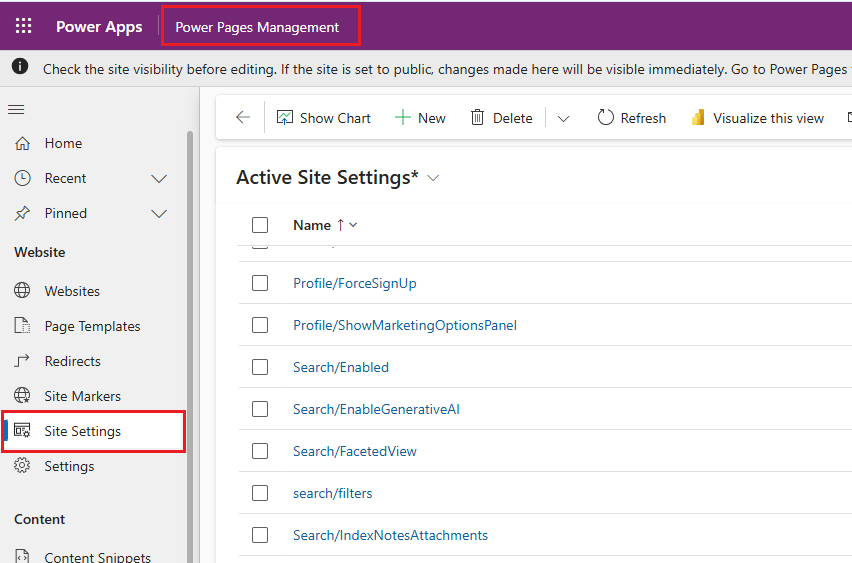
- Create a new setting with the following details:
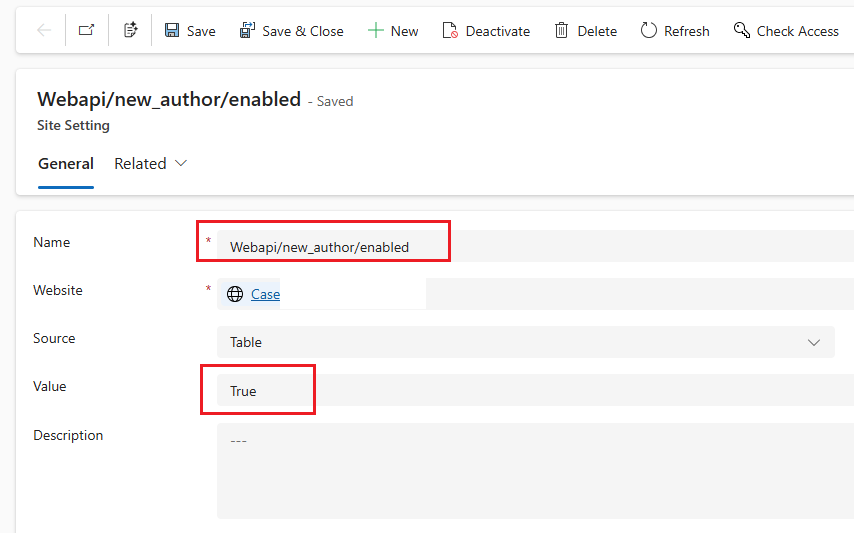
- Name: “Webapi/EntityLogicalName/enabled”
- Source: “Table”
- Value: “True”
- Create a new setting with the following details:
This setting allows the specified entity to be accessed via the API.
-
Enable Fields for API Access
- Create another site setting with the following details:
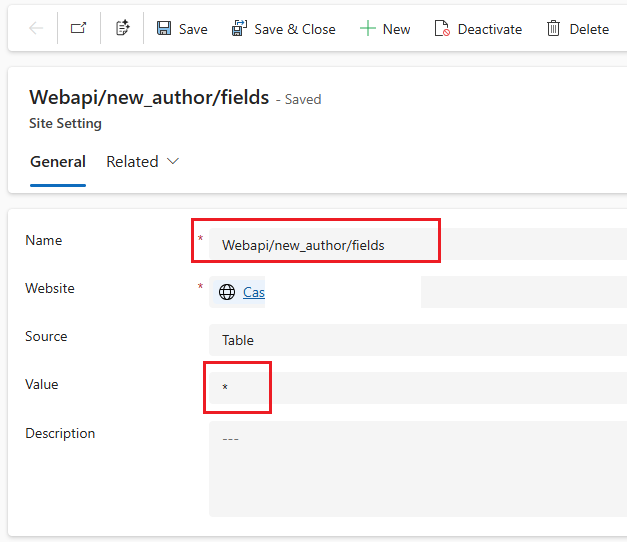
- Name: “Webapi/EntityLogicalName/fields”
- Source: “Table”
- Value: “*” (Enables all fields of the entity for API access)
- Create another site setting with the following details:
To enable specific fields only, replace “*” with the required field logical names (comma-separated).
Key Notes:
- If an entity is not enabled for API access, requests will fail.
- “*” in the field setting grants access to all fields, but you can restrict it to specific fields if needed.
- After making changes, clear the cache or restart the portal for settings to take effect.
By following these steps, you can successfully enable API access for your entity and its fields in Power Pages.
Triggering API in Power Pages Using Microsoft Wrapper Code
To call the Portal Web API in Power Pages, you need to include the Microsoft wrapper code inside a Web Template or a Content Snippet. This wrapper ensures secure and seamless communication between your portal and the Dataverse API.
Below is the snippet code for integrating the API:
| <script>
(function (webapi, $) { function safeAjax(ajaxOptions) { var deferredAjax = $.Deferred();
shell.getTokenDeferred().done(function (token) { // add headers for ajax if (!ajaxOptions.headers) { $.extend(ajaxOptions, { headers: { “__RequestVerificationToken”: token } }); } else { ajaxOptions.headers[“__RequestVerificationToken”] = token; } $.ajax(ajaxOptions) .done(function (data, textStatus, jqXHR) { validateLoginSession(data, textStatus, jqXHR, deferredAjax.resolve); }).fail(deferredAjax.reject); //ajax }).fail(function () { deferredAjax.rejectWith(this, arguments); });
return deferredAjax.promise(); } webapi.safeAjax = safeAjax; })(window.webapi = window.webapi || {}, jQuery) </script> |
JavaScript Function to Fetch Image Field in Power Pages
To retrieve an image field from a Dataverse entity using the Portal Web API, you can use the following JavaScript function.
JavaScript Function to Fetch Image Field
| function retrieveImageFromSpecificRecord(entitySchemaName, imagefieldLogicalName,recordId) {
if(!isBlankOrNull(entitySchemaName) && !isBlankOrNull(imagefieldLogicalName) && !isBlankOrNull(recordId)){ var fullImageUrl = “/_api/” + plural(entitySchemaName) + “(” + recordId + “)/” + imagefieldLogicalName + “/$value?size=full”; try {
var xhr = new XMLHttpRequest();
xhr.open(“GET”, fullImageUrl, true);
xhr.responseType = “blob”; // Ensure binary response
xhr.setRequestHeader(“Accept”, “image/*”); // Requesting image data
xhr.onload = function () {
if (xhr.status === 200) { var blob = xhr.response; var imageUrl = URL.createObjectURL(blob); // Convert blob to URL return imageUrl; } else {
console.error(“❌ Failed to retrieve full image: ” + xhr.status + ” – ” + xhr.statusText); return null; } }; xhr.onerror = function () { console.error(“❌ Network error occurred while fetching image.”); return null; }; xhr.send(); } catch (error) { console.error(“❌ Error fetching full image: ” + error.message); return null; } } } |
Triggering the Image Fetch Function in Power Pages
To execute the image fetch function, you need the following parameters:
Entity Name → The logical name of the entity (e.g., “account”)
Record GUID → The unique identifier of the record
Field Logical Name → The logical name of the image field (e.g.,”accountimage”)
Function Output
The function returns the image URL, which can be used as the src attribute in an <img> tag to display the image on the portal.
Scenario: Using Both the Standard API and the New Image Fetch API
Existing API Function (Thumbnail Version)
| function retrieveSingleRecordSync(entitySchemaName, recordId, arrayOfFieldsToRetrieve) {
var requestString = null; requestString = !isBlankOrNull(entitySchemaName) && !isBlankOrNull(recordId) ? “/_api/” + plural(entitySchemaName) + “(” + removeCurlyBraceFromGuid(recordId) + “)” : null;
if (!isBlankOrNull(requestString)) { requestString = !isBlankOrNull(arrayOfFieldsToRetrieve) ? requestString + “?$select=” + arrayOfFieldsToRetrieve.join(“,”) : requestString;
try { var xhr = new XMLHttpRequest(); xhr.open(“GET”, requestString, false); // false makes the request synchronous xhr.setRequestHeader(“Content-Type”, “application/json”); xhr.send();
if (xhr.status >= 200 && xhr.status < 300) { // Return parsed response return JSON.parse(xhr.responseText); } else { // Throw error for non-success status throw new Error(xhr.statusText); } } catch (error) { // Rethrow error or handle as needed throw new Error(“Request failed: ” + error.message); } } else { throw new Error(“Invalid entity schema name or record ID.”); } } |
This Function Returning Image in Base64 Format (Thumbnail)
The function below retrieves the image field in Base64 format, but it only provides a thumbnail version of the image (144×144 pixels).
Result :
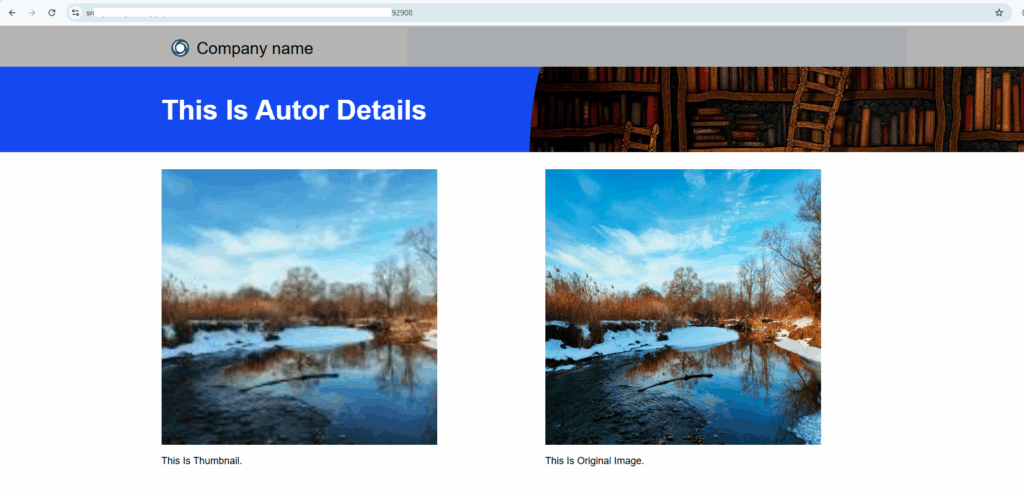
The image retrieved using this method is fetched through the existing API.
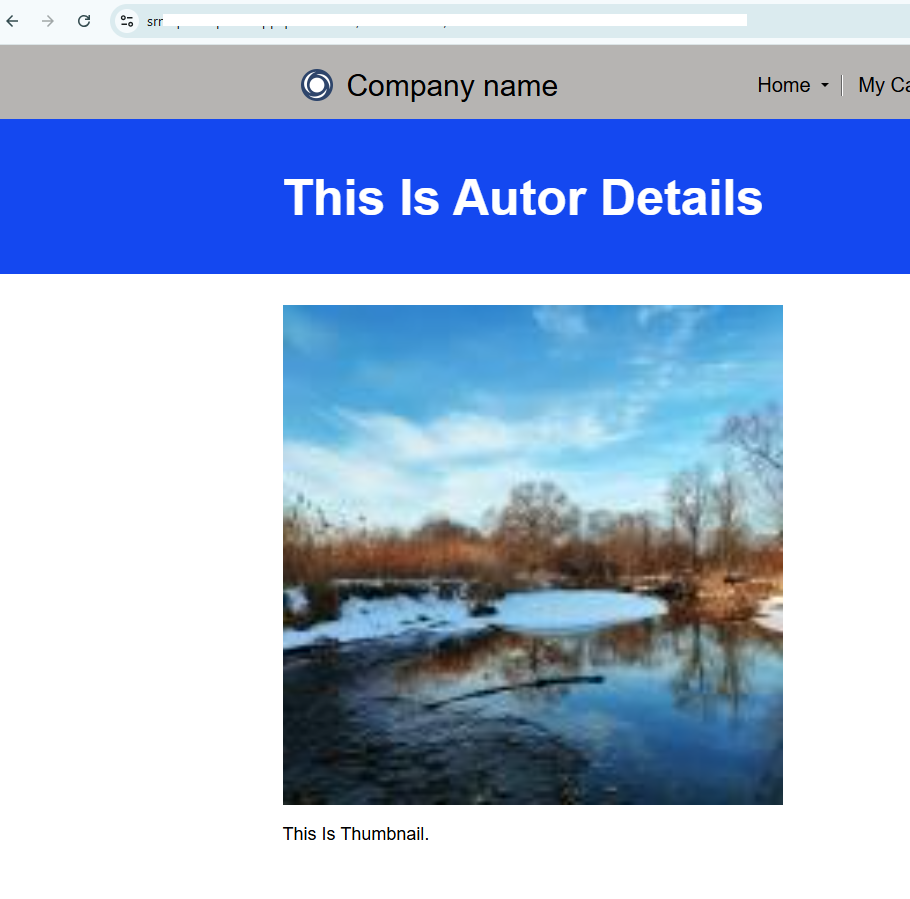
The image retrieved using this method is fetched through this new API.