Designing the Perfect List with Best Practices for Displaying Dataverse Data
 By Inkey Solutions
January 27, 2026
3 min read
By Inkey Solutions
January 27, 2026
3 min read
Power Pages List is a data display UI component that connects to a Dataverse table in Dynamics 365. It displays data using views defined in Dataverse, allowing users to see multiple columns of real-time data.
With Lists, you can apply filters based on conditions or the logged-in user. Additionally, standard out-of-the-box (OOB) functionality enables users to create, read, update, delete, and download records easily. Lists are always connected to the forms and views of the associated Dataverse table.
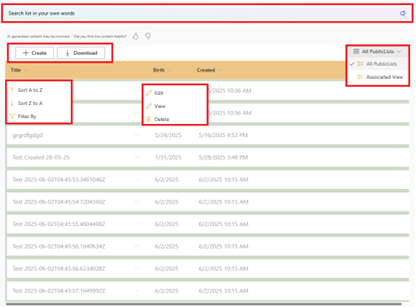
Power Pages List UI with All Required and Important Components
- Create Button: Allows users to create a new record.
- Download: Enables users to download the data as an Excel file.
- Filter: Used to filter records based on specific conditions.
- Search: Allows users to search for any value within the list.
- Views: Displays different column sets along with their respective filters.
- CRUD Buttons: Users can view, update, or delete records.
Customization and implementation should be set up from the Power Pages Management app. Below is an example of how to implement a list with its features:
Steps to create list
- Open Portal Management.
- Go to Lists from the navigation menu.
- Click the New button to create a new list.
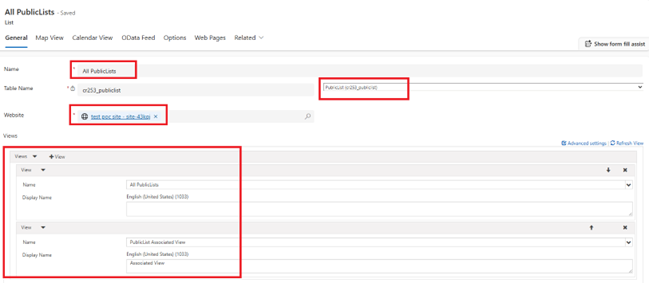
As shown in the screenshot below, you can see several key features such as Name, Table Name, and Website:
- Name: Set a unique name to identify the list.
- Table Name: Select the Dataverse table from which the records will be displayed.
- Website: Choose the website where the list will be shown.
All fields pull their values from the Dataverse database.
Additionally, there is a feature to display Views. You can add existing views from Dynamics 365 to define how data is displayed in the list.
You can display buttons to perform CRUD operations (Create, Read, Update, and Delete) on the list of records.
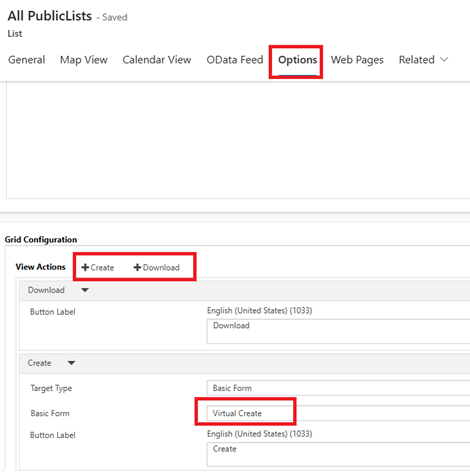
In the Grid Configuration section (as shown in the screenshot below), two types of actions can be configured: Create and Download.
- To enable the Create action, you must first create a Basic Form for record creation.
- Then, configure that form within the Create Action
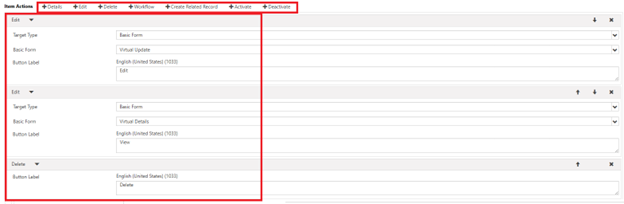
There are several Item Actions available, each serving different use cases. These include:
- Details: View the complete information of the record.
- Edit: Modify an existing record.
- Delete: Remove a record from the list.
- Workflow: Trigger a workflow on the selected record.
- Create Related Record: Add a new record related to the selected one.
- Activate: Activate an inactive record.
- Deactivate: Deactivate an active record.
Conclusion
Using the Power Pages List feature allows you to efficiently display and manage Dataverse records on your portal. With built-in support for CRUD operations, filters, search, views, and custom actions like workflows, activation, and related record creation, it provides a highly customizable and user-friendly interface. All configurations can be managed through the Portal Management app, making it easier to control data presentation and user interaction.