How to Use Print Function in Canvas App
 By Inkey Solutions
March 31, 2026
2 min read
By Inkey Solutions
March 31, 2026
2 min read
Problem Statement:
Developers working with Power Apps in Dynamics 365 CRM often need to generate printable outputs such as reports, forms, or records. The following steps will guide you on how to use the Print() function to print screens or create print-friendly content from your app.
Solution Steps:
- Create a sample canvas app and add the required Dataverse Connector or any table that you need to have the data to print
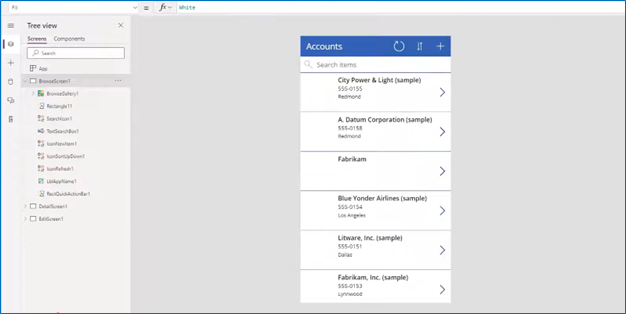
- Add an icon that represents a printer function. In this case, select the Print icon so users can easily understand that it is used for printing.
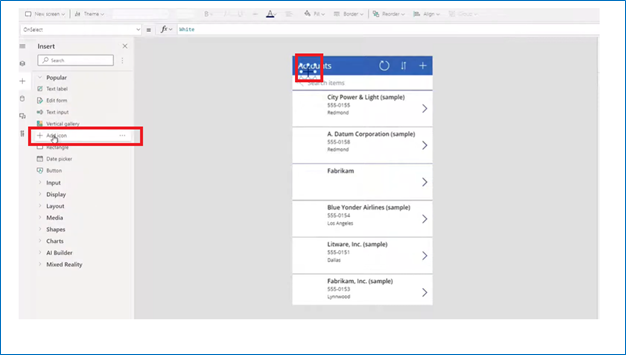
- Once the Print icon is added, go to the On Select property of that icon and add the following line:
Print()
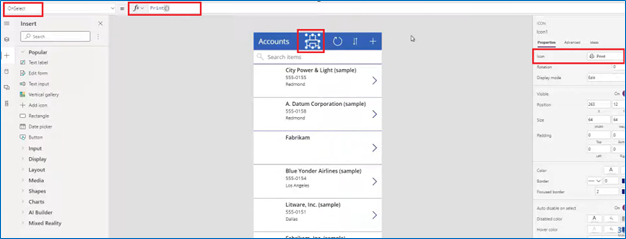
- After this, it will look like the example shown below. When you click on the printer icon, it will trigger the print function and display the output as shown on the screen below. From that screen, you can proceed with printing.
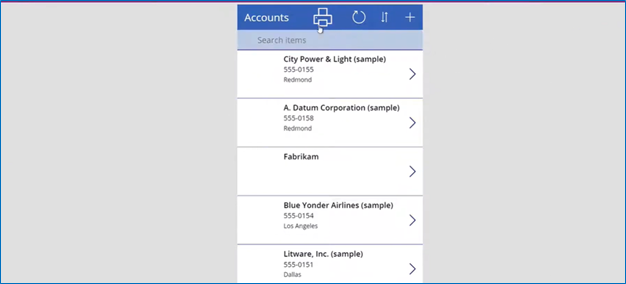
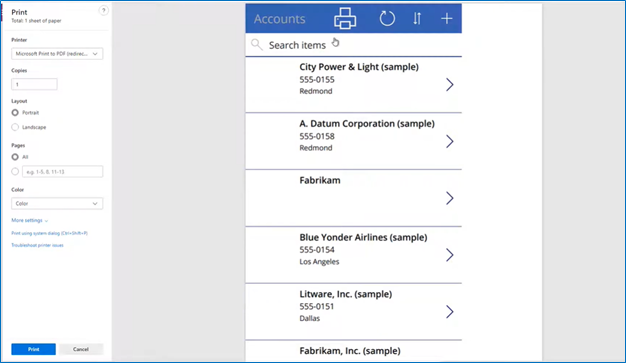
When you click the Print button, the print screen will appear. From there, you can print the content, and the output will be saved in a downloadable format in the Downloads section
Please visit this below official documentation for better understanding:
https://learn.microsoft.com/en-us/power-platform/power-fx/reference/function-print