How to Adjust the Copilot, Help, and Page Scripting Pane Width in Microsoft Dynamics 365 Business Central?
 By Inkey Solutions
July 28, 2026
4 min read
By Inkey Solutions
July 28, 2026
4 min read
Introduction
Microsoft Dynamics 365 Business Central continues to improve the user experience by adding more flexibility to its interface. With the 2025 Release Wave 2, users can now resize the Copilot, Help, and Page Scripting panes. This enhancement allows users to comfortably view side-pane details while keeping the main content area visible—leading to smoother workflows and greater efficiency.
Business Value
By allowing users to adjust the width of the Copilot, help, and page scripting panes, Business Central provides a more personalized and effective workspace.
- Users can work optimally with more room for information in side panes.
- Content reflows smoothly within panes to maintain readability.
- The browser remembers user preferences, ensuring consistency across sessions.
- A quick reset option allows restoring the default pane size easily.
Overall, this feature helps users access guidance, AI-powered assistance, and scripts more effectively while maintaining focus on the main content.
Requirement
How to resize and manage the Copilot, help, and page scripting panes in Business Central?
Prerequisites
- Ensure you are using the latest version of Microsoft Dynamics 365 Business Central.
- Verify that you have access to pages where Copilot, help, or page scripting panes are available.
Solution (Implementation Steps)
- Copilot Pane Width:
- Open the Copilot pane by clicking the Copilot icon located at the top-right corner of the Home page (Role Center).
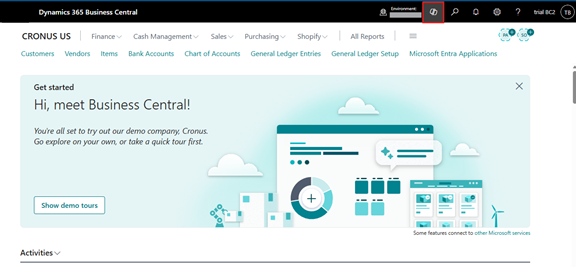
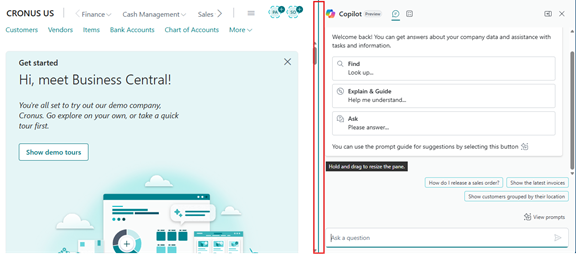
- Hover your cursor over the divider between the main content area and the pane.
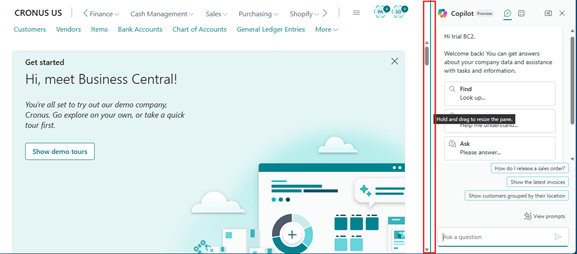
- Drag the divider left or right to adjust the width of the pane. As you resize, the content will reflow smoothly to fit the available space.
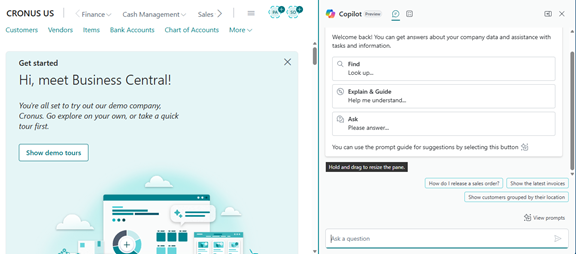
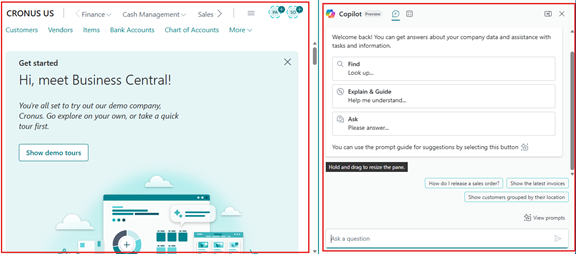
- The main content area remains visible within specific proportions for ease of use. The browser automatically remembers your pane width preferences. When you reopen the pane, it will appear with the size you previously set.
- Microsoft has added a Collapse feature that allows the pane to be minimized to the far right.
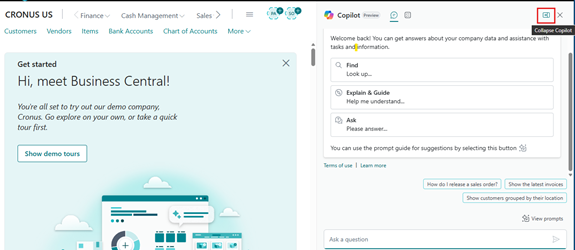
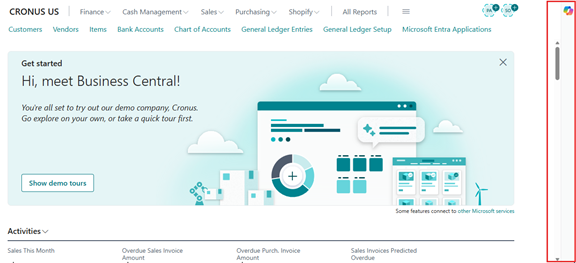
If the user clicks the Expand Copilot icon, the pane will reopen with the same width that was previously set.
- To reset the pane to its default width, simply double-click the divider.
- Help Pane Width:
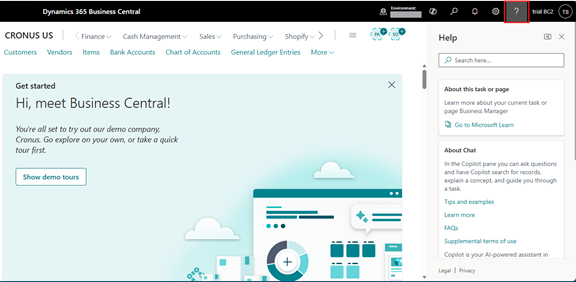
- Open the Help pane by clicking the Help icon at the top-right corner of the Home page (Role Center).
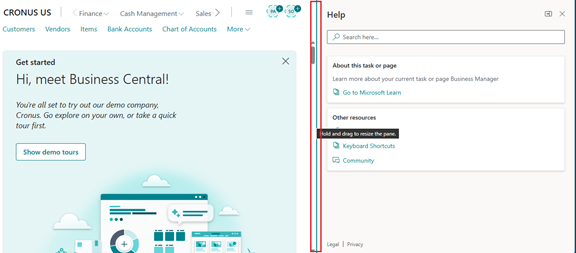
- Hover your cursor over the divider between the main content area and the pane. Drag the divider left or right to adjust the width of the pane. As you resize, the content will reflow smoothly to fit the available space.
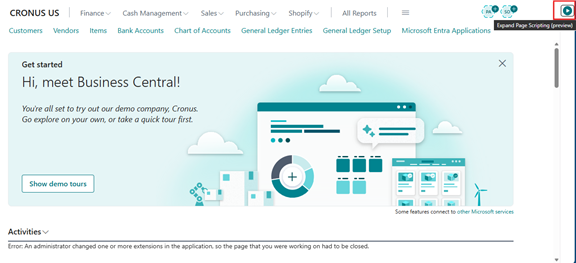
The main content area remains visible within specific proportions for ease of use. The browser automatically remembers your pane width preferences. When you reopen the pane, it will appear with the size you previously set.
- Microsoft has added a Collapse feature that allows the pane to be minimized to the far right.
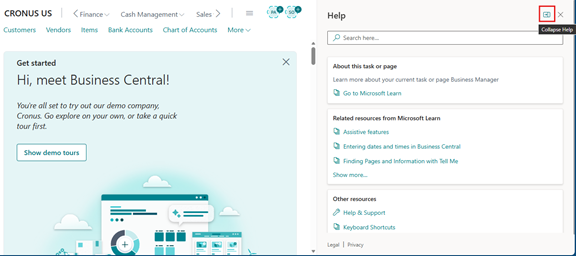
If the user clicks the Expand Help icon, the pane will reopen at the previously set width.
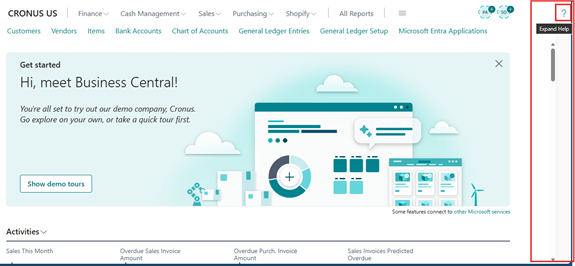
- To reset the pane to its default width, simply double-click the divider.
- Page scripting Pane Width:
- Open the Page Scripting pane by clicking the Settings icon and selecting Page Scripting (Preview) from the top-right corner of the Home page (Role Center).
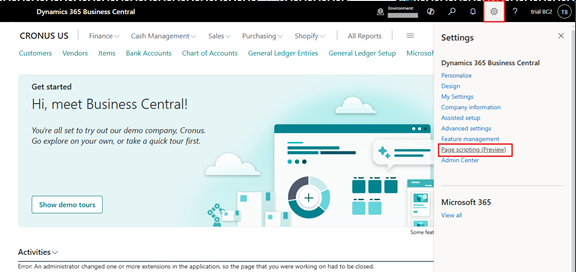
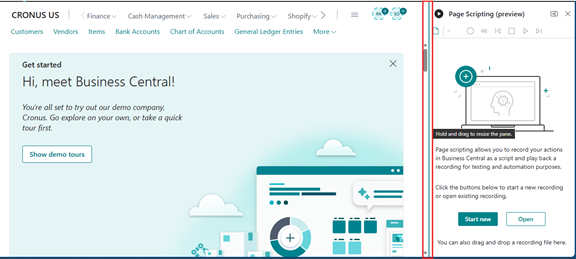
- Hover your cursor over the divider between the main content area and the pane. Drag the divider left or right to adjust the width of the pane. As you resize, the content will reflow smoothly to fit the available space.
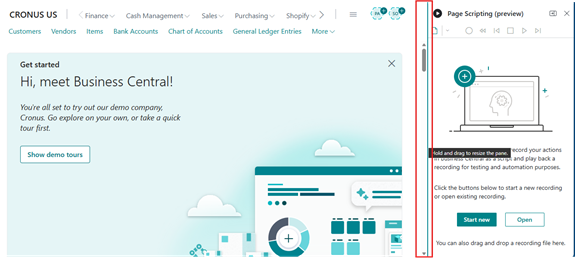
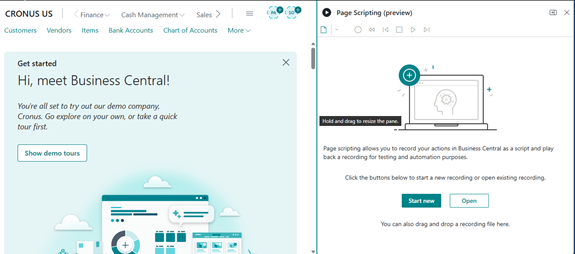
The main content area remains visible within specific proportions for ease of use. The browser automatically remembers your pane width preferences. When you reopen the pane, it will appear with the size you previously set.
- A Collapse feature is available, allowing the pane to be minimized to the far right.
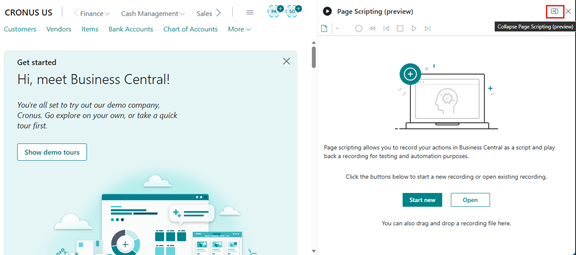
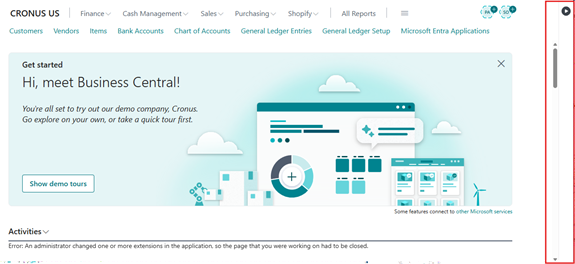
If the user clicks the Expand Page Scripting (Preview) icon, the pane will reopen at the previously set width.
- To reset the pane to its default width, simply double-click the divider.
Conclusion
The ability to resize the Copilot, help, and page scripting panes in Microsoft Dynamics 365 Business Central is a thoughtful enhancement designed to improve usability and flexibility. By customizing pane widths, users can view information more clearly while keeping the workspace organized. With preferences saved automatically and a quick reset option, this feature ensures a smoother, more efficient, and personalized experience in daily operations.