How to Use Extended Text for Project Planning Lines in Microsoft Dynamics 365 Business Central
 By Inkey Solutions
October 28, 2025
4 min read
By Inkey Solutions
October 28, 2025
4 min read
Introduction
Microsoft Dynamics 365 Business Central is a robust ERP solution that streamlines various business functions. A key feature in the 2024 Released Wave 2 update allows users to add detailed, customized information to project planning lines for items, resources, and general ledger accounts. This functionality enhances communication with customers, vendors, and employees by including special prices, terms, or instructions directly on project documents.
Business Value
The ability to add extended text to project planning lines significantly improves the user experience in Business Central. Users can now communicate important information more effectively, ensuring that details about special pricing or instructions are readily available. This feature not only enhances clarity but also saves time by automating the inclusion of relevant information based on defined criteria. With the option to apply specific texts to projects based on language or time frames, businesses can improve their project management and ensure consistency across documents.
Requirement
How can you utilize this new feature in Business Central?
Prerequisites
Ensure you have access to Microsoft Dynamics 365 Business Central and the necessary permissions to use Configuration Packages.
Solution (Implementation Steps)
Step 1: Define Extended Text for an Item
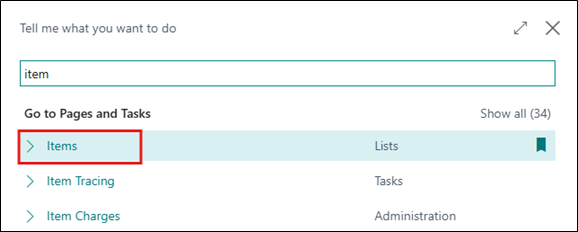
- Go to the search icon in the top right corner and search for an Item, then navigate to the Item List Page in Business Central.
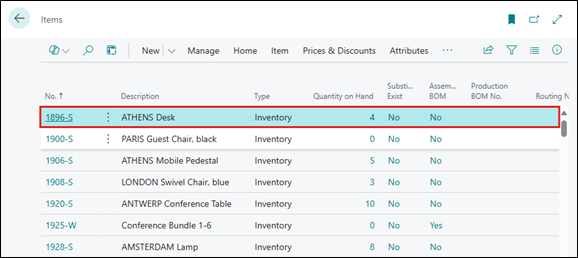
- From the Item List Page Open the card for the item to which user want to add extended text.
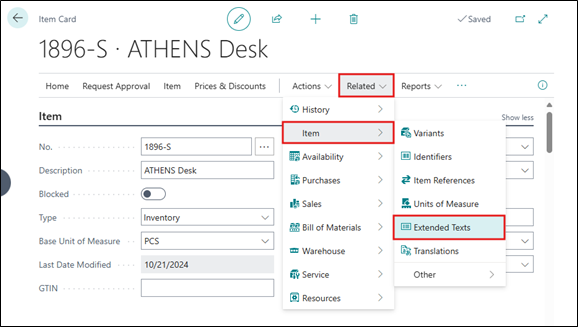
- Click on Related > Item > Extended Texts action from the above menu bar to add Extended Text in item card.
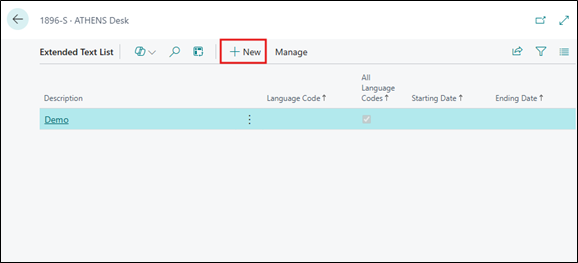
- The Extended Text List page will open. Click on +New option from this page to add text.
- This will open Blank Extended Text Card where users need to fill in required details like:
Fields Name Description Language Code Specifies the language that is used when translating specified text on documents to foreign business partner, such as an item description on an order confirmation. All Language Codes Specifies whether the text should be used for all language codes. If a language code has been chosen in the Language Code field, it will be overruled by this function. (If applicable) Description Specifies the content of the extended item description. Starting Date Specifies a date from which the text will be used on the item, account, resource or standard text. (Optionally) Ending Date Specifies a date on which the text will no longer be used on the item, account, resource or standard text. (Optionally) 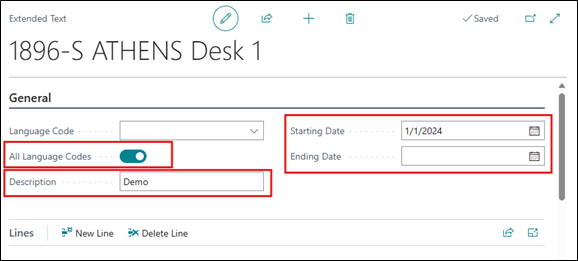
- In the Text field, write your extended text.
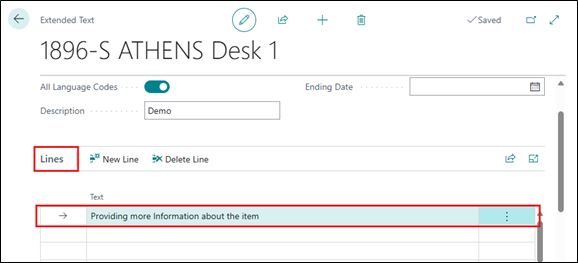
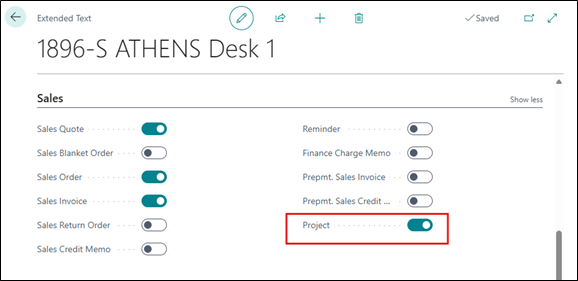
- Select the relevant checkboxes for document types where the user wants the extended text printed. Make sure to select Projects on the Sales FastTab if needed and Close the Extended Text
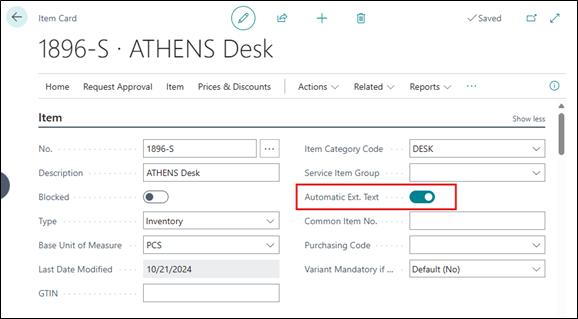
Step 2: Activate Automatic Extended Text on item card page.
- To automatically add extended text to sales, purchases, or project documents, activate the Automatic Ext. Texts option in the General fast tab. This feature can also be used to add extended text manually as required.
Step 3: Add Extended Item Text on a Project Planning Line
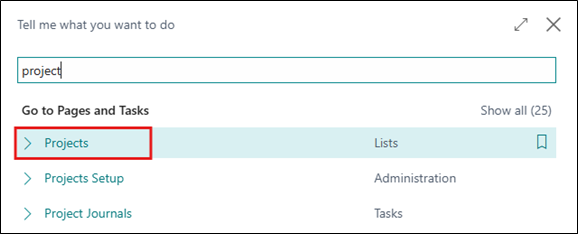
- Go to the search icon in the top right corner and search for Projects, then navigate to the Projects List Page in Business Central.
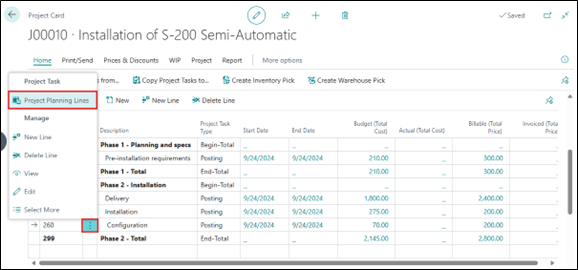
- Open a project and go to Lines. Click on three dots and select Project Planning Lines.
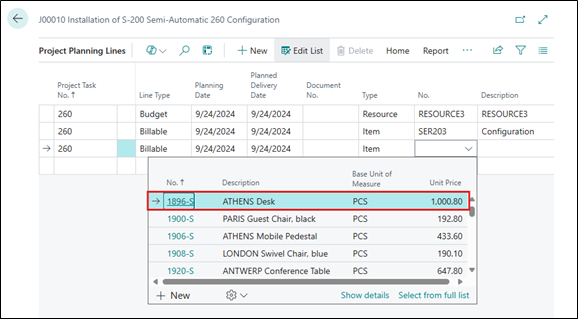
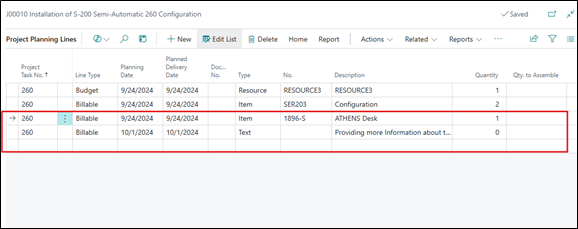
- On the Project Planning Lines page, select a new project task that includes an item line with extended text.
- If the user sets the Automatic Ext. Text on the item, the text will automatically be included in the next line on the document. Alternatively, the user can select the line and choose the Insert Ext. Text action to manually add the extended text.
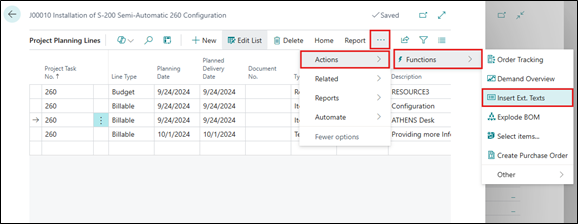
- The extended text will be added automatically to the project planning line, allowing for clear communication of important information.
Conclusion
The ability to add extended text to project planning lines in Microsoft Dynamics 365 Business Central enhances communication and clarity for project management. By implementing this feature, users can ensure that crucial details about pricing, terms, or instructions are easily accessible, improving overall project execution. This update aims to provide users with greater flexibility and efficiency, ultimately leading to better financial and project management within the organization.