How to Automatically Create Multiple Fixed Asset Cards in Microsoft Dynamics 365 – Business Central 2025 Release Wave 2 (BC27)
 By Inkey Solutions
August 7, 2026
4 min read
By Inkey Solutions
August 7, 2026
4 min read
Introduction:
Microsoft Dynamics 365 Business Central continues to evolve with every release, introducing smarter automation and productivity features for finance and operations teams. In the 2025 Release Wave 2 (BC27) update, one of the most practical enhancements is the ability to automatically create multiple fixed asset cards when posting purchase invoices. This feature greatly simplifies fixed asset management for businesses that purchase assets in bulk, such as computers, equipment, or furniture. Previously, users had to manually create each asset card or use tools like Excel or configuration packages, but now Business Central automates the entire process during purchase posting, saving time and reducing manual effort.
Business Value:
The automatic creation of multiple fixed asset cards streamlines asset acquisition and recordkeeping.
Organizations benefit through:
- Reduced manual effort: No need to create each fixed asset card manually.
- Improved accuracy: Consistent asset information, automatically derived from purchase details.
- Operational efficiency: Faster processing of large asset acquisitions and fewer data entry errors.
For example, if a company purchases 200 laptops, Business Central (BC27) can automatically generate 200 fixed asset cards — one for each individual item — ensuring every asset is recorded, tracked, and ready for depreciation without manual intervention.
Requirement:
How can you use this new automatic asset creation feature in Business Central?
Prerequisites:
- Access to Microsoft Dynamics 365 Business Central (Version BC27 or later).
- Fixed Asset setup (including Depreciation Book and related information).
- User permissions to create or post purchase documents.
Solution (Implementation Steps):
Step 1: Create a Fixed Asset Template
Before purchasing, create a Fixed Asset card as a base template.
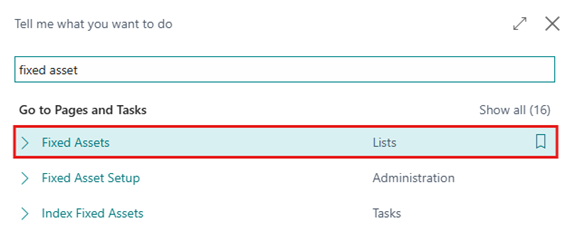
- Go to the global search icon and search for ‘Fixed Asset’.
- Create a new Fixed Asset Card by click in “+New”, then review and configure key details such as Depreciation Books, Posting Groups, and other default settings required for the Fixed Asset Template.
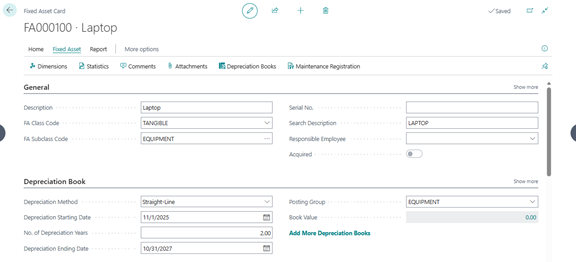
This asset will act as a model for new automatically created fixed assets.
Step 2: Create a Purchase Order or Purchase Invoice
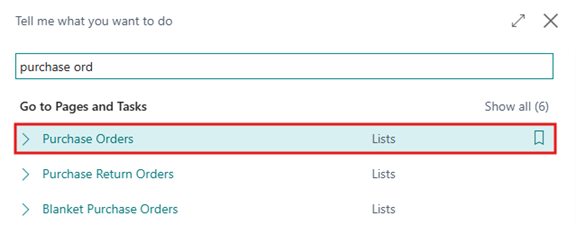
- Go to the global search icon and search for ‘Purchase Order,’ then open a new Purchase Order or Purchase Invoice.
- Create a new Purchase Order by clicking on “+New”, and in the purchase lines, select Fixed Asset in the Type field.
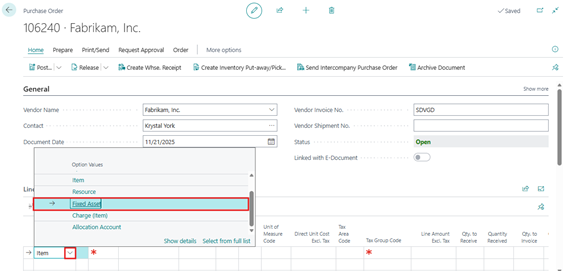
- Choose the Fixed Asset No. (the one you created earlier).
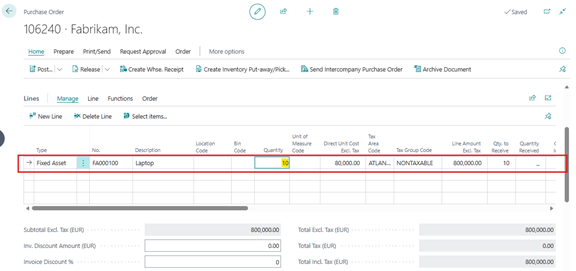
Before BC27, users always entered Quantity = 1 because the quantity field did not affect fixed asset creation. In BC27, user can now enter the actual quantity of assets being purchased — for example, 10 laptops.
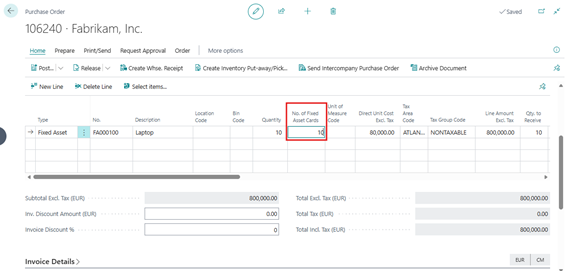
- A new field, called “No. of Fixed Asset Cards”, has been introduced. This field is hidden by default, but you can add it through the Personalization feature.
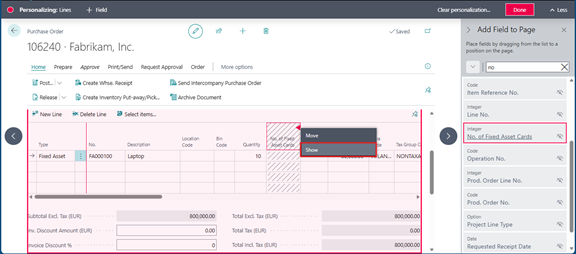
| Field Name | Description |
| No. of Fixed Asset Cards | Specifies how many individual fixed asset cards will be created upon posting. |
- It defaults to the Quantity entered but can be manually adjusted if needed.
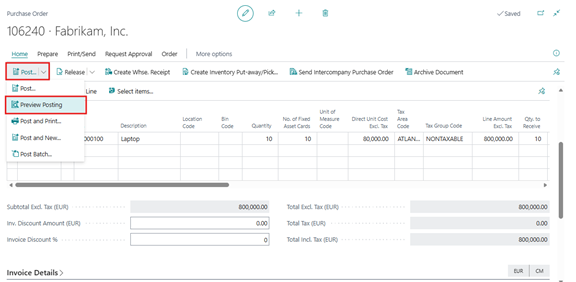
- Before posting Purchase Order or Invoice, click Preview Posting to view the Fixed Asset Ledger Entries.
- User will see multiple entries corresponding to the number of fixed asset cards that will be created.
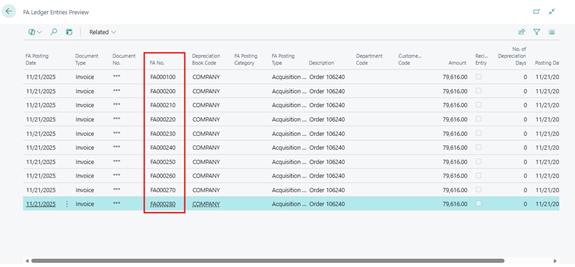
These assets haven’t yet been created — they’ll be generated automatically when you post.
- Once you post the Purchase Order or Invoice, Business Central will automatically create the required number of Fixed Asset Cards based on your setup.
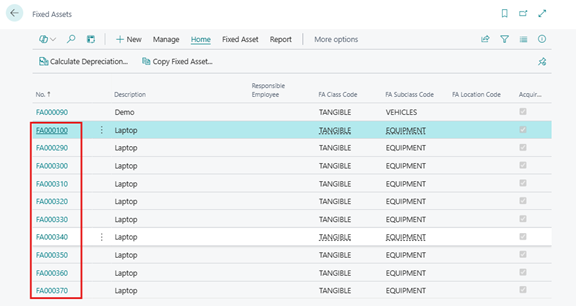
- The only unique field will be the Fixed Asset No., which Business Central assigns automatically. All newly created Fixed Asset cards will inherit the data from the selected Fixed Asset template, including:
- Depreciation Book setup
- Posting Groups
- Responsible department or location information
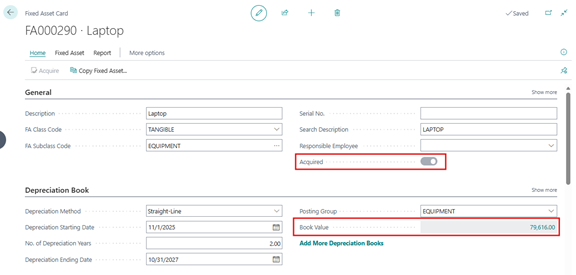
After the Purchase Order is posted, the system will automatically acquire the Fixed Asset and update the acquisition cost accordingly (after Tax).
Important Notes:
- This feature supports both Purchase Orders and Purchase Invoices.
- You can still use Edit in Excel or Configuration Packages, but this built-in automation is faster and safer.
- The No. of Fixed Asset Cards field can be personalized on any user’s page.
- This functionality is available from Business Central 2025 Release Wave 2 (BC27) onwards.
Conclusion: By automating the creation of multiple fixed asset cards directly from purchase transactions, Microsoft eliminates repetitive setup work, reduces manual data entry errors, and ensures better consistency across asset records. This smart addition further strengthens Business Central’s goal of providing intelligent automation, accuracy, and ease of use — making asset acquisition and management more efficient than ever.