Use of “Hide the Payment Method Code” Field in Business Central General Ledger Setup
 By Hetal Tank
September 24, 2026
3 min read
By Hetal Tank
September 24, 2026
3 min read
Introduction
Microsoft Dynamics 365 Business Central continuously introduces small yet impactful enhancements that help organizations tailor the system to their business processes. One such standard feature is the ‘Hide Payment Method Code’ option in General Ledger Setup. This field allows businesses to control whether the Payment Method Code field appears on sales and purchase documents. It is especially useful when payment methods are managed centrally, are not required at the document level, or should not be changed after a document is posted.
In this blog, we’ll explain how to hide the Payment Method Code field from Sales and Purchase documents using standard General Ledger Setup in Business Central.
Business Value
Hiding the Payment Method Code field enhances usability and prevents unintended changes in the future.
Key benefits include:
- Reduced confusion for end users
- Improved data accuracy by limiting unnecessary fields
- Better control over financial configuration visibility
Overall, this approach helps finance teams focus only on relevant settings.
Requirement
How to hide the Payment Method Code field on documents using General Ledger Setup in Microsoft Dynamics 365 Business Central?
Prerequisites
- Ensure users are using the latest version of Business Central.
- Verify that the user has permission to personalize pages or manage application setup.
- Ensure the user role allows access to the General Ledger Setup page.
Comparison with Previous Versions
Before this feature was introduced in Business Central, the Hide Payment Method Code option was not available in General Ledger Setup and users were required to manually hide the Payment Method Code field on document pages through Personalization or Design.
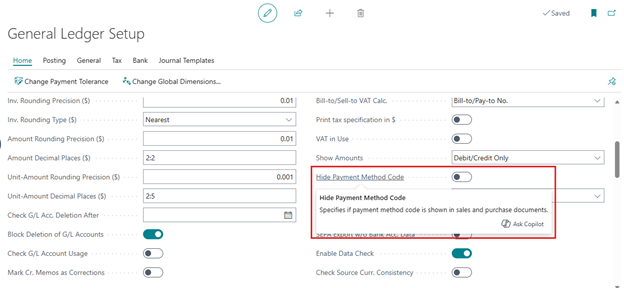
Solution (Implementation Steps)
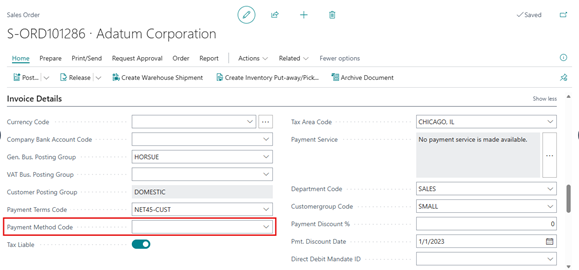
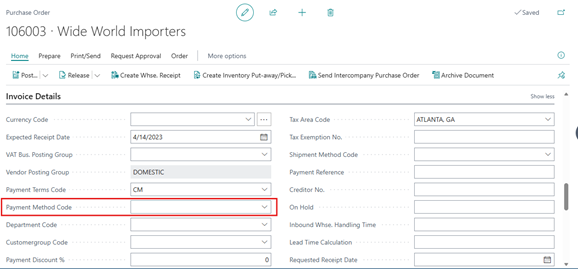
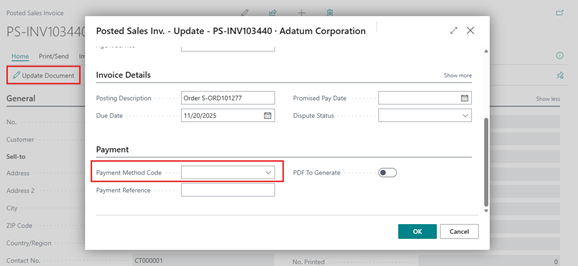
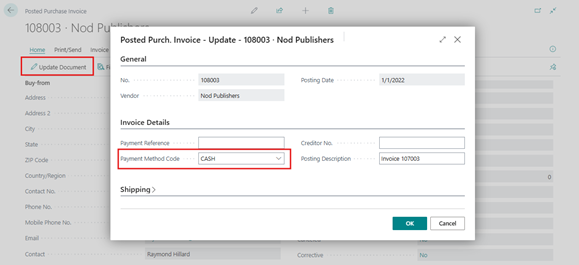
- Open any Sales or Purchase document and navigate to the Invoice Details FastTab. The Payment Method Code field is visible when the Hide Payment Method Code option is disabled.
- Sales Order Document:
- Purchase Order Document:
- Posted Sales Invoice Document:
- Posted Purchase Invoice Document:
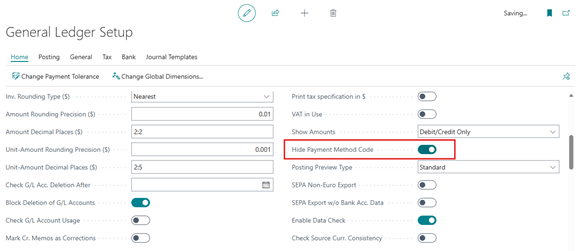
- To enable the Boolean, use the global Search icon to search for General Ledger Setup and open the corresponding page. On the General Ledger Setup page find the “Hide the Payment Method Code” filed in General fasttab and turn the Boolean on.
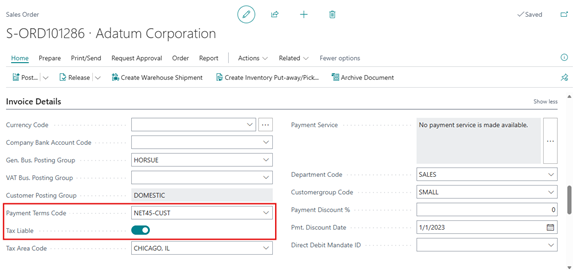
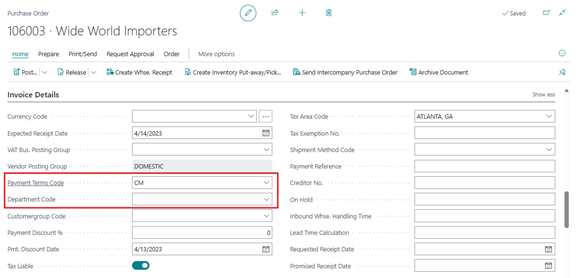
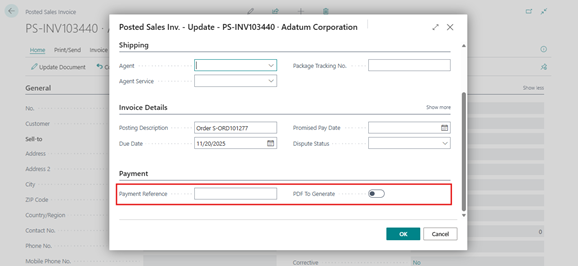
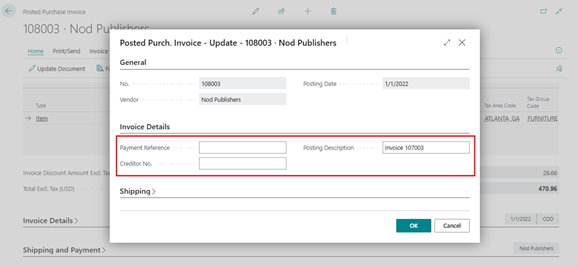
- Go back to the document. The Payment Method Code field is now hidden automatically by the system, without using personalization or design.
- Sales Order Document:
- Purchase Order Document:
- Posted Sales Invoice Document:
- Posted Purchase Invoice Document:
Conclusion
Hiding the Payment Method Code field on the General Ledger Setup page in Microsoft Dynamics 365 Business Central is a simple yet effective way to streamline the user interface. By removing unused fields, organizations can reduce confusion, improve accuracy, and tailor the system to their actual business processes.
This small configuration change can have a big impact on usability—especially for finance teams working daily in Business Central.