Use Edit in Excel on Output, Consumption, and Item Journals in Microsoft Dynamics 365 Business Central
 By Inkey Solutions
June 9, 2026
3 min read
By Inkey Solutions
June 9, 2026
3 min read
Introduction:
Microsoft Dynamics 365 Business Central continues to enhance its usability by expanding the Edit in Excel capability. With the 2025 Release Wave 1 update, users can now edit item tracking details directly in Excel for Item Journals, Consumption Journals, and Output Journals. This provides a simple way to handle bulk data entry, especially when dealing with lot numbers, serial numbers, package details, warranty dates, and expiration dates.
Business Value:
The Edit in Excel feature is already a favorite among Business Central users because of its speed and convenience in managing data. Previously, data entry for item tracking across journals could be slow and manual. Now, by using Excel templates, users can quickly update large volumes of data, including serial and lot numbers, without compromising accuracy. This reduces repetitive manual entry, increases efficiency, and ensures tracking data is consistently applied across inventory processes.
Requirement:
How can you use the new Edit in Excel capability for Item, Consumption, and Output Journals in Business Central?
Prerequisites:
- Access to Microsoft Dynamics 365 Business Central.
- Permissions to work with item journals, output journals, and consumption journals.
Solution (Implementation Steps):
Step 1: Enable Item Tracking on Lines for Journal Batches
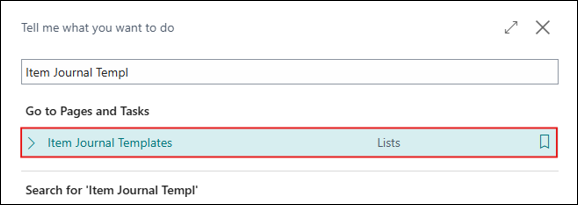
- Click on Search icon and search for Item Journal Templates. From the results, select the related link to open the Item Journal Templates list page.
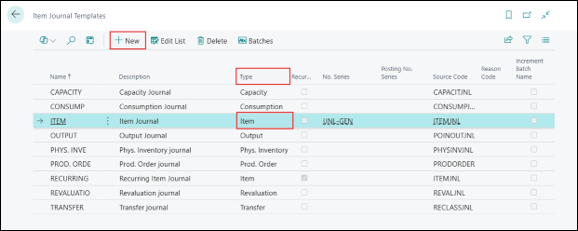
- User can create new template by clicking on +New option from the above menu bar or Select a default template of type Item, Consumption, or Output.
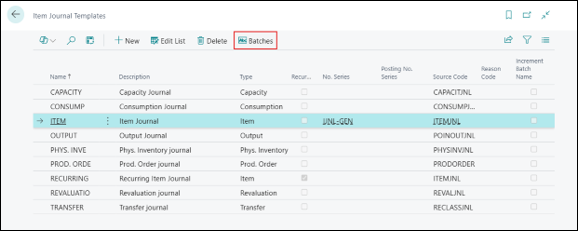
- Choose the Batches option from the menu bar to open the item journal batches.
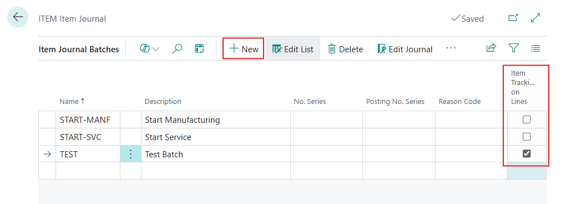
- Select +New (or edit an existing batch) to create a new batch. Fill in the required details and turn on the Item Tracking on Lines
Step 2: Start Using Edit in Excel
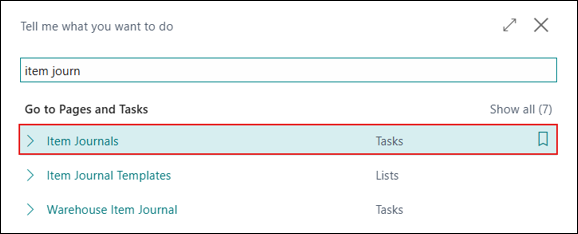
- Click on Search icon and search for the Item Journals, Consumption Journals, or Output Journals page.
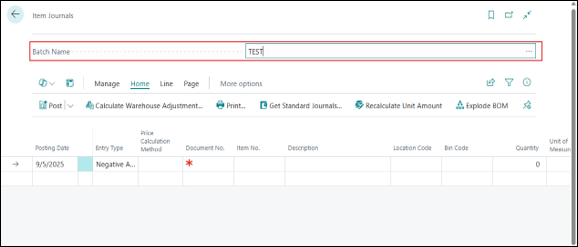
- In the Batch Name field, select the batch that has Item Tracking on Lines enabled.
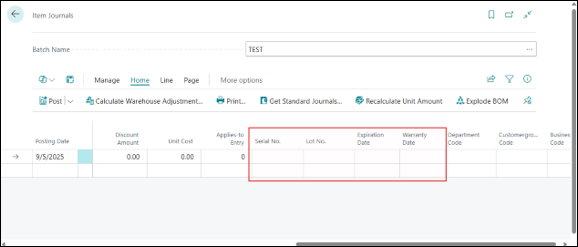
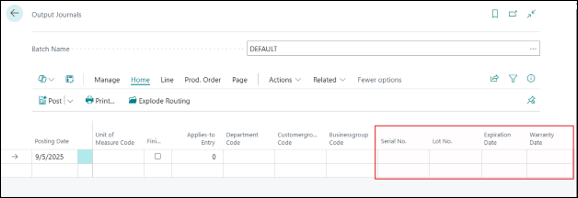
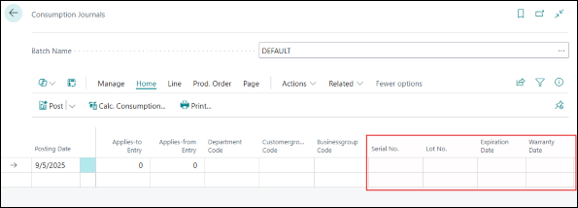
User can find these below fields on the Journal page, for example,- Serial No.
- Lot No.
- Expiration Date
- Warranty Date
Item Journals:
Output Journals:
Consumption Journals:
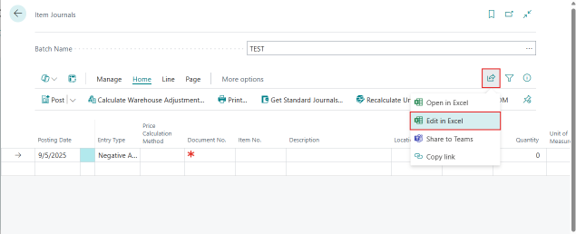
- Click on Share Button and Choose the Edit in Excel action from the option.
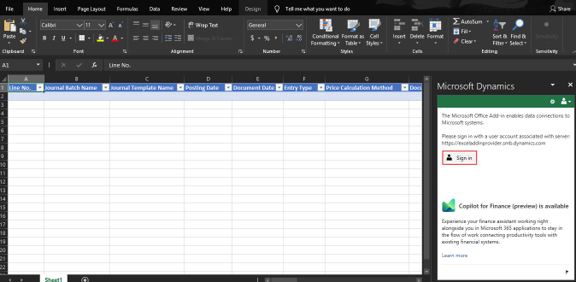
- This will open the Excel sheet. If the user is not already signed in, they need to log in with their Business Central credentials by clicking on Sign in
- Enter your ID and password. After signing in, the user will see the display as shown in the image below:
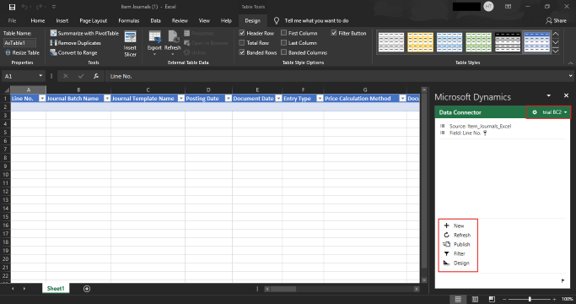
- In the file, fill in fields such as:
- Serial No.
- Lot No.
- Package No.
- Expiration Date
- Warranty Date
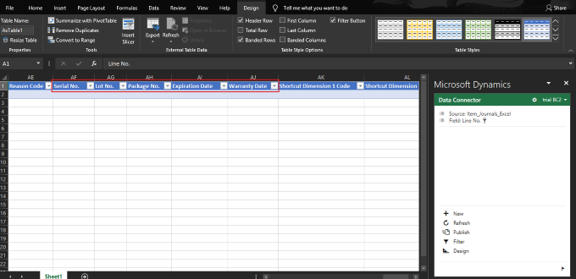
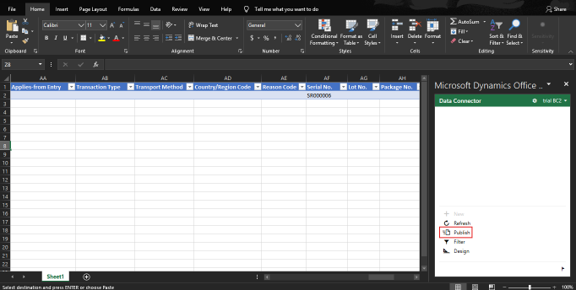
- Once updates are complete, select Publish to send changes back to Business Central.
Business Central will validate the data upon publishing.
Note:
Item tracking data will only be accepted if the Item Tracking Code is properly set up for the item.
Restrictions & Notes:
- Available only in Business Central Online.
- Requires enabling the feature on journal batches before use.
- Business Central validates all tracking data during publish to ensure compliance with item setup.
sadaf
Conclusion:
The expansion of the Edit in Excel feature in Microsoft Dynamics 365 Business Central 2025 Release Wave 1 is a big win for efficiency. By enabling bulk editing of item tracking details in Item, Consumption, and Output Journals, businesses can reduce manual data entry, improve accuracy, and save valuable time. With direct integration between Excel and Business Central, managing complex tracking information has never been easier.