How to Use Approval Workflows for Item Journals in Microsoft Dynamics 365 Business Central?
 By Hetal Tank
November 26, 2026
3 min read
Introduction
In the latest updates of Microsoft Dynamics 365 Business Central (2026 Release Wave 1), Microsoft has extended approval workflows to Item Journals. This enhancement allows businesses to ensure that inventory-related entries are reviewed and approved before posting. It helps maintain better control and accuracy in inventory management processes.
Business Value
Approval workflows for item journals help organizations control inventory changes more effectively. By requiring approval before posting, businesses can reduce errors and ensure accountability.
With this feature:
- Ensures proper review before inventory adjustments
- Prevents unauthorized changes
- Improves data accuracy and control
- Enhances audit tracking and compliance
Requirement
How to use approval workflows for item journals in Microsoft Dynamics 365 Business Central?
Prerequisites
- Ensure you are using the latest version (Release Wave 2026 or later)
- Approval workflows must be configured in the system
- Users should have permission to send and approve requests
Before this update:
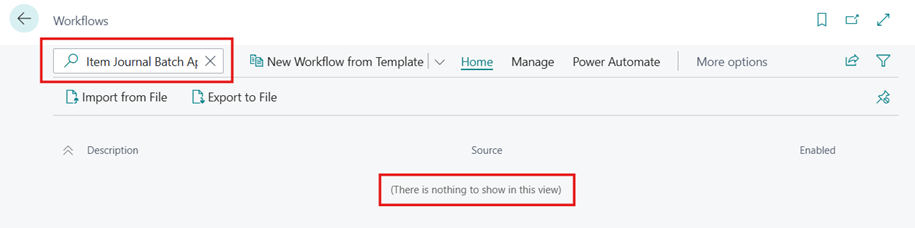
- Workflows did not include any standard workflow such as “Item Journal Batch Approval Workflow.”
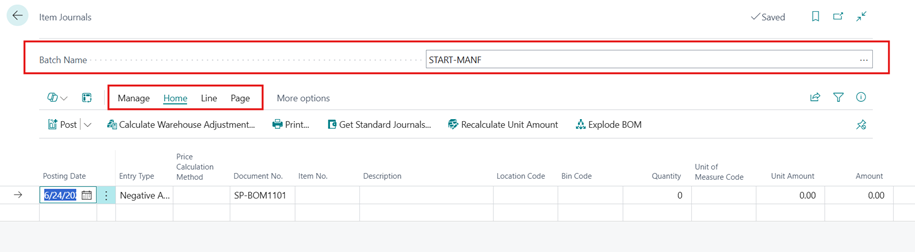
- The Item Journal did not have a “Request Approval” action to send approval requests.
Solution (Implementation Steps)
Step 1: Enable Standard workflow for Item Journal
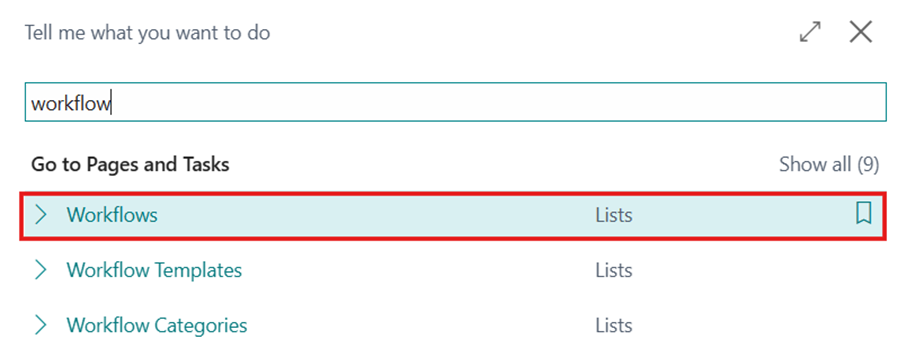
- In the 2026 Release Wave 1, the system introduces a new standard workflow for Item Journals. To use this workflow, users need to enable it first. Click on the Tell Me (Search) icon in the top-right corner, type Workflows, and select the related link to open the Workflows page.
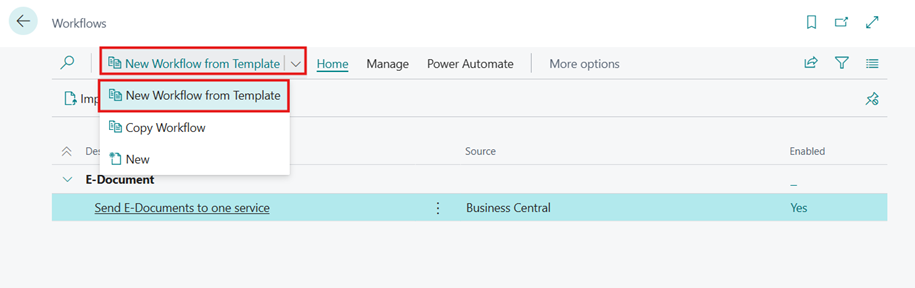
- To use standard workflow, click on “New Workflow from Template” option from the above menu bar.
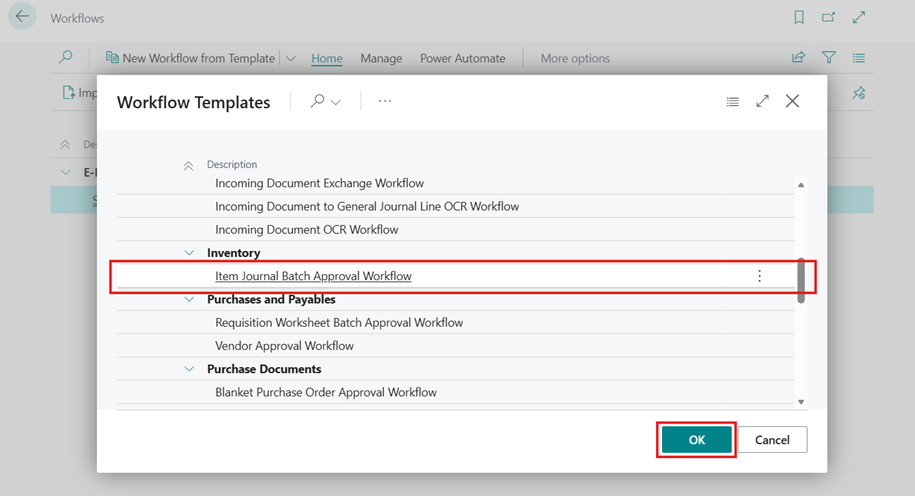
- From the Workflow Template page user need to select” Item Journal Batch Approval Workflow” and click on Ok.
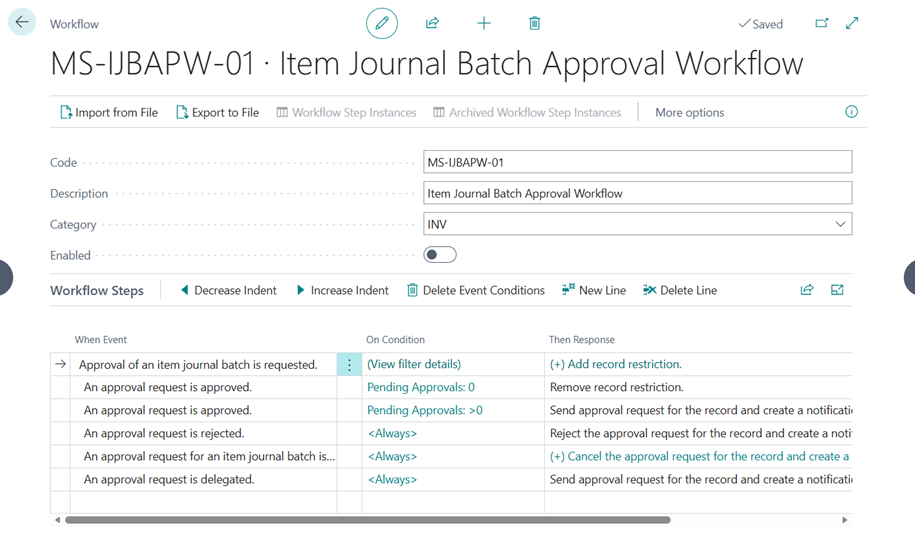
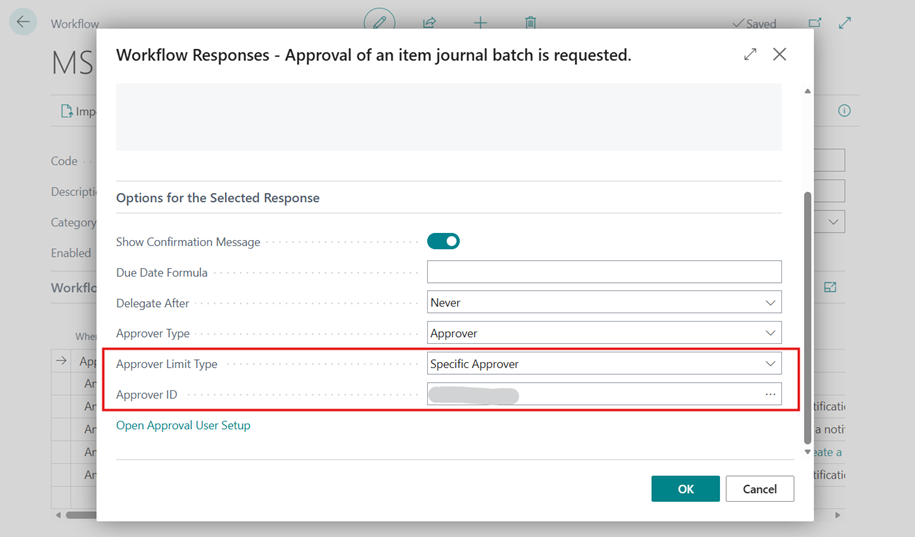
- System creates approval workflow with all relevant information for item journal Batch using Template. Now user need to set approver user as per their requirement. Here we set up specific user as Approver Limit Type.
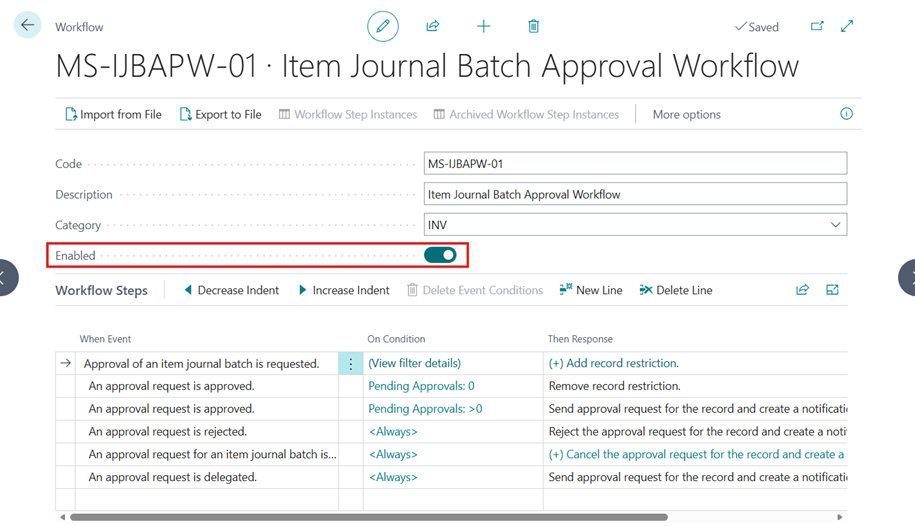
- Now user only need to enable the workflow by using Enable Boolean for workflow.
Step 2: Create Item journal and send Approval request to approver.
- Go to the Item Journal, create journal lines, and then select “Send Approval Request” from the “Request Approval” option. Choose the “Journal Batch” option when sending the request. This action will send the journal batch to the approver for approval.
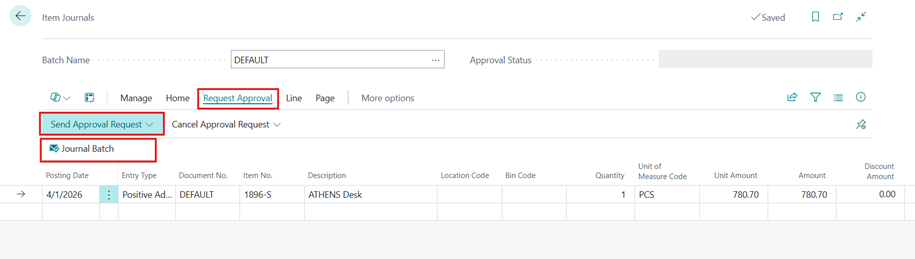
The system will create an approval request for the journal batch.
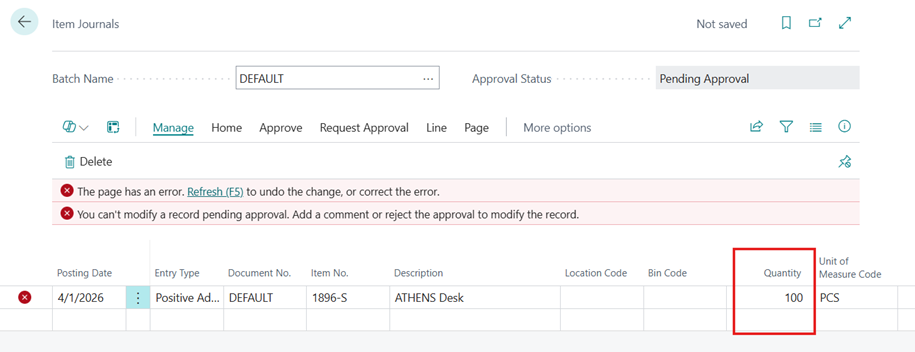
- While the approval is in progress:
- Users cannot edit, delete, or post the journal
- The workflow status is visible on the page
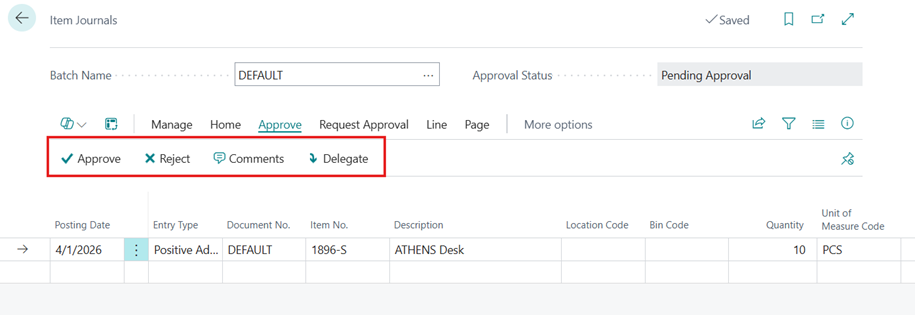
G. Approvers can take the following actions:
- Approve
- Reject
- Comments
- Delegate
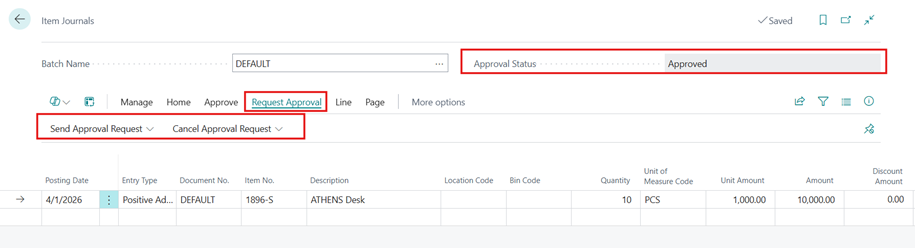
Once the approval is completed, the user can proceed to post the journal. If rejected, necessary corrections must be made before resubmitting.
Supported Journal Types:
Approval workflows are supported for the following:
- Item Journal
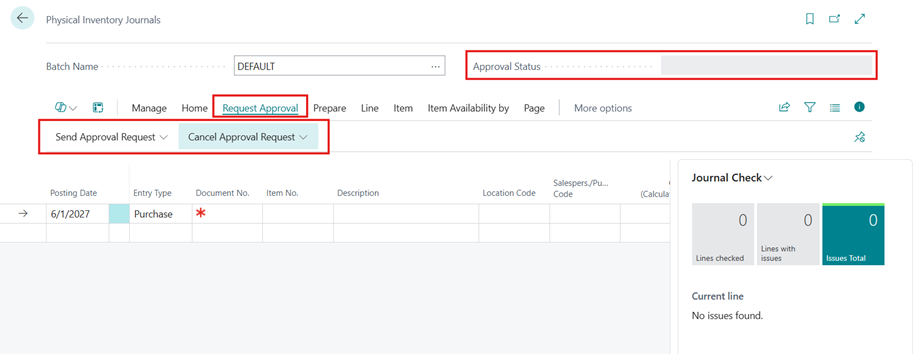
- Physical Inventory Journal
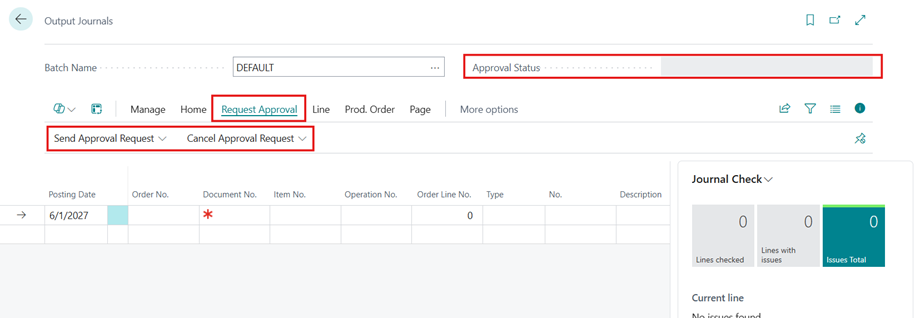
- Output Journal
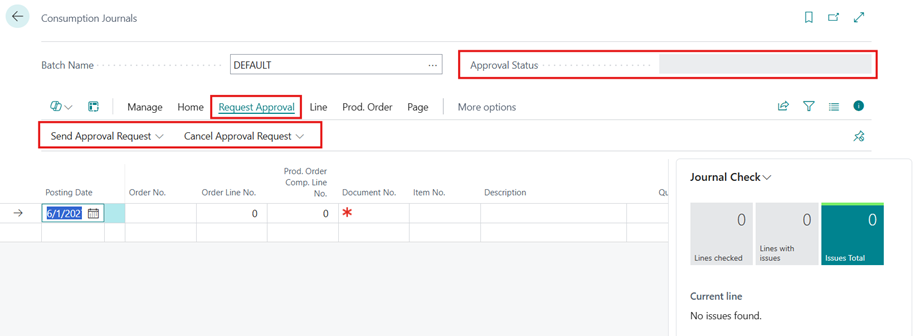
- Consumption Journal
Conclusion
Approval workflows for item journals in Microsoft Dynamics 365 Business Central add an important layer of control to inventory management. By ensuring that all entries are reviewed before posting, businesses can avoid mistakes, improve accuracy, and maintain better compliance with internal processes.