How to Archive Service Documents in Microsoft Dynamics 365 Business Central
 By Inkey Solutions
October 7, 2025
5 min read
By Inkey Solutions
October 7, 2025
5 min read
Introduction:
Microsoft Dynamics 365 Business Central is a robust Enterprise Resource Planning (ERP) solution that offers a range of features to enhance business operations. One key feature is the archiving capability for service documents, which enables organizations to maintain control over their service data through effective audit trails and version control.
Business Value:
The archiving feature in Business Central is crucial for organizations, as it helps maintain accurate records of service transactions. By preserving detailed histories of service quotes, orders, and contracts, teams can easily reference past decisions and changes, supporting compliance and informed analysis. This feature enhances service management efficiency and enables teams to adapt to evolving needs while retaining access to essential historical information. Automatic archiving simplifies data management, reducing the need for manual oversight.
Requirements:
How to Archive Service Document in Business Central?
Prerequisites:
- Ensure that the organization holds valid licenses for Microsoft Dynamics 365 Business Central.
- Confirm that users performing archiving tasks possess the necessary permissions.
Solution (Implementation Steps):
Organizations have full control over their archiving preferences through the Service Management Setup page, where several options for automatic archiving are available:
Step 1: Access the Service Management Setup
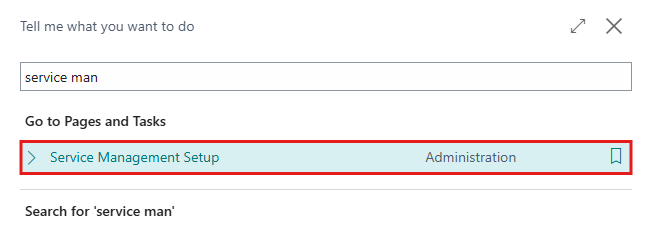
- Open Business Central and use the search icon and type “Service Management Setup”. Select the relevant option to open the setup page.
- On the Service Management Setup page, locate the Archiving Here User can set their preferences for archiving service quotes and orders below given fields:
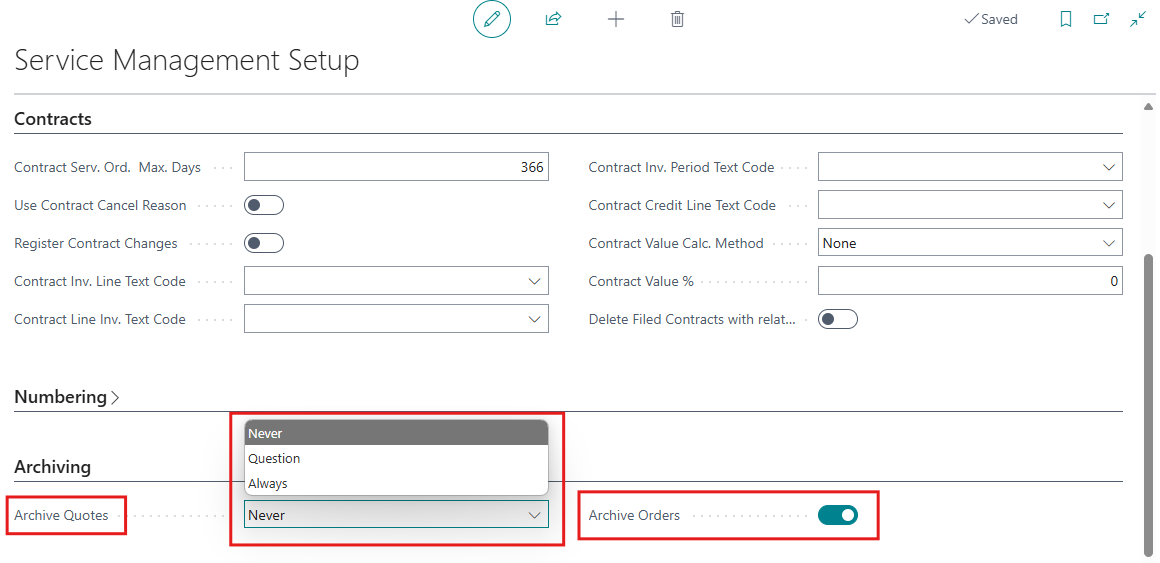
Archive Orders: Specifies if you want to archive service orders when they are deleted. Choose Yes or No based on your needs.
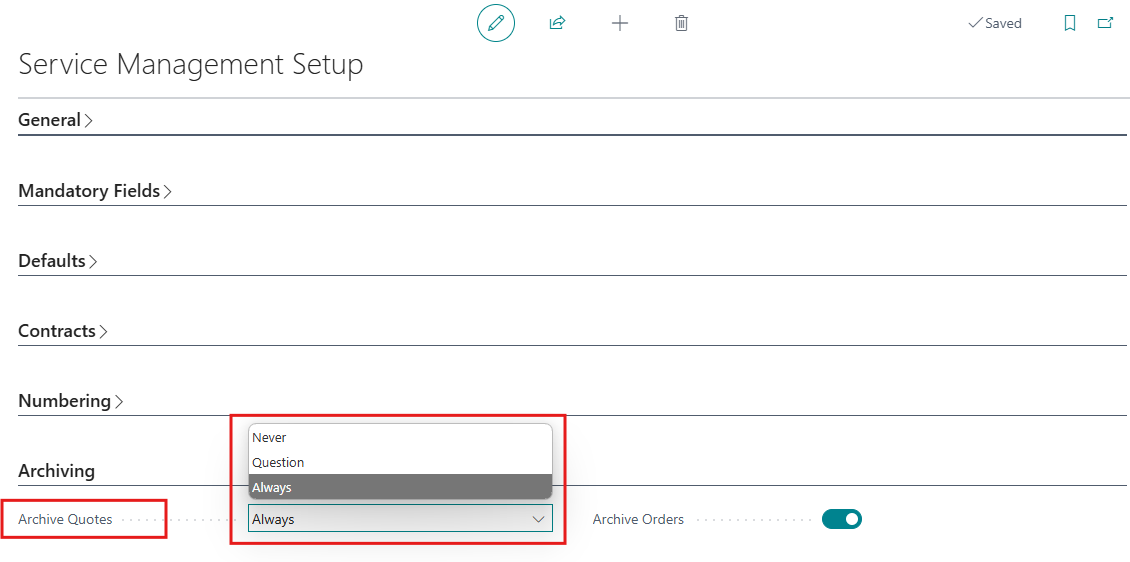
Archive Quotes: Here are the three options available for archiving service quotes, which users can configure based on their preferences:
| Option | Description |
|---|---|
| Never | Service documents will not be archived automatically. Users can manually archive documents using the Archive Document action if needed. |
| Question | Users will be prompted to decide whether to archive a Service document when one of the specified events occurs. |
| Always | Service documents will be silently archived automatically whenever one of the specified events occurs. |
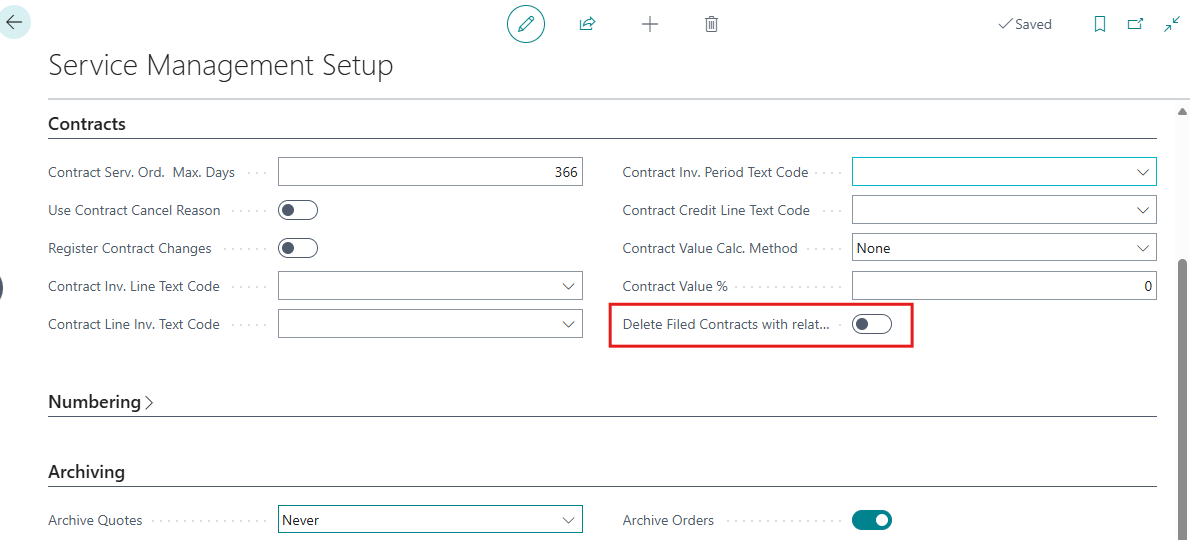
- There is one another field included in this Service management setup page which is given below User can set that as per their preferences:
Delete Filed Contracts with related main Contract: Specifies whether to automatically delete all Filed Contracts when related main Contract / Contract Quote is deleted. Select Yes or No as per your policy.
Step 2: Archiving Document
There are three options for archiving documents: Never, Questions, and Always. Let’s go through each option:
- Never/Manual Archiving: –
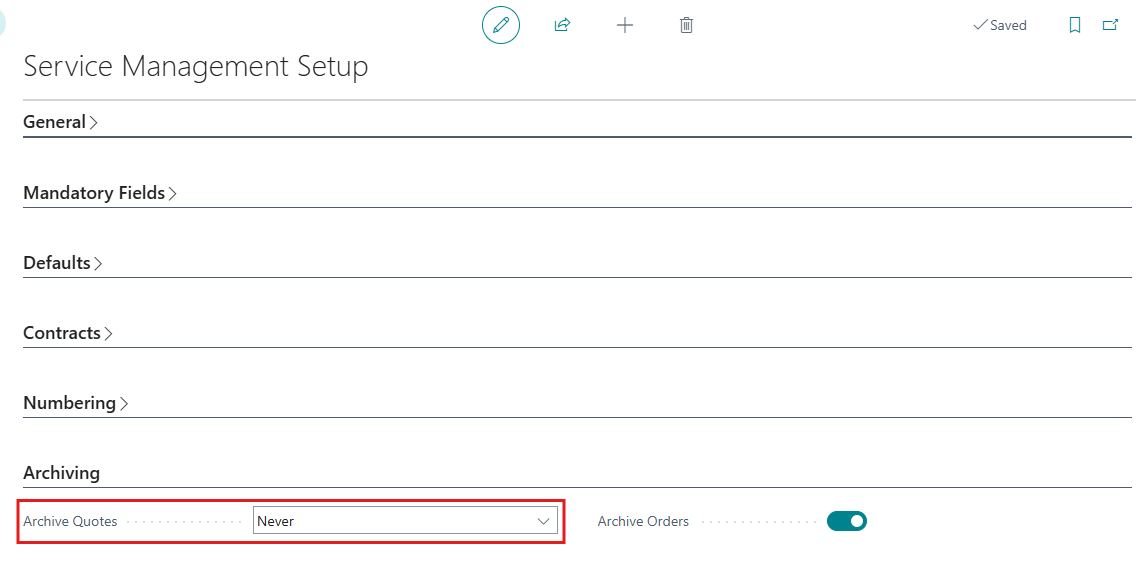
- To manually archive a service document, go to “Service Management Setup”. Select the never option which is the default option in Archive Quotes
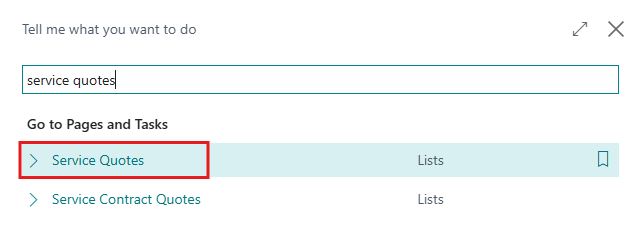
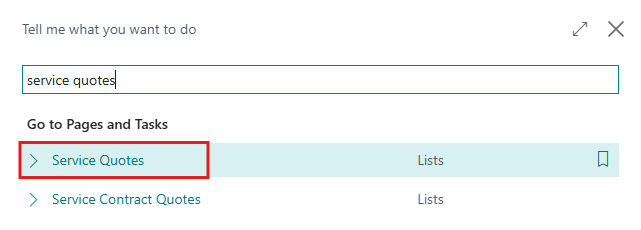
- Click on Search icon and Search for Service Quotes or Service Order and Select the relevant option to open the Service Quotes list page.
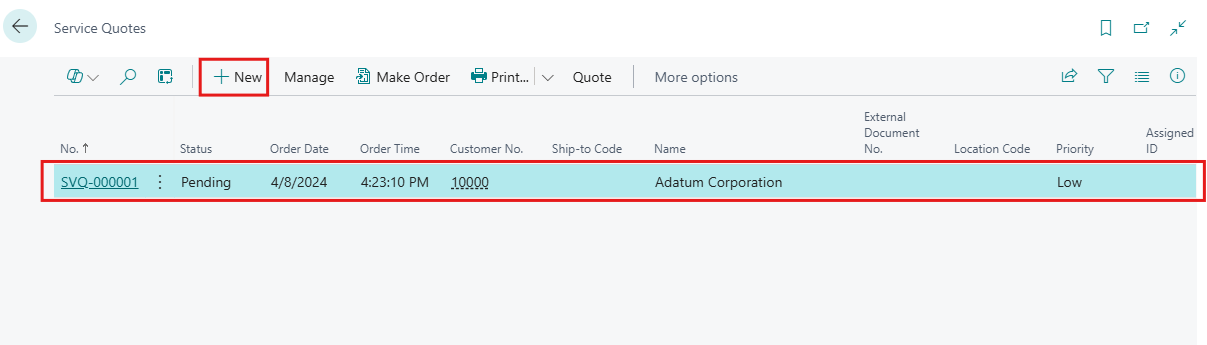
- Users can create new service quotes by clicking on the + New option from the menu bar or selecting an existing service quote from the list of quotes.
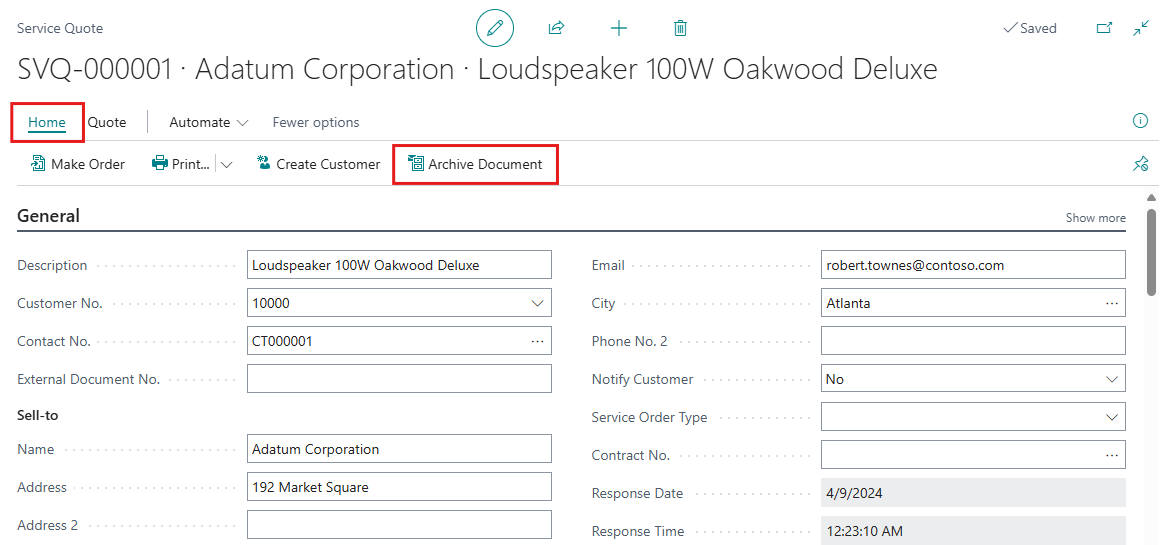
- On the Service Quotes card Click on Home > Archive Document from the menu bar.
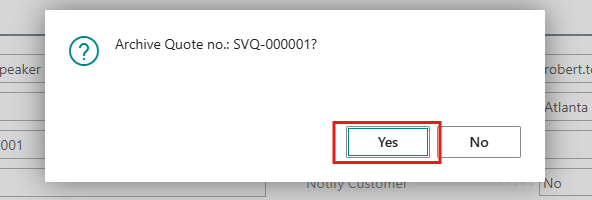
- A confirmation message will appear on the screen. Click on the Yes
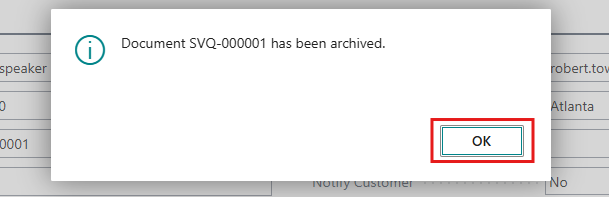
- A message will be displayed on the screen confirming that the Service Quotes or order has been successfully archived. Click on the OK
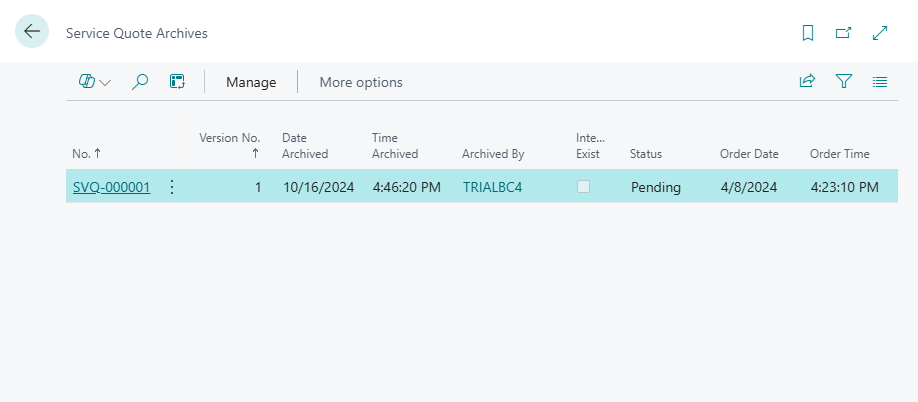
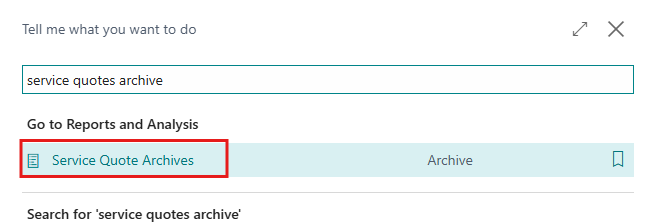
- Users can see this Archive document on the Service Quote Archives Click on the search icon and type “Service Quote Archives”. On the page, users can see Archive documents.
- To manually archive a service document, go to “Service Management Setup”. Select the never option which is the default option in Archive Quotes
- Automatic Archiving Process: –
- To Automatic archive a service document, go to “Service Management Setup”. Select the Always/question option in the Archive Quotes
- Click on Search icon and Search for Service Quotes or Service Order and Select the relevant option to open the Service Quotes list page.
- Users can create new service quotes by clicking on the + New option from the menu bar or selecting an existing service quote from the list of quotes.
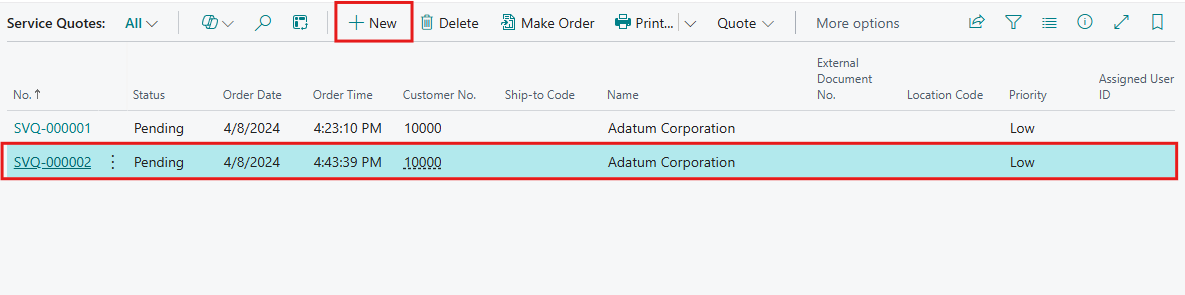
- With automatic archiving enabled, Business Central will create a new version of archived documents during significant actions, such as:
- Deleting a service quote or order.
- Posting a service order.
- Converting a service quote to an order.
- If a user converts a service quote to an order, the system will automatically archive the quotes with their respective versions. To Convert the Service Quotes into Service Order, user need to click on Home > Make Order option from menu bar.
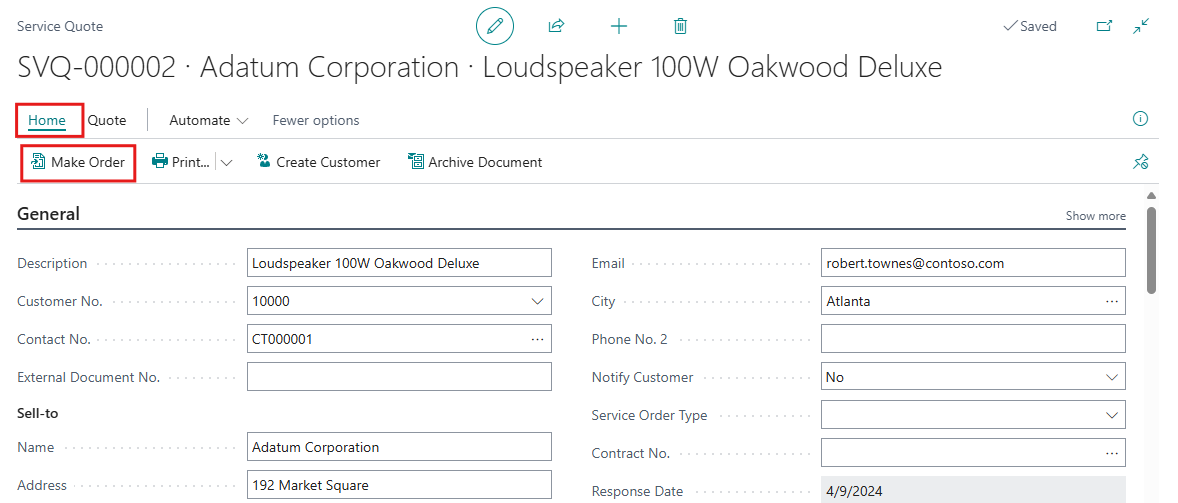
- If a user converts a service quote to an order, the system will automatically archive the quotes with their respective versions. To Convert the Service Quotes into Service Order, user need to click on Home > Make Order option from menu bar.
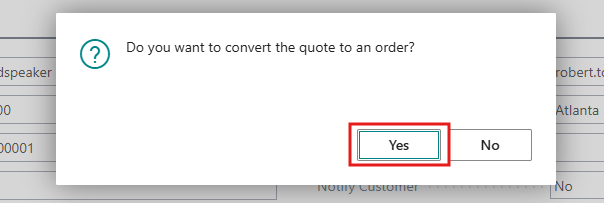
- A confirmation message will appear on the screen. Click on the Yes
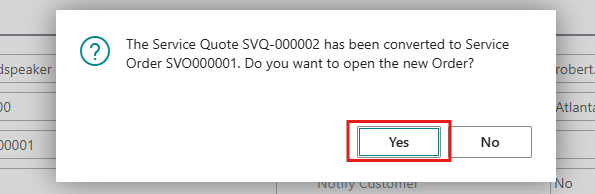
- The system will display a confirmation message for the open service order. After confirming this message, the service quote will be automatically archived.
- Users can see this Archive document on the Service Quote Archives Click on the search icon and type “Service Quote Archives”.
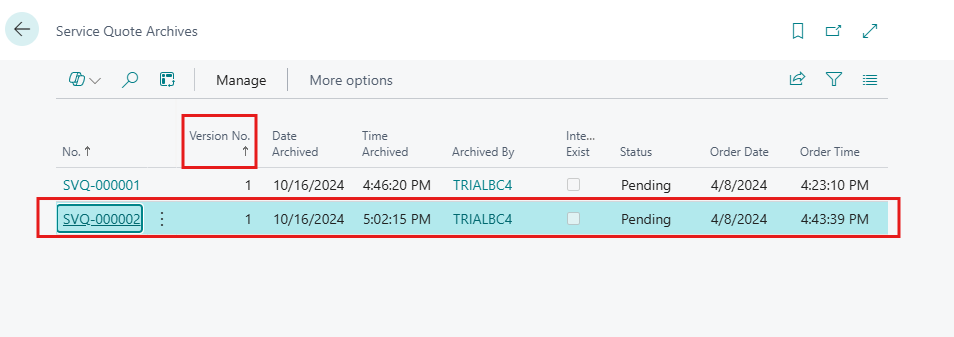
- In this page, users can view all archived documents along with their version numbers.
- To Automatic archive a service document, go to “Service Management Setup”. Select the Always/question option in the Archive Quotes
Note: –
Users can search for “Service Archive Quotes” to view archived service quotes, or “Service Archive Orders” to see archived service orders.
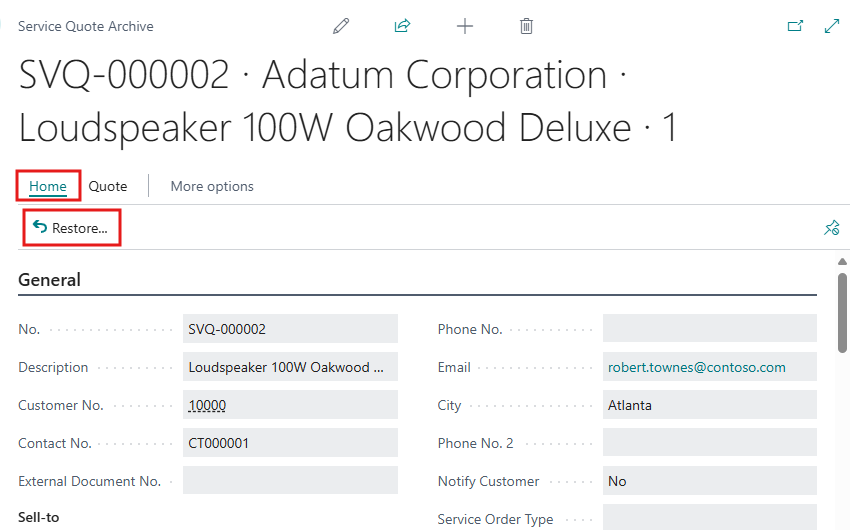
- Users can also restore previous versions if needed. To do this, they need to open an archived document and click on Home > Restore from the menu bar at the top of the card.
Limitations
While the archiving feature is powerful, there are some limitations to consider:
- Archived documents may not show all details, such as statistics or dimensions, which cannot be restored.
- Restoring an archived document will use default dimensions, as specific dimensions are not stored in the archive.
Conclusion
The archiving capability in Microsoft Dynamics 365 Business Central is essential for effective service management. By leveraging this feature, organizations can ensure comprehensive records of their service documents, facilitating compliance and better decision-making. With options for automatic archiving and manual control, businesses can streamline their service management processes while maintaining clarity over historical service data.