How to Create Purchase Quotes Without Vendors in Microsoft Dynamics 365 Business Central
 By Hetal Tank
October 22, 2026
3 min read
Introduction
With the 2026 Release Wave 1, Microsoft Dynamics 365 Business Central introduces a smarter way to manage procurement by allowing users to create purchase quotes directly for contacts without first creating vendor records. This enhancement brings greater flexibility during early purchasing stages and simplifies how businesses engage with potential suppliers.
Business Value
This feature helps organizations streamline procurement activities and maintain cleaner master data by delaying vendor creation until it is actually required.
- Reduces unnecessary vendor record creation
- Speeds up the quotation process
- Simplifies interaction with new or potential suppliers
- Ensures consistent vendor setup using templates
- Minimizes administrative effort during initial negotiations
Requirement
How to create purchase quotes for contacts without creating vendors in advance?
Prerequisites
- Contacts must be available in the system
- Vendor templates should be properly configured
- Users should have access to purchase quote functionality
Solution (Implementation Steps)
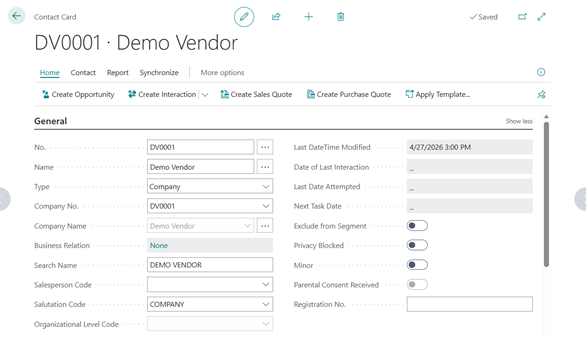
- The first step is to create a Purchase Quote using an existing contact. Create a Purchase Quote and select a Contact that is not linked to any vendor instead of entering a vendor code.
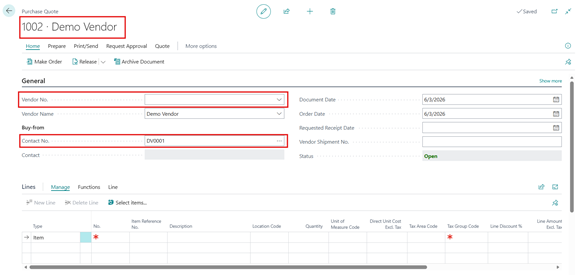
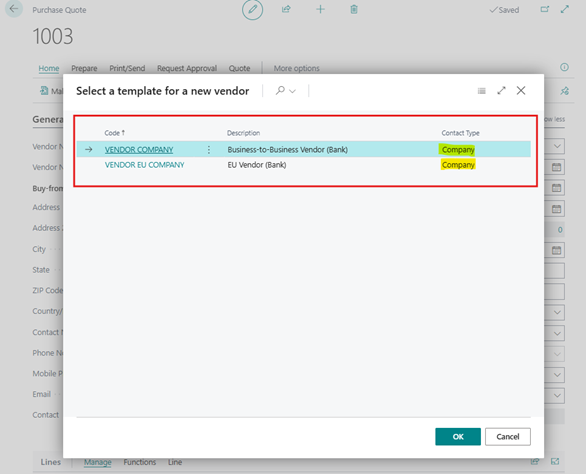
- Business Central selects the appropriate template based on criteria such as territory code, country/region code, and contact type on the contact card. If only one matching template is found, it is applied automatically; otherwise, you are prompted to choose from the available templates.
- Enter the quote details and add items or services. Define quantities, pricing, and other relevant information, then release the quote or convert it into an order using the Make Order action.
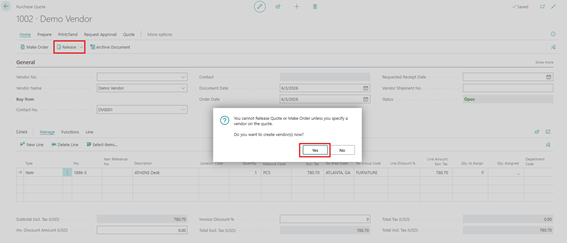
- If the user releases the purchase quote, the system will first ask for confirmation to create a vendor. Once the user confirms, the system will create the vendor.
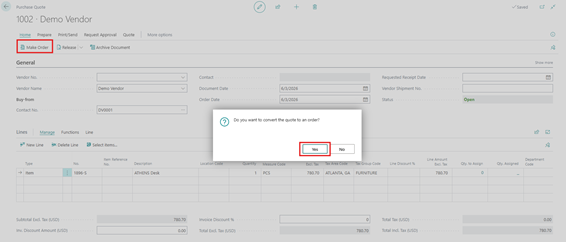
- If the user selects the Make Order action first, the system will display a confirmation message to convert the quote into an order. Click on Yes.
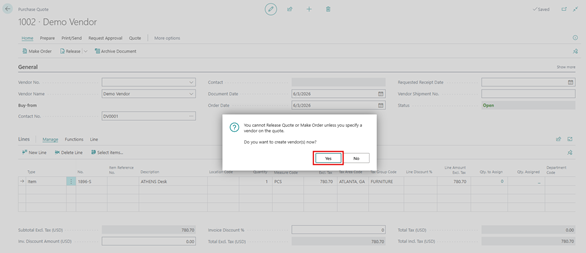
- After user Provide confirmation to convert Quote into order system will then show a warning and confirmation message to create a vendor – click Yes.
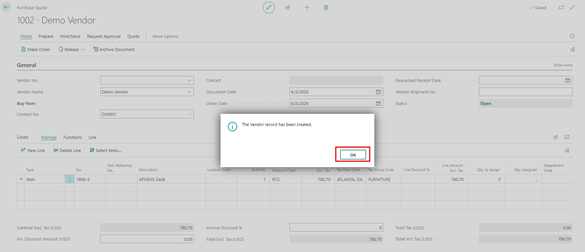
- The system will automatically create a vendor based on the selected vendor template.
- The system displays a confirmation message to open the newly created Purchase Order – click Yes.
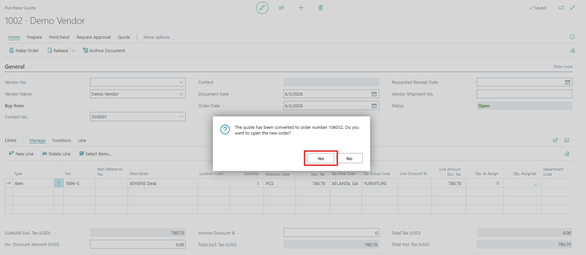
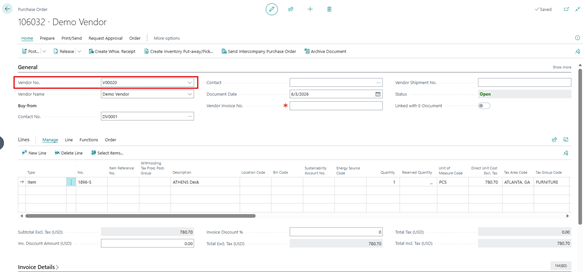
- Here, the user can see that the system has assigned the newly created vendor to the Vendor Code field in the Purchase Order.
Note:
- Vendor creation happens only when the quote is finalized (released or converted)
- This ensures vendors are created only when there is a confirmed business need Feature availability is planned for General Availability in April 2026 and may be subject to change
Conclusion
This enhancement in Business Central significantly improves procurement flexibility by allowing businesses to work with contacts before committing to vendor creation. It reduces administrative workload, improves data quality, and ensures standardized vendor setup through templates – making the overall purchasing process more efficient and controlled.