How To Download SharePoint List Attachment Without Power Automate in Canvas App or Custom Page
 By Inkey Solutions
February 6, 2026
3 min read
By Inkey Solutions
February 6, 2026
3 min read
Downloading Attachments from a SharePoint List Record
We have created a SharePoint list where we added two records, each containing attached files.
To download different types of files from SharePoint list attachments without using Power Automate, we use the Out-of-the-Box (OOB) Download function.
The Download function requires the URL path of the file. Since the files are stored as attachments within records, retrieving them provides the absolute URI of the file.
However, passing the absolute URI directly to the Download function does not work for all file types.
To enable downloading for all file types, we need to generate a downloadable link for each file.
Example of a Downloadable Link:
https://YourSharePointSite/sites/YourList/_layouts/15/download.aspx?SourceUrl=AbsoluteUri
Steps to Create a Downloadable Link:
- Display Attachments in a Gallery
We have added a Gallery to display attachments related to the selected record in the SharePoint list.
- Add a “Download” Icon
- We placed a Download icon in the attachment gallery and set the following code in its OnSelect property:
- // Extract SharePoint site from the file URL
Set(SharepointSiteURL, Mid(ThisItem.AbsoluteUri, 1, Find(“/Lists/”, ThisItem.AbsoluteUri) – 1)); - // Create the downloadable link
Set(DownloadableLink, SharepointSiteURL & “/_layouts/15/download.aspx?SourceUrl=” & EncodeUrl(ThisItem.AbsoluteUri)); - This code will generate a downloadable link for the selected file.
- Understanding Variables Used:
- SharepointSiteURL → Extracts the SharePoint site URL from the file’s absolute URI.
- DownloadableLink → Constructs the full downloadable URL for the attachment.
- Download the File:
- To download the file, pass the DownloadableLink variable to the Download function:
- //Download File
Download(DownloadableLink)
- To download the file, pass the DownloadableLink variable to the Download function:
- Final Code for the Download Button:
- // Extract SharePoint site from the file AbsoluteUri
Set(SharepointSiteURL, Mid(ThisItem.AbsoluteUri, 1, Find(“/Lists/”, ThisItem.AbsoluteUri) – 1)); - // Create the downloadable link
Set(DownloadableLink, SharepointSiteURL & “/_layouts/15/download.aspx?SourceUrl=” & EncodeUrl(ThisItem.AbsoluteUri)); - // Download the file
Download(DownloadableLink)
- // Extract SharePoint site from the file AbsoluteUri
This approach ensures that files of all types can be downloaded directly from SharePoint list attachments without using Power Automate.
Scenario:
- Main Screen Displays Records from the SharePoint List
- The main screen shows a list of records retrieved from a SharePoint list.

- The main screen shows a list of records retrieved from a SharePoint list.
- Open Attachments List on “Select” Button Click
- When the “Select” button is clicked, it displays a list of attachments related to the selected record.
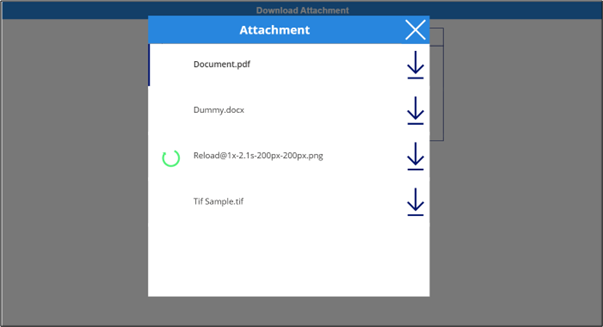
- When the “Select” button is clicked, it displays a list of attachments related to the selected record.
- Code for the “Download” Icon (OnSelect Property)
- The following code is used in the OnSelect property of the Download icon inside the attachment gallery:
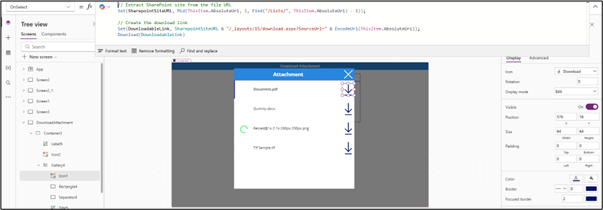
- The following code is used in the OnSelect property of the Download icon inside the attachment gallery:
- Download the File on Button Click
- When the Download button is clicked, the file will be downloaded using the following function:
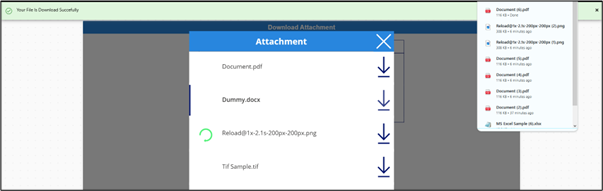
- When the Download button is clicked, the file will be downloaded using the following function: