The Ultimate Guide to Microsoft Fabric Variable Libraries
 By Inkey Solutions
February 10, 2026
5 min read
By Inkey Solutions
February 10, 2026
5 min read
Centralize configuration, automate deployments, and master the “Value Set” workflow in Microsoft Fabric.
If you have built data pipelines in Azure Data Factory (ADF) or Synapse, you know the pain of “Configuration Drift.” You hardcode a path like raw/sales_data in development, but when you deploy to production, you have to manually find and replace it with prod/sales_data.
It is tedious, error-prone, and risky.
Microsoft Fabric Variable Libraries solve this problem. They allow you to create a “Configuration Store” within your workspace. Instead of scattering values across 50 different pipelines and notebooks, you store them once in a library and reference them everywhere.
This guide will take you from the basics to advanced CI/CD integration and Medallion Architecture best practices.
- Part 1: Creating & Using a Variable Library
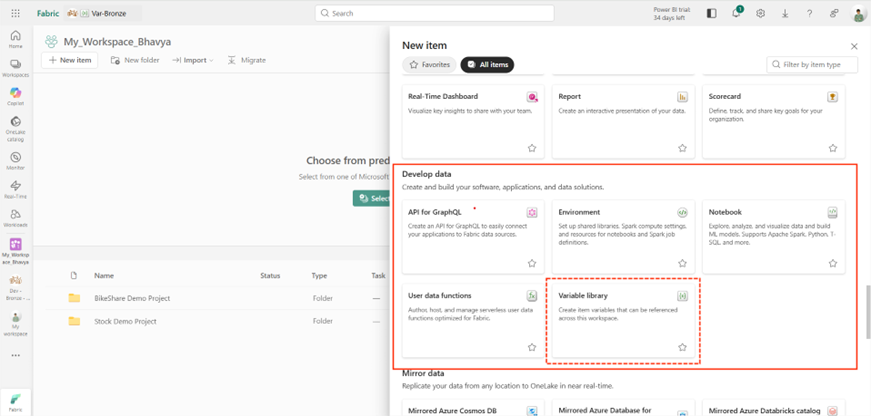
- Step 1: Create the Library
- Navigate to your Fabric Workspace.
- Click + New Item in the top toolbar.
- Scroll down or search to select Variable library.
- Name it GlobalConfigLib and click Create.
- Step 2: Define Variables
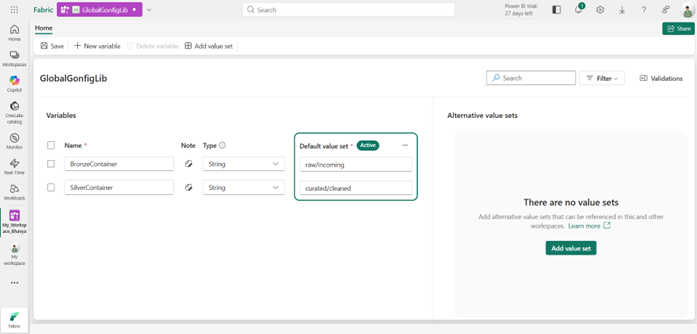
In the library grid, you can define your configuration keys. Fabric supports two critical types:- String: text (e.g., Folder paths, Lakehouse IDs).
- Example Configuration:
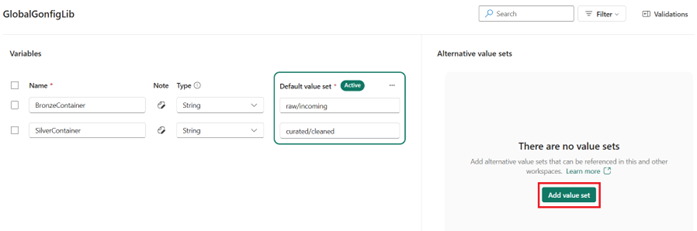
Name Type Value Description BronzeContainer String raw/incoming Path for raw data SilverContainer String curated/cleaned Path for cleaned data Enter these values into the grid and click Save.
- Step 3: Link to a Pipeline
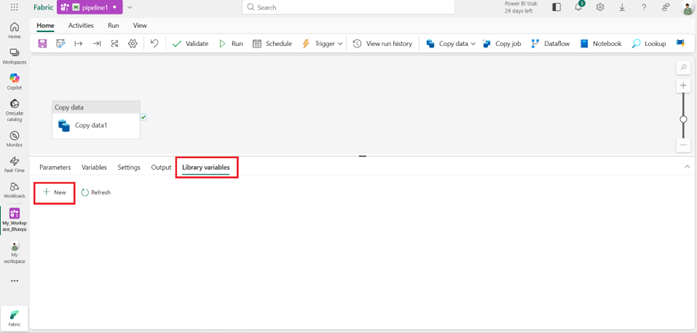
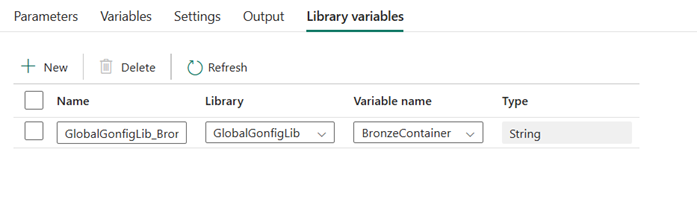
This is the most common missing step. A pipeline cannot see a library until you explicitly link it in the pipeline settings.- Open your Data Pipeline.
- Click the background canvas (the empty grid area where no activity is selected).
- In the Settings tabs at the bottom of the screen, click on the Variable libraries
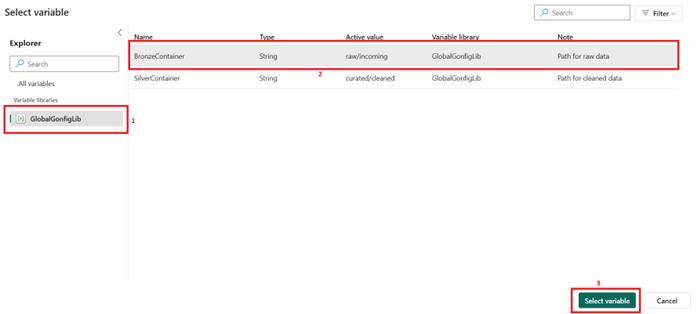
- Click + Add, select your GlobalConfigLib, and click Confirm.
- Step 4: Use Dynamic Content
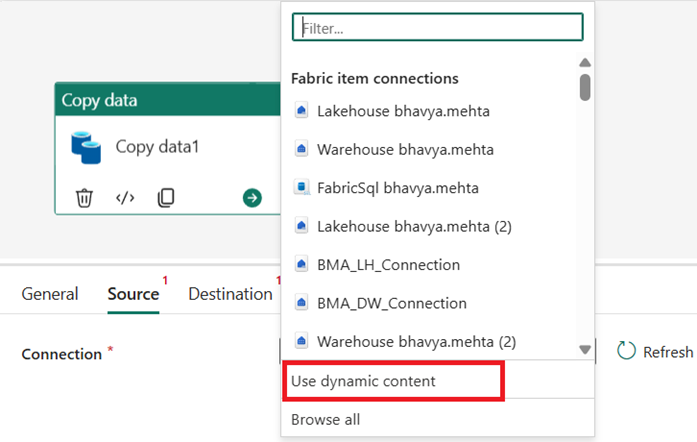
Now, replace your hardcoded paths with dynamic variables in an activity.- Drag a Copy Data activity onto the canvas and select it.
- Go to the Source or Destination
- Click inside a property field like File Path.
- Click the Add dynamic content link that appears below the field (or the {} icon inside it).
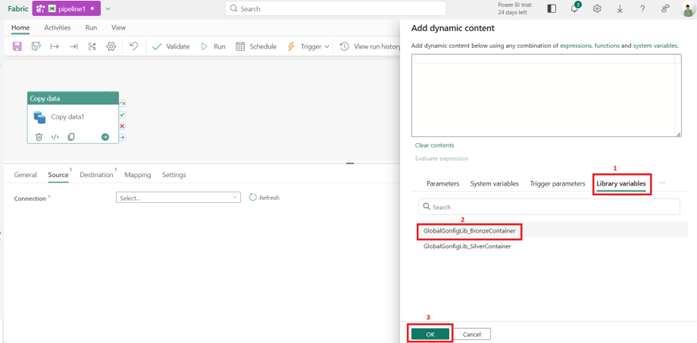
- In the Expression Builder that pops up, click the Variable Libraries tab on the far left.
- Double-click your variable (e.g., BronzeContainer).
- The generated syntax will look like this: @variable(‘GlobalConfigLib’, ‘BronzeContainer’)
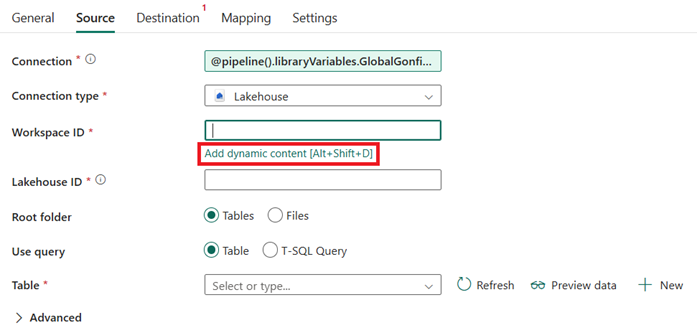
- Similarly set other values using variable library.
- Step 1: Create the Library
- Part 2: CI/CD & Deployment Configuration
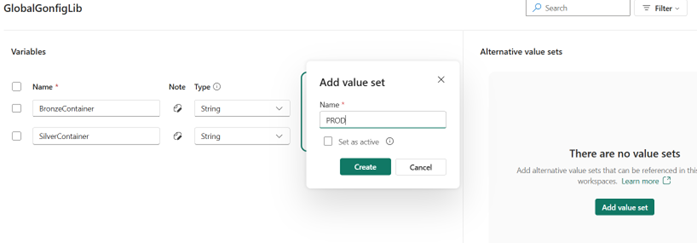
The real power of Variable Libraries lies in Value Sets. This feature allows you to keep the same variable name (e.g., BronzeContainer) but have it return different values depending on if you are in Dev, Test, or Prod.- The “Value Set” Workflow
- Create Environment-Specific Sets
Inside your library (in the Dev workspace), look for the Value Sets panel on the right side of the screen.- Keep the Default set as your “Development” values.
- Click + New Value Set, name it Test.
- In the main grid, update the values for the Test column (e.g., change path to test/incoming).
- Repeat for a Prod
- Create Environment-Specific Sets
- Deploy via Deployment Pipelines
When you use Fabric Deployment Pipelines to promote your content from Dev -> Test:- The Variable Library is deployed along with your pipelines.
- Crucially: All Value Sets (Test and Prod) are deployed with it.
- Configure the Target Environment
This is the “One-Time Setup” that makes CI/CD work.- After deployment, go to your target workspace (e.g., Test Workspace).
- Open the deployed GlobalConfigLib in that workspace.
- In the top ribbon, click the Value Sets
- Select the Test set and click Set as active.
- The Magic: Fabric remembers this setting for this workspace. Every time you deploy updates from Dev in the future, the Test workspace will remain locked to the Test Value Set. You never have to manually edit parameters after a deployment again.
- The “Value Set” Workflow
- Part 3: Best Practices
- Medallion Architecture Strategy
In a Medallion architecture (Bronze -> Silver -> Gold), you should structure your variables to abstract the storage locations.- Recommended Variable Naming: Instead of generic names, prefix them with the layer:
- Bronze_Lakehouse_ID: The GUID of the Bronze Lakehouse.
- Silver_Warehouse_ID: The GUID of the Silver Warehouse.
- Gold_Endpoint_URL: The SQL Endpoint for the Gold layer.
- Implementation:
- In Dev (Default Set): Bronze_Lakehouse_ID contains the GUID for LH_Bronze_Dev.
- In Prod (Value Set): The same variable Bronze_Lakehouse_ID contains the GUID for LH_Bronze_Prod.
- Recommended Variable Naming: Instead of generic names, prefix them with the layer:
- 2. Workspace Scope
Variable Libraries are workspace-scoped.- Do: Give your library a standard name (e.g., Corp_Global_Config) in every workspace across your CI/CD pipeline. This ensures your PySpark notebooks and Pipeline expressions don’t break when deployed.
- Don’t: Create separate libraries named differently for each environment (e.g., Dev_Lib, Prod_Lib). Use Value Sets inside a single, standardly named library instead.
- Medallion Architecture Strategy
- Part 4: Cheat Sheet – Where to Get Values?
When filling out your Variable Library, you often need specific IDs. Here is where to find them:Item Value How to find it Workspace ID Look at the URL: app.fabric.microsoft.com/groups/<WorkspaceID>/… Lakehouse/Item ID Look at the URL: …/lakehouses/<ItemID> SQL Endpoint Go to Lakehouse Settings -> SQL Analytics Endpoint. Tenant ID Go to the Help (?) menu (top right of Fabric portal) -> About Microsoft Fabric. Connection ID Go to Settings -> Manage Connections and Gateways ->
Click Settings on a specific connection ->
Copy ID from the URL or the properties window.
Conclusion
By adopting Variable Libraries, you move your Fabric environment from a “hardcoded prototype” to an “enterprise-grade solution.” You gain the ability to switch environments instantly using Value Sets and keep your secrets secure—all without writing complex code.
References & Further Reading:
- Microsoft Learn: Variable Library Overview
- Microsoft Learn: CI/CD for Variable Libraries
- Microsoft Learn: Automate Variable Libraries