How to Add Pictures to Item Variants in Microsoft Dynamics 365 Business Central?
 By Hetal Tank
September 4, 2026
2 min read
By Hetal Tank
September 4, 2026
2 min read
Introduction
In the latest updates of Microsoft Dynamics 365 Business Central (Release Wave 2026), Microsoft introduced a useful feature that allows users to add images to item variants. This means businesses can now visually represent different product options—such as size, color, or style—directly within the system. This enhancement makes it much easier to identify and manage product variations without confusion.
Business Value
Adding pictures to item variants helps users quickly recognize product differences without relying only on text descriptions. This is especially helpful for businesses dealing with multiple variations of the same item.
With this feature:
- Users can easily identify variants visually
- Reduces errors in selecting the wrong product
- Improves overall efficiency in inventory and sales processes
- Makes the system more user-friendly and intuitive
Requirement
How to add pictures to item variants in Microsoft Dynamics 365 Business Central?
Prerequisites
- Ensure you are using the latest version (Release Wave 2026 or later) of Business Central
- Make sure you have the required permissions to edit item records and variants
Solution (Implementation Steps)
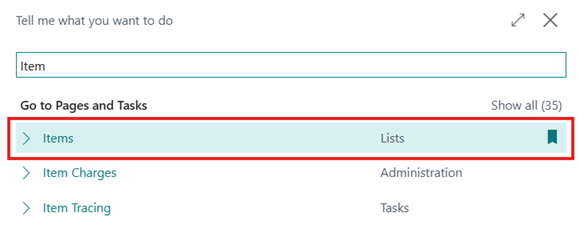
- Click on the Search icon
and Search for “Item”, and then select the related link to open the Item List page.
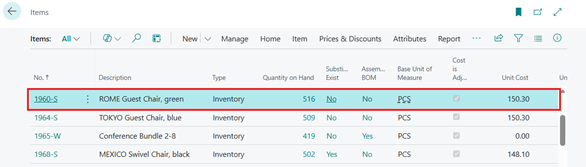
- Select the item you want to manage variants for, and open it by clicking on it.
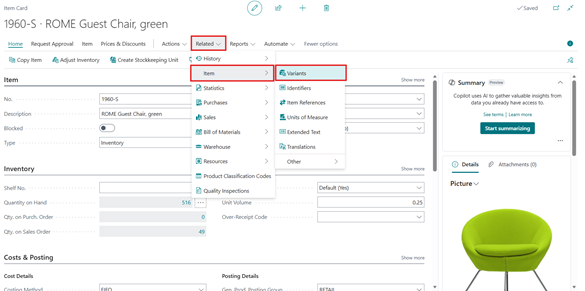
- On the Item Card, click on Related > Item > Variants to open the variants list.
- From the list of variants, select the specific variant you want to update, and open the Item Variant Card by clicking on Edit option.

- On the Item Variant Card, click on the
icon in the top-right corner, and then locate the Picture FactBox section.
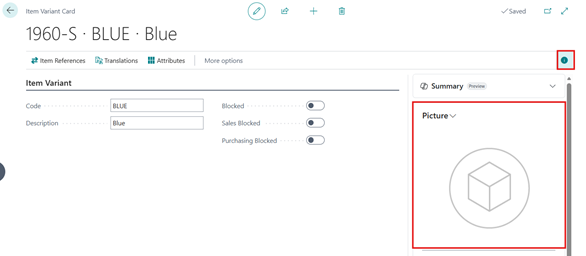
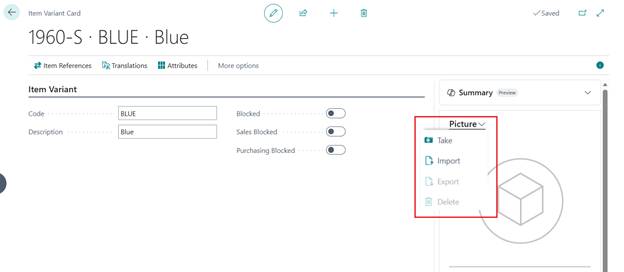
- Choose one of the following options based on your need:
- Import → Upload an image file from your device
- Take → Capture a photo using your device camera
- Delete → Remove the existing image
- Export → Save the current image to your device
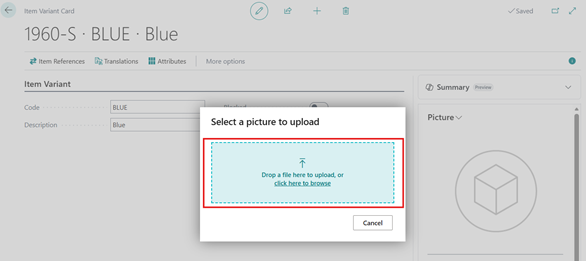
- Select the Import option and add a relevant image from your device.
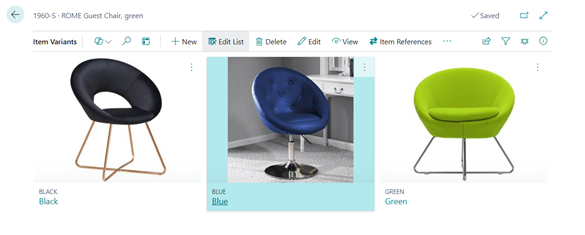
- After adding the image, make sure the picture is displayed correctly in the Picture FactBox.
- Repeat the process for other variants if needed.
Conclusion
The ability to add pictures to item variants in Microsoft Dynamics 365 Business Central is a simple yet powerful improvement. It helps users quickly differentiate between product options, reduces mistakes, and improves overall productivity. By using images along with variant details, businesses can manage inventory more effectively and provide a better experience for their teams.